How to Screen Record Amazon Prime Video Without Black Screen
If you're wondering how to record Prime Video, the first challenge is avoiding the black screen that often appears with protected content. This guide shares practical tips to troubleshoot recording issues and explores three ways to record on Amazon Prime without black screen. You'll learn which method fits your device, content type, and offline viewing needs.
Part 1. Can You Record Amazon Prime Video?
Yes, but it depends on what you want to record. Prime Video uses DRM protection, so standard screen recorders may capture a black screen instead of the movie or show. For live sports, Prime Video may offer built-in recording or replay features. For movies and TV shows, however, you'll generally need a compatible recording or download method if you want to watch them offline.
Can You Screen Record Amazon Prime Video on Smart TV?
No. Smart TVs are designed as closed platforms, and their built-in recording features generally work with broadcast TV rather than protected streaming apps like Prime Video. Even if your TV has a recording function, it typically won't let you save a Prime Video movie or show as a regular video file.
 Tips:
Tips:
Want to save Prime Video content for offline viewing without relying on the limited recording features? A dedicated solution like VidiKeep can provide a more straightforward way to save supported Prime Video content on a computer.
Part 2. How to Record Prime Video Without Black Screen
If Prime Video appears as a black screen in your recording, check a few common browser and capture settings before trying another tool. These steps can help with browser or capture-related black screens, although they cannot guarantee that DRM-protected video will be recordable.
 How to Stop Prime Video Black Screen Before Trying New Tools
Think of Spotify Offline Mode as a strict data-saving safeguard, rather than a requirement for playing downloaded tracks. For the best offline experience, download your music in advance, connect to the internet every 30 days to keep files active, and rely on Offline Backup as a fallback if you forget to prep.
- Disable browser hardware acceleration: In Chrome or Edge, turn off hardware acceleration and restart the browser. This may fix some black-screen issues when capturing browser content.
- Update your browser and graphics drivers: Make sure your browser and GPU drivers are up to date. Outdated software can sometimes cause playback or screen-capture problems.
- Check your capture setup: In OBS, try another capture source and check that OBS and your browser are using the appropriate GPU. This can help resolve some capture conflicts.
If Prime Video still appears black after these checks, the issue may be related to content protection rather than a simple recorder setting. In that situation, the dedicated recording or downloading methods discussed below may be more appropriate.
Method 1. Use a Streaming Video Recorder — Audials One (Windows)
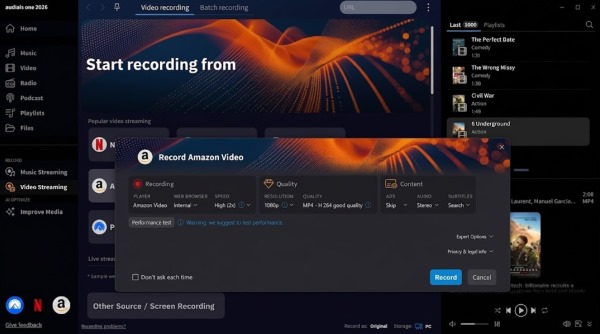
Audials One is a Windows-based streaming recorder that can record supported streaming services, including Prime Video. It records the playback through its own recording workflow rather than relying on a standard screen-capture source, which can help avoid the black-screen problem seen with some conventional recorders.
Best For: Windows users who want to automate the recording of entire TV seasons overnight.

I find Audials One highly effective when building a local media library from bulk episodes. During practical use, it allows for capturing video at accelerated speeds (often up to 2x) in the background. I was able to record a Prime movie while simultaneously working on spreadsheets, and it didn't hijack my display or interfere with my workflow at all. However, it is less attractive if you need a Mac workflow, as the software is strictly built for Windows architecture.
Step 1. Download and install Audials One on your Windows PC, then launch the program and go to the Video Streaming section. Select Amazon Prime Video from the available services and open the recording options to prepare your content.
Step 2. Choose your preferred output format, video quality, and other recording settings before starting. Open the Prime Video movie or episode you want to save, then let Audials One handle the recording process in the background.
Step 3. After the recording is complete, your saved video will appear in the Audials media library. The software can organize your recordings with relevant titles and metadata.
Method 2. Use PlayOn Cloud — Record Prime Video on Mobile
PlayOn Cloud takes a different approach from traditional mobile screen recording. Instead of capturing the Prime Video app directly from your phone's display, the recording is processed remotely and the finished recording can then be downloaded.
Best For: Mobile viewers who want to save offline copies without draining their phone's battery or keeping their screen on.
Because the actual "recording" happens on PlayOn's remote servers, you don't have to keep the Prime Video app actively playing. The main limitation to keep in mind is that you have to wait for the cloud server to finish processing the real-time recording before the final MP4 file becomes available to download.
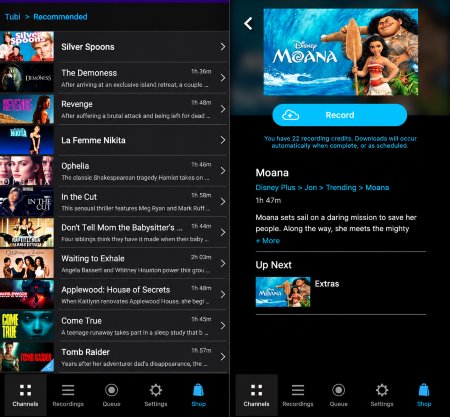
Step 1. Install the PlayOn Cloud app on your iPhone or Android device, then open the app and go to the "Channels". Select Amazon Prime Video and browse the catalog to find the movie or show you want to record.
Step 2. Choose the title and tap the Record button to start. Instead of recording your phone screen, PlayOn Cloud processes the video remotely on its cloud servers.
Step 3. Once the cloud recording is complete, open the Recordings section to access your saved video. Download the finished file to your smartphone or tablet and watch it offline whenever you want.
Method 3. Use a Prime Video Downloader — VidiKeep (Windows/Mac)
If you don't want to keep a movie playing in real time while recording, VidiKeep Streaming Video Downloader provides another workflow for saving supported Prime Video content locally. It is designed for Windows and Mac and lets you select available video, audio, and subtitle options before downloading.
Best For: Users who prioritize high original video quality, fast processing speeds, and multi-language audio tracks.
I would pick VidiKeep over standard screen capture tools when source quality and speed matter most. Since it directly extracts the source media file rather than recording a playing screen, a two-hour movie saves in a fraction of the time. It is especially useful if you want to retain specific 5.1 surround sound audio tracks or multiple subtitle languages, which standard screen recorders simply cannot capture.

- Batch convert Amazon Prime videos to MP4/MKV
- Enjoy faster Prime Video conversion at up to 8X speed
- Customize your preferred audio and subtitles for offline viewing
 Security verified. 5, 481,347 people have downloaded it.
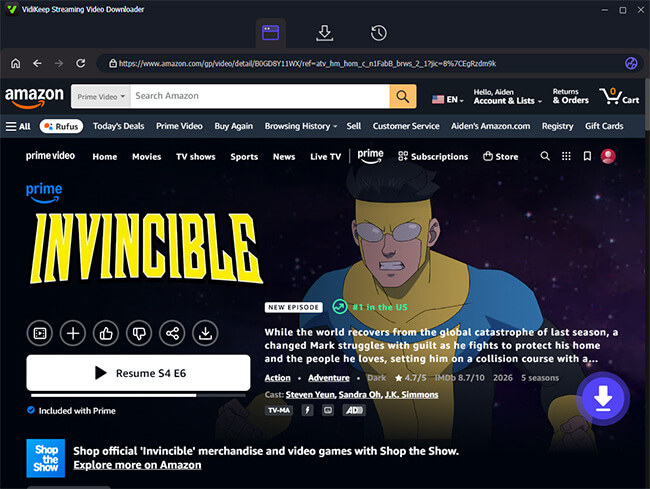
Step 1. Download and launch VidiKeep on your Windows PC or Mac, then choose the Amazon Prime Video module from the available streaming services. Unlike traditional screen recorders, VidiKeep does not rely on capturing your screen, helping avoid common black-screen issues.
Step 2. Open the built-in browser, sign in to your Prime Video account when required, and search for the movie or series you want to watch offline.
Step 3. Choose your preferred output format (MP4 or MKV), video quality, audio tracks, and subtitle options. Adjusting these settings before downloading helps you keep the viewing experience you want.
Step 4. Click the Download button to rip the chosen Prime Video content. Once finished, you can access the saved video locally and play it on compatible devices without the black-screen problem commonly found with screen recording tools.
Part 3. Compare the Prime Video Recording Methods
| Feature | Audials One | PlayOn Cloud | VidiKeep |
|---|---|---|---|
| Platform | Windows | iOS / Android | Windows / Mac |
| Recording Method | Advanced internal screen capture | Cloud-based remote DVR | Direct stream extraction |
| Active Device Requirement | Computer must be on | Can record with phone screen off | Computer must be on |
| Batch Processing | Yes (Automated queue) | Yes (Cloud queue) | Yes (Multiple downloads) |
| Output Format | MP4, MKV, AVI, etc. | MP4 | MP4, MKV |
Part 4. Bonus tips: How to Record Live Sports on Prime Video
If you're looking to record a live event rather than a movie or TV show, the process is much simpler. Prime Video offers a built-in recording feature for certain live sports, so you don't need a third-party screen recorder for supported events.
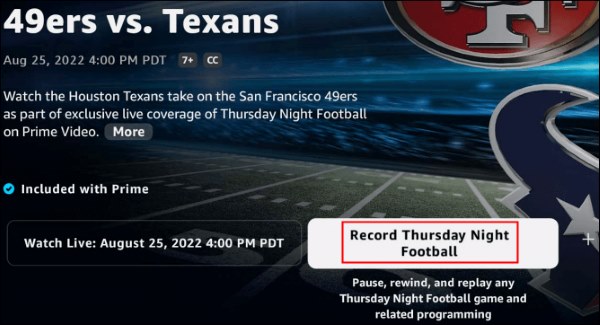
For example, if you're wondering how to record Thursday Night Football on Amazon Prime, you can enable recording directly from the event page. The same approach may apply to other supported live sports, although the available recording options can vary by event.
How to Record Thursday Night Football on Amazon Prime:
Step 1. Open the Prime Video app or website and go to the Thursday Night Football event page before or during the game.
Step 2. Select “Record Thursday Night Football” or “Add to Watchlist and Record” if the option is available.
Step 3. Once enabled, the recording option confirms that your account is set to save the eligible broadcasts. You can then return to the event or your saved content to watch the replay after the game.
Part 5. Conclusion
Whether you want to record Amazon Prime Video to build a local media library or just save a football game to watch after work, the solutions vary based on the content type. If you need to capture a movie or a TV show, you will have to deal with DRM. Disabling your browser's hardware acceleration is a good free troubleshooting step, but dedicated tools like VidiKeep, PlayOn Cloud, or Audials One remain the most dependable ways to record Prime Video without a black screen.

Jordan Rhodes is a Chief Technical Editor and Media Specialist at VidiKeep, specializing in creating diverse tech content, including streaming tutorials, software reviews, and video encoding tips.
Leave a Comment