Amazon Prime Subtitles: Turn On, Off & Fix Issues
Settling in for a movie night should feel effortless, but issues with Amazon Prime subtitles can turn a relaxing experience into a frustrating one. This guide shows you how to enable subtitles on Amazon Prime across different devices, offers solutions for the most common caption problems, and introduces an advanced way to download and manage your preferred subtitle tracks for a smoother viewing experience.
Part 1. How to Turn On/Off Subtitles on Amazon Prime Video
To ensure you never miss important dialogue in any scene, learning how to enable subtitles on Amazon Prime is essential. Amazon offers built-in subtitle controls, but their location can vary depending on whether you're using a desktop browser or a smart TV. Below is a simple guide on how to turn subtitles on or off in the most common scenarios.
How to Get Subtitles on Amazon Prime via Web Browser
If you are watching on a laptop or desktop computer, controlling your captions only takes a few clicks. Once activated, it is easy to tweak your subtitles options on the web player Prime Video interface.
Step 1. Open your preferred browser and start playing a movie or TV show from your Amazon Prime Video library. Hover your mouse over the screen to reveal the playback controls and menu bar. Then click the "Subtitles and Audio" icon located in the top-right corner of the player.
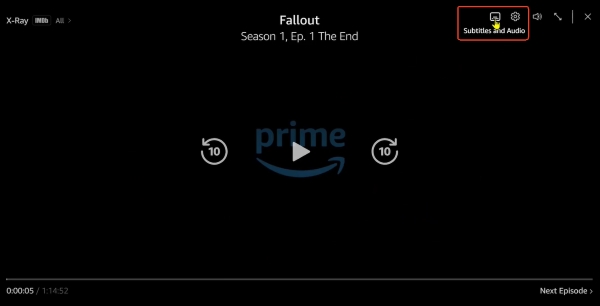
Step 2. Select your preferred language from the "Subtitles" list to turn subtitles on, or choose "Off" to disable them. You can also switch the audio language for Prime Video content in the "Audio" menu.
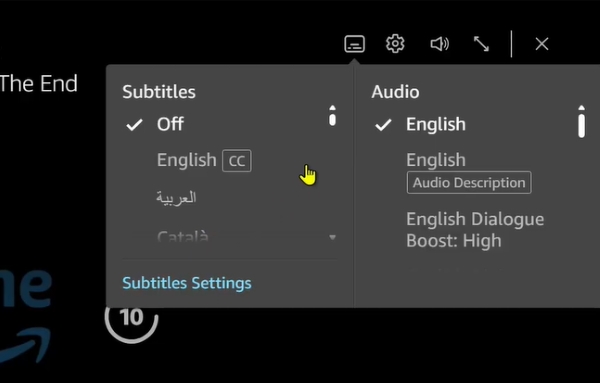
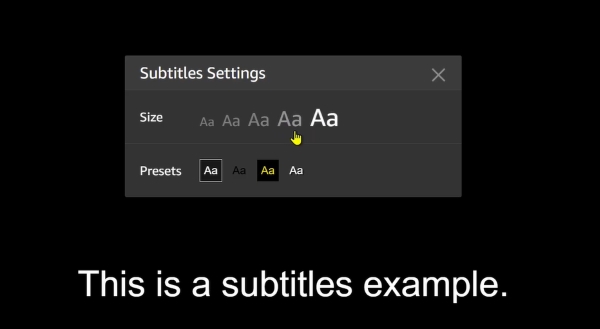
Step 3. Go to "Subtitles Settings" to adjust subtitle appearance. It provides with four different visual presets for Amazon Prime subtitles, allowing you to change the text size or style to fit your preference.
How to Turn On Subtitles on Amazon Prime Smart TV
Navigating menus on a television requires relying on your remote control, which can feel slightly different depending on your specific device. While Prime Video on platforms like Fire TV or Samsung TVs share a similar structural navigation flow.
Step 1. Launch the Prime Video app and start playing the title you want to watch. Use the up or down directional button on your remote to bring up the on-screen playback controls.
Step 2. Navigate to the right side of the menu and highlight the "Subtitles (CC)" icon, then press the OK/Select button on your remote.

Step 3. Select your preferred subtitle language to enable subtitles. In this menu, you can also customize subtitle appearance on Prime Video such as text size, style depending on your device support.
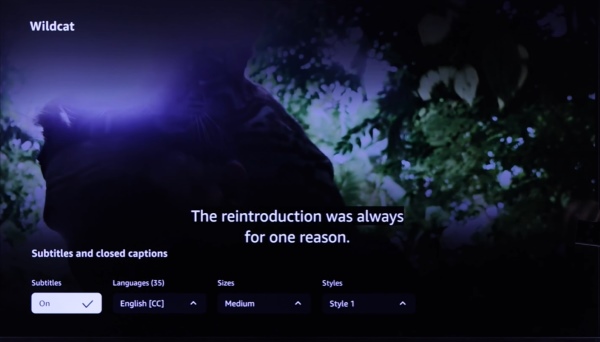
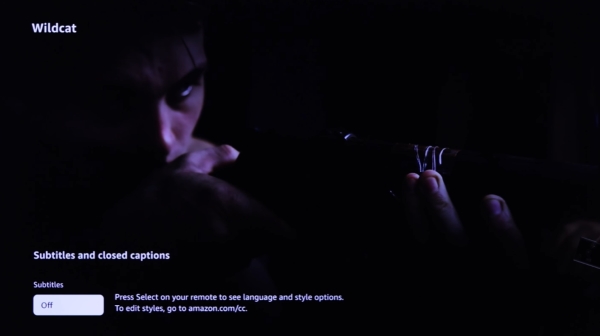
Step 4. If you decide you no longer want the text on your screen, simply return to this exact menu and select the "Off" option.
Part 2. Fix Amazon Prime Subtitles Not Working
Even when you follow the correct procedures, subtitles issue can occasionally interrupt your viewing session. If you find your Prime Video subtitles not working properly, here are the most effective solutions for the most common bugs.
 Save Prime Video with Subtitles for Offline Viewing:
If Prime Video subtitles still do not work properly, and you need to watch videos with subtitles on different devices offline, VidiKeep Amazon Video Downloader can help save Prime Video content with selected subtitles and audio tracks while maintaining the original quality.
Missing Subtitles on Amazon Prime Video
Sometimes you might open the caption menu and find an empty subtitle list. In some cases, this means the studio didn't provide subtitles for that title. However, users on Reddit and Amazon forums also report that the Prime Video app can occasionally fail to load subtitle tracks properly at launch.
A common workaround is to first start playing the movie or show, even if no subtitles appear at all. Let the video begin briefly, then pause it to reset the playback session. After that, exit back to the title's main details page and wait a few seconds before clicking "Resume" to restart playback.
Once the video reloads, pause it again and check the top-right corner for the "CC" or speech bubble icon. In many cases, this simple refresh often forces Prime Video to re-fetch the subtitle tracks, making the language options visible again in the menu.
Amazon Prime Subtitles Out of Sync
If your Amazon Prime Video subtitles are out of sync, the streaming player is likely having trouble matching the subtitle file with the audio and video tracks. This is usually a temporary playback glitch, and you can usually bring everything back into alignment with a few simple actions.
Step 1. Pause the video for about 10–15 seconds, then resume playback. This short pause gives the player a chance to re-sync the subtitle timing with the current stream position.
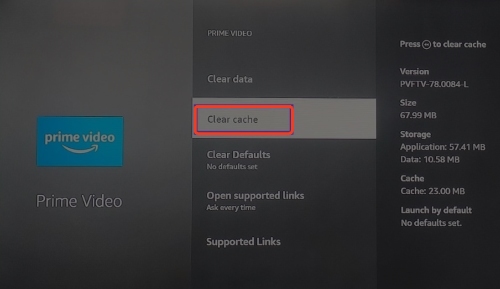
Step 2. Fully close the Prime Video app, then reopen it and restart the content. If you're on a Smart TV or mobile device, clearing the app cache or restarting the device can further improve subtitle timing stability.
 Tips:
Tips:
If the subtitles are still misaligned after these steps, the issue is likely with the subtitle file provided for that specific title, and you may need to switch to another subtitle language track if available or wait for Amazon to update the stream.
Amazon Prime No Subtitles for Foreign Language Scenes
You may sometimes notice that in an English-language movie, foreign dialogue appears with no on-screen translation. This is a known issue on some streaming platforms, where "forced subtitles" don't always display correctly.
A simple workaround is to check whether your main English subtitle track is actually overriding the built-in forced captions. In many cases, turning off the standard English subtitles allows the embedded translations to appear as intended during those scenes.
If that doesn't resolve the issue, try switching subtitle tracks manually. Select a different language option or choose the "English [CC]" version from the subtitle menu in the Prime Video overlay, as some titles separate forced subtitles from full closed captions.
Part 3. Bonus Tip: Download Prime Videos with Custom SRT Subtitles
If you are tired of struggling with the official Amazon Prime Video application, a dedicated third-party tool is essential. Visiting the VidiKeep Streaming Video Downloader website introduces you to a powerful video downloader designed to bypass streaming limitations. This software provides total control over your media files and caption tracks for permanent offline playback. It easily solves common glitches like out-of-sync text or missing translations.
- Export Subtitles as Independent Files: Save original Amazon Prime Video caption tracks as independent .SRT files for flexible external playback on any media player app.
- Embed Subtitles into Video Files: Embed subtitles directly into your downloaded MP4 or MKV Prime Video file for a seamless offline local viewing experience.
- Preserve Audio & Video Sync: Retain stunning 1080P visuals and immersive audio from Prime Video, guaranteeing your downloaded media maintains perfect alignment with the text.
How to Get and Extract Subtitles from Amazon Prime Video
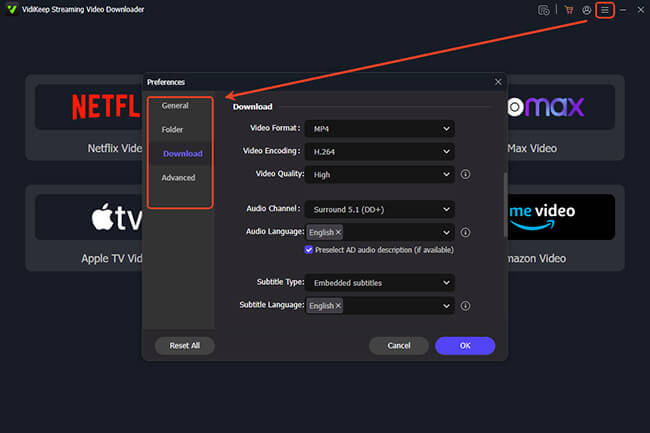
Step 1. Launch the VidiKeep application and navigate to the "Preference" menu, then select "Download" to establish your baseline settings. This is where you gain full control over how your media is saved, allowing you to save Prime Video content as compatible MP4 or MKV formats. You can also pre-select your preferred audio channels, text languages, and exactly how you want the Amazon Prime Video subtitles handled.
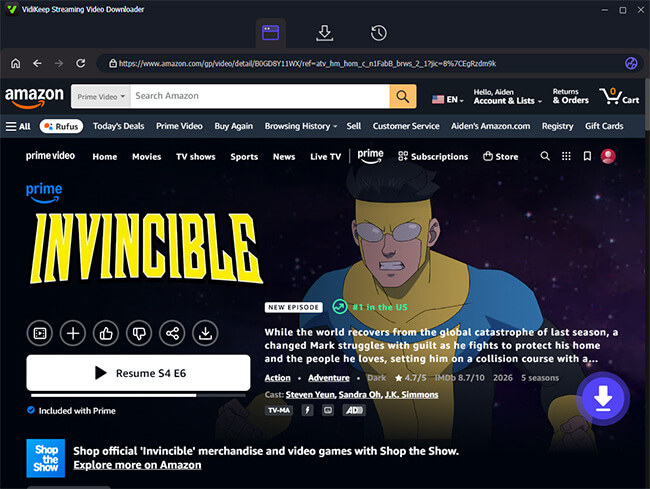
Step 2. Click on the Amazon Video icon to open VidiKeep's built-in web browser. Log in to your Amazon account to access your full streaming library. As you browse for your favorite movies or TV shows, you'll notice a floating purple "Download" button located on the right side of the media page.
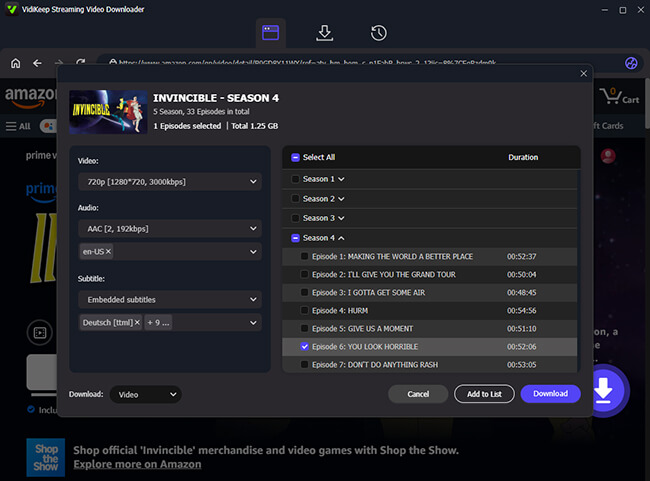
Step 3. Click that download button to trigger a final customization window before the process begins. Here, you can fine-tune the visual resolution, select specific audio tracks, and verify your Amazon Prime subtitles language options for the selected title. If you are grabbing a television series, use the "Add to List" feature to batch-select entire seasons at once. Once your settings are locked in, hit "Download" to begin the conversion.
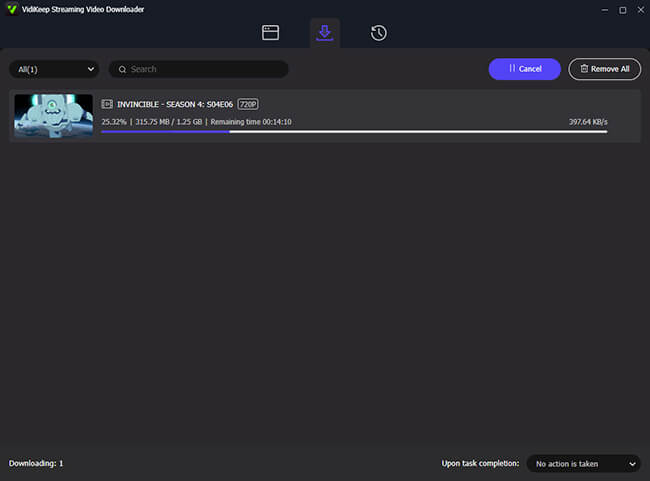
Step 4. Keep an eye on the top status bar to monitor the real-time progress of your current queue. Once the process wraps up, simply navigate to the "History" tab to find all your saved media files. Your downloaded Prime videos are now permanently stored on your local drive with perfectly synced subtitles.
Part 4. FAQs About Amazon Prime Video Subtitles
Do downloaded Prime videos keep their subtitles?
Yes. When you download Amazon Prime movies or shows to your device for offline viewing, the subtitle files are downloaded alongside the video data. You can freely toggle them on and off while completely disconnected from the internet.
Do my customized subtitle settings from Amazon Prime carry over to all my devices?
Generally, yes. Because your visual preferences (like font size and color) are tied to your Amazon account, they should sync across most modern devices like your smartphone, PC, and smart TV. However, certain streaming sticks may ignore these account settings and force you to use their own system-level text formatting.
Can you move subtitles on Amazon Prime?
No, the Amazon Prime Video player does not currently allow users to drag or reposition the subtitles on the screen. The text is permanently anchored to the bottom center of the video player.

Jordan Rhodes is a Chief Technical Editor and Media Specialist at VidiKeep, specializing in creating diverse tech content, including streaming tutorials, software reviews, and video encoding tips.
Leave a Comment