How to Rip Movies from Netflix: Tech Realities & Ways
Ripping movies from Netflix can offer more control over your viewing experience. It allows you to watch Netflix movies without an internet connection on any device and keep a permanent personal media library. However, the reality of ripping from Netflix is more complicated than downloading a normal video file. This guide explains the mechanics behind Netflix rippers, the limitations of various methods, how third-party solutions compare to Netflix's official offline viewing feature, and the complete guides.
 Quick Navigation:
You can quickly decide by choosing the right Netflix ripping method, which comes down to balancing speed, quality, and technical setup:
- Choose a Dedicated Downloader (e.g., VidiKeep) if you want the fastest, highest-quality output in 1080p with minimal effort.
- Choose Streaming Capture Software (e.g., Audials) if you want a reliable middle ground that works across multiple streaming services without directly breaking encryption keys.
- Choose Screen Recording (e.g., OBS Studio) if you want a completely free solution and don't mind manual setup, real-time recording times, and potential CPU strain.
Can You Rip Movies from Netflix?
Officially, no. Netflix does not provide a built-in feature to rip and export its movies and TV shows into common video formats like MP4 or MKV. However, with the help of third-party tools, commonly known as Netflix rippers, it is possible. It generally refers to specialized software designed to capture, record, or decrypt Netflix playback, ultimately saving it as a local video file on your hard drive.
Why Are Netflix Rippers Necessary?
While the official Netflix app offers offline viewing, it is heavily restricted by digital rights management (DRM) and platform constraints that can severely impact the user experience:
- No Desktop Support: There is currently no official download feature available for desktop users, limiting offline viewing entirely to mobile devices or tablets.
- Strict Download Caps: Users are bound by strict Netflix download limits, such as the 15-download monthly ceiling per device that currently affects both premium and ad-supported tiers. If you hit this limit while preparing for a long trip, you are entirely locked out of saving new content until the calendar month resets.
- Rapid Expiration: Content expiration is a major pain point for frequent travelers. Depending on specific licensing agreements, many downloaded titles expire a mere 48 hours after you first press play.
- Always-On Verification: To keep your Netflix downloads active, your device must periodically connect to the internet to verify your subscription status. This constant "check-in" requirement makes long-term, true offline archiving impossible through official channels.
- Playback Limit: You cannot simply locate the downloaded file on your device and move it to a USB drive or a different media player. The files are locked deep within the app's hidden folders and encrypted in a proprietary format.
A Netflix ripper can save your Netflix videos as local video files encoded in MP4 or MKV. Based on this situation, you can view your movies and TV shows anywhere without any problem.
 Disclaimer:
Always remember that while ripping content for personal offline viewing may solve convenience issues, bypassing DRM violates Netflix's Terms of Service and may breach copyright laws in your region. Always use these tools responsibly and strictly for personal media archiving.
Netflix Offline Downloads vs Netflix Rippers: What Is the Difference?
| Feature | Netflix Official Downloads | Netflix Rippers |
|---|---|---|
| Playback method | Netflix app | External media player or recording software |
| File access | Restricted | Unlimited |
| Device flexibility | Limited | Unlimited |
| Video quality | Controlled by Netflix | Depends on tool or recording method |
| Long-term storage | Limited by Netflix rules | Unlimited |
| Reliability | High | Can change frequently |
How to Rip Netflix Movies via Netflix Video Downloaders
Dedicated Netflix video downloaders, such as VidiKeep, offer the most direct, efficient, and technically advanced approach. Instead of merely recording your screen, these tools interface directly with Netflix's servers to access and download the encrypted video payload.
By bypassing the real-time playback requirement entirely, these tools can process the video and export a clean, standard MP4 or MKV file. Because they pull the source file directly, a two-hour movie can often be saved in just a few minutes, depending on your internet speed.
How to Use VidiKeep to Download Netflix Movies:
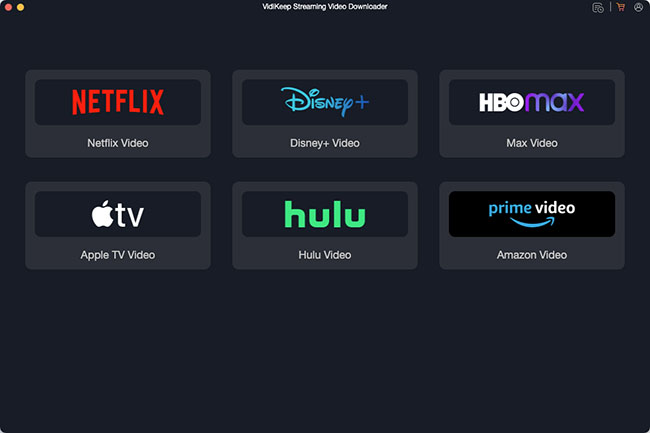
Step 1. Download and install VidiKeep on your computer. Launch the software, tap the Netflix icon and log in to your Netflix account using the tool's built-in web browser.
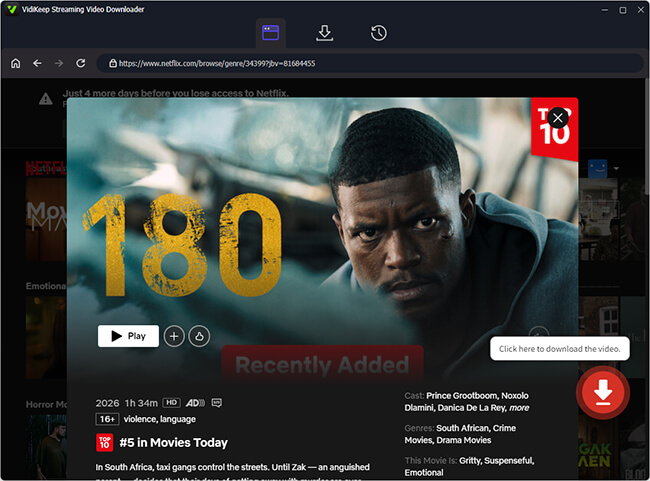
Step 2. Use the search bar within the built-in Netflix Web Player to find the specific movie or TV show you want to download. Open the item and tap the Download icon to select favorite series.
Step 3. Before downloading, you can choose your preferred output format (MP4 or MKV), video quality, and desired audio/subtitle languages.
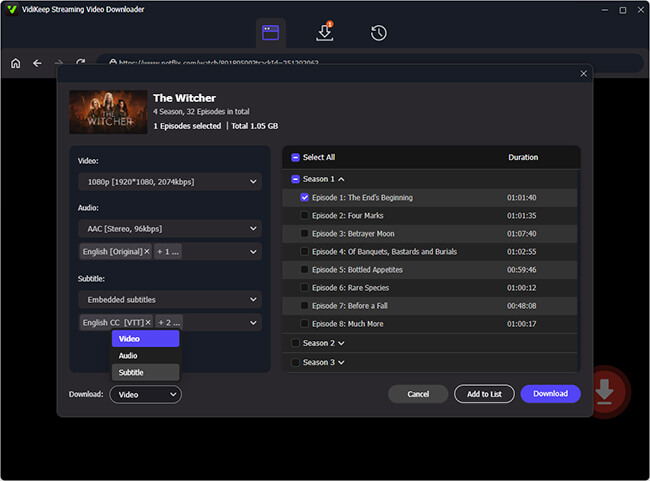
Step 4. Click the Download button at the bottom-right corner. The software will process the file in the background and save it directly to your local drive.
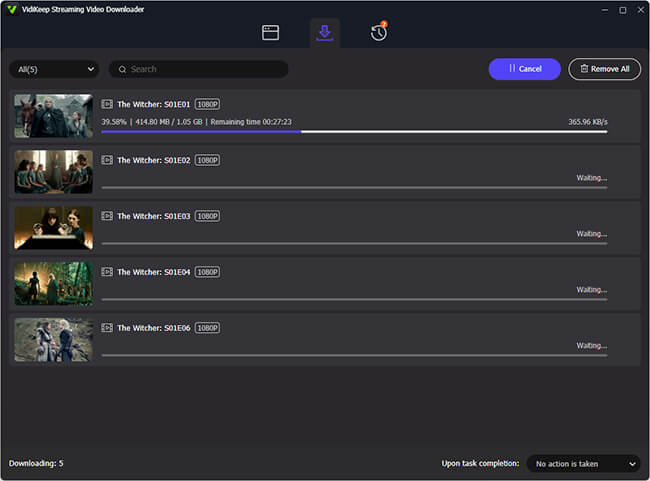 VidiKeep Free Trial Version Limitation:
The free trial of VidiKeep gives you full access to all software features, but restricts each video download to the first 5 minutes. To remove this length limit and download full-length movies or TV shows, you will need to upgrade to the full version.
How to Rip Netflix Videos via Streaming Capture Software
Streaming capture software, such as Audials, operates a step above basic screen recorders. Rather than relying on simple visual capture, these tools utilize specialized drivers to record the unencrypted output directly from your system's graphics card, often utilizing dedicated "black screen fix" modes.
This method is widely considered legally safer because it functions similarly to recording a show on an old VCR for private viewing. It does not actively break DRM encryption; it simply records the output stream. The primary drawback, however, is that you are recommended to play the entire movie in real-time. This makes it a time-consuming process if you plan to archive multiple episodes or the entire season. Although there is a speed-up recording option, it is only recommended on powerful PCs.
How to Use Audials to Capture Netflix Movies:
Step 1. Install and launch Audials, then navigate to the "Video Streaming" and choose "Netflix" specific recording module.
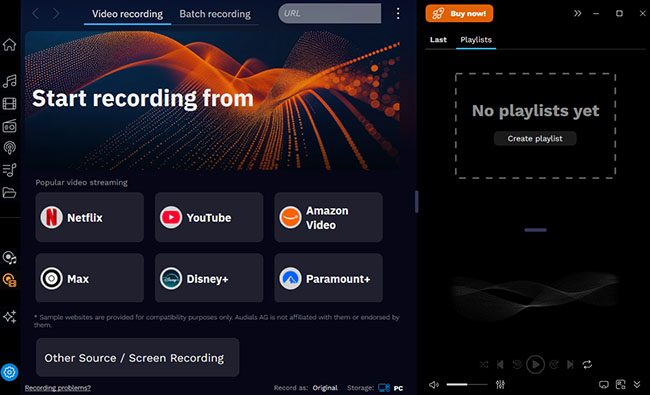
Step 2. Choose your recording settings within Audials, ensuring the output format is set to MP4.
Step 3. Click the Record in Audials, it will automatically open the Netflix website in your standard web browser (like Chrome or Edge).
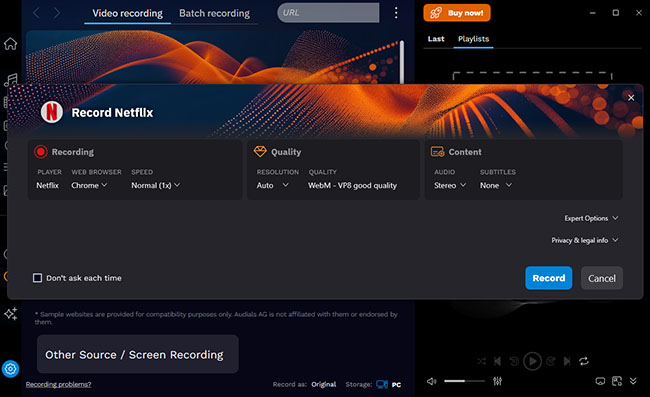
Step 4. Navigate to the Netflix movie you wish to capture and then immediately start playing the movie on Netflix. Audials will automatically detect the video stream and begin capturing it.
Step 5. Allow the movie to play to the end. Once finished, stop the recording, and Audials will automatically process and save the MP4 file to your library.
Audials Trial Version Limitation:
Please note that the free version of Audials only allows you to record up to 10 minutes per video. To record full-length movies, perform unlimited conversions, and unlock all advanced features, you will need to upgrade to the full version.
How to Rip Movies from Netflix via Screen Recording Software
Standard screen recording involves using versatile software like OBS Studio to capture whatever is currently displayed on your monitor. However, due to hardware-level DRM (such as HDCP), attempting to record a Netflix stream out-of-the-box usually results in a completely black screen with only the audio playing.
To bypass this black screen, users must disable hardware acceleration in their web browser. This forces the computer's CPU to process the video instead of the secure graphics card, allowing the screen recorder to "see" the image. While this method is completely free, it is highly resource-intensive and often results in dropped frames, audio sync issues, or lower video resolution due to the heavy strain placed on the CPU.
How to Use OBS Studio to Record Netflix Movies:
Step 1. Disable Hardware Acceleration. Open your web browser's settings (e.g., in Chrome, go to Settings > System) and toggle off Use graphics acceleration when available. Restart your browser.
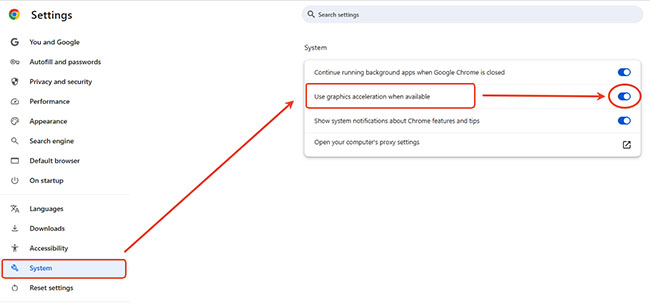
Step 2. Open the Netflix web player in the newly restarted browser and cue up your movie.
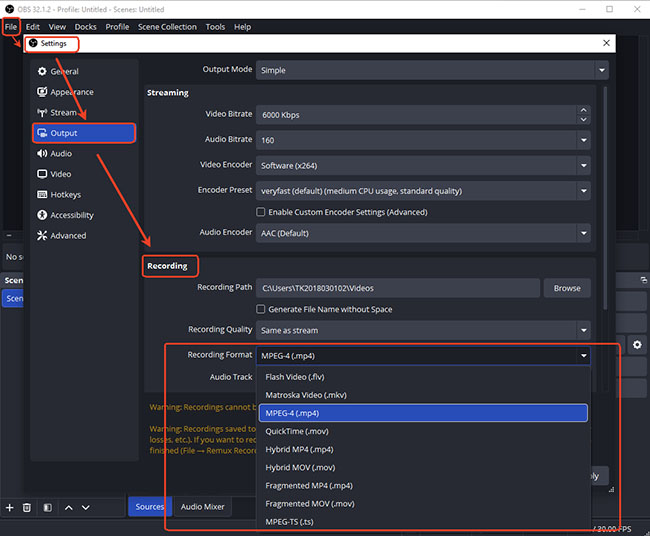
Step 3. Launch OBS Studio and click the File > Settings > Output option to customize the Netflix ripping video parameters. Ensure your audio settings under Audio section in OBS are set to capture Desktop Audio so the movie's sound is recorded.
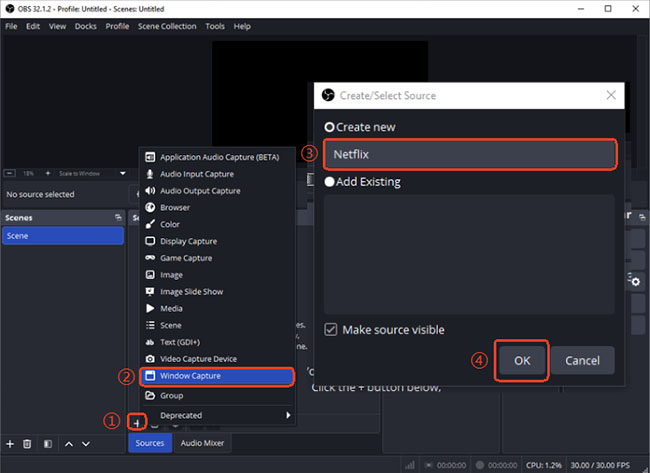
Step 4. Under the Sources box, click the + icon and select Window Capture. You can name the source as Netflix and confirm it.
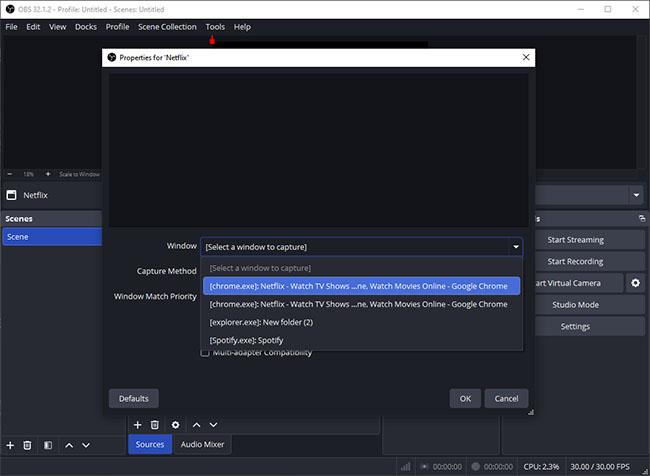
Step 5. In the Properties window, you can select your browser window containing Netflix as the capturing source from the Window dropdown menu.
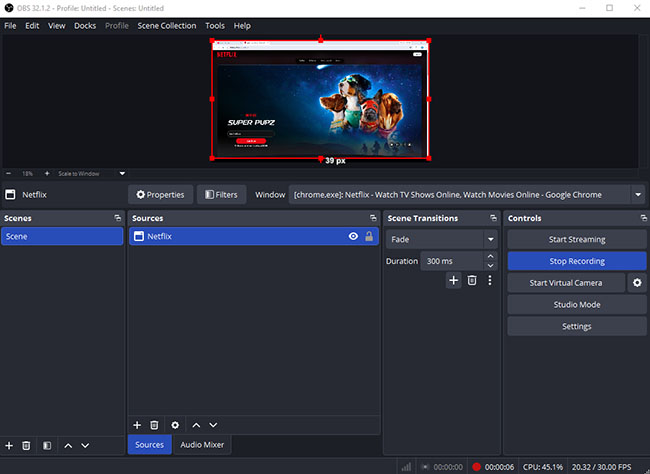
Step 6. Click Start Recording in OBS Studio, then hit play on your Netflix video. Enter full-screen mode for the best results. Once the movie concludes, press Stop Recording in OBS. The MP4 file will be saved to your designated output folder.
Comparison: Best Ways to Rip Netflix Movies (Real-World Testing Results)
Choosing the right Netflix video ripper is not only about whether a tool can save a movie. In real-world use, factors such as output quality, processing speed, reliability, and technical limitations matter just as much.
To better understand how different approaches perform today, we tested three common Netflix movie saving methods on a Windows 11 desktop environment:
Testing Environment:
- Operating System: Windows 11 Pro (24H2)
- Hardware: Intel Core i7 processor, 32GB RAM, NVIDIA RTX-series GPU
- Internet Connection: 300 Mbps fiber broadband
- Netflix Content: Standard 1080p movie playback
- Goal: Evaluate output quality, processing time, and overall user experience
Method 1: VidiKeep — Fastest Workflow and Best File Output
The dedicated VidiKeep Netflix video downloader provided the most streamlined experience during testing. After entering the Netflix video information, the software was able to analyze the content and process the download. The resulting video file was saved as a standard MP4 format with 1080p quality.
VidiKeep's Test Results:
- Video quality: 1080p output
- Processing time: Approximately 8 minutes for a standard movie
- Output format: MP4
- User experience: Minimal setup required
For users who prioritize having a local video file with consistent quality, this type of tool provides the most convenient workflow.
Method 2: Audials — More Flexible but Less Predictable
Audials take a different approach by recording or processing playback rather than directly saving a video file. During testing with Audials, the process was more dependent on system performance and playback conditions.
Audials' Test Results:
- Video quality: Good, depending on settings and system performance
- Processing speed: Faster than traditional real-time recording in some scenarios
- Setup difficulty: Moderate
- Potential issues: Playback interruptions, longer processing times, quality differences
This method can be useful for users who need broader recording capabilities across different streaming platforms. However, results may vary depending on browser settings, graphics hardware, and platform updates.
Method 3: OBS Studio — Free but Requires More Technical Adjustment
OBS Studio is one of the most popular free screen recording tools, but recording protected streaming content can be challenging. In our initial test, recording Netflix playback with default OBS settings resulted in a black screen.
After adjusting browser hardware acceleration settings, the video display appeared during recording. However, the recording showed noticeable frame drops and inconsistent smoothness compared with normal playback.
OBS' Test Results:
- Video quality: Variable
- Processing speed: Real-time (a two-hour movie requires approximately two hours of recording)
- Setup difficulty: Higher
- Common limitations: Frame drops, synchronization issues, manual monitoring
OBS remains a powerful general-purpose recorder, but it is not designed specifically for creating high-quality offline copies of streaming movies.
Netflix Movie Ripper Comparison: Real-World Performance
| Method | Output Quality | Processing Speed | Difficulty Level | Best For |
|---|---|---|---|---|
| Dedicated Netflix Video Downloader (VidiKeep) | High (1080p or higher depending on support) | Fast (around 5–10 minutes in testing scenarios) | Easy | Users who want a local video file with minimal effort |
| Streaming Capture Software (Audials) | Good (depends on settings and hardware) | Medium to fast depending on workflow | Moderate | Users who need flexible recording capabilities |
| Screen Recording (OBS) | Variable (may experience quality loss or frame issues) | Real-time (1:1 playback speed) | Advanced | Users looking for free recording solutions |
FAQs About Netflix Movie Rippers
Can Netflix movies be downloaded permanently?
Through the official app, downloads are temporary and will eventually expire. Using a third-party Netflix ripper or downloader allows you to save the video as a permanent MP4 or MKV file that does not expire.
Are Netflix rippers safe to use?
Reputable software from known developers is generally safe from malware. However, using these tools violates Netflix's Terms of Service, meaning there is always a small risk that your streaming account could be flagged or suspended.
Is using a Netflix movie ripper legal?
The legality of Netflix rippers depends on the method used, but bypassing DRM encryption to extract videos violates anti-circumvention laws like the DMCA and is illegal in most regions. Real-time screen recording occupies a legal gray area often argued as personal fair use, though distributing, uploading, or selling any ripped content is strictly unlawful copyright infringement.
Why does Netflix show a black screen when recording?
Netflix uses hardware-level DRM protection and hardware acceleration to encrypt the video stream as it travels to your monitor. This prevents unauthorized screen recording software from seeing the video frames, resulting in a black screen with only audio playing.
Can Netflix videos be saved as MP4?
The official app cannot export MP4 files. You must use a dedicated third-party Netflix video downloader or screen capture software to convert and save the streaming content into a standard MP4 format.
What is the difference between a Netflix downloader and a Netflix ripper?
A Netflix downloader usually refers to software that attempts to save streaming content locally, while a Netflix ripper is a broader term that may include recording or extraction methods.
In Conclusion
Ultimately, the decision to rip movies from Netflix comes down to your specific offline viewing needs. For the average viewer who occasionally travels or commutes, the official Netflix download feature is more than sufficient. It is free, entirely safe, and guarantees high-quality playback on mobile devices without any legal or account risks.
However, if you frequently travel to remote areas without internet, need to archive titles before they leave the platform, or want to watch content on a device that does not support the Netflix app, a reliable Netflix ripper offers unparalleled flexibility.

Jordan Rhodes is a Chief Technical Editor and Media Specialist at VidiKeep, specializing in creating diverse tech content, including streaming tutorials, software reviews, and video encoding tips.
Leave a Comment