How to Play Netflix on VLC: What Works and What Doesn't
Can VLC play Netflix directly? No. VLC Media Player cannot sign in to Netflix, turn a Netflix watch-page URL into a playable network stream, or open downloads created by the Netflix app. VLC can play ordinary local video files in compatible formats, but those files are separate from Netflix's official streaming and download system.
| Method | Does it work? | Reason |
|---|---|---|
| Sign in to Netflix through VLC | No | VLC has no official Netflix account integration |
| Paste a Netflix URL into Open Network Stream | No | The URL opens a protected webpage, not a direct video stream |
| Open an official Netflix download | No | Downloads are managed and protected by the Netflix app |
| Play a compatible local MP4 or MKV file | Yes | VLC supports standard local media files and codecs |
Fortunately, there is still a way to watch Netflix on VLC Player once you prepare Netflix videos as compatible local videos. This guide breaks down exactly why this happens and provides the operational workarounds to stream Netflix through VLC.
Why You Can't Watch Netflix on VLC Media Player Directly
The problem is not simply an unsupported file format or a missing codec. Netflix playback depends on account verification and Digital Rights Management licensing, while VLC is designed to play accessible media files and open network streams.
Netflix URLs Are Webpage Addresses
A Netflix movie or episode URL points to a watch page that starts a protected playback session in an authorized browser or app. It is not a direct link to an unrestricted MP4, MKV, or video stream.
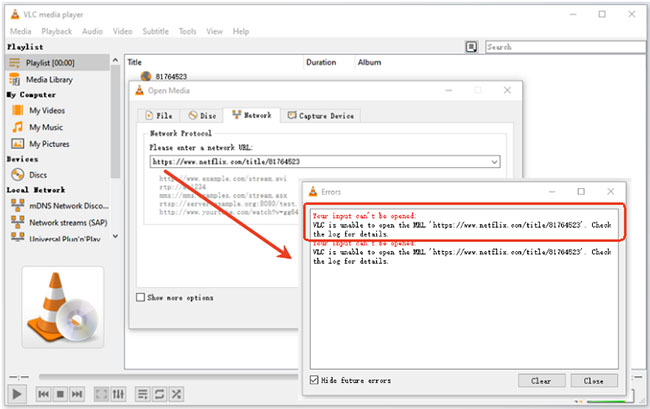
In our test, pasting a Netflix watch-page URL into VLC's Media > Open Network Stream dialog did not start playback. VLC returned an input error because the watch-page address is not a direct media stream. Updating VLC or installing additional codecs will not change this limitation.
Official Downloads Are App-Managed Offline Titles
Videos downloaded through the Netflix app are not stored as ordinary portable media files. They remain protected and are managed by the Netflix app, the user's account, the supported device, and the title's offline-viewing license.
Renaming the downloaded data or moving it to another folder does not convert it into a VLC-compatible file. Official Netflix downloads must therefore be played from the Netflix app on the device where they were downloaded.
How to Prepare a VLC-Compatible Local Netflix Video File
To play Netflix on VLC Player, you need a standard, DRM-free media file. VLC easily plays common containers like MP4 and MKV paired with standard H.264 video and AAC audio. However, you cannot get these files by digging into your device's hidden folders and renaming official Netflix app downloads.
In this case, the practical workaround involves using a dedicated third-party Netflix video downloader, such as VidiKeep Netflix Video Downloader. It provides a custom browser interface that allows you to process the Netflix stream and save videos in MP4 or MKV directly to your hard drive.
Convert Netflix Videos to MP4/MKV for VLC Playback
Step 1. Install VidiKeep Netflix Video Downloader on your computer, launch the application, and click the Netflix icon to log in to your active Netflix account through its built-in web interface.
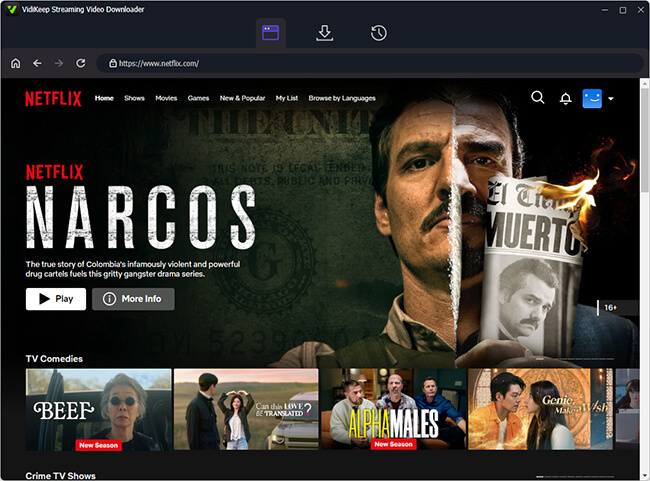
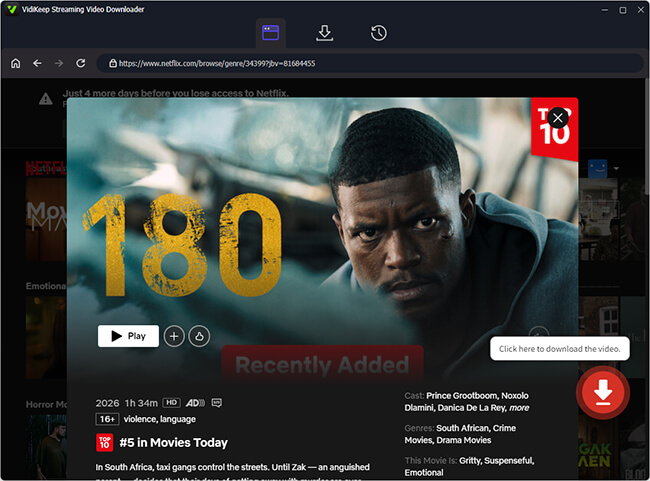
Step 2. Locate your desired movie or TV show by typing its name into the search bar within the integrated Web Player, or by pasting the exact URL from your web browser. Then, you can click the Download icon to load them to the download queue.
Step 3. Here, you can adjust your output settings to suit VLC playback. Choosing MP4 often provides the broadest compatibility, while MKV can be a great choice if you wish to preserve multiple language and external subtitle tracks.
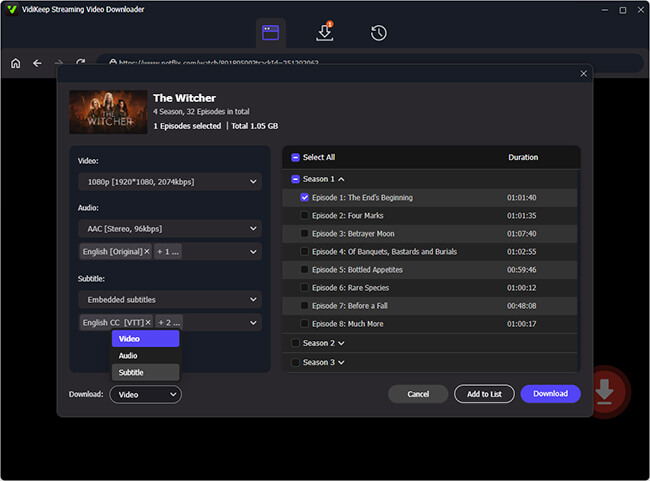
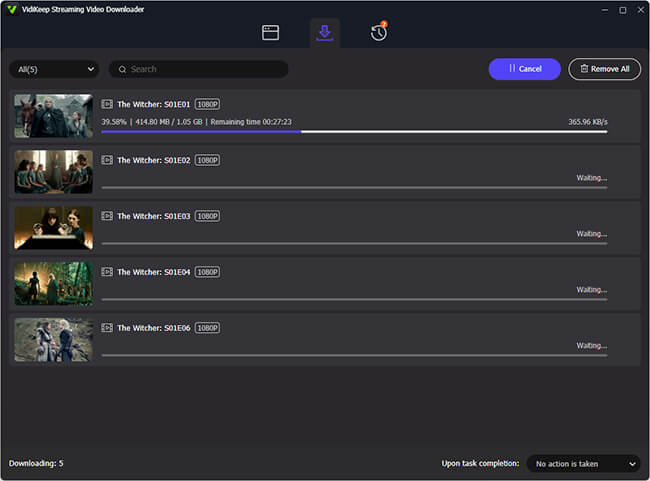
Step 4. Click the Download button to process and save the Netflix video file to your local drive. Once the download finishes, you have a local file that you can drag and drop straight into VLC Media Player.
Official Netflix Offline Titles vs. Standard Local Video Files
| Feature | Official Netflix offline title | Standard local video file |
|---|---|---|
| Playback application | Netflix app | VLC or another compatible player |
| File format | App-managed protected data | May be MP4, MKV, or another container |
| Availability period | May expire or become unavailable | Depends on the file source and usage rights |
| Account requirement | Netflix account and eligible plan | Depends on how the file was obtained |
| Moving between devices | Restricted | Technically possible if the file and rights permit it |
| Subtitles | Managed by Netflix | Embedded or external subtitles may be supported |
How to Play Local Netflix Files in VLC Media Player
Once you have compatible MP4 or MKV Netflix files, opening them in VLC is straightforward. Here are three ways to open a compatible local video file in VLC Media Player.
Method 1: Open the Video Through the VLC Media Menu
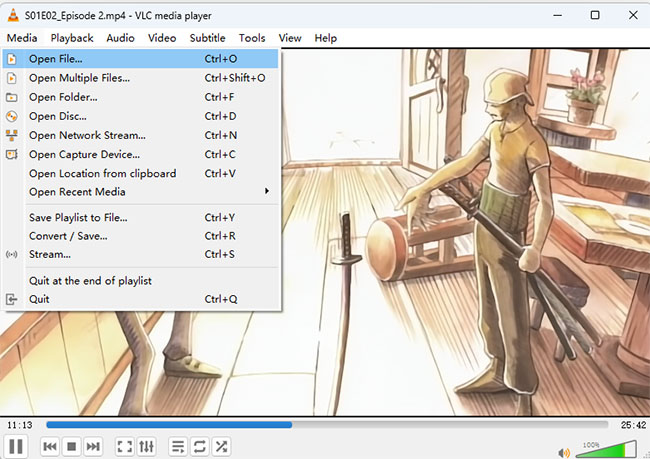
Step 1. Launch VLC Media Player and select Media from the top menu.
Step 2. Click Open File to browse to the video on your computer.
Step 3. Select the file and click Open. VLC should begin offline Netflix playback automatically.
Method 2: Drag and Drop the Video Into VLC
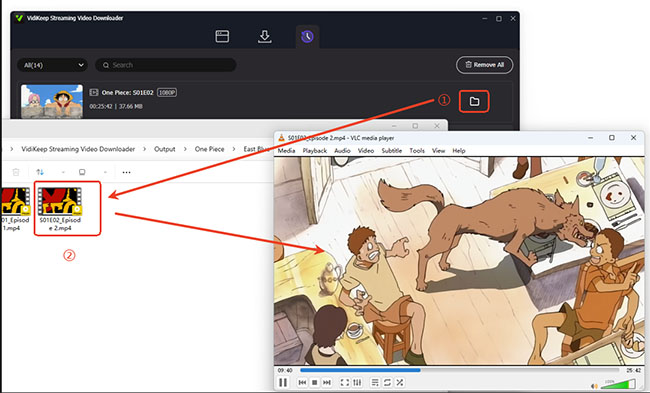
This is often the fastest method when you already know where the Netflix file is stored. Click the Folder icon on VidiKeep to locate the Netflix video, and drag it directly into the VLC window.
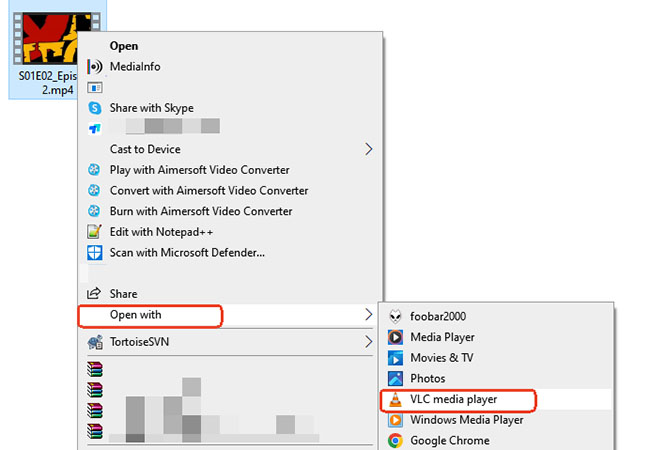
Method 3: Open the File With VLC From Your Computer
If you are using a Windows computer, you can also refer to the following steps to use VLC to play the local video:
Step 1. Right-click the compatible Netflix video file on your computer.
Step 2. Select Open with and then choose VLC media player. It will automatically be opened with VLC for playback.
Advanced Tips for Using Local Video Files in VLC
Once you have successfully downloaded your Netflix content and loaded it into VLC Media Player, a whole new layer of customization opens up. Because you are now working with a local media file rather than a locked streaming app, you can take advantage of VLC's extensive playback features.
Add and Sync Subtitles in VLC
If your downloaded Netflix video does not have hardcoded text, adding an external subtitle track is quite simple.
Step 1. Start playing your local video file within the VLC interface.
Step 2. Navigate to the top menu bar and open the Subtitle drop-down menu.
Step 3. Select Add Subtitle File... and browse your computer to locate the matching SRT, ASS, or SUB file.
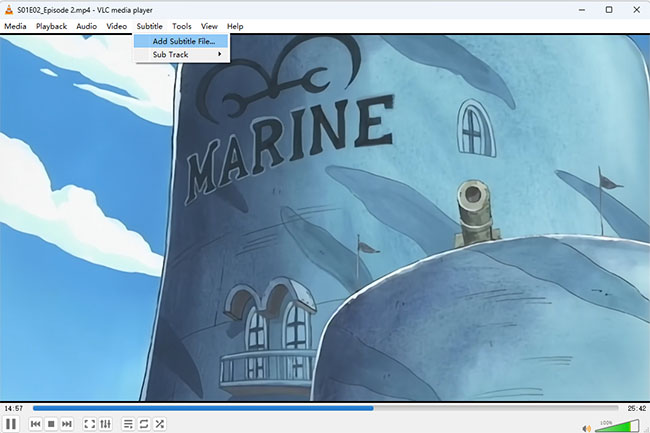
Step 4. Confirm that the correct subtitle track is enabled and displaying properly on your screen.
Adjust Audio Tracks and Playback Speed
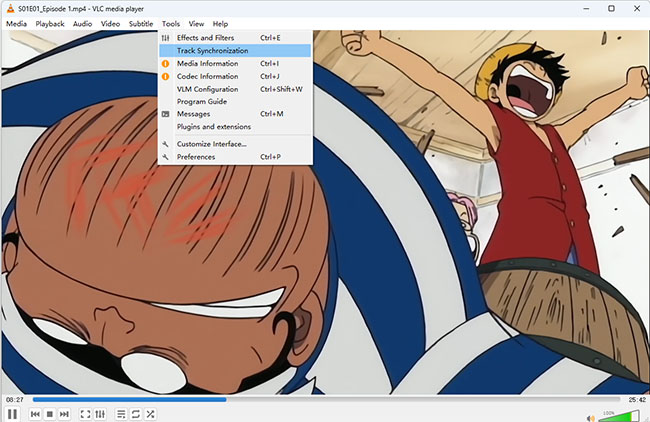
Use the Audio menu to switch between available audio tracks. You can also use Tools > Track Synchronization to correct audio that is out of sync with the video.
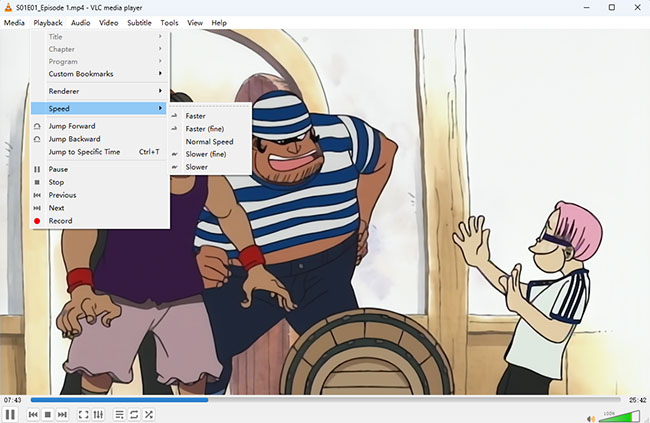
To speed up or slow down the video, open Playback > Speed accelerate or reduce the video pace. You can also utilize keyboard shortcuts to make these speed adjustments seamlessly on the fly.
Capturing Video Snapshots
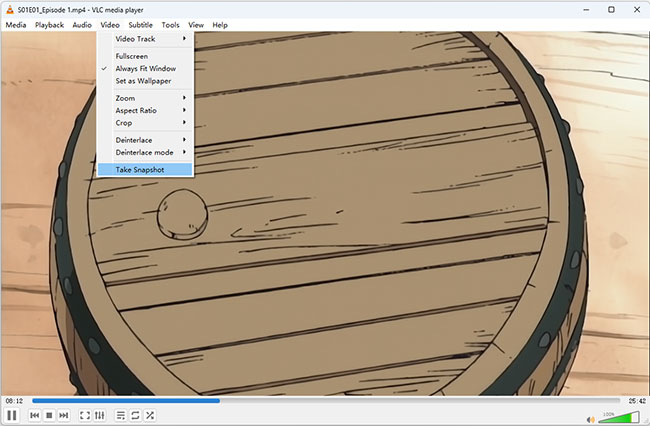
If you want to save a beautifully composed frame from a movie or TV show, VLC allows you to grab it instantly. You can use the Video > Take Snapshot feature to capture the current scene as an image file.
 Note:
Note:
You should only capture and use these images in ways that respect standard copyright laws and fair use guidelines.
Cast a Local Video to a TV
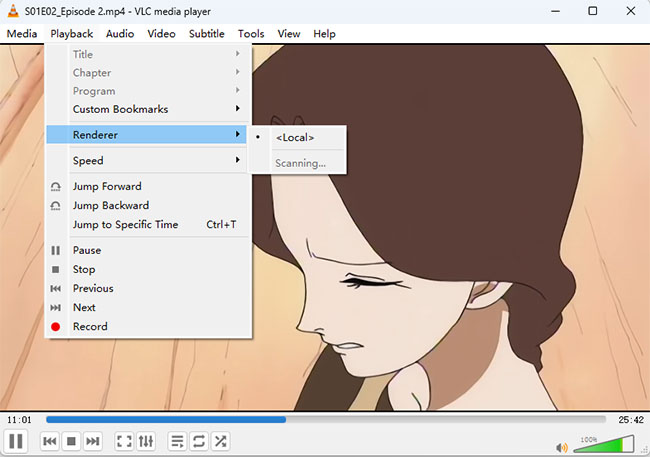
VLC 3.0 and later can send compatible local videos to supported Chromecast devices. Open Playback > Renderer, select your device, and start playback.
 Note:
Note:
Casting performance depends on the file format, codecs, device compatibility, and network connection.
FAQs About Streaming Netflix Through VLC Player
Can VLC stream Netflix directly?
No. VLC cannot officially sign in to Netflix or obtain the protected playback authorization required for Netflix streams. Using a supported Netflix app or web browser is the official way to watch movies and TV shows.
Can I paste a Netflix URL into VLC?
You can paste the URL into VLC's Open Network Stream box, but it will not produce a playable Netflix stream. The address points to a Netflix webpage and protected playback session rather than an unrestricted media file.
Can VLC play downloaded Netflix movies?
VLC cannot play downloads created by the official Netflix app. Those titles must be opened from the Netflix app's Downloads section on the device used to download them.
Where are Netflix downloads stored?
The Netflix app manages downloaded titles in application storage. Their location and internal structure depend on the device, but they are not intended to be selected and played as ordinary videos. Locating the files does not make them VLC-compatible.
Can updating VLC make Netflix work?
No. Updating VLC may fix bugs and improve ordinary file playback, but it will not add Netflix login support or provide a DRM license.
Can I cast Netflix from VLC to a TV?
Not directly. VLC can cast compatible local video files to supported renderers such as Chromecast, but Netflix should be cast through the Netflix app's own supported casting controls.
What video format works best with VLC?
MP4 with H.264 video and AAC audio is a dependable choice when broad compatibility matters. MKV is useful when you need multiple audio tracks, embedded subtitles, or more flexible media packaging.
In Conclusion
VLC does not provide native Netflix integration, so it cannot sign in to Netflix, play a Netflix watch-page URL, or open official Netflix downloads. For supported and fully authorized viewing, use the Netflix app or a compatible browser. VLC remains a useful option for ordinary local video files that you are legally permitted to use, particularly when you need flexible subtitles, playback-speed controls, audio synchronization, or local-network playback.

Jordan Rhodes is a Chief Technical Editor and Media Specialist at VidiKeep, specializing in creating diverse tech content, including streaming tutorials, software reviews, and video encoding tips.
Leave a Comment