Netflix Error Code E109: Quick Fixes for Chrome & Tesla
"When I try to play Netflix on Google Chrome, I get a message saying the video cannot be played with Error 109. I tried updating my browser, but it just throws another error. Strangely, everything seems to work perfectly fine on Microsoft Edge for some reason." —Reddit
Sometimes Netflix hits you with a black screen and Error Code E109. What makes it even more infuriating is the inconsistency; during my own troubleshooting, I found that Netflix would play flawlessly on Microsoft Edge, yet stubbornly refuse to load anything on Google Chrome. I'm going to walk you through how I fix this on Chrome and other browsers, break down the weird Edge vs. Chrome mystery, and share some specific tips for Tesla owners who are stuck staring at this error on their dashboards.

What Is Netflix Error Code E109?
When you see that dreaded message saying, "Pardon the interruption. Looks like your browser is no longer supported." Netflix Error Code E109 appears when the browser you're using is no longer supported by Netflix. At its core, Error E109 is simply Netflix's way of telling you that your current web browser no longer meets its strict security and copyright compatibility requirements. For example, an outdated Chrome installation, an unsupported browser, or an operating system that cannot run a newer browser version could trigger this error.
| Device or browser | Possible cause | Recommended solution |
|---|---|---|
| Google Chrome | Outdated or unsupported browser version | Update Chrome |
| Safari, Firefox | Outdated browser or system incompatibility | Install the latest supported version |
| Older computers | Operating system no longer supports current browsers | Update the OS or use another device |
| Tesla browser | Built-in browser compatibility limitations | Check for vehicle software updates or use another supported device |
How to Fix Netflix Error E109 on Chrome/Safari/Firefox Browser
If you are staring down Netflix Error E109 on a computer, the fix depends on which browser you are using. During my own troubleshooting across different devices, I found that Chrome, Safari, and Firefox each handle DRM differently. To save you some time, here is a quick breakdown of how these three browsers behave and what usually breaks:
| Browser | Why it usually throws E109 | My Go-To Fix |
|---|---|---|
| Google Chrome | Outdated browser or a crashed Widevine module. | Force an update via chrome://components. |
| Safari (Mac) | Your macOS is too old (Mojave or older). | Upgrade to at least macOS Catalina (10.15.5). |
| Firefox | Its "sandboxed" Widevine module gets out of sync. | Toggle the DRM setting off and back on. |
Fixing Error E109 on Google Chrome
Chrome is where most people encounter this issue. When I help friends fix this, I always run through these specific checks before digging into Windows or Mac system settings.
1. Force a Master Update on Google Chrome
Chrome updates silently, but it occasionally gets stuck. Click the three dots in the top right, head down to Help > About Google Chrome, and let it ping the servers. If it finds an update, let it install and click Relaunch. You should see a blue checkmark saying "Chrome is up to date."

2. Kickstart the Widevine DRM Module:
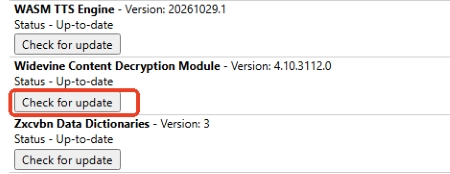
If Chrome is updated but Netflix still throws the error, the specific copyright module is likely crashed. Type chrome://components into your address bar. Scroll down that wall of text until you find Widevine Content Decryption Module, and click "Check for update."
 Tips:
The version number should change to 4.10.2830.0 or higher. If it stubbornly stays at 0.0.0.0, the module is totally corrupted, and you'll need to reinstall Chrome.
3. Try Netflix in Incognito Mode
Open a fresh Incognito window (Ctrl+Shift+N) and log into Netflix. If your movie plays perfectly here, your browser is fine, but one of your extensions (like uBlock Origin or an anti-tracking tool) is blocking the DRM signal.
4. Clear Netflix and Browser Cache Data:
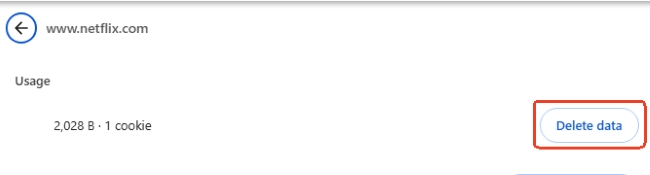
If extensions aren't the issue, corrupted cookies probably are. Instead of clearing your entire browser history and logging yourself out of everything, just type [netflix.com/clearcookies into your address bar. It instantly wipes Netflix's specific data and drops you on the homepage to log back in.
Fixing Netflix Error E109 on Safari (Mac)
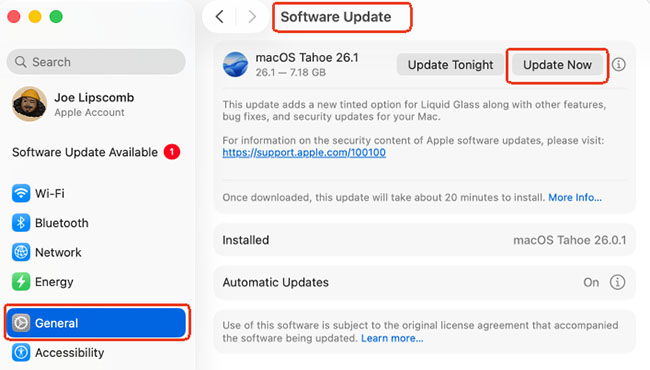
If you're trying to watch Netflix on a Mac through Safari and encounter Error E109, your macOS version may be worth checking. Unlike Chrome, Safari is integrated into macOS, so you generally need to update your Mac's operating system to get the latest Safari version and compatibility improvements.
Step 1. Click the Apple menu in the top-left corner of your screen and select System Settings. Go to General > Software Update and wait for your Mac to check for available updates.
Step 2. If a compatible macOS update is available, follow the on-screen instructions to install it. Your Mac may need to restart to complete the process, after which Safari will be updated accordingly.
Once the update is complete, reopen Safari, visit Netflix, and try playing a title again. If Error E109 persists, check whether your Mac and Safari version meet Netflix's current system requirements.
Fixing Error E109 on Mozilla Firefox
Firefox is unique because it sandboxes its Widevine DRM. I actually love this for privacy, but it means the DRM tool occasionally falls out of sync with Netflix's servers. The easiest way to fix it is to force Firefox to dump its current DRM settings and grab fresh ones.
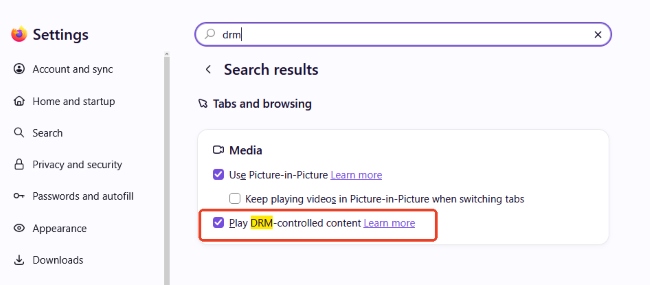
Step 1. Click the three-line hamburger menu in the top right corner and open up your Settings. Just type "DRM" into the search bar at the top of the settings page. You will see a checkbox labeled Play DRM-controlled content.
Step 2. Now, close Firefox completely. Reopen the browser, go back to that same menu, and check the box to turn it back on. Firefox will quietly trigger a fresh download of the DRM components in the background. Give it about 30 seconds, then load up Netflix.
While you are setting up Firefox, keep an eye on the little shield icon next to the URL bar when you are on Netflix. Make sure you toggle off Enhanced Tracking Protection for the site, as this feature loves to block the exact tracking scripts Netflix uses to authorize your stream.

 Why Does Netflix Work on Edge But Not Chrome?
This drove me crazy during my testing. Since both Google Chrome and Microsoft Edge are built on the same Chromium engine, why would Netflix block one and allow the other? It comes down to how they update and interact with your system. Although both browsers use Chromium, they don't necessarily have identical versions, update settings, or system configurations. Here's what I'd check first:
- Open chrome://settings/help in Chrome and check for updates.
- Open edge://settings/help in Edge and compare the installed versions.
- Check whether Chrome has any pending updates or update errors.
- Temporarily disable Chrome extensions and test Netflix again.
If Chrome cannot update, investigate its update service or reinstall the latest version from Google's official website. You can also continue watching Netflix in Edge as a temporary workaround, provided your version meets Netflix's requirements.
How to Fix Error E109 in a Tesla
Tesla owners face a very unique flavor of this bug. Because you are dealing with the vehicle's locked-down entertainment interface, you don't have the luxury of just opening a settings menu to update the browser. Here is what you should do instead.
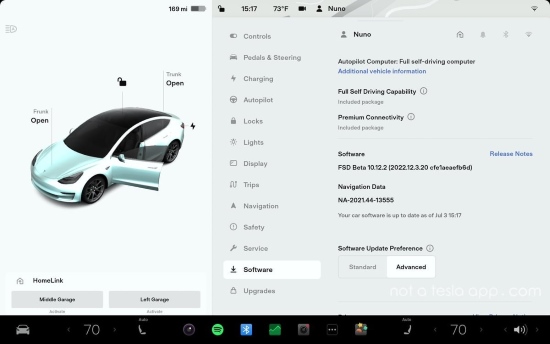
Check for Tesla Software Updates
If Netflix on your Tesla suddenly stops working, the first thing to check is the car's software tab. Sometimes, outdated vehicle firmware causes compatibility issues with the built-in Chromium browser. Open the vehicle's software settings and check for available updates.
You can also check whether other streaming services work. If multiple services are experiencing problems, the issue may involve the vehicle's software or connectivity rather than Netflix alone.
Restart the Tesla Touchscreen
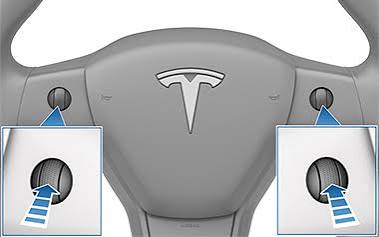
If the software is up to date, the car's media cache might just be frozen. Park safely, then press and hold both scroll wheels on your steering wheel at the same time. Keep holding them until the massive touchscreen goes black. Once the Tesla logo pops back up and the system reboots, launch Netflix again. This simple reset clears out a lot of temporary software glitches.
Alternative Way to Watch Netflix Offline
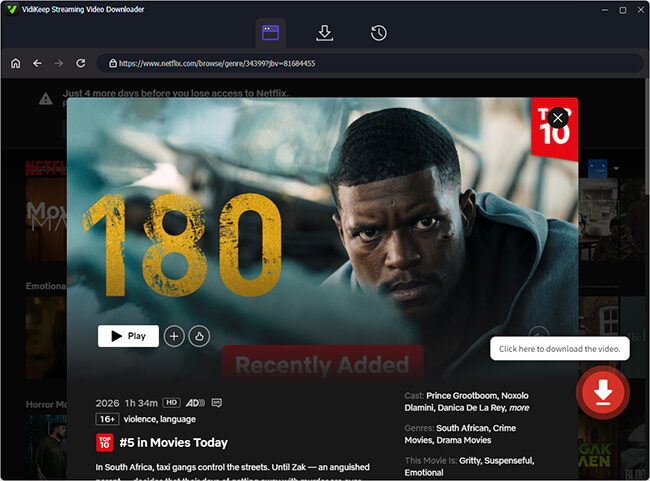
If you're still having trouble watching Netflix because of browser compatibility issues, another option is to download videos for offline viewing using a tool like VidiKeep Streaming Video Downloader.
It allows you to save supported Netflix streaming videos as local files in formats such as MP4 or MKV, so you can watch Netflix with a media player like VLC without relying on Netflix's browser playback. This can be a convenient alternative when you prefer offline viewing, although it doesn't directly fix Netflix Error Code E109 or replace the need for a supported Netflix browser.
Final Thoughts
Since Netflix Error Code E109 is associated with an unsupported browser, start by updating Chrome or whichever browser you're using. If that doesn't help, check your operating system compatibility, test Incognito Mode, and clear your Netflix cookies. For Tesla users, checking vehicle software updates and restarting the touchscreen are your best next steps.
The key is to identify whether the problem comes from an outdated browser, an unsupported system, or a device-specific compatibility limitation. Once you've addressed the underlying issue, you should be in a better position to get Netflix playback working again. If the above solutions won't work, bypassing the browser by downloading the Netflix video through a third-party tool like VidiKeep remains your most reliable last resort.

Jordan Rhodes is a Chief Technical Editor and Media Specialist at VidiKeep, specializing in creating diverse tech content, including streaming tutorials, software reviews, and video encoding tips.
Leave a Comment