How to Watch Netflix on Tesla: Complete Guide
Waiting for your Tesla to charge? If your vehicle supports Tesla Theater, you can watch Netflix on the center touchscreen while parked, making longer charging stops a little more enjoyable. In this guide, we'll walk through how to watch Netflix on Tesla, connect without a paid Tesla data plan, and cover what to try when Netflix refuses to load.

Quick Answer: Can You Watch Netflix on Tesla?
Yes. You can watch Netflix on a compatible Tesla through the built-in Theater interface while the vehicle is in Park. You don't need Premium Connectivity if you can connect your Tesla to a working Wi-Fi network or your phone's mobile hotspot.
How to Watch Netflix in a Tesla
- Regional Restrictions Apply: Netflix availability depends on where your car is registered. For example, it is currently blocked in regions like Hong Kong.
- Hardware Matters: While newer Teslas run streaming smoothly, older builds (especially pre-2018 vehicles on legacy MCU1 chips) won't support Tesla Theater natively.
- Resolution is Capped at 720p: Tesla caps native in-car streaming at 720p to conserve mobile bandwidth and keep playback smooth.
With those basic requirements covered, you can access the streaming theater through your center console. Here's how to get Netflix running on your Tesla's center screen, with step-by-step setup instructions and practical troubleshooting tips.
Step 1. Bring your vehicle to a complete stop and shift into P (Park). Netflix video on the front touchscreen is intended for parked use, so make sure the vehicle is safely stationary before opening Theater. If you're charging, you can follow the same procedure while the car remains parked.
Step 2. On the center touchscreen, open the app launcher or entertainment menu and look for Theater. The exact location can vary with your Tesla's software version. If Theater isn't visible, check the available apps and your vehicle's documentation before assuming the feature is supported.


Can't find the Netflix icon? Make sure your car's firmware is fully updated and that Theater is actually supported in your region. If your hardware or location doesn't support the feature, rebooting the screen won't make it appear.
Step 3. Tap the Netflix tile in Theater. If it doesn't appear, availability may depend on your vehicle configuration, software version, or region. Check that the car supports the feature and has an internet connection before attempting to access Netflix through another route.

Step 4. Enter your Netflix account details and choose a profile. Browse your watch list or search for a movie or TV show, then start playback. If Netflix gets stuck loading, test your Wi-Fi connection first; a weak signal can cause buffering even when the app opens normally.
 Advanced Features & Pro Tips for Tesla:
- Rear-Seat Screen Controls: With a second-row display on newer builds, back-seat passengers can stream Netflix on the road without waiting for you to park. Simply pair wireless headphones to the rear screen so their audio doesn't take over the cabin speakers while you drive.
- Enhanced In-Car Audio: Try setting Immersive Sound to High in your equalizer settings to enjoy clearer dialogue and a more immersive soundstage during movie nights in your car.
How to Watch Netflix Without Premium Connectivity
You don't need to pay for Tesla Premium Connectivity just to get your car online. A compatible Wi-Fi connection can handle Netflix streaming, including a hotspot created by your phone. This is useful if you already have a mobile data plan and would rather not add another subscription.
Method 1: Connect to Your Phone's Mobile Hotspot or Wi-Fi
You don't need Premium Connectivity to get your Tesla online. A phone hotspot or regular Wi-Fi network can provide the internet connection Netflix needs.
Step 1. Turn on your phone's hotspot. On an iPhone, open Settings and select Personal Hotspot. On Android, look for Mobile Hotspot under Settings.
Step 2. Connect your Tesla to Wi-Fi. On the touchscreen, go to Controls > Wi-Fi, select your phone's hotspot, and enter the password if prompted. Once connected, open Theater, select Netflix, and sign in if necessary.
 Tips:
Tips:
Look for Remain Connected in Drive in the connected network's settings, if your vehicle offers it. This can help maintain the Wi-Fi connection when shifting gears, but it doesn't let your front-screen Netflix video continue while driving.

Step 3. Start streaming. Choose to play a movie or show on the Netflix. If playback buffers, check your phone's cellular signal and hotspot data allowance before trying another network.

Method 2: Offline Playback via USB (The Dashcam Viewer)
If you are heading to a remote campsite with zero cellular service, you can bypass the internet requirement entirely. By using a desktop tool like VidiKeep Netflix Video Downloader, you can save episodes as standard MP4 files and play them through your Tesla's built-in Dashcam interface.
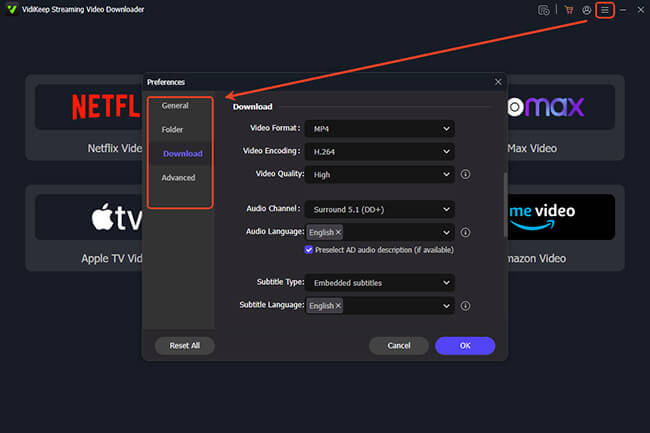
Step 1. Launch the VidiKeep software on your Mac or PC. Open the settings menu via "Preferences" > "Download" to ensure your output format is set to MP4—this is crucial for vehicle compatibility. Then use the integrated web browser to sign securely into your Netflix account.
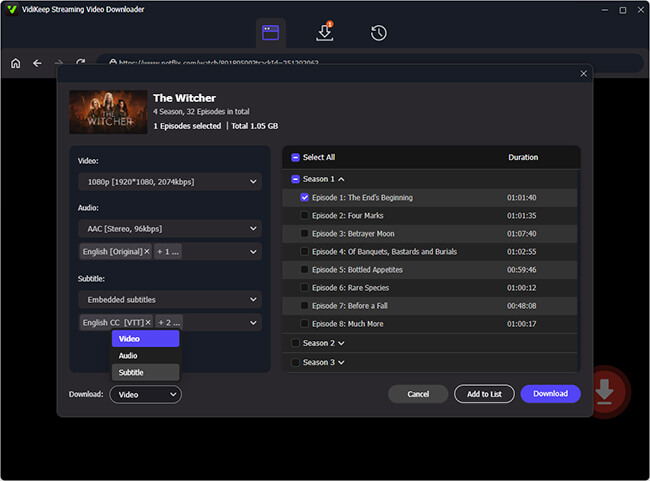
Step 2. From there, simply type the name of your desired movie or show into the search bar, or paste the video URL directly. Once you find your title, select the episodes you want and you can use the "Select All" batch feature for entire TV seasons. Hit "Download", and the software will pull the files to your hard drive at accelerated speeds (often up to 7X normal rate).
Step 3. Tesla does not have a dedicated media player for personal files, so we have to use a clever workaround. Format a high-capacity USB flash drive to exFAT. Open the blank drive on your computer and create a new base-level folder named TeslaCam. Drag and drop your downloaded Netflix files into this folder.

Step 4. Take the loaded USB drive to your car and plug it into a data-capable USB port. Tap the "Dashcam Viewer" icon on your center touchscreen. The system will read your movies as if they were saved security clips, allowing you to select and play them offline.
Can You Watch Netflix on Tesla While Driving?
No, you can not watch Netflix on the front screen while the vehicle is in motion. Tesla's Theater feature is designed for use while parked, and it has a hard-coded safety lock that instantly pauses and blacks out any video playback the second you shift out of P (Park).
The Workaround (And Why You Probably Shouldn't Use It)
You've likely know screen-casting tools like TesDisplay. The app lets you mirror your smartphone's display straight into the Tesla's built-in web browser over a local connection, which tricks the car into running video even while you're rolling down the road.
 Limitations:
But we really don't recommend going this route. Even a split-second glance at a moving video while behind the wheel is a recipe for disaster. And it's an easy way to land a driving ticket or cause an accident. If your passengers are dying to watch a movie on a long trip, the best approach is letting them use their own tablets or phones. Alternatively, if you drive a newer model with a dedicated rear touchscreen, back-seat passengers can stream safely on their own display without bothering the driver.

Netflix Not Working on Tesla? Here's the Fix
When Netflix won't open or keeps buffering, start with the basics. A connection problem, temporary app issue, outdated software, or unsupported vehicle configuration can all affect streaming. The right fix depends on what you see on the screen.
Quick Check: Status and Hardware Requirements
- Not in Park: Netflix app will only be able to stream when your car is in Park. All video playback is system-blocked while driving.
- No Internet Connection: You must have an active Premium Connectivity subscription or a stable Wi-Fi/mobile hotspot connection. Check the top-right status bar to ensure you are online.
- Outdated software: Look for available Tesla software updates. An update may address compatibility problems, although it won't resolve every streaming issue.
- MCU hardware limitations: Some older Model S and Model X vehicles use legacy infotainment hardware that doesn't support all the features available on newer systems. Check your specific vehicle's configuration before assuming an upgrade is necessary.
General Troubleshooting Fixes
If the app won't open, shows a black screen, or infinitely loads, try these solutions in order from quickest to most thorough.
Step 1. Reboot the Infotainment System: While parked, press and hold both scroll wheels on the steering wheel for about 5 seconds until the screen turns black and the Tesla logo reappears. This clears memory glitches and fixes the majority of app crashes.
Step 2. Log Out and Log Back In: If the app loads but won't play video, you may have hit a Netflix household screen-sharing limit. Sign out of your Netflix account within the Tesla app and sign back in to reset the connection.
Step 3. Clear Browser Data: Corrupted cache data can prevent media apps from launching. Tap the app launcher (the three dots), open the web browser, go to settings, and clear the browsing history and cached data.
Step 4. Use the Web Browser Workaround: If the native Netflix app in the Tesla Theater completely fails, open the car's web browser, navigate to Netflix.com, and stream directly through the browser player.
 Specific Fix: Tesla Netflix Error 109
When an Error 109 warning pops up on your screen, your vehicle's browser is typically struggling with a corrupted cookie cache or a geolocation mismatch—a common hiccup triggered when the car constantly bounces back and forth between its native cellular network and an external Wi-Fi hotspot. You can try clearing the browser cache and navigating directly to Netflix.com in the car's web browser. After trying the basic connection, if Error 109 still refuses to go away, your best bet is to reach out to Tesla or Netflix support with the message and your vehicle's software version.
Final Thoughts
With this guide to watching Netflix in your Tesla, you can transform your Tesla's center console into a mini movie theater and set up a local USB offline playback routine while safely parked during charging sessions or road trips with poor connectivity

Jordan Rhodes is a Chief Technical Editor and Media Specialist at VidiKeep, specializing in creating diverse tech content, including streaming tutorials, software reviews, and video encoding tips.
Leave a Comment