Netflix Audio Out of Sync? Fixes on Any Device
"Is anyone else having this lip-sync problem? It doesn't happen all the time, but the sound can be out of sync with the person's lips with Netflix occasionally. The subtitles are out of sync as well, making the program really difficult to watch." — Facebook
If the Netflix audio is out of sync, the problem may be limited to a particular title, caused by the Netflix app or browser, or related to your TV or internet connection. The guide below will help you identify the likely cause and get Netflix playback back in sync.
Part 1. Why Is Netflix Audio Out of Sync?
Understanding the root cause is the first step toward getting your sound back on track. The Netflix app audio-out-of-sync issue generally boils down to a few common reasons, from a temporary app glitch to a delay caused by your TV, soundbar, or Bluetooth device.
| Possible Cause | Why It Happens | Common Signs |
|---|---|---|
| Netflix App or Browser Issues | Bugs, outdated versions, or cache problems may affect playback. | Restarting Netflix temporarily fixes it. |
| TV or Sound System Delay | TVs, soundbars, or receivers may process audio slower than video. | Voices do not match lip movements, especially with external speakers. |
| Bluetooth Audio Latency | Wireless devices may introduce a small audio delay. | Headphones or speakers play sound slightly late. |
| Playback or Network Issues | Connection interruptions may affect streaming stability. | Audio sync problems appear during buffering or quality changes. |
| Specific Movie or Show Issues | A title or audio track may have its own sync problem. | Only one episode has delayed audio. |
Part 2. How to Fix Netflix Audio Out of Sync Quickly
If your Netflix audio and video are not matching while watching a movie or show, start with these quick fixes before changing advanced settings. In many cases, a temporary app glitch, playback issue, or audio device delay can cause Netflix sound to fall out of sync.
Pause, Rewind, and Resume the Video
One of the quickest ways to fix Netflix audio out of sync is to restart the current playback session. Pausing the video briefly, rewinding a few seconds, and pressing play again can help Netflix reload the stream and resynchronize the audio and video. Try this especially if the audio delay appears suddenly in the middle of a movie or episode.
Force Quit and Restart the Netflix App
A temporary Netflix app glitch can sometimes cause audio and video to process at different times. Fully closing and reopening the app gives Netflix a fresh start and may clear playback-related issues. If restarting the app fixes the problem only temporarily, check for app updates or continue with the device-specific fixes below.
Check Your Bluetooth Connection and Battery
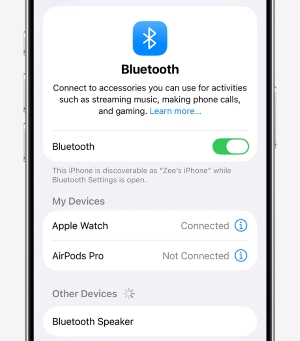
Bluetooth headphones and speakers can sometimes cause a noticeable Netflix audio delay because wireless audio transmission takes additional processing time.
If you are using Bluetooth audio:
- Check whether your headphones or earbuds have enough battery.
- Disconnect and reconnect the Bluetooth device.
- Test Netflix using your device's built-in speakers to see whether the delay disappears.
If Netflix audio is only out of sync when using Bluetooth, the issue is more likely related to the wireless audio connection rather than the Netflix app itself.
Adjust TV or Soundbar Audio/Lip Sync Settings
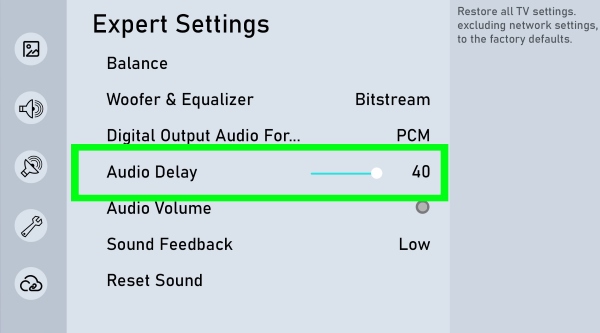
External audio devices such as soundbars, receivers, and home theater systems may process sound slightly slower than your TV displays the video. This can make voices appear out of sync with the speaker's lips.
Look for settings with names such as: Audio Delay /AV Sync /Lip Sync /Audio Sync. Adjusting these settings can help match the Netflix audio with the picture. The exact option name and location may vary depending on your TV or sound system model.
Test Another Movie or Show
Before changing device settings, check whether the Netflix audio sync problem happens with every title or only one specific movie or episode. This helps determine whether you are dealing with a Netflix audio and video sync issue or a device-related playback problem.
Play another show, movie, or short video:
- If other titles work normally, the issue may be limited to that specific Netflix title or audio track.
- If every title has delayed audio, the problem is more likely related to your Netflix app, device, or audio setup.
Part 3. Fix Netflix Audio Out of Sync on Specific Platforms
If the quick fixes did not work, the problem is likely tied to the specific hardware you are using. Here is how to fix out of sync audio on Netflix based on your exact device.
Smart TVs and Streaming Players (Apple TV, Roku, Fire TV)
Streaming boxes often suffer from frame rate or audio processing conflicts.
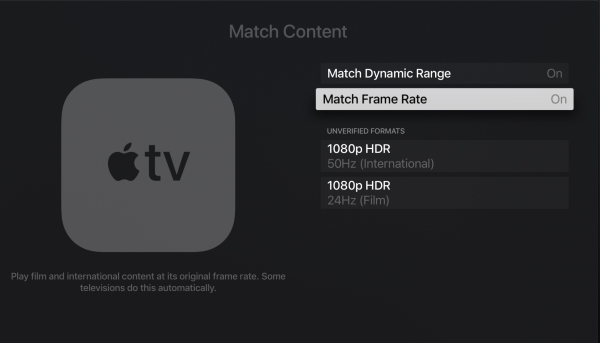
- Apple TV: When you use Netflix on Apple TV, severe audio out of sync issues may happens due to a software bug introduced in recent tvOS updates. To fix this immediately, go to your Apple TV settings, navigate to Video and Audio, and turn off "Match Frame Rate." For a permanent fix, ensure you update to the latest firmware (tvOS 26.6 or higher).
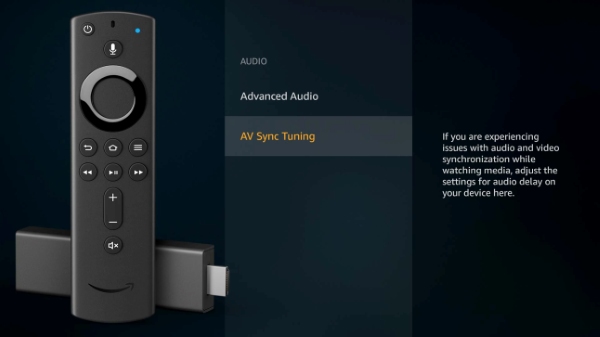
- Fire TV: Amazon Firestick devices have a built-in calibration tool. Go to Settings, select Display and Sounds, click Audio, and run the AV Sync Tuning tool. You will bounce an on-screen ball to manually align the tracks.
- Roku: Roku's advanced volume processing can delay sound. Press the star (*) button on your remote during playback, find "Volume Mode," and turn it completely off.
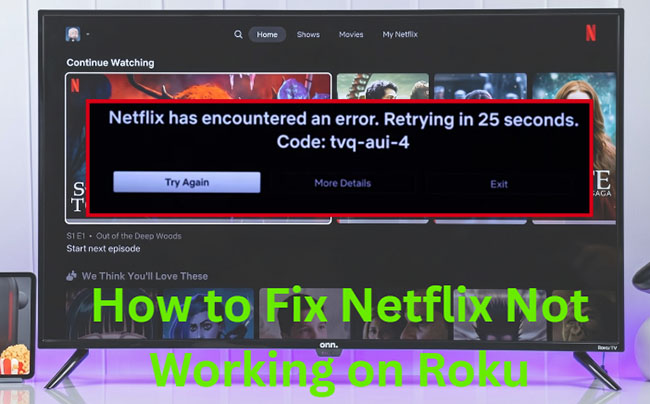
Netflix not working on Roku? Learn quick fixes for Netflix keeps crashing, freezing, loading issues, buffering, and playback errors on Roku TV.
Computers and Web Browsers (Windows/Mac/Chrome)
When dealing with Netflix audio out of sync on laptop or desktop setups, the culprit is usually resource management.
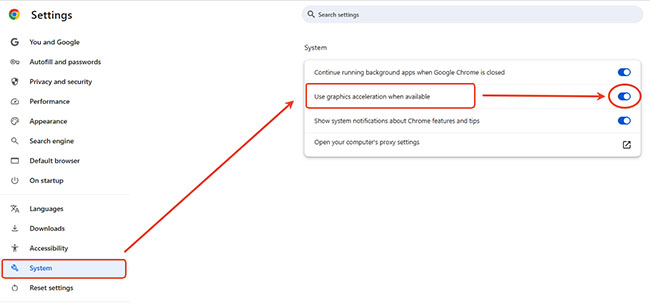
- Chrome Browser: A common fix for Netflix audio out of sync Chrome issues is disabling hardware acceleration, and then restarting your browser. This prevents your graphics card from bottlenecking the video stream.
- Windows 11: Windows audio enhancements often clash with streaming services. Right-click your volume icon on the taskbar, open your sound settings, select your primary speaker, and disable "Audio Enhancements".
Mobile Phones and Tablets (iOS, Android)
Mobile devices generally handle sync well, but localized data bloat can slow them down.
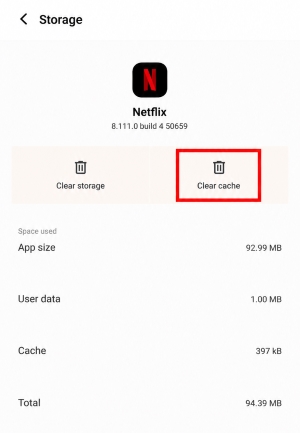
- Android: If your Netflix audio out of sync Android app is acting up, clearing the cache usually resolves it. Go to your phone's Settings, find Apps, select Netflix, tap Storage, and hit "Clear Cache".
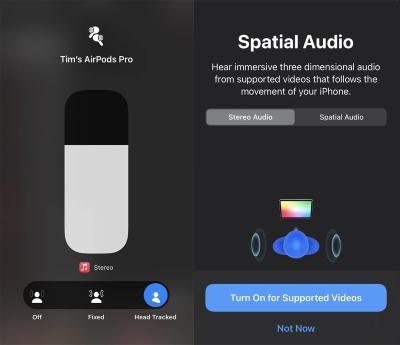
- iPhone and iPad: For iOS users wearing AirPods, the spatial audio feature requires heavy Bluetooth processing. Swipe down to open the Control Center, long-press the volume slider, and temporarily turn off Spatial Audio to see if the latency disappears.
Xbox
Consoles are powerful, but they often try to re-encode audio streams, causing a noticeable delay. If you have Xbox One Netflix audio out of sync, you need to stop the console from transcoding. Go to your console's audio output settings and change the format from Bitstream (Dolby/DTS) to Linear PCM (Uncompressed). This sends the raw audio directly to your TV without secondary processing delays.
Part 4. Watch Netflix Offline Without Audio Sync Issues
Sometimes, no matter how many settings you tweak, network fluctuations or aging hardware just refuse to cooperate with live streaming. In these cases, taking the stream offline completely removes buffering and internet-related sync issues from the equation.
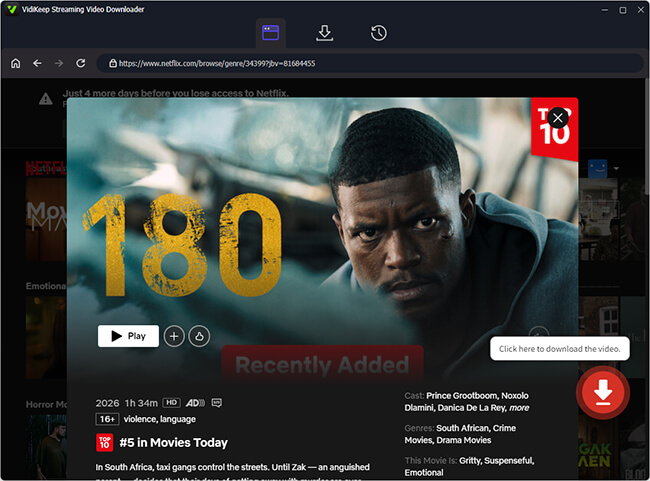
If you want a foolproof way to watch without lip-sync headaches, downloading your content locally is the best alternative. VidiKeep Streaming Video Downloader is a professional video downloader designed to help you bypass streaming platform restrictions and secure flawless offline playback.
- High-Quality Local Downloads: Save movies and shows directly to your hard drive in crisp 1080p resolution, completely eliminating the network drops that cause audio lag.
- Universal MP4/MKV Format: Netflix video are saved in MP4 or MKV formats, meaning you can play them on any local media player (like VLC) which handles audio syncing perfectly without browser bottlenecks.
- Preserved Audio Tracks and Subtitles: Keep all original multi-language audio tracks and subtitles intact, ensuring you get the exact viewing experience you prefer.
- Permanent Access: Downloaded files never expire, allowing you to build a personal, offline library free from app glitches or sudden platform removal.
Part 5. FAQs on Netflix Audio Out of Sync
Why is Netflix audio out of sync after ads?
Netflix audio and video may become temporarily out of sync after commercial breaks because the playback session has to switch between different parts of the stream. If the transition does not process smoothly, the audio and video timing may become misaligned. Pausing and resuming playback, restarting the Netflix app, or replaying the title can help restore synchronization.
Why does Netflix audio go out of sync after I skip the intro or fast-forward?
Skipping ahead or fast-forwarding changes the playback position and requires Netflix to load the video from a new timestamp. If the app, device, or connection has trouble processing this transition, the audio and video may briefly fall out of sync. Pausing the video and playing it again can often help resynchronize playback.
Can changing the audio language fix Netflix audio sync?
Yes. Changing the audio language can be a useful troubleshooting step. Switching to another available audio track and then switching back may force Netflix to reload the audio stream, which can help resolve temporary audio synchronization issues or problems with a specific audio track.
Part 6. Conclusion
Dealing with out-of-sync audio can turn a relaxing evening into a frustrating IT project. However, by understanding how your specific hardware interacts with the streaming app, you can easily troubleshoot the problem. Whether it is turning off frame rate matching on your Apple TV, disabling hardware acceleration on Chrome, or simply taking your content offline, taking control of your device settings will ensure your audio and video stay perfectly paired.

Jordan Rhodes is a Chief Technical Editor and Media Specialist at VidiKeep, specializing in creating diverse tech content, including streaming tutorials, software reviews, and video encoding tips.
Leave a Comment