How to Download Netflix Movies and Shows on Android
While desktop platforms like Mac and Windows have heavily restricted or completely removed their native offline features, the Android ecosystem still supports Netflix downloading. If you are wondering how to download Netflix movies on Android, you essentially have two distinct choices. You can either rely on the official application for quick, temporary access, or utilize a desktop workaround to extract permanent MP4 files and move them directly to your phone or tablet.

 Prerequisites for Netflix Downloads on Android
Before downloading Netflix video files to your Android phone, take a quick moment to check a few basic requirements, which can avoid storage errors before you take a long trip.
- Netflix app: Install the official Netflix app from the Google Play Store and ensure your device supports downloads.
- Available storage: Verify your device has sufficient internal memory or a supported microSD card if applicable.
- Eligible membership: You need a valid subscription with download caps range from 15 to 100 titles per device each month.
- Internet connection: You need an stable internet connection to download content. Wi-Fi is best for large files to avoid mobile data charges.
Method 1: Download Netflix Movies and Shows to Android via the Official App
If you want to download movies from Netflix on Android easily, the official Netflix app is the first thing you should try. Install the app from the Google Play Store, sign in to your account, and download supported movies or episodes from Netflix to your Android smartphone. Just follow these steps to get your favorite titles ready for offline viewing.
Step 1 Find a Movie or TV Show to Download
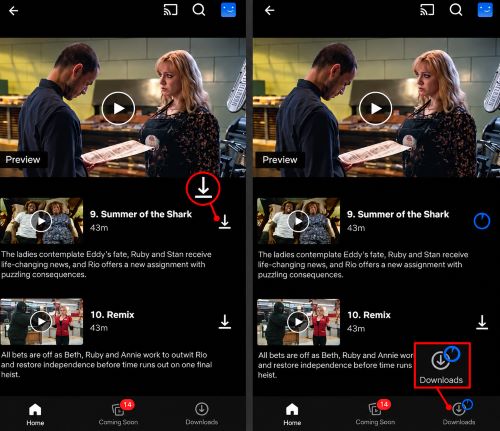
Open the Netflix app and log in. You can browse your feed or search for a specific title. If a title is eligible, you will see a Download icon next to the movie description or beside individual TV episodes. Tap this icon to start the process.

Step 2 Choose Your Download Quality for Netflix
Before you start downloading heavily, check your video quality settings by going to your profile icon and selecting App Settings. Under the Downloads section, tap Download Video Quality.
- Standard: Downloads faster and uses less storage. Videos are saved in SD quality.
- High: Requires more time and consumes extra storage, yet it delivers up to 1080p HD resolution on compatible devices and titles.

Step 3 Find and Manage Your Netflix Downloads
Once the progress circle completes, the file is saved to your device. Open the Downloads tab in the bottom-right corner to access your saved titles, then select one to watch offline. To reclaim storage space, tap the edit icon, mark the movies or episodes you’ve already watched, and remove them from your downloads.
 Download Netflix Content on an Android Tablet:
If you're watching Netflix on an Android or Amazon Fire tablet, make sure there's enough free storage for your downloads. The larger display may benefit from higher-resolution videos, so you can consider selecting "High" in the download quality settings for a sharper picture.

Tips for Managing Netflix Downloads on Android
Frequent Netflix offline viewing can fill up your device's storage, particularly when downloading several episodes or selecting higher video quality. But you can use the following tips to keep your Netflix downloads organized.
Automate Your Netflix Downloads with Smart Downloads
If you watch a lot of episodic television, managing local storage manually gets tedious. To make offline viewing easier to manage, you can enable Smart Downloads in Netflix's App Settings. The feature can download the next ones automatically. But remember that these features aren't available on ad-supported plans.

Can You Download Netflix Movies to an SD Card on Android?
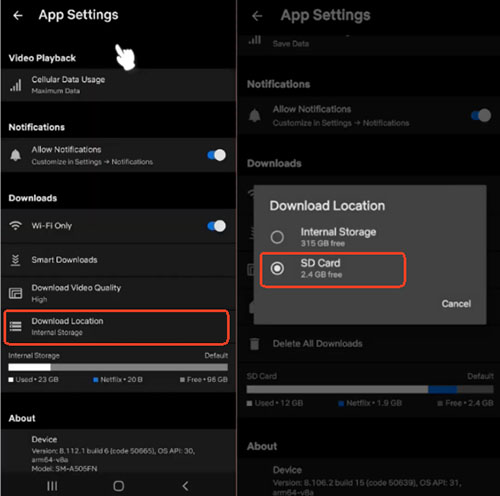
Yes. If your device has a MicroSD card slot, you can route your Netflix Android download to the SD card instead of filling up your internal memory. Some compatible Android devices allow you to save Netflix downloads to an SD card. If your device supports this option, open the Netflix app, go to My Netflix, tap your profile name, and select App Settings. Look for Download Location under Downloads and choose the SD card if the option is available.
 Editor's Note on the Downloaded Netflix Video Files:
While you might locate your downloaded files within your Android's file manager, they are heavily protected by DRM encryption. These locked Netflix videos won't play on media players like VLC, nor can you distribute them. Additionally, altering the filename to MP4 fails to bypass the encryption; it simply corrupts the saved file, rendering it completely useless even inside Netflix.
Method 2: Download Netflix Content as MP4 via VidiKeep
Netflix's official app offers an easy way to watch content offline, but downloads remain within the app and may expire or face other restrictions. If you prefer local video files on your Android phone or tablet, VidiKeep Netflix Video Downloader provides another option. VidiKeep let you to keep movies and shows from Netflix as MP4 or MKV files on a Windows or Mac computer. After downloading a compatible video file, you can transfer it to your Android device using a USB cable.
Step 1 Set Up VidiKeep and Log In
Install VidiKeep on your Windows or Mac computer. Select the Netflix from the avaliable platforms, and sign in to your account within the built-in web browser.
Step 2 Configure Your MP4 Settings for Netflix
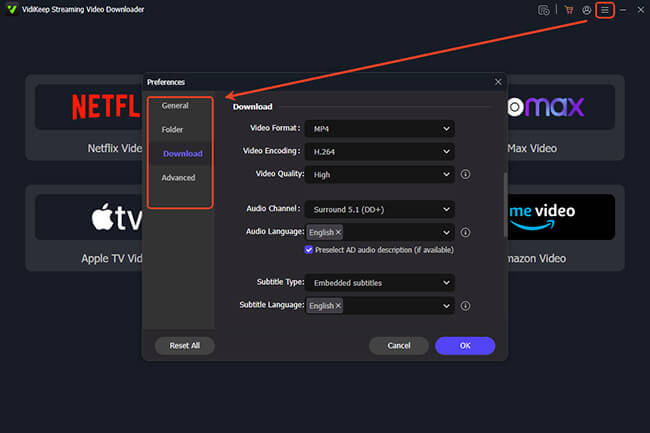
To get the best offline viewing experience when you download movies from Netflix for Android, navigate to Menu > Preferences > Download. Here, you can set your output format to MP4 files and which audio languages and subtitle tracks to save.
Step 3 Select and Download Your Netflix Videos
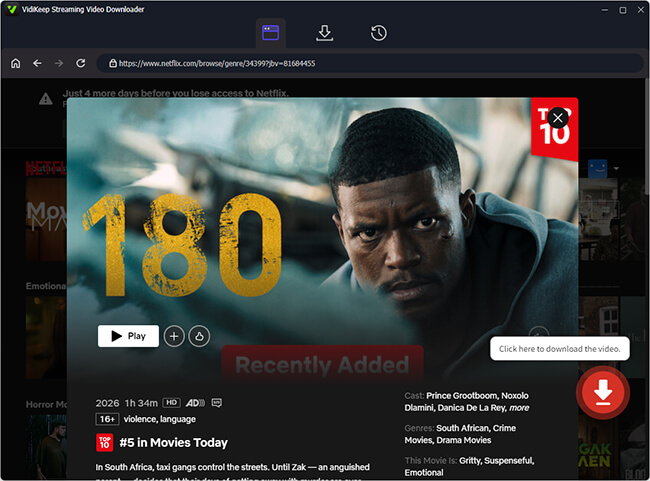
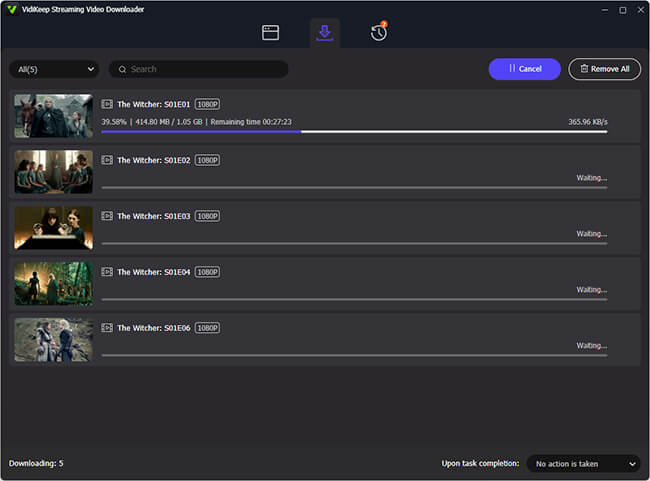
Once you've selected a movie or TV series to save, click the floating Download icon to add it to the download queue.
Step 4 Transfer and Watch Netflix Movies and Shows on Android
Next, open the History section and click the folder icon to find the downloaded files on your computer. Connect your Android phone or tablet via USB, then copy the files to its video folder. This method lets you save supported Netflix content as MP4 files for offline playback on your Android device.
Preparing Your Netflix Video on Android Phone for a Long Trip
If you rely on the official app for travel, check that your downloaded movies and episodes are available before you leave home. Downloads can expire, and titles that are no longer available on Netflix generally cannot be downloaded or renewed. If a title has expired, try downloading it again while it's still available in the catalog.
Troubleshooting Netflix Download Issues on Android
Even with a stable internet connection and enough free space, Netflix downloads may occasionally fail. If you're unable to download Netflix movies or shows on Android, the cause could be a settings issue, a device compatibility problem, or a download limit. Check the troubleshooting table below to identify the problem and find a suitable fix.
| Issue | Possible solution |
|---|---|
| Download icon not showing | Check whether the title supports offline viewing, then update Netflix if needed. |
| Download stuck on "Waiting for Wi-Fi" | Review the Wi-Fi-only setting in App Settings and allow cellular downloads if your plan permits. |
| Insufficient storage space | Remove watched downloads or select an SD card as the storage location if supported. |
| Downloaded titles are missing | Make sure you're using the profile that downloaded them and check whether your SD card is properly mounted. |
| Download has expired | Try downloading the title again if it's still available in the Netflix catalog. |
| Unable to download on Android | Check the error message for details. If you've reached a device download limit, remove downloads from another device. |
Summary
Downloading Netflix content on an Android offline is a highly supported. Installing the official Netflix app for Android is the best approach for casual viewing, especially when paired with a MicroSD card and the Smart Downloads feature to manage your queue. However, if you want to build a permanent offline library, ripping the Netflix shows to MP4 to your Android phone via VidiKeep offers better flexibility.

Jordan Rhodes is a Chief Technical Editor and Media Specialist at VidiKeep, specializing in creating diverse tech content, including streaming tutorials, software reviews, and video encoding tips.
Leave a Comment