How to Download Disney Plus Movies/Shows on Mobile/Computer
Planning a long flight, a road trip, facing a daily commute with spotty cell service, or just saving your mobile data? Knowing how to download movies and shows on Disney Plus is the perfect way to keep yourself entertained without relying on Wi-Fi.
However, before you pack your bags and expect your entire Disney+ watchlist to be available offline, it is crucial to understand exactly how the platform's download features work. Disney has recently implemented specific tier requirements and device limits that frequently catch users off guard. This guide covers everything you need to successfully save your favorite Disney Plus movies and shows and provides troubleshooting tips (why downloads fail or disappear) to ensure a smooth experience.
Part 1. Can You Download Movies/Shows on Disney Plus?
Yes, you can, but the ability to Disney Plus download depends entirely on your subscription tier and the device you are using. Before you try to save your favorite movie or series, ensure your setup aligns with the platform's current technical requirements.
Subscription Requirements
The most critical factor is your plan type. Currently, downloads are a premium feature reserved exclusively for Disney+ Premium (No Ads) subscribers.
- Disney+ Basic (With Ads): If you are on the ad-supported tier, the download icon will not appear on your screen.
- Plan Downgrades: If you switch from a Premium plan to a Basic plan, any titles previously saved to your library will be automatically deleted.
- The "Extra Member" Factor: If you are an "Extra Member" added to a household, you are limited to downloading on only one device at a time.
Supported Devices
The official offline viewing feature is strictly built for mobile ecosystems. This means you cannot download something on Disney Plus to a laptop, desktop computer, or smart TV. To use the official download feature, you must use one of the following supported platforms:
- Apple iPhones and iPads
- Android phones and tablets
- Amazon Fire tablets
- Apple Vision Pro
- Meta Quest
 Tips:
Tips:
If you are on an ad-supported plan or need to download Disney Plus movies on a laptop or desktop computer, you can utilize a specialized tool like VidiKeep Disney Plus Downloader in Part 4. It allows you to bypass device and plan restrictions by saving videos directly to your hard drive for permanent offline access.
Quick Verdict: Disney+ Download Methods Compared
| Feature | Official Mobile App | VidiKeep Downloader (PC/Mac) |
|---|---|---|
| Subscription Tier | Premium / Standard Only | Works with All Disney+ Plans |
| Download Limit | 25 titles per account | Unlimited (Hard Drive dependent) |
| Expiration Rule | 48 hours after pressing 'Play' | Permanent (Never expires) |
| Stealth / Offline | Requires 30-day "Home" check-in | 100% Offline (Zero trace) |
| Max Quality | 1080p (Mobile) | 1080p / H.265 (Desktop) |
Part 2. How to Officially Download Disney Plus Movies and Shows
Once you have confirmed your subscription tier and used a compatible mobile device, saving your Disney+ content is incredibly straightforward. You can easily build your offline library in just a few taps. Ensure you have a stable Wi-Fi connection to avoid using your mobile data and follow the below steps:
Step 1. Open the Disney+ app on your supported mobile device and ensure you are signed in to your Premium account. Navigate to your desired movie or series that you'd like to download
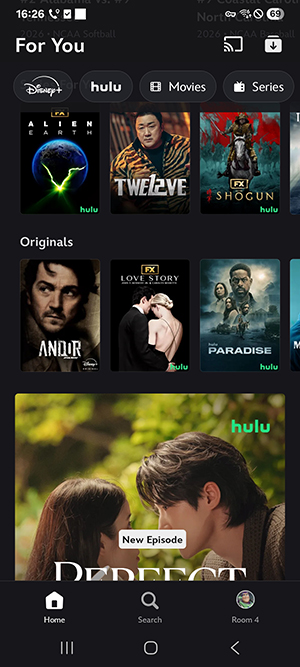
Step 2. Open the item and tap the "downward-facing arrow" icon located just below the title's description or next to the title or episode.
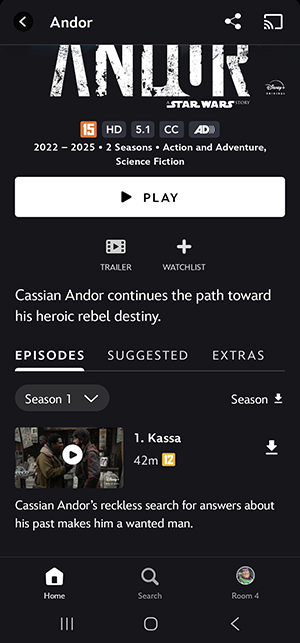
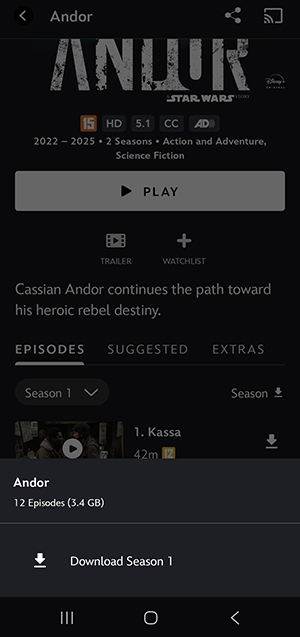
Tips:
If you're downloading a series, you can select individual episodes or choose to download the whole season on Disney+.
Step 3. Check the "Downloads" tab on the bottom menu to monitor your download progress and access your saved media library for offline viewing.
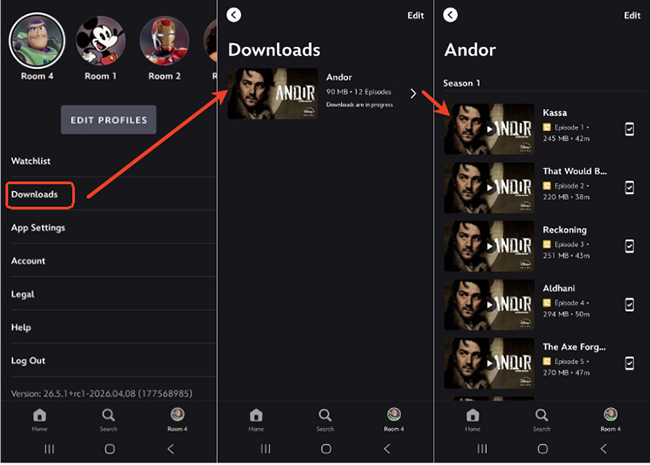
 Note:
Note:
Remember that logging out of the app will instantly wipe all of these hard-earned downloads from your device.
Part 3. Limitations and Restrictions of Disney Plus Downloads
While downloading Disney+ movies and TV shows is convenient on mobile devices, Disney+ imposes several technical and licensing restrictions that you should keep in mind to avoid losing your saved content.
Device and Title Limits
Disney+ allows for a high volume of connected devices, but the total number of saved titles is more restricted than most users realize:
- Device Limit: You can store downloaded content on up to 10 different supported devices at the same time.
- Library Cap: Regardless of how many devices you use, there is a strict global limit of 25 downloaded titles across your entire account.
Expiration and Licensing
Downloads are not permanent and require periodic "check-ins" to remain active:
- The 30-Day Rule: Unwatched downloads remain in your offline folder for up to 30 days. To keep these files active, your device must connect to the internet at least once during this period to automatically refresh the digital licenses.
- The 48-Hour Window: Once you press Play on a downloaded title, a shorter timer begins. You have 48 hours to finish watching the Disney+ movie or episode before the download expires and requires a refresh.
Content Availability
Not every title in the Disney+ catalog is eligible for offline viewing. Availability is subject to change based on:
- Regional Restrictions: Licensing agreements vary by country. A movie available for download in one region may be restricted in another.
- Studio Agreements: Certain high-profile releases or third-party titles may be excluded from the download feature entirely due to specific legal contracts.
Part 4. How to Download Movies and Episodes on Disney Plus on Laptops and Computers
As established, the official Disney+ app for Windows and web browser on macOS do not support offline downloads. If you want to watch Disney+ things offline on your laptop or computer, you will need an alternative method to save Disney+ content directly to your hard drive.
VidiKeep Disney Plus Downloader is such a tool to finish this task, which works with Disney+ Basic (With Ads) and Disney+ Premium (No Ads). It allows you to save high-quality Disney+ stuff in MP4 or MKV formats, preserving multilingual audio and subtitles. It offers several advantages over the official mobile app:
- H.264/AV1 Encoding: Uses the latest compression to keep 1080p files small without losing detail.
- Permanent Access: Unlike official downloads, these files never expire. You won't have to "check in" online every 30 days.
- No Device Limits: Once the file is on your laptop, you can move it to an external hard drive, USB stick, or any other media player without hitting the 10-device cap.
- Watch Anywhere: Since the Disney+ videos are saved as standard media files, you can watch them using VLC, Windows Media Player, or QuickTime without needing the Disney+ app installed.
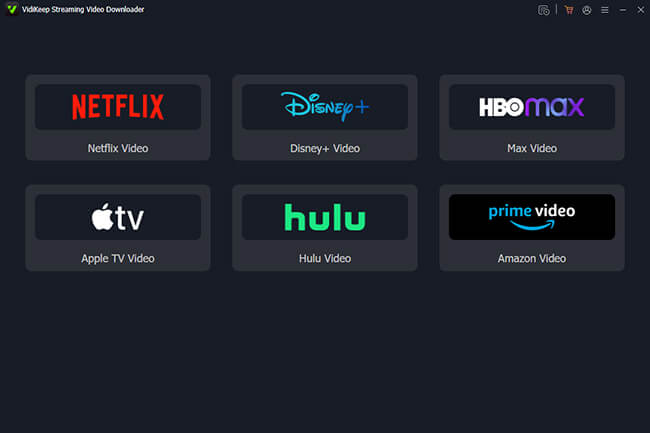
Step 1. Download and install VidiKeep Disney Plus Downloader on your Windows PC or Mac. Open the program and select the "Disney Plus" service from the main interface.
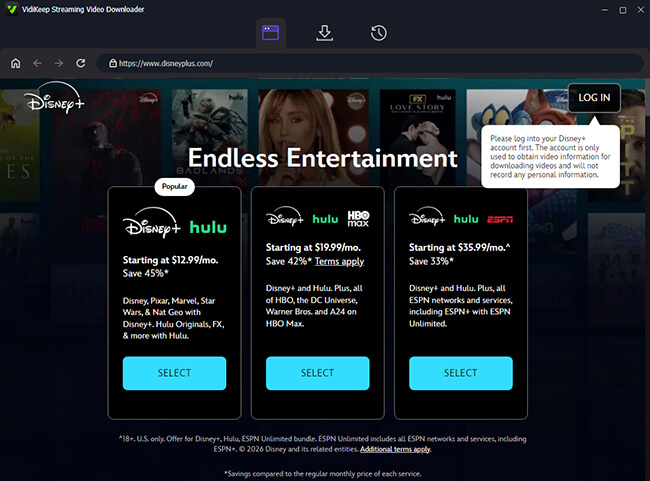
Step 2. A secure, built-in Disney Plus Web Player window will appear. Log in using your Disney+ credentials. This allows the software to access the library associated with your subscription.
Step 3. Use the search bar within VidiKeep to find the specific Disney+title you want to save. Open the item, and click the "Download" button to load it. You can also copy and paste the URL of a Disney+ movie or show directly from your web browser into the downloader.
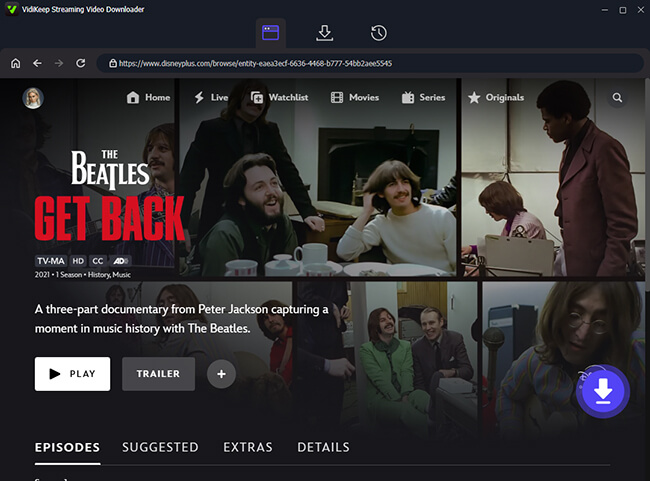
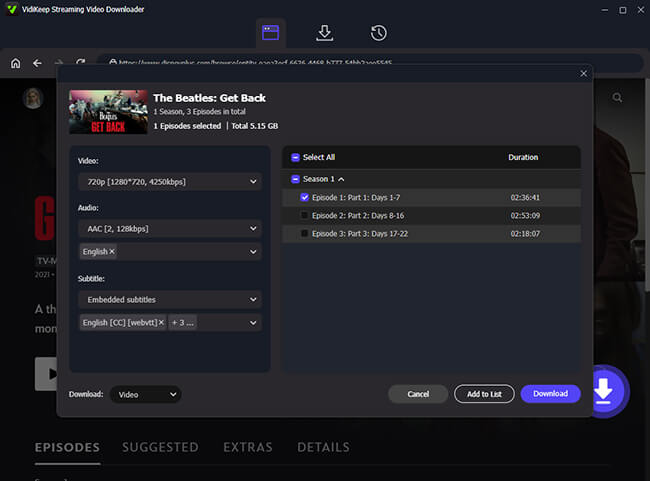
Step 4. Before clicking download, you can adjust the settings, such as video quality, preferred language tracks, and subtitles for a personalized experience. After that, you can select specific episodes or click the "Select All" to choose an entire season at once. Then, click the "Download" button to save Disney Plus series to your local device.
Part 5. Troubleshooting Common Issues with Disney+ Downloads
Sometimes, you might encounter issues when downloading content from Disney+. Here are some common problems and how to resolve them.
Failed Downloads or Interrupted Downloads
If your downloads are failing or getting stuck, try the following steps:
- Check Storage Space: Ensure your device has enough storage for the download. If you're low on space, try clearing some data or deleting unused content.
- Stable Internet Connection: Downloads require a stable Wi-Fi connection. If your internet connection is unstable, pause and restart the download once you have a better connection.
- App Update: Ensure your Disney+ app is up-to-date. An outdated version of the app may cause download issues.
Content Disappearing After Download
If downloaded content disappears, there are a few possible reasons:
- App Uninstallation: If you uninstall the Disney+ app or reset your device, downloaded content will be removed.
- Login Issues: Logging out of your Disney+ account may result in the loss of downloaded content.
- Expired Downloads: As mentioned earlier, content expires after 30 days. If the time window has passed, the download will no longer be available.
Storage Errors
If you're receiving a "not enough storage" error:
- Free Up Space: Try deleting old content or unused apps to make room for new downloads.
- Lower Quality: If you're running low on space, you can adjust your download settings to save content in SD quality.
Part 6. FAQs about Downloading Movies on Disney Plus
How many devices can hold Disney Plus downloads?
You can hold downloads on up to 10 supported mobile devices at a time (provided you are on the Premium Ad-Free plan). However, keep in mind there is a strict cap of 25 total downloaded titles across all 10 devices combined.
How long do Disney+ downloads last?
Unwatched Disney Plus downloads last for 30 days, as long as your device connects to the internet at least once during that time. However, as soon as you press Play, you have 48 hours to finish the title before it expires.
Can I download Disney+ movies on my TV?
No, Disney+ does not support downloading content directly to smart TVs. You can stream content on your TV, but you'll need a mobile device or VidiKeep to download content.
Can I download Disney+ movies on my laptop?
No, officially. The Windows/macOS laptop doesn't support Disney Plus downloads. However, you can use VidiKeep Disney Plus Downloader to save files directly to your PC's hard drive for offline viewing on VLC or other players.
How do I transfer Disney+ downloads to another device?
Unfortunately, downloaded content cannot be transferred between devices. If you want to access the content on another device, you'll need to re-download it on that device.
Part 7. In Conclusion
While the official Disney+ app is perfect for quick mobile use to download Disney Plus movies and shows, its restrictions on "Household" check-ins and the 25-title cap can be frustrating. For travelers and laptop users, VidiKeep Disney Plus Downloader provides the only permanent solution to build a truly offline, unrestricted library.

Jordan Rhodes is a Chief Technical Editor and Media Specialist at VidiKeep, specializing in creating diverse tech content, including streaming tutorials, software reviews, and video encoding tips.
Leave a Comment