How to Download Prime Video on Mac Permanently
Amazon Prime Video works smoothly on most Apple devices, but Mac users often run into a few common questions: Can you download Prime Video on Mac? The good news is that Amazon offers an Prime Video app for macOS, making it possible to download movies and TV shows for offline viewing. However, there are still several limitations you should know about before relying on those downloads for travel or long-term offline access. In this guide, you'll learn how to download and watch Prime Video on Mac for offline viewing.
Part 1. Can You Download Prime Videos on a Mac?
Yes, but only through the official Prime Video app for macOS. If you access Amazon Prime Video in a web browser like Safari or Chrome, you won't find a download button because the browser player supports streaming only. To download movies and shows on your MacBook or iMac, you need to install the dedicated Prime Video application from the Mac App Store.
Part 2. How to Download Amazon Movies on Mac via Prime Video App
The most direct and secure way to download Prime Video content on a Mac is through the official Prime Video app. Similar to the mobile version, it allows you to save eligible movies and TV shows for offline viewing while preserving the original streaming quality.
Step 1. Make sure your Mac is running macOS 11.4 Big Sur or later, as earlier versions do not support the Prime Video app.
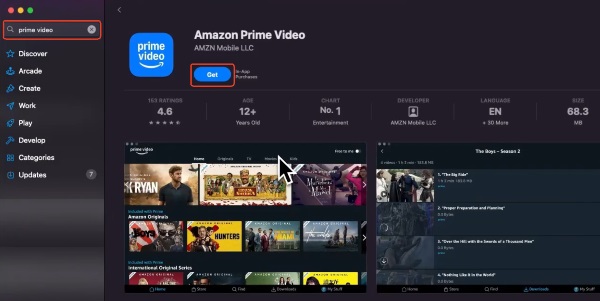
Step 2. Open the Mac App Store, search for "Prime Video", and click "Get" to download and install the application.
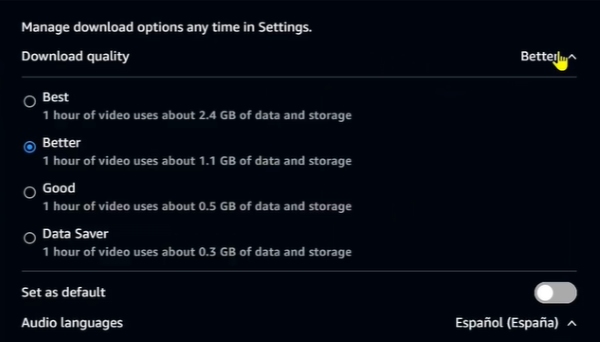
Step 3. Launch the app and sign in with your Amazon Prime account. Before downloading, click the "Settings" icon to adjust your "Download Quality". You can choose among Good, Better, or Best depending on your Mac's available storage space.
Step 4. Browse the library and select the movie or show you want to watch offline. Click the "Download" button on the title's detail page. For TV series, you can choose to download individual episodes or an entire season at once.
 Bonus Tips: How to Prevent Downloads from Expiring While Traveling
Amazon's DRM system periodically checks your location and licensing status. If you travel to a country where a specific movie or TV show isn't licensed, the previously downloaded content may suddenly become unavailable. To reduce the risk of losing access on the official app, you have to be careful with your network connections:
- Keep your Mac completely offline before launching Prime Video and avoid connecting to hotel Wi-Fi if possible.
- If internet access is required, connect through a trusted VPN server located in your home country before opening Prime Video.
If constantly monitoring expiration timers, toggling your Wi-Fi or VPNs sounds like too much of a hassle, you need a more robust solution.
Where are Prime Video downloads stored on a Mac?
Unlike typical files, you will not find your movies sitting plainly in your standard "Downloads" or "Movies" folders. The official Amazon app hides your downloaded media deep inside a protected, sandboxed system folder. However, because MacBooks often have limited storage, knowing how to find these hidden files is still crucial for managing your disk space. If you need to verify file sizes and find the exact storage folder on your Mac, just follow this path below:
Step 1. Open the Finder on your Mac and click "Go" > "Go to Folder" in the top menu bar, or press the shortcut key "Command + Shift + G" to open the text box.
Step 2. Copy and paste the following exact directory path into the search box and press Enter: /Library/Containers/PrimeVideo/Data/Library/com.apple.UserManagedAssets
 Note:
Note:
Depending on your specific version of macOS, Apple sometimes displays the technical bundle ID instead of the app name. If the path above does not work, try replacing "Prime Video" with com.amazon.aiv.AIVAppMac.
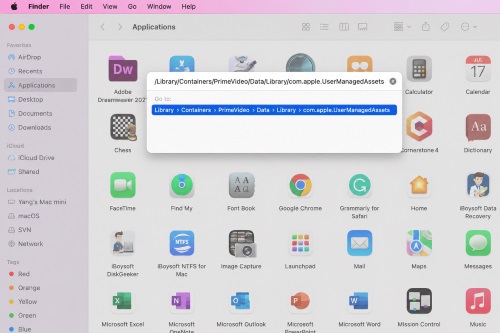
Step 3. Inside this folder, you will see a series of cryptically named folders containing files ending in .movpkg. These are your encrypted video files from Prime Video.
While you can see the raw files taking up space in this directory, remember that they remain encrypted and unreadable outside of the official Prime Video app. You cannot open or play these files using the third-party media player. Also these raw files cannot be moved to an external hard drive or USB flash drive.

While the official app is convenient, it is tightly controlled by Amazon's DRM restrictions:
- Download Expiration: If you don't start watching, it typically remains available for up to 30 days. Once playback begins, Amazon usually gives you 48 hours to finish watching before the download expires.
- Storage Limits: A Prime Video account can generally store around 15–25 downloaded titles across supported devices, although the exact limit varies depending on licensing agreements and account activity.
I learned this the hard way on a weekend trip. I previewed the first ten seconds of a movie on my Friday morning departure flight just to make sure the audio worked. By the time I opened my MacBook for my Sunday evening return flight, the download was locked. That quick audio test triggered the 48-hour countdown, leaving me with nothing to watch on the way home.
Part 3. How to Save Prime Videos Forever on Mac
To bypass Amazon's heavy restrictions entirely, you can use a professional tool like VidiKeep Streaming Video Downloader. Instead of merely "renting" an offline viewing window, VidiKeep operates by accessing your Prime account through a built-in browser. This process strips away the strict viewing limits and converts the media into DRM-free formats like MP4 or MKV. Since these files are detached from the Amazon ecosystem, they will never ping a server or expire when you cross a border.
- Save videos in MP4 or MKV format: Create universally compatible files.
- Keep subtitles and audio tracks: Preserve the original multi-language subtitles and high-quality audio feeds.
- Watch videos without the Prime Video app: Watch your movies and shows in VLC or any media player.
- Transfer to external drives: Move your heavy video files to a USB drive or Plex server to easily free up your Mac's internal storage.
- Avoid expiration: Say goodbye to the 48-hour self-destruct timer and 30-day deletion rules forever.
How to Download Prime Videos as DRM-Free MP4s/MKVs on Mac
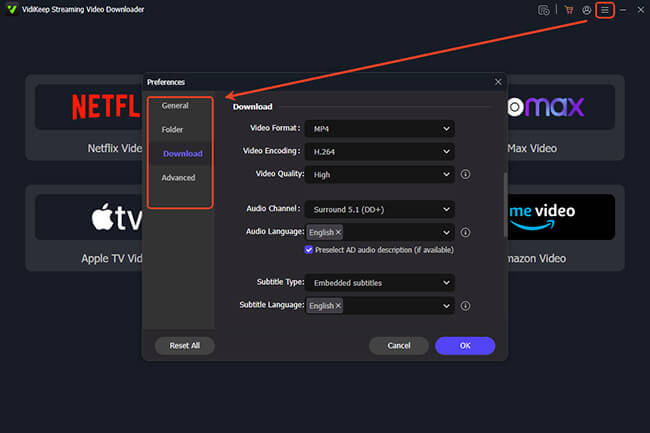
Step 1. Launch VidiKeep and head to the "Preference" > "Download" menu to configure your output settings. This is where you set your primary format to MP4 or MKV to ensure your downloads will work on any device from your Mac to smart TV, without needing the Prime Video app installed.
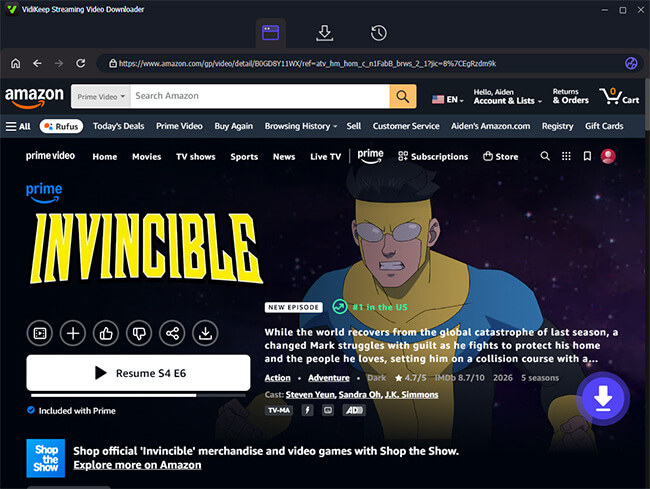
Step 2. Click the Amazon Video icon on the dashboard to access the built-in browser. Log in to your account to access your subscription library. Find the movie or show you want to keep, and once you are on the details page, look for the floating purple "Download" button in the right corner.
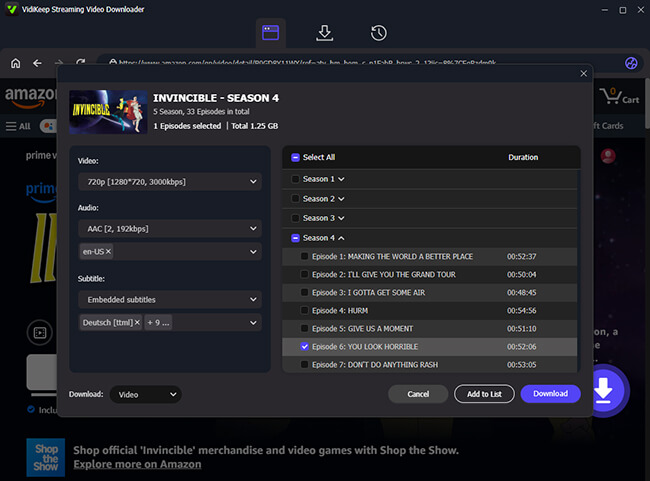
Step 3. Once you click that button, a window will appear where confirm your settings, including the target resolution, the audio tracks and preferred subtitle languages. If you are downloading a series, select the shows and use "Add to List" feature to batch-queue exactly the episodes you want. This is a massive time-saver compared to the official app, which forces you to either download the entire season at once or download episodes one by one. Then hit the final "Download" button to start the process.
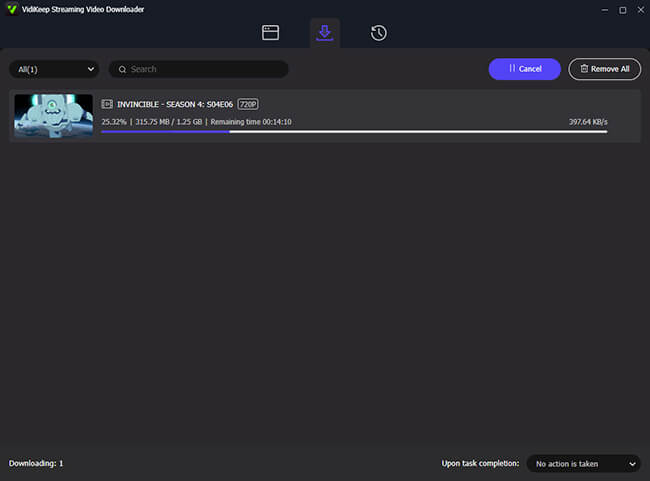
Step 4. You can track your progress via the status bar at the top of the interface. When the files are ready, simply click the "History" tab. You will find your fully extracted, DRM-free files sitting there, ready to be moved to an external drive, uploaded to a home server, or kept on your Mac forever—no expiration dates or region-lock pings to worry about.
Part 4. FAQs about Prime Video on Mac
Why is my Amazon Prime video not full screen on Mac?
If the "Enter Full Screen" option is missing or not working, it is usually a cache issue. Try making the app enter full screen (using Fn + F or Globe + F) while browsing the main menu before hitting play. If that fails, restarting your Mac or clearing the app cache located in ~Users > Library > Containers > Prime Video usually fixes the glitch.
Why won't Prime Video load on my Mac?
If the app is stuck on a loading screen, check your internet connection and ensure no VPNs are actively blocking the region. If using a browser, try disabling "Hardware Acceleration" in Chrome or Firefox settings, as this often causes black screen errors with DRM-protected content.
How Much Storage Do Prime Video Downloads Use?
Choosing the right resolution manages your hard drive space efficiently. "Good" quality consumes roughly 0.5 GB per hour. "Better" quality uses about 1.2 GB per hour. "Best" quality maximizes visual fidelity but requires up to 2.5 GB or more per hour of video.
How to cast Prime Video from Mac to TV?
Amazon officially disables AirPlay and Chromecast for offline, downloaded content to prevent piracy. If you want to watch a downloaded movie on a larger screen, you must connect your Mac directly to the TV using an HDMI cable, or use a third-party tool to convert the file to an MP4 first.
Part 5. Summary
For the casual viewer preparing for a short trip, downloading the official Prime Video app from the Mac App Store is the quickest and safest route. Just remember to watch out for the 48-hour expiration timer. However, if you want total control over your media and keeping your favorite Prime Video movies on Mac forever, VidiKeep Streaming Video Downloader is well worth the effort.

Jordan Rhodes is a Chief Technical Editor and Media Specialist at VidiKeep, specializing in creating diverse tech content, including streaming tutorials, software reviews, and video encoding tips.
Leave a Comment