How to Download Prime Video to USB
To prepare for a long trip, I wanted to download a few movies and TV shows that I purchased on Amazon Prime Video. Since my phone and tablet have very limited storage, I began looking for a way to save files to an external USB drive instead. However, I couldn't find any option to do so.
-- From RedditWhen you are prepping for a long trip and realize your phone or laptop doesn't have enough space for your movie marathon, saving your Amazon Prime videos to a USB drive seems like the obvious solution. However, you may find nothing plays when you plug that USB in. Here, we'll break down why official downloads often fail on other screens and provide step-by-step methods to download Prime Video to a USB drive for universal playback on any device.
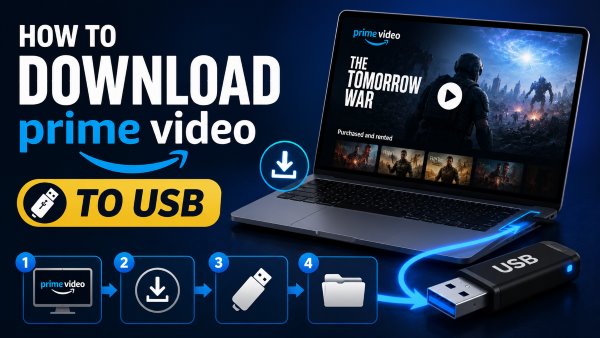
Part 1. Can I Transfer Amazon Prime Movies to a USB?
No, you can't natively transfer downloaded Amazon Prime movies on a USB flash drive. While you can change the download path to a USB drive on the Windows or Android app to save local storage space, this serves strictly as a storage extension. Because the downloaded files are protected by strict DRM encryption, they are saved as hidden, fragmented data.
You must plug the USB back into the original downloading device and play the Prime Video movies through the official Prime Video app. If you plug the USB directly into a Smart TV or projector, the files will not be recognized. Additionally, due to iOS system restrictions, iPhone and iPad users are completely blocked from routing official app downloads to an external USB drive.
Prime Video Download & USB Storage Restrictions
| Restriction Type | Details |
|---|---|
| Device Restrictions | Windows/Android: The USB functions as a cache drive; files can't be read eleswhere. iOS: The official app completely disables external USB routing. |
| Content Restrictions | Even purchased digital content is locked by DRM. |
| Playback Restrictions | You cannot plug a USB with official downloads into a Smart TV, gaming console, or projector for direct playback. |
Part 2. How to Download Prime Video to a USB Stick for Any Device
If you're frustrated by Prime Video's download restrictions or storage constraints, a dedicated downloader such as VidiKeep Streaming Video Downloader offers a more flexible solution. The software can save videos as standard MP4 or MKV files, making it easy to download Amazon Prime movies to a USB drive for offline viewing.
Unlike the official app, which limits where downloaded content can be stored and played, VidiKeep lets you download movies from Amazon Prime to a USB flash drive, external hard drive, or any storage device you prefer. Once saved, the videos remain accessible even without the Prime Video app, giving you greater control over your media library.
- Watch on Any Device: Download Amazon Prime movies as DRM-free MP4 or MKV files and play them on Smart TVs or game consoles without installing the Prime Video app.
- Keep Videos Permanently: Unlike official downloads that eventually expire, converted videos remain available for long-term offline playback while retaining original audio tracks and multilingual subtitles.
- Transfer Amazon Prime Movies to USB Easily: Move large movie files to a USB flash drive to free up valuable storage space on your computer.
Step 1 Set Up Your Download Preferences
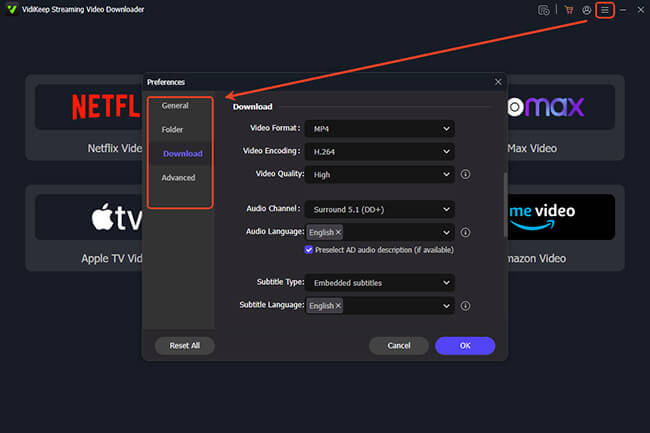
After installing and launching the VidiKeep on your computer, click the "Menu" icon to access the "Preferences" screen, and navigate to the "Download" tab. This is where you unlock media freedom. This menu gives you total control over how your final video will look and sound.
- Set your primary container format to MP4 or MKV for flawless compatibility with any screen.
- Select your ideal output resolution and preferred secondary audio tracks.
- Choose whether you want multi-language subtitles embedded into the video.
Step 2 Log In to Your Amazon Account
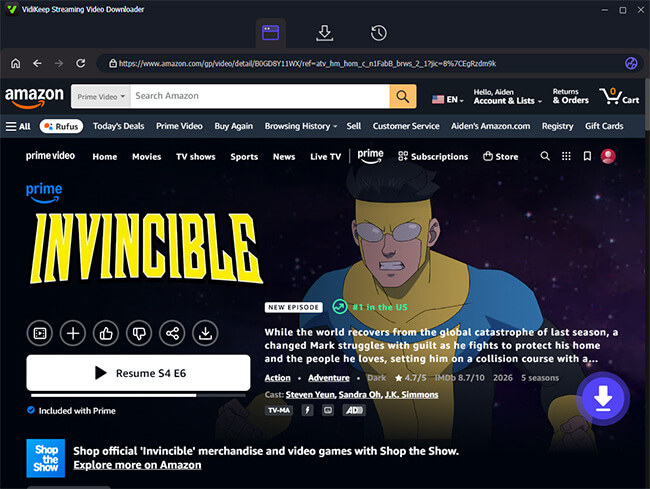
Click the dedicated "Amazon Video" icon to open the built-in web browser. Next, click the "Sign In" button to securely access your Amazon media library. This internal portal safely connects to the streaming service to gather the necessary metadata required for processing your offline downloads.
Step 3 Select Your Favorite Movies and Shows
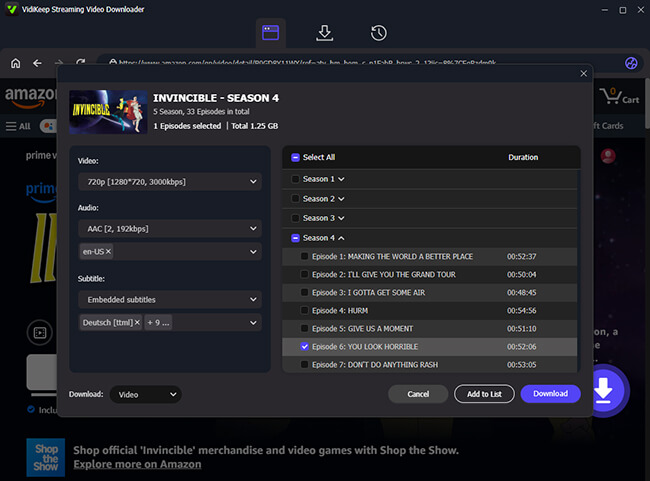
You can locate your desired video by pasting a direct streaming link into the search bar or by typing the movie title into the search box. Once you land on the correct video page, click the purple "Download" icon to compile the available titles into a list. If you are preparing an entire series for a long road trip, you can save massive amounts of time by simply ticking the "Select All" checkbox and clicking "Add to List" to queue up the whole season simultaneously.
Step 4 Download and Transfer the Files to Your USB
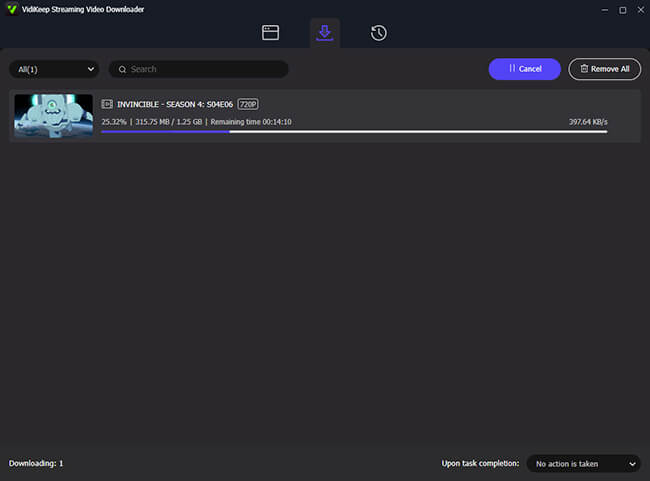
Click the final "Download" prompt to initiate the video extraction process and save the DRM-free episodes directly to your local computer. Once the extraction is finished, your media is finally ready for permanent external storage. You can easily drag and drop these fresh files to your USB drive or a portable hard disk.
 Disclaim:
Third-party software mentioned in this article is intended to help users manage and access content they have legally obtained. Users should use such tools responsibly and only for personal, non-commercial purposes.
Part 3. How to Store Prime Video Downloads on an External Drive
You can easily tell the Windows or Android application to use your flash drive for storage. Just ensure your USB stick is plugged in before opening the app. And High-definition movies take up a lot of space. Before you begin, you should format your USB stick to exFAT so it can hold individual files larger than 4GB, ensuring everything saves correctly.
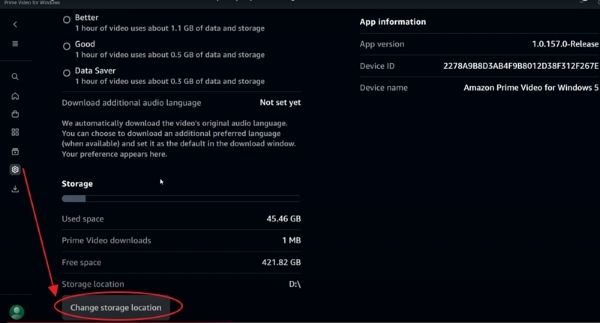
Step 1. Open the Prime Video app on your Windows computer and click the "Settings" gear icon in the bottom left corner.
Step 2. Scroll down to the "Storage" section and locate "Change Download Location". Click it to enter the Windows "Settings" section.
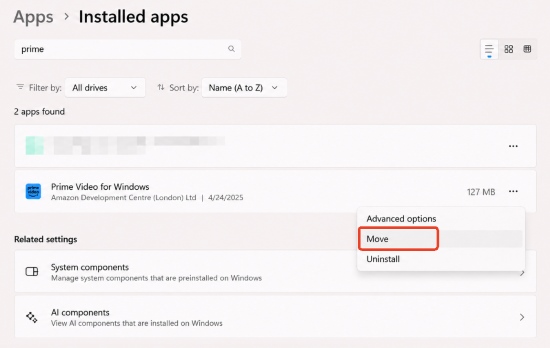
Step 3. Click the three dots next to the Prime Video app and choose "Move". Select your USB drive as the new storage location, then confirm the transfer.
 Editor's Note::
Any new movies or TV shows you download will now be routed directly to your external storage. Just remember that the USB must be connected to that specific computer whenever you want to watch them.
Part 4. Conclusion
Figuring out the way to download Prime Video to a USB ultimately comes down to where you plan to watch your movies. If you just need to free up local space on a Windows laptop, changing the official app's download directory to an external drive is quick and effective. However, if your goal is to transfer downloaded Prime Video to a USB so you can plug it into a Smart TV or gaming console, using a dedicated downloader like Vidikeep is the way to go. Then your movies are playable on any screen, anywhere, without expiration timers.

Jordan Rhodes is a Chief Technical Editor and Media Specialist at VidiKeep, specializing in creating diverse tech content, including streaming tutorials, software reviews, and video encoding tips.
Leave a Comment