How to Watch Netflix on PS5/PS4/PS3: Setup & Troubleshooting
Netflix allows Sony's PlayStation users to watch movies, TV shows, documentaries, and original content on gaming consoles without switching devices. However, the Netflix experience is different depending on whether you own a PS5, PS4, PS4 Pro, or PS3.
If you are searching for how to watch Netflix on PS5/PS4/PS3, you may be trying to install the app, wondering whether your older PS3 console still works with Netflix, or troubleshooting problems such as missing apps, login errors, or poor streaming quality. This guide explains how to use Netflix on PlayStation consoles, compares the streaming experience across generations, and covers what to do if Netflix is not working on Sony PlayStation.
Part 1. Can You Watch Netflix on PS5, PS4, and PS3?
The short answer depends on which PlayStation console you own.
Does Netflix Still Work on PS3?
Let's start with the bad news: the Netflix on PS3 is officially discontinued. As of March 2, 2026, Netflix officially ended support for the PlayStation 3 app. After nearly sixteen years of dedicated service, opening the application now simply yields a warning screen redirecting users to compatible modern devices.
Does PS5/PS4 Have Netflix?
Fortunately, modern PlayStation consoles, including PS5, PS4 Pro, and PS4, still support the Netflix app. You can download or access Netflix through the console's media apps section, sign in with your account, and start streaming directly.
Netflix on PS5 vs PS4 Pro vs PS4 vs PS3
| Feature | PS5/PS5 Pro | PS4 Pro | PS4 | PS3 |
|---|---|---|---|---|
| Netflix support | Yes | Yes | Yes | Discontinued |
| Installation | Media > All Apps | TV & Video / Apps | TV & Video / Apps | No longer available |
| Maximum quality | Up to 4K Ultra HD | Up to 4K Ultra HD | 1080P | Not applicable |
| HDR | Supported on compatible setup | Supported on compatible setup | Limited/no 4K HDR experience | Not applicable |
| Dolby Atmos | Supported on compatible setup | 5.1 surround sound | 5.1 surround sound | Not applicable |
| Recommendation | Best PlayStation option | Good for 4K TV owners | Good HD option | Consider upgrading or using VidiKeep |
Part 2. How to Watch Netflix on PS5 and PS5 Pro
The PS5 provides the most modern Netflix experience among PlayStation consoles. It completely separates gaming content from entertainment apps to keep the user interface incredibly clean. If you just upgraded to a PlayStation 5 or PS5 Pro, you might be confused when the app does not appear on your main dashboard.
You actually need to navigate to a dedicated entertainment section hidden near the top menu. Follow these steps to get Netflix running on your PlayStation 5:
Download, Install, and Play Netflix on PS5
Step 1. Turn on your PS5 console, connect it to the internet, and press the PlayStation button to ensure you are looking at the home screen.
Step 2. Navigate to the top left of the screen and use the bumper buttons to switch from the Games tab over to the Media tab.
Step 3. Select the All Apps icon, scroll down to Video and music apps, and click on the Netflix icon to begin the download and get Netflix on PS5.
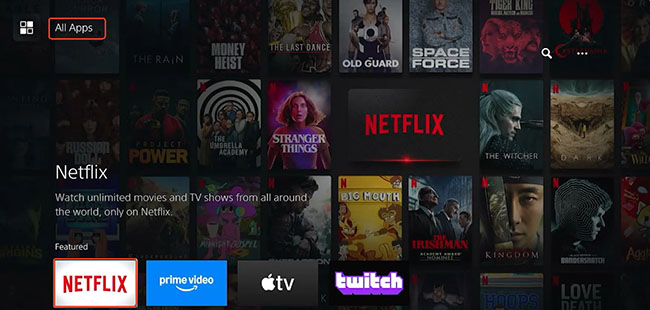
Step 4. Once the installation completes, open the application and sign in with your account credentials on the Netflix home screen.
Step 5. After signing in, you can choose your profile, browse your personalized recommendations, search for titles, and start streaming Netflix on PS5.

Part 3. How to Watch Netflix on PS4 and PS4 Pro
The PlayStation 4 interface is a bit different, grouping all of its media applications into a single, specialized folder. This layout can sometimes bury your favorite apps if you have not used them recently or if your dashboard is cluttered with games. Finding the Netflix app on PS4 requires jumping directly into the built-in video dashboard.
Download, Get, and Stream Netflix on PS4
Step 1. From the main PS4 dashboard, scroll horizontally until you find the specific icon labeled TV & Video.
Step 2. Open this section to view a grid of available streaming services and navigate down to select the Netflix icon.
Step 3. Hit the Download button to install it to your console, then open the app and log in to your account.
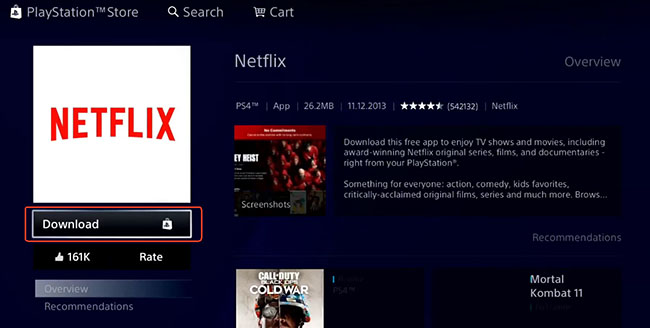
Step 4. Once connected, the Netflix app works similarly to the PS5 version, allowing you to play Netflix movies, series, and other content on PS4.
Part 4. Alternative Way to Still Play Netflix on PS3
With the native Netflix for PS3 application no longer functioning, legacy console owners have to get a little creative. Fortunately, the PlayStation 3 can still play local video files directly from a USB drive. If you already own a PS3 and want to watch downloaded videos on your TV, one possible workaround is to save compatible video files to a USB flash drive and play them directly through the PS3's built-in video player.
By using VidiKeep Netflix Video Downloader, you can save your favorite Netflix shows and movies locally as MP4 or MKV files. Once you have the raw video files, you simply transfer them to a flash drive and play them through the console's native media interface.
Because the older console has strict compatibility rules, you will want to select the MP4 format during the download process to ensure smooth playback. Your USB drive must be formatted in FAT32, which enforces a strict 4GB maximum single-file size limit.
How to Play Local Netflix Videos on PS3 from a USB Drive
To get the console to recognize your downloaded Netflix episodes, you will need to follow a very specific file structure. The older PlayStation operating system is notoriously picky about how external storage is organized. Skipping the folder creation step will usually result in the console thinking your drive is completely empty.
Step 1. Open Vidikeep on your computer, log into your Netflix account, and select favorite shows or movies to download. Tap the Download button to save Netflix videos as compatible video files on a computer.
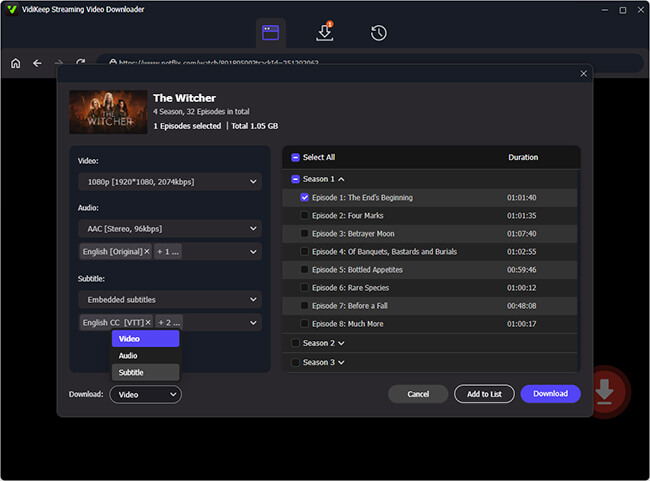
Step 2. Format your USB flash drive to the FAT32 file system using your computer.
Step 3. Create a new folder named exactly VIDEO on the root directory of the drive, and place your downloaded Netflix video files inside USB flash drive.
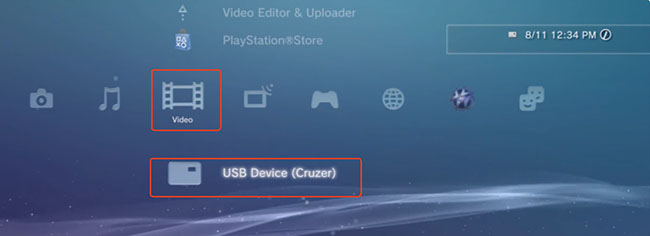
Step 4. Plug the formatted drive into a free USB port on your PS3 and navigate to the Video tab on the XMB (Cross Media Bar) home screen.
Step 5. Highlight your USB drive on the screen, but do not press the X button yet. Instead, press the Triangle button on your controller and select Display All to force the console to reveal your compatible files.
 Tips:
Tips:
The Netflix app on PlayStation 5 and 4 consoles is designed for online streaming. You can't download Netflix movies on PS5 or PS4. If you want to watch Netflix content offline, you can also use the above solution to make it possible.
Part 5. How to Guarantee Netflix 4K and HDR Quality on PlayStation 5/4 Pro
Simply owning a powerful console like the PS5 or PS4 Pro does not automatically mean you are watching your favorite shows in the highest possible fidelity. Many users unknowingly stream in standard 1080p because their hardware or home network is creating a quiet bottleneck. Unlocking true 4K Ultra HD and HDR requires a specific combination of subscriptions, cables, and display tech.
Here are the critical requirements to verify your streaming quality:
- An active Premium tier Netflix subscription that supports Ultra HD streaming.
- A stable internet connection maintaining a minimum speed of 15 to 25 Mbps.
- A television featuring an HDCP 2.2 compliant HDMI port.
If you are missing even one of those elements, the application will automatically downscale your video feed to match the lowest common denominator.
To ensure you are getting the absolute best picture, always plug your console directly into the primary HDMI 1 port on your display. Avoid routing the video signal through older soundbars, splitters, or capture cards, as they can frequently strip away HDR metadata and limit your overall resolution.
Part 6. How to Sign Out of Netflix on PS4/PS5
Sometimes you need to switch profiles, update your subscription, or simply clear out a login error. The official process to log out of your Netflix account on a modern PlayStation console only takes a few button presses.
The Standard Logout Method
Step 1. Launch the Netflix application on your console.
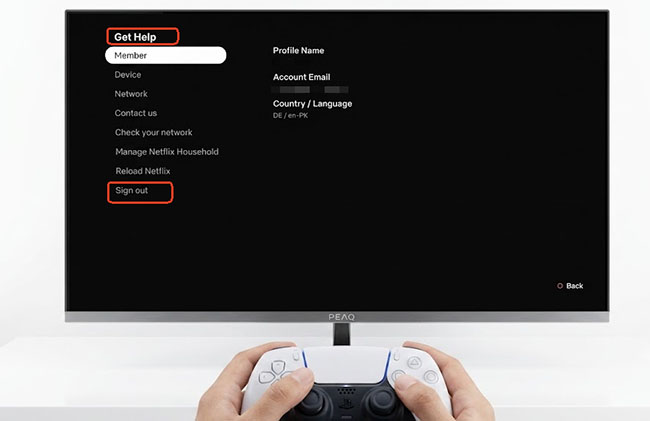
Step 2. Press the Circle button on your controller to pull up the on-screen display.
Step 3. Navigate to and select the Gear icon to open the settings menu.
Step 4. Highlight and select the Sign Out option.
Step 5. Choose Yes to confirm your decision and successfully disconnect your account.
 Note:
Note:
If you are using a Japanese PlayStation console, the button inputs are reversed. You will need to press O (Circle) to confirm your choices and X (Cross) to cancel or go back.
The Fallback Method: Removing the App
Step 1. Start from the main PlayStation home screen. If you are currently trapped inside a frozen Netflix app, press and hold the central PS button on your controller, select Quit, and choose Yes to force your way back to the dashboard.
Step 2. Scroll over to the TV & Video section and highlight the Netflix application icon.
Step 3. Press the Options button on your controller to open the software's side menu.
Step 4. Select Delete from the list of choices.
Step 5. Finally, select OK. This uninstalls the app and permanently wipes your saved login data from the console's memory.
Part 7. How to Fix Netflix Not Working on PS5 or PS4
Even supported PlayStation consoles can experience Netflix problems. Common issues include the Netflix app not opening, playback errors, buffering, or login failures on PS5 or PS4. Here are some fixes for you to fix it:
Check Your Internet Connection: Netflix requires a stable internet connection. If videos constantly buffer:
- Restart your router.
- Test your internet speed.
- Avoid downloading large files while streaming.
- Consider using an Ethernet connection if possible.
Restart Your PlayStation Console: A simple restart can fix temporary software issues. Completely turn off the console, wait briefly, and start it again before opening Netflix.
Update the Netflix App and PlayStation Software: Older software versions may cause compatibility problems. You can check for the updates of PlayStation system and the Netflix app. Keeping both updated can resolve many playback and loading issues.
Reinstall Netflix: If Netflix freezes or refuses to open:
- Delete the Netflix app.
- Restart your PlayStation.
- Download Netflix again.
- Sign back in.
This can fix corrupted app data or installation problems.
Pro Tips: How to Fix Netflix App Missing on PS5 or PS4
If you cannot find Netflix immediately after setting up their PlayStation console. You can try the following:
- Check the Media section on PS5.
- Check TV & Video on PS4.
- Search available apps through the PlayStation interface.
- Confirm that your console is connected to the internet.
- Make sure your PlayStation account region supports the app.
The exact app location may vary slightly depending on system software version and region.
Part 8. FAQs About Using Netflix on PlayStation 5 and 4
Is Netflix free on PS5 or PS4?
No. Netflix requires a separate paid subscription. PlayStation Plus is not required to watch Netflix.
Does PS5 Netflix support 4K?
Yes. PS5 supports Netflix 4K Ultra HD when you have a compatible Netflix plan, display, HDMI connection, and internet connection.
Can PS4 stream 4K Netflix?
Yes, but only PS4 Pro supports Netflix 4K Ultra HD. The standard PS4 is limited to lower resolutions.
Can you play Netflix games on PS5 or PS4?
No. Netflix games are currently designed mainly for mobile devices and supported platforms, not PS5 or PS4 consoles.
Can I turn off my PS5 controller while watching Netflix?
Yes. You can turn off the PS5 DualSense controller while watching Netflix by holding the PS button and selecting the controller power option. You can also set the controller to turn off automatically after a period of inactivity.
Can I watch Netflix while playing PS5?
Yes, you can watch Netflix and play a game simultaneously on your PS5 by pinning the Netflix webpage to the side of your screen using the console's hidden web browser.
Is Netflix better on PS5 or TV?
It depends on your setup. A modern smart TV app may offer a similar experience, but PS5 can provide faster navigation, a consistent interface, and strong performance. If your TV already has a high-quality Netflix app, the difference may be small.
Does Netflix on PS5 support Dolby Atmos?
Yes, PS5 can support Netflix Dolby Atmos playback when you have a compatible Netflix plan, audio equipment, HDMI setup, and supported content.
Can you screen share Netflix on PS4?
No. Netflix does not support screen sharing through PS4. Features such as Share Play do not allow Netflix streaming because of content protection restrictions.
How to delete Netflix on PS4?
You can refer to the following steps to delete Netflix on PS4:
- Highlight the Netflix app on the PS4 home screen. Go the the TV/Video Services or TV & Video section and highlight Netflix.
- Press the Options button on the PlayStation controller.
- Select Delete and confirm the deletion.
Part 9. In Conclusion
Watching Netflix on PlayStation is still a convenient option, especially for PS5 and PS4 owners. The setup process is simple, and newer consoles provide a smooth streaming experience with support for higher-quality playback.
For current users, PS5 is the best choice for Netflix, while PS4 remains a reliable option. PS3, once an important Netflix platform, is now outdated and should be replaced with a newer streaming solution.
Whether you are installing Netflix for the first time or troubleshooting playback problems, understanding your console's capabilities is the key to getting the best streaming experience.

Jordan Rhodes is a Chief Technical Editor and Media Specialist at VidiKeep, specializing in creating diverse tech content, including streaming tutorials, software reviews, and video encoding tips.
Leave a Comment