How to Watch Netflix Together: 6 Easy Ways
Whether you want to stream the latest sci-fi thriller with a long-distance partner or plan a virtual movie night with friends, there are several practical ways to watch Netflix together online. Netflix does not currently include a built-in watch party feature in its app or website, so most viewers rely on browser extensions or screen-sharing tools instead. Below, we've selected the most useful options that suit different devices and viewing situations for watching Netflix together with your partners.
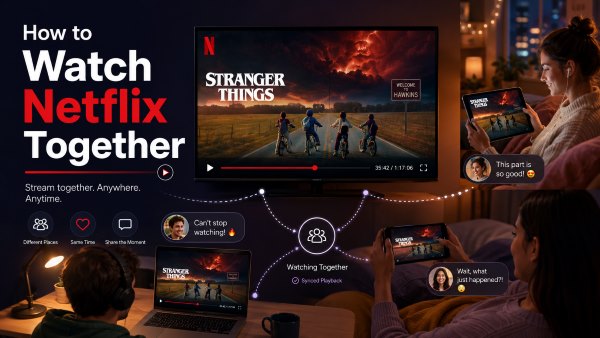
- Teleparty: The industry standard for desktop users. It offers seamless playback sync and a built-in text chat for Google Chrome and Microsoft Edge browsers.
- Rave: The ultimate solution for mobile streaming. It allows users to sync Netflix across iOS and Android devices while offering real-time voice chat capabilities.
- VidiKeep: The ultimate offline workaround. Download Netflix titles locally to bypass internet buffering and sync playback effortlessly on any device.
Method 1. How to Watch Netflix Together Long Distance with Teleparty
Teleparty, formerly known as Netflix Party, is one of the most popular ways to watch Netflix together on a computer. This lightweight browser extension creates a private room and keeps playback synchronized, so when one person pauses, resumes, or skips to another point, the others follow automatically. A built-in sidebar chat also lets everyone react and comment without interrupting the movie.
 Note:
Note:
Teleparty synchronizes each participant's own Netflix stream rather than sharing one person's screen. Everyone joining the room needs access to Netflix and must be able to play the same title in their region.
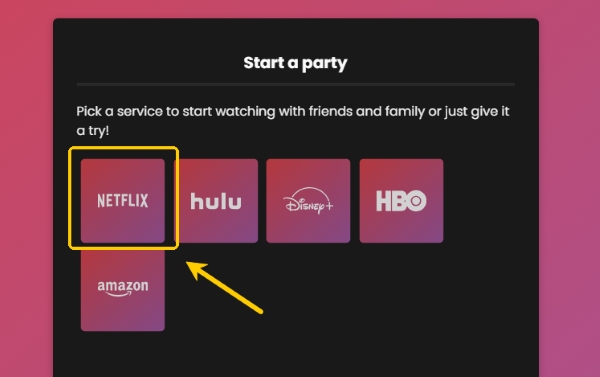
Step 1. Install the Teleparty extension from the Chrome Web Store or Microsoft Edge Add-ons page and pin it to your browser toolbar. Choose Netflix to start the watching party. Then log in to your Netflix account and start playing the movie or TV episode you want to watch.
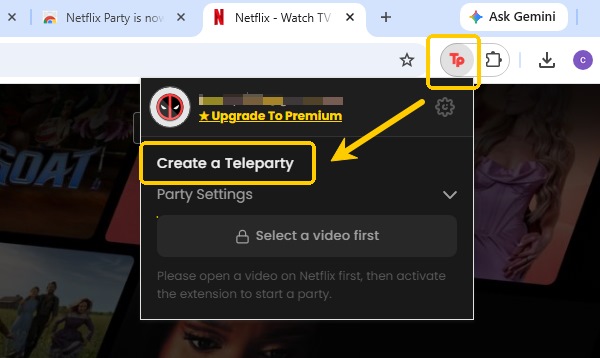
Step 2. Click the red "TP" icon in your browser toolbar and select "Create a Teleparty" to generate a unique sharing link. Then copy the generated URL and send it to your friends so they can join the synchronized room and start chatting.
Method 2. How to Use the Watch Netflix Together Extension Online
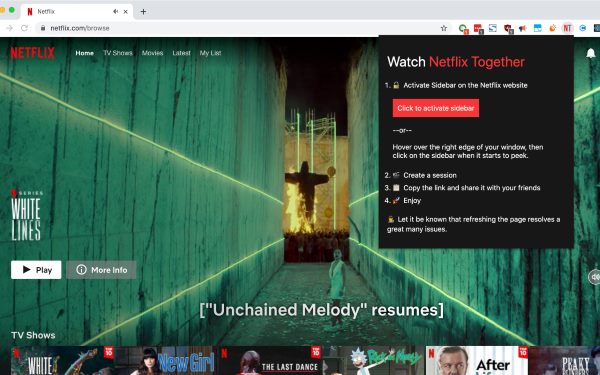
Watch Netflix Together is another Chrome extension designed specifically for synchronized Netflix playback. It has a similar purpose to Teleparty, but its room-creation workflow offers one useful difference: you can start the session before selecting a movie. The extension also includes a sidebar with text chat and can keep the group together when the host changes shows or moves to the next episode.
Step 1. Add the Watch Netflix Together extension from the Chrome Web Store. Open Netflix in Chrome and click the extension icon to display its sidebar.
Step 2. Select Start a Session from the extension panel. Unlike Teleparty, you do not necessarily need to begin playing a video first; the room can be created from the Netflix homepage. This lets everyone join before the group chooses a show.
Step 3. Copy the room link and send it to your friends. After everyone joins, browse the Netflix catalog and select a title. The extension can also follow the host when the next episode begins or when the group moves to another show, reducing the need to create a new room during a binge-watching session.
 Teleparty vs. Watch Netflix Together Extension
Choose Teleparty when you want a widely used multi-streaming service extension. Choose Watch Netflix Together when your group mainly watches Netflix and values the ability to create the room first, browse together, and continue automatically between episodes.
Method 3. How to Watch Netflix Together on Phone with Rave
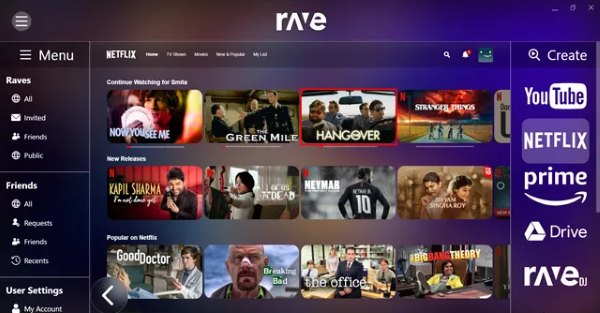
Rave is a watch party app built for people who want to watch Netflix together beyond a desktop browser. Available on Android, Windows, and Mac, it keeps playback synced while adding built-in text and voice chat, so friends can react in real time without a separate calling app. However, the free version of Rave may include ads.
 Limitations:
Although Rave still lists iOS support on its website, its official iPhone/iPad App Store link currently returns a 404, so new iPhone users may be unable to install it for now.
Step 1. Download Rave on the devices the group plans to use. Participants can use different supported device types.
Step 2. Choose Netflix from the streaming services available in Rave and sign in to an account that can access the title. Each participant needs paid access to the streaming service being used.
Step 3. Search for the Netflix movie or episode you want to watch and open it inside Rave. Create a private room for "Friends Only" and invite your contacts to join the voice channel.
Step 4. Once they join and authenticate their Netflix access, playback can begin. You can use the text or voice controls to talk during the movie.
 When Rave Is the Better Choice:
Rave is a flexible option for groups who want to watch Netflix together across mobile and desktop devices. It works especially well when participants use different devices, such as one person watching on an Android while another joins from a computer.
Method 4. How to Host a Netflix Watch Party with Friends on Scener
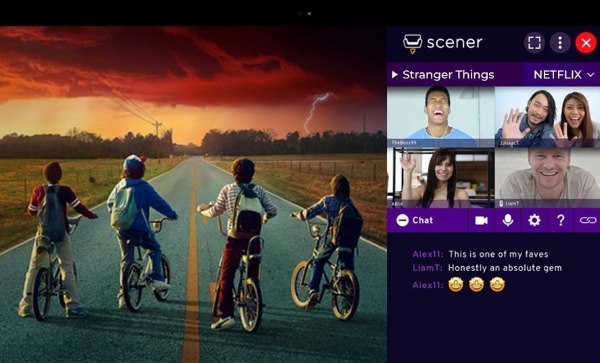
For those who crave the feeling of sitting on the same couch, Scener is the premium choice. Scener takes the watch party concept a step further by overlaying a live video chat over the synchronized movie. You can see your friends' facial expressions as the plot twists happen.
Note:
Scener's Text-based synchronized viewing is generally the simplest starting point, while certain audio and video functions may depend on premium access or the selected party format.
Step 1. Install the Scener browser extension and create a free user profile on their official website.
Step 2. Choose "Host a Watch Party" and select the format that fits your group. For an ordinary Netflix night with friends, a private room is usually easier to manage, while theaters support larger groups and a more host-led experience.
Step 3. Select Netflix as the streaming service, sign in, and open the desired movie or episode. Scener should launch the streaming window alongside its social sidebar.
Step 4. Copy the invitation link or room code and send it to your friends. Keep the Scener panel visible if you plan to use chat, camera, or microphone controls.
 Alternative for Webcam Watch Parties:
TwoSeven offers a browser-based watch party setup with automatic playback synchronization, live chat, and optional webcam video so you can see everyone's reactions while watching. It supports Netflix along with services such as YouTube, Prime Video, Hulu, Disney+, etc, making it a flexible alternative for virtual movie nights.
Method 5. How to Watch Netflix Together on Discord
Discord is the go-to communication hub for gamers, and it is frequently used to screen-share movies. Unlike browser extensions, Discord relies on one person broadcasting their screen to a voice channel. This means your friends do not necessarily need their own Netflix accounts to watch along.
Limitations:
However, streaming Netflix over Discord often results in a frustrating black screen due to DRM protections. To bypass the Netflix black screen, you need to toggle the graphic acceleration feature off and relaunch your browser.
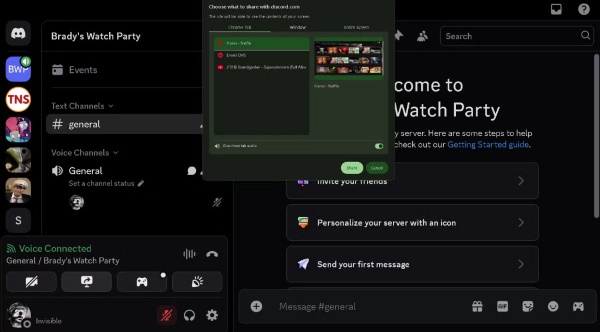
Step 1. Open the Netflix movie in a supported browser, but leave it paused. Then open Discord and enter either a direct voice or video call, or a server voice channel where you have permission to share your screen.
Step 2. Click "Share Your Screen" in a direct call or the screen-streaming icon in a voice channel. Select the browser window containing Netflix rather than sharing every window on the computer. This reduces the chance of displaying private messages or unrelated tabs. Choose the available resolution and frame rate, and then click "Go Live".
 Use Hyperbeam as a Shared Virtual Browser:
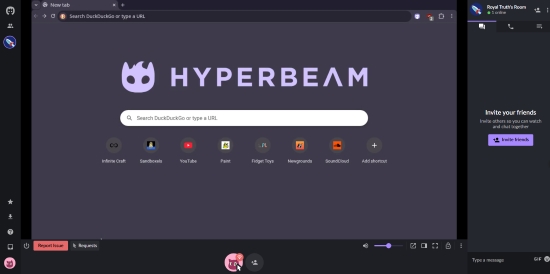
If Discord screen sharing is causing too much lag, consider trying Hyperbeam. Hyperbeam lets participants browse through a shared virtual browser hosted on a remote server, ensuring that the stream quality does not depend on your personal internet upload speed. Keep in mind that Netflix availability may be affected by DRM constraints, and you may need to enable the Hyperbeam proxy feature on its app to properly load the streaming catalog.
Method 6. How to Watch Netflix Together Without Buffering with VidiKeep
Netflix watch-party extensions are convenient, but they still rely on a stable internet connection and compatible browsers. Playback may gradually fall out of sync, while screen sharing through Discord can occasionally produce a black screen or reduced quality.
For a more stable viewing setup, you can prepare the movie or episodes as local video files before the watch party. VidiKeep Netflix Video Downloader can download Netflix content to MP4 or MKV on a Windows or Mac computer, with support for video quality up to 1080p, batch episode downloads, and multiple audio tracks.
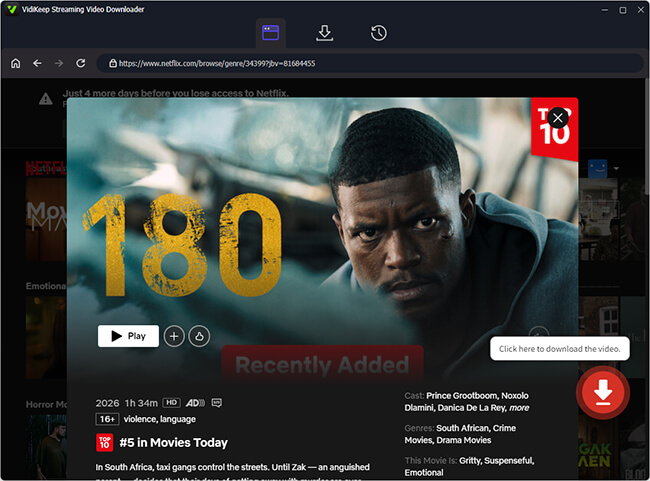
Step 1. Install the VidiKeep software on your desktop computer. Open the program and use the built-in web player to log into your Netflix account.
Step 2. Search for the title you want to watch and select your preferred video resolution and subtitle languages. Click the download button to save the DRM-free video file permanently to your local storage.
Step 3. Once the video is available locally, you can open your copy and start it using a simple "3-2-1 Play" countdown. You can also load the matching files into a synchronization tool such as Syncplay, while keeping a FaceTime or Zoom call pen for conversation.
Conclusion
| Tool | Supported Devices | Best For | Chat Features | Need Netflix Access? | Main Limitation |
|---|---|---|---|---|---|
| Teleparty | Desktop; App for Mobile |
Simple browser-based Netflix watch parties | Text chat | Yes | Basic setup does not include built-in voice or video chat |
| Watch Netflix Together | Windows, Mac | Browsing and choosing a Netflix title together | Text & emoji chat | Yes | Mainly designed for Chrome |
| Rave | Android, Windows, Mac | Mobile and cross-device watch parties | Text & voice chat | Yes | Free version may include ads; iOS availability is currently limited |
| Scener | Mainly desktop Chrome | Social watch parties and webcam interaction | Text, voice, video | Yes | Requires more setup than a basic sync extension |
| Discord | Desktop, Mobile, Web | Groups already using Discord | Text, voice, video | Not necessarily | Netflix DRM may cause black screen or audio issues |
| Hyperbeam | Web browser | Browsing and controlling one virtual browser together | Text, voice, video | Not necessarily | Netflix playback may vary depending on DRM compatibility |
| VidiKeep | Windows, Mac | Local playback without live buffering | None built in | Yes, to download | Does not automatically synchronize playback or provide chat |
Choosing the right method comes down to the devices you own and how you prefer to communicate. If everyone is on a laptop and wants a simple text chat, Teleparty is the clear winner. If you want to see your friends' faces, Scener is unmatched. For mobile users, Rave is the best app for seamless viewing. And if buffering is driving you crazy, downloading your shows with a tool like VidiKeep guarantees a flawless, uninterrupted experience.

Jordan Rhodes is a Chief Technical Editor and Media Specialist at VidiKeep, specializing in creating diverse tech content, including streaming tutorials, software reviews, and video encoding tips.
Leave a Comment