How to Delete Continue Watching on Prime Video [All Devices]
Prime Video's Continue Watching row makes it easy to pick up where you left off. Still, it can also become cluttered with shows you stopped watching, finished titles that refuse to disappear, or videos you'd rather not keep visible on a shared screen. The good news is that you can remove unwanted titles from Continue Watching on Prime Video across your devices. This guide walks you through each method and shows what to do if a title keeps coming back.
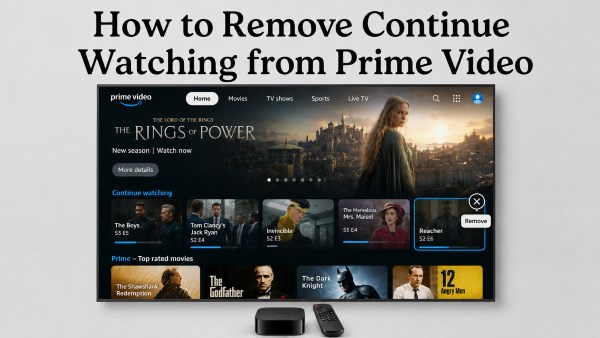
Part 1. How to Remove Continue Watching from Prime Video on PC/Mac
The web version of Prime Video usually gives you the clearest control over the Continue Watching row, and it is convenient if you want to remove a movie or show quickly.
Step 1. Sign in to Prime Video in your browser and select the profile where the unwanted title appears. Go to Home, then scroll until you find the "Continue Watching" row. Its position can vary slightly depending on your current homepage layout.
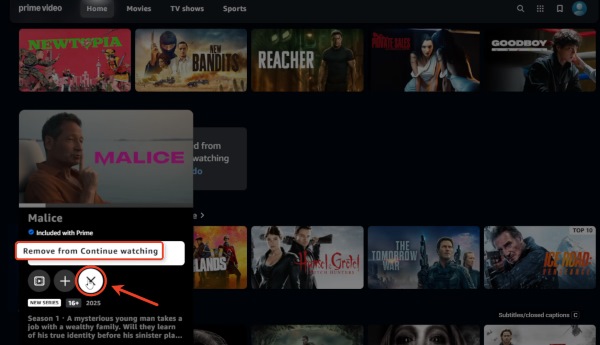
Step 2. Hover over the movie or show you want to remove. An "X" button appears on or near the title card. Click it to delete the title from Continue Watching on Prime Video. The movie or show will remain searchable and available to watch again.
 Note:
Note:
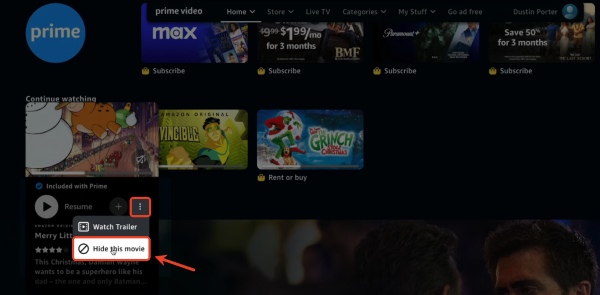
Prime Video does not use the same removal control on every account or interface version. If you do not see an X, open the title's More options and look for a "Hide this movie" or "Hide this video" option.
600 295
Part 2. How to Delete Continue Watching on Prime Video on Phone
You can also remove Continue Watching from the Prime Video app on iPhone, iPad, and Android. This is especially useful if you mainly watch on mobile. In most versions of the app, you can clear a title from the Continue Watching on Prime Video app with a long press or the title’s options menu.
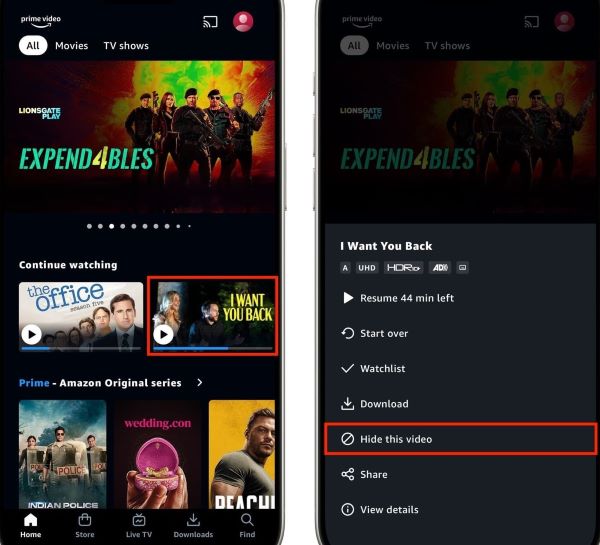
Step 1. Launching the Amazon Prime Video mobile app on your iOS or Android device. Swipe down on the main home screen until you spot the "Continue Watching" section containing your unfinished media.
Step 2. Firmly press and hold your finger down on the specific thumbnail you want to eliminate. Keep holding it for a couple of seconds until a hidden options menu pops up from the bottom of your screen. Then tap on the selection that says "Hide this video".
 Note:
Note:
If the screen does not update right away, you might need to force close the Prime Video app entirely and reopen it to see your freshly decluttered homepage layout.
Part 3. How to Clear Prime Video Continue Watching on TV
Trying to clear Continue Watching on Prime Video from a Smart TV, Roku, or Fire TV device is usually straightforward. The exact button or menu can vary by TV brand, remote layout, and Prime Video app version, but the overall process is generally similar across devices.
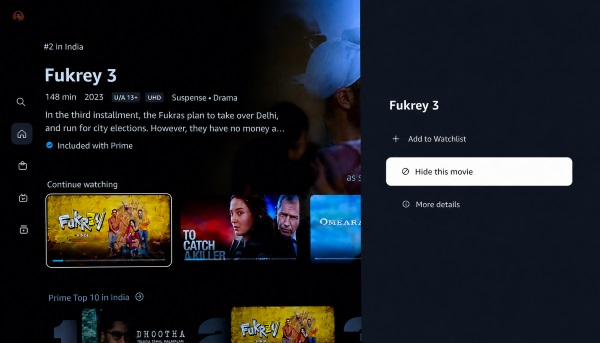
Step 1. Managing your queue on a television requires using your remote control's specific menu functions. Navigate to the "Continue Watching" tab on your TV app and highlight the exact movie or show you wish to hide from view.
Step 2. With the title clearly highlighted, press and hold the "OK" or "Select" button on your remote for several seconds, or press the "Menu" button on Fire TV to force the hidden options panel to appear on your screen. Scroll through this newly opened side menu and select the "Hide this video" option.
 Tips:
Tips:
Because your Amazon account syncs your data via the cloud, any changes you make on one device will automatically reflect everywhere else. If your TV app is not working, simply delete the Continue Watching on your PC or phone, and then restart your TV.
Part 4. Troubleshooting: Prime Video Won't Remove a Title?
Prime Video's Continue Watching behavior is not always predictable. You may remove a title from Continue Watching only to see it return later, or find that the Continue Watching section has disappeared. If Prime Video Continue Watching is not working as expected, these are some of the most common issues you may run into and the fixes worth trying.
The Deleted Title Keeps Reappearing on Prime Video
Sometimes, after hiding a show on your television or smartphone, you will log back in the next day only to find it sitting right back where it was. This happens when the local app fails to send the deletion command to Amazon's central cloud servers.
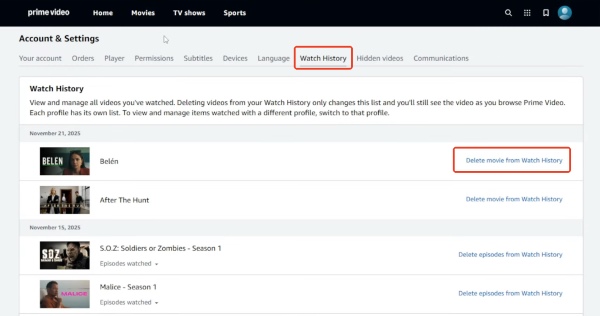
Step 1. Open a web browser on your computer or mobile device, log into the Amazon Prime Video website, and click your profile icon to select "Account & Settings".
Step 2. Navigate straight to the "Watch history" tab, which serves as the master record for everything your account has ever played. Then locate the stubborn title in this list and click "Delete movies from Watch History" to permanently sever its connection to your profile algorithm.
The Amazon Prime "Continue Watching" Row Disappeared
Many Prime Video users report logging in to find their entire row has vanished from the home screen, leaving them unable to quickly jump back into their current binge-watch. And this is rarely a glitch with your account data. Instead, it is a known issue with Amazon's dynamic user interface constantly shifting content around to promote new shows.
Step 1. Simply scroll all the way down your main homepage. Amazon's algorithm frequently buries the "Continue Watching" row 10 to 15 categories deep, placing sponsored or brand-new content at the very top.
Step 2. If the row is completely missing, navigate to the far-left vertical menu on your smart TV or web browser and click the main "Home" button again. Reddit users confirm this action forces the page to reset its suggestion cycle, which often pops the row back to its rightful place.
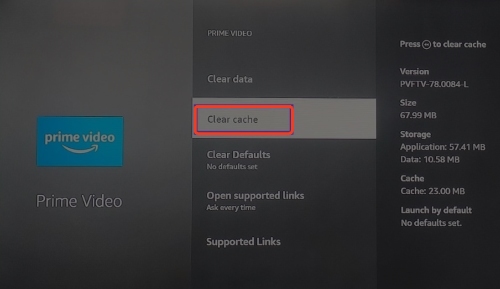
Step 3. For users on a computer or mobile device, this stubborn UI bug can quickly be fixed by going into your device settings, clearing the Prime Video app cache or browser cookies, and reopening the application.
 Editor's Note:
As a foolproof backup plan, navigate to your "My Stuff" tab. Adding your current binge-watches to your Watchlist guarantees you can always find your place, even when the homepage algorithm decides to hide your active viewing history.
Devices are not syncing progress
You successfully cleared out your messy viewing queue on your mobile phone, but when you turn on your Roku or Fire TV in the living room, it is still showing all the old, cluttered titles. This is a localized cache mismatch where your television is stubbornly holding onto old downloaded data.
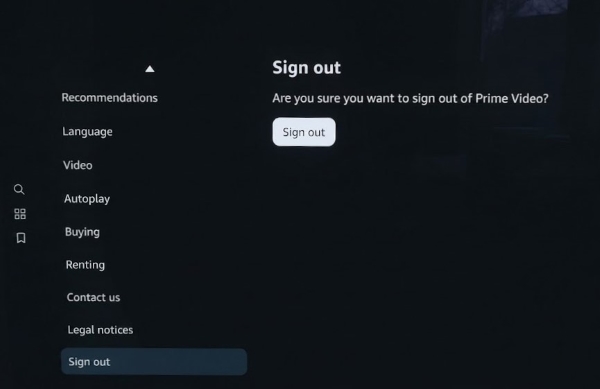
Step 1. Navigate to the settings menu inside the unsynced television application and log out of your Prime Video profile.
Step 2. Unplug your smart TV or streaming stick from the wall outlet for at least thirty seconds to clear the hardware's temporary memory cache.
Step 3. Plug the device back in, relaunch the application, and log back into your account to force a fresh data pull from Amazon's servers.
Part 5. Watch Prime Video Offline
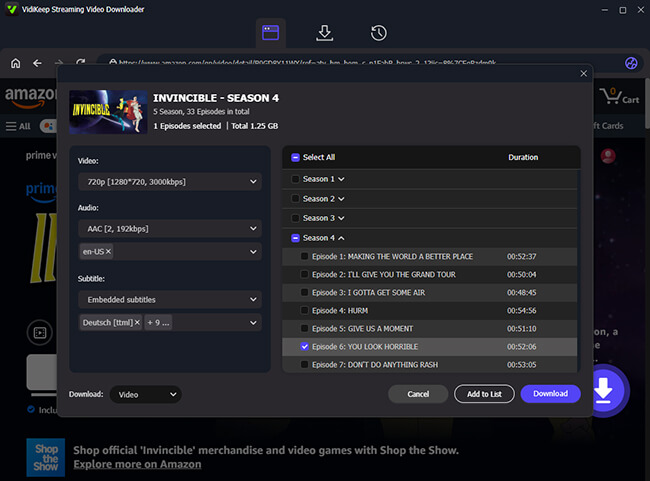
Cleaning up Continue Watching makes the Prime Video homepage easier to use, but it does not solve every playback-management problem. If you frequently lose track of episodes, travel without reliable internet, or prefer keeping selected videos outside a streaming app's changing home-screen layout, an offline library can be more convenient. VidiKeep Streaming Video Downloader provides another approach by saving supported Prime Video content as local video files for offline playback.

Download your favorite Amazon Prime movies and shows to MP4/MKV for offline viewing anywhere.
- Separate Offline Library: Save Prime Video movies and episodes as local MP4 or MKV files instead of relying entirely on the Continue Watching row.
- Independent Playback Progress: Resume downloaded videos through your own media player without being affected by Prime Video sync issues.
- Batch Download Episodes: Save multiple episodes or a full season together for easier offline viewing.
- Keep Quality and Subtitles: Preserve supported HD quality, audio tracks, and subtitles when downloading.
 Note:
Note:
This is a different solution from Prime Video's official Continue Watching controls: VidiKeep does not “fix” or edit the Continue Watching row. Its value here is giving you a separate offline collection that is not dependent on where Prime Video decides to place a series on its Home screen. Please use downloaded content in accordance with applicable copyright rules and the terms of the services involved.
Part 6. FAQs About Prime Video Continue Watching
Does removing a title from Continue Watching remove it from my Watchlist?
No, these are entirely separate features that serve different purposes. Removing a title from your Continue Watching row strictly clears your resume point; it will never delete a movie or show that you have intentionally bookmarked to your Watchlist.
- Continue Watching: Your homepage resume list, showcasing partially watched content you are currently viewing.
- Watch History: Your actual backend viewing record, securely hidden inside your account settings.
- Watchlist: A custom, personalized list of actively saved content you want to remember to watch later.
Is my "Continue Watching" list shared across all profiles on my account?
No, your viewing history and active resume points are kept strictly isolated within your individual user profile. As long as you are actively watching under your designated profile icon, your streaming habits remain entirely separate and invisible to your family members sharing the main subscription.
How do I stop Apple TV from showing my Prime viewing history?
Apple TV features a native "Up Next" dashboard that actively aggregates your viewing data from multiple separate apps, including Prime Video. To remove a Prime show from this unified Apple queue, highlight the show on your main Apple TV home screen, firmly long-press the center button on your Apple remote, and select "Remove from Up Next".
How to restore a show to the "Continue Watching" section?
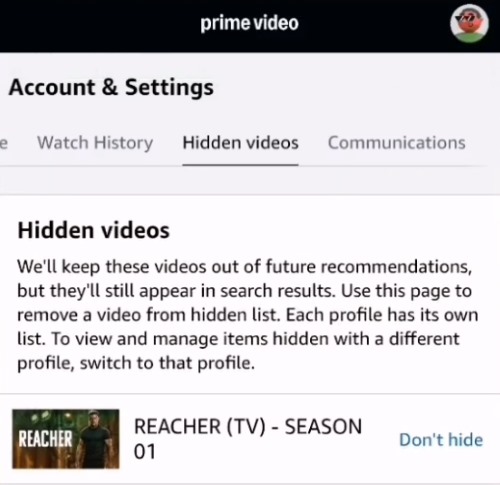
If you accidentally hit the hide button on a show you were genuinely enjoying, you can easily bring it back to life. Log in to Prime Video on a web browser, go to your profile icon, and select "Account & Settings". Look for a specific tab labeled "Hidden videos". Find your accidentally removed title here and select the "Don't hide" option to seamlessly restore its visibility on your homepage.

Jordan Rhodes is a Chief Technical Editor and Media Specialist at VidiKeep, specializing in creating diverse tech content, including streaming tutorials, software reviews, and video encoding tips.
Leave a Comment