How to Watch Amazon Prime Video on Roku (Setup & Fixes)
Want to watch Amazon Prime Video on Roku and enjoy your favorite movies and shows on a bigger screen? Whether you are setting up the app or dealing with playback issues, this guide covers everything you need to know. Learn how to get Amazon Prime Video on Roku TV or Stick, fix common streaming problems, and explore ways to watch Prime Video content on Roku offline.
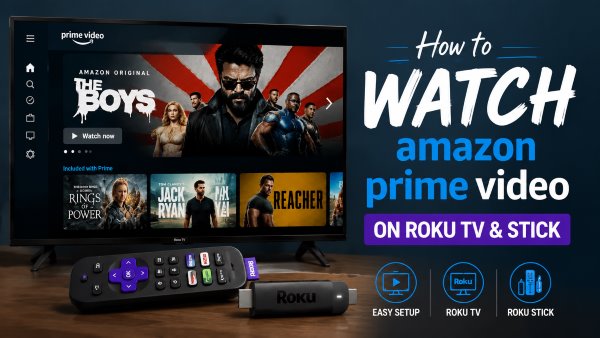
Part 1. Does Roku Have Amazon Prime Video?
Yes. You can watch Amazon Prime Video on Roku by installing the official Prime Video app from the Roku Channel Store. The app is supported on most Roku devices, allowing you to stream movies, TV shows, and Amazon Originals directly on your Roku TV.
- Roku TV: Built-in smart TVs from brands like TCL, Hisense, Sharp, and Roku.
- Roku Streaming Sticks: Streaming Stick, Streaming Stick+, and 4K models.
- Roku Players: Roku Express, Roku Premiere, and Roku Ultra.
Part 2. How to Get Amazon Prime Video on Roku TV & Stick
Once you confirm that your hardware supports the platform, installing Amazon Prime Video on your Roku device is a quick process. All you need to do is download the official app from the Roku Channel Store and complete a brief one-time pairing process on your browser. Here is the step-by-step guide to getting everything set up.
 Editor's Note:
If you regularly share your TV with family or roommates, consider setting up a PIN code for purchases inside your Amazon account settings. This simple precaution prevents accidental movie rentals when others browse the Prime Video app from your Roku.
Step 1 Install the Prime Video App on Your Roku
Press the Home button on your Roku remote to open the main menu. Scroll down and select "Streaming Channels", then type "Prime Video" in the search bar and select the official Prime Video app from the results. Click "Add App" to install it on your Roku device.
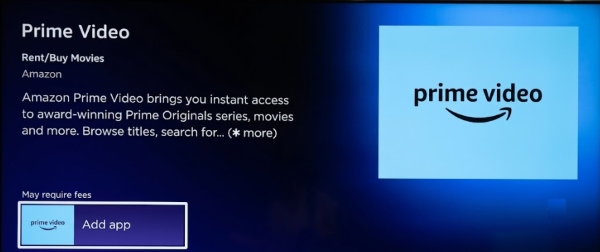
Step 2 Open Prime Video and Get the Activation Code
After installation, return to your Roku home screen and launch the Prime Video app. Select "Sign In" and choose the option to register your device. A unique activation code will appear on your TV screen. Keep this code visible, as you will need it to link your Roku device to your Amazon account.
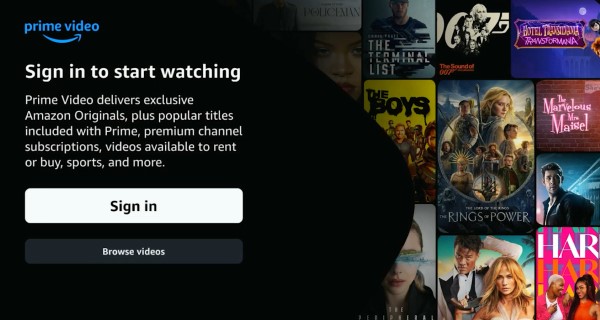
Step 3 Activate Prime Video on Roku
Using a browser on your phone or computer, visit the activation page shown on your TV screen or scan the QR code. Sign in with the Amazon account linked to your Prime membership, then enter the verification code displayed on your Roku. After successful activation, the Prime Video app will refresh automatically, and your watch history, saved titles, and personalized recommendations will become available on your Roku device.
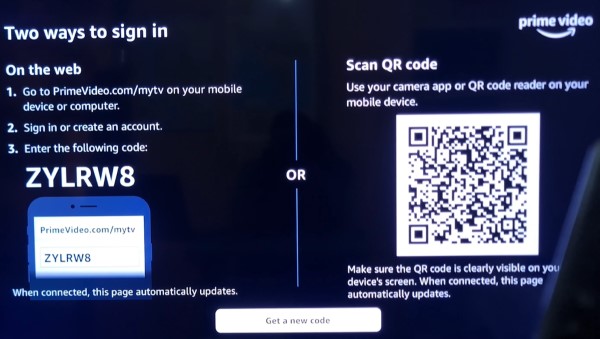
 Amazon Prime Subscription Limitations on Roku:
Although Amazon Prime Video is available on Roku devices, you cannot create a new Prime membership or manage subscription payments through Roku Pay. Unlike Apple TV on Roku, which allows users to handle some subscription settings within the Roku ecosystem, Amazon requires all account registration and billing to be completed through its own platform. To watch Prime Video on Roku, you need to create an Amazon Prime account on Amazon's website first, then sign in with the same account in the Prime Video app on your Roku device.
Part 3. Amazon Prime Not Working on Roku? Try These Fixes
If Amazon Prime Video suddenly stops working on your Roku TV or Streaming Stick, there is no need to worry. Most playback issues can be resolved with a few simple adjustments. Whether you are dealing with audio that is out of sync or the app freezing during startup, follow these fixes to restore a smooth Prime Video streaming experience on Roku.
Amazon Prime Keeps Crashing or Freezing on Roku
If the app kicks you back to the home screen or hangs during video loading, corrupted temporary files are usually responsible. Performing a standard app reinstall often fails because the system retains cached data in the background.
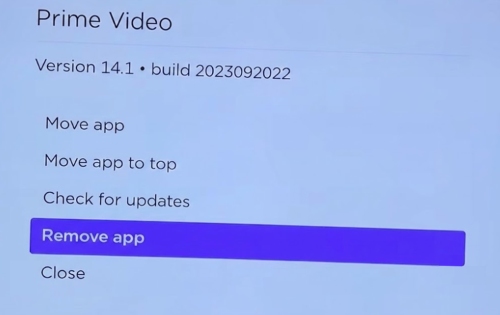
Step 1. Remove the Prime Video app from your Roku device. Highlight the Prime Video icon on your Roku home screen, press the Star (*) button on your remote, and select "Remove app". Removing the app clears its stored data and can help resolve issues caused by corrupted app files.
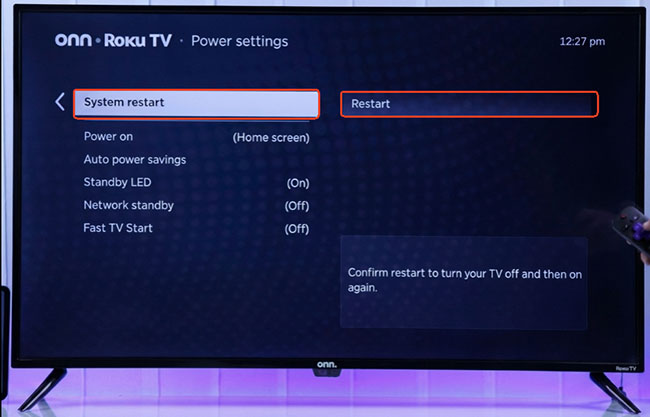
Step 2. Restart your Roku device completely. Go to "Settings > System > System restart", then select "Restart" and wait for your Roku to reboot. It help clear temporary system memory and remove lingering cache data before the Prime Video reinstallation.
Step 3. Reinstall Prime Video from the Roku Channel Store. Open the "Channel Store", search for Prime Video, and select "Add app" to download it again.
Amazon Prime Audio Out of Sync on Roku
Audio delay usually stems from a digital signal mismatch between your Roku device and your TV or soundbar. Changing your audio output forces the system to process sound signals more reliably.
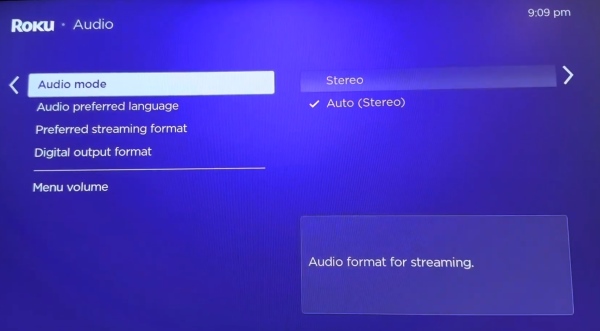
To fix sound sync issues, go to your Roku main menu, select "Settings", and open the "Audio" section. Change the "Audio Mode" setting from "Auto" to "Stereo" to force the system to stream a simplified audio track.
Amazon Prime Subtitles Not Working on Roku
When closed captions refuse to appear, a conflict between Roku's system-wide accessibility settings and the Prime Video app settings is typically to blame. Try adjusting these two caption controls:
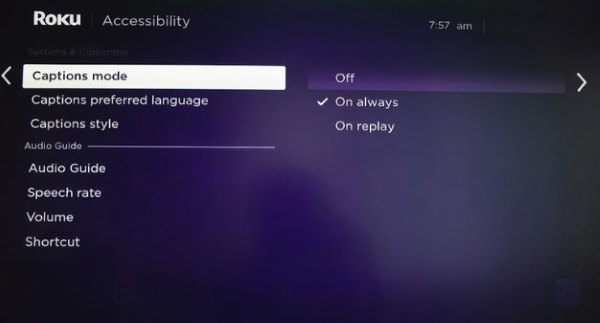
- Turn off Roku system captions under "Settings > Accessibility > Captions mode".
- Start playing your video, press the Star (*) button on your remote, and enable closed captions directly inside the Prime Video player menu.
Part 4. How to Watch Amazon Prime Videos on Roku without Internet
While streaming on a Roku TV works smoothly at home, the platform lacks any native option for downloading videos to watch offline. The official Prime Video app only allows downloads on mobile operating ssystems like iOS or Android, and those files are restricted by expiration timers and DRM limits.
If you want to play on Roku or media player offline, you need a specialized video tool. VidiKeep Streaming Video Downloader addresses these platform limits by allowing you to save Prime Video content to your computer. It rips movies and shows from Amazon Prime into universal MP4 or MKV files, stripping away expiration timers so you can build a permanent Prime Video library for watching on big screen.
Native Prime Video App vs. VidiKeep Amazon Video Downloader
| Feature | Native Prime Video App | VidiKeep Downloader |
|---|---|---|
| Offline Playback Support | Mobile devices only (iOS/Android) | Any device (PC, Mac, USB, Smart TVs) |
| File Expiration | Expires in 48 hrs (started) / 30 days | Never expires (Permanent MP4/MKV) |
| Roku Offline Playback | ✕ Not Supported | ✓ Supported via Roku Media Player |
| Audio & Subtitles | Locked within app player | Selectable multi-language extraction |

Download your favorite Amazon Prime movies and shows to MP4/MKV for offline viewing anywhere.
Step 1. Open the VidiKeep software on your computer and select the Amazon Video icon from the main dashboard. This launches a secure, integrated browser where you can log into your Amazon Prime account.
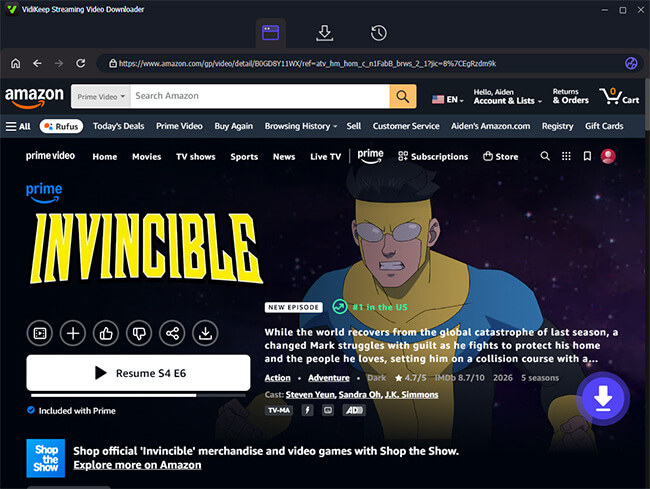
Step 2. Browse the catalog to find the movie or show you want to save for offline viewing on your Roku TV. Once you open the title's main details page, simply click the "Download" icon in the bottom right corner, prompting the program to quickly analyze the video data.
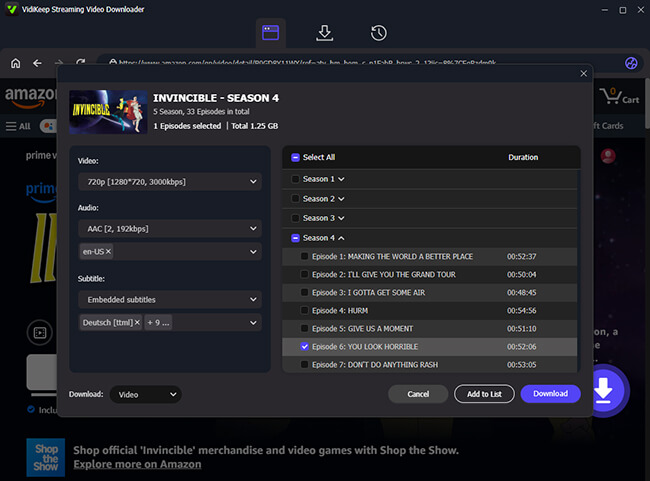
Step 3. A preferences window will pop up, letting you customize your ideal video quality, audio language, and subtitle format. If you are grabbing a television series, you can easily pull down entire seasons at once by choosing "Select All" > "Add to List" before hitting the final "Download" button.
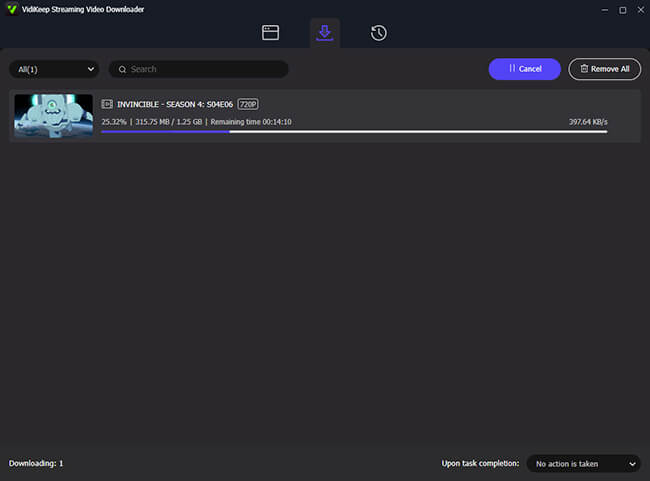
Step 4. Head over to the "History" tab to locate your finished, restriction-free video files, you can simply transfer them to a USB flash drive.
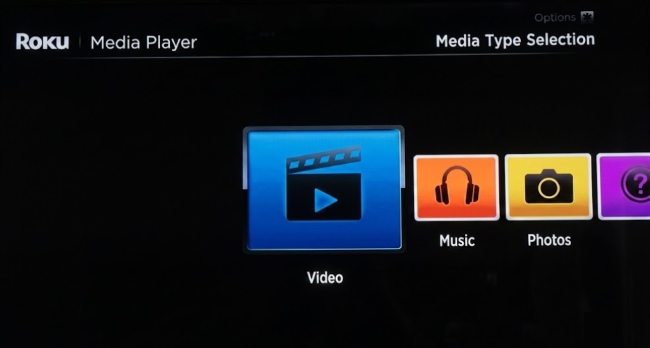
Step 5. Once saved, you can transfer these files onto a USB flash drive, plug it into your Roku TV or Ultra, and play your favorite content offline using the free Roku "Media Player" app, and you are ready to enjoy your movie night without worrying about buffering or other playback issues.
Part 5. FAQs bout Amazon Prime Video on Roku
Is Roku Free with Amazon Prime?
Using a Roku device does not require a monthly fee, and downloading the Prime Video app from the channel store is completely free. However, accessing the streaming library itself still requires an active Amazon Prime or standalone Prime Video subscription.
Does Roku Support Amazon Prime Video 4K?
Yes, Roku supports 4K Ultra HD and HDR playback for Prime Video content. You must use a 4K-capable Roku device (such as the Roku Express 4K+, Streaming Stick 4K, or a 4K Roku TV) connected to a compatible 4K television with a high-speed internet connection.
Can I Buy or Rent Prime Movies Directly Through Roku TV?
Yes, you can rent or purchase digital titles directly inside the Prime Video channel on your Roku TV. Any digital purchases or rentals will be billed directly to the default payment method stored on your Amazon account, rather than through Roku Pay.
How to Cancel Prime Video on Roku?
Because your membership is managed directly by Amazon, you cannot cancel your subscription through the Roku menu settings. You must open a web browser, log into your Amazon account, navigate to "Accounts & Lists", select "Prime Membership", and choose "End Membership" from there.

Jordan Rhodes is a Chief Technical Editor and Media Specialist at VidiKeep, specializing in creating diverse tech content, including streaming tutorials, software reviews, and video encoding tips.
Leave a Comment