How to Watch Netflix on Xbox: Setup & Fixes
Netflix keeps freezing on your Xbox, or you're not sure whether your console supports 4K streaming? Netflix on Xbox depends partly on the Xbox model you're using. This guide covers how to get and watch Netflix on Xbox, explore offline viewing tips, and what to try when playback goes wrong.
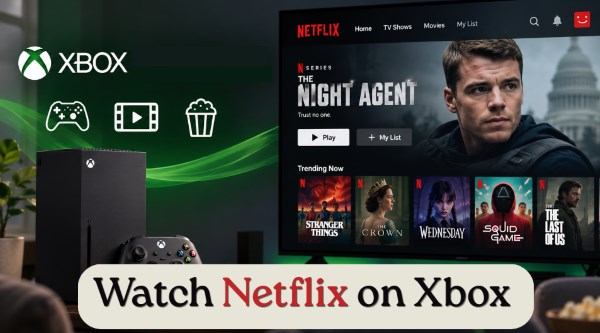
Part 1. Can You Get Netflix on Xbox Consoles?
Yes. The Netflix application is fully supported across multiple generations. You do not need an active Xbox Live Gold or Game Pass Core subscription to watch Netflix on Xbox. A free Microsoft account is all that is required to access Netflix.
| Console Model | Official App Available? | Max Resolution |
|---|---|---|
| Xbox Series X / S | Yes | 4K Ultra HD |
| Xbox One (S/X) | Yes | 4K Ultra HD |
| Xbox 360 | No (Only if previously installed) | 720p / 1080p |
 Limitations:
If you are still using older hardware, keep in mind that Microsoft officially closed the Xbox 360 store in July 2024, and you can no longer download a fresh copy of the application on that console. However, if you already have the app installed, Netflix Xbox 360 streaming still works normally for watching shows.
Part 2. How to Watch Netflix on Xbox Series X|S, Xbox One & Xbox 360
Whether you use an Xbox Series X|S, Xbox One, or a compatible Xbox 360, you can access Netflix through the console's app. The Netflix app is available through the Microsoft Store, and watching content requires an active Netflix subscription. Follow the steps below for your Xbox model.
How to Watch Netflix on Xbox Series X|S and Xbox One
Typing on a virtual console keyboard with a controller can be tedious. Thankfully, modern versions of the app support fast smartphone activation alongside traditional manual login.
Step 1. Turn on your console, press the Xbox button on your controller to pull up the guide, and select the Store or Apps tile on your Home screen. Press the Y button to open Search, type in "Netflix", and click on the official application from the search results.
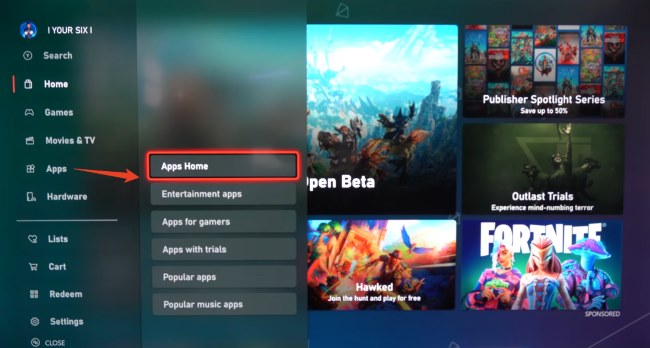
Step 2. Select Get or Install to download Netflix to your Xbox. The app will be installed automatically on the console. Once the installation is complete, you can find Netflix under My games & apps or your installed apps and launch it from there.
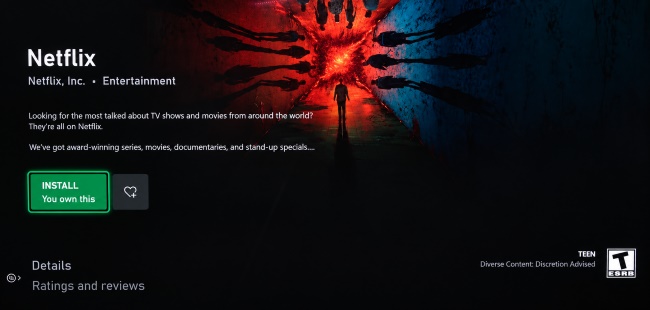
Step 3. Launch Netflix, then either enter your email and password or simply scan the on-screen QR code with your phone camera for instant sign-in. Once you are logged in, your profiles, watch history, and personalized recommendations will sync automatically.
How to Get Netflix on Xbox 360
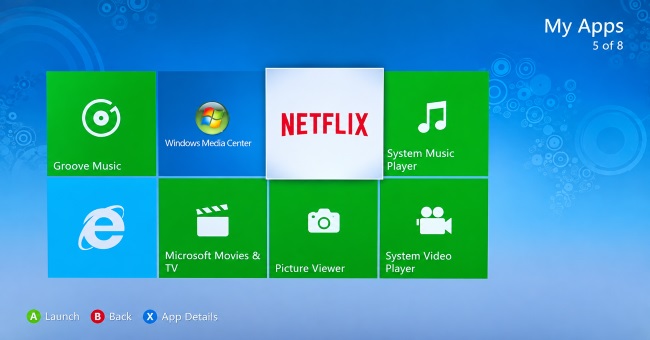
If you are keeping an older console for a secondary TV, you might wonder how to watch Netflix on Xbox 360 today. Because Microsoft permanently closed the Xbox 360 Marketplace in July 2024, direct store downloads are no longer available for new users. However, you still have two proven paths to get Netflix streaming on your Xbox 360:
Method 1. The Official Reinstall Netflix on Xbox 360
If your Xbox account has ever downloaded the app in the past, you retain the license to reinstall it anytime.
Step 1. On your Xbox 360, scroll over to the Settings > Account hub, then navigate to your Download History.
Step 2. Scroll through your previous purchases until you find Netflix, then select Download Again. After the installation finishes, the app will appear in your Apps library, fully functional for streaming your favorite series.
Method 2. The USB Flash Drive Sideloading Workaround
What if you bought a secondhand console and never owned the app? Active retro communities on Reddit have shared an unmodded USB method. Since apps do not require a console-specific license to transfer, you can manually sideload the official Netflix files. You can transfer verified Netflix application files from a PC onto a FAT32-formatted USB drive, plug it into the console, and copy them straight to the Xbox 360 hard drive.
Pro Tip: Get Netflix on Xbox for 4K and HDR Streaming
Want the best picture and sound quality while watching Netflix on Xbox? Before you start streaming, check these settings:
- Check 4K & HDR: Go to Settings > General > TV & display options > Video modes and make sure Allow 4K and Allow HDR10 are enabled. If your TV and Xbox support Dolby Vision, enable Allow Dolby Vision as well.
- Set Up Audio: For a compatible soundbar or home theater system, open Settings > General > Volume & audio output and choose Dolby Atmos for home theater or Windows Sonic.
- Check Your Netflix Plan: 4K Ultra HD streaming requires a Netflix plan that supports 4K. If your plan doesn't include 4K, Netflix will stream at a lower resolution even if your Xbox and TV support it.
Part 3. Can You Download Netflix Movies on Xbox?
The Netflix app on Xbox does not offer the same offline download option available on supported mobile devices. If you want to watch Netflix content on Xbox without an internet connection, you'll need to use a different approach.
One option is VidiKeep Streaming Video Downloader, which can save videos to your computer in formats such as MP4 or MKV. You can then transfer the downloaded Netflix files to a USB drive and play them on your Xbox using a compatible media player.

7X Download Netflix videos to MP4 or MKV on your computer for offline playback on Xbox.
How to Watch Netflix Offline on Xbox with VidiKeep
Step 1 Set the Output Format and Download Preferences
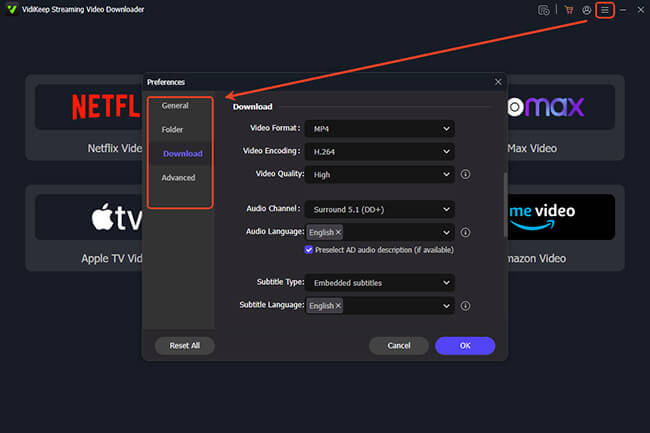
Launch VidiKeep Streaming Video Downloader, open Menu > Preferences > Download, and select MP4 as the output format. You can also adjust the video quality, preferred audio, and subtitle languages. Click the Netflix icon to open the built-in Netflix web player, then select Sign In and log in to your Netflix account.
Step 2 Find the Netflix Content to Watch on Xbox Offline
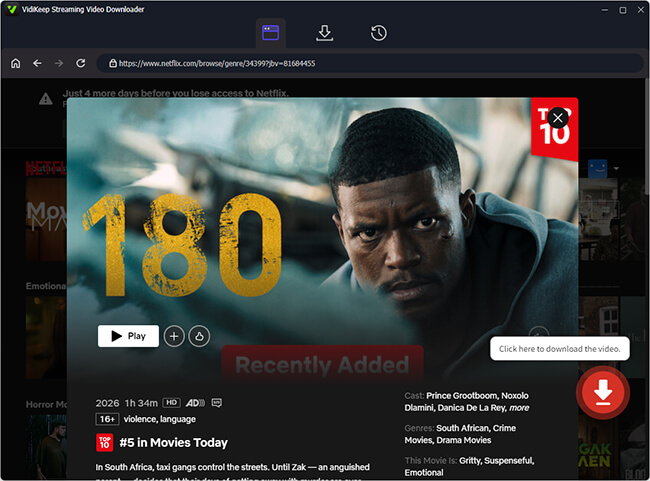
Copy and paste the URL of the movie or TV show into the search bar, or use the built-in search feature to locate the title. Select the episode or title you want to save. For a TV series, you can use Select All to choose multiple episodes at once.
Step 3 Download the video for Xbox playback
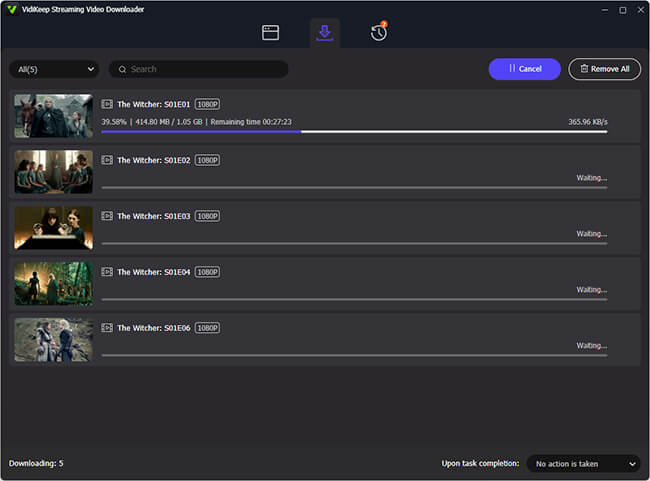
Click Download and let VidiKeep save the selected video to your computer. Once the download is complete, transfer the MP4 file to a USB flash drive.
Step 4 Play the downloaded video on Xbox
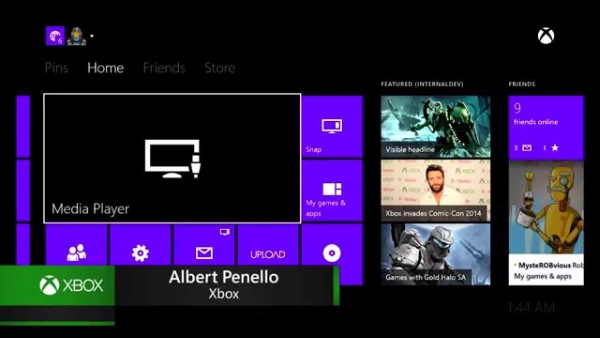
Connect the USB drive to your Xbox, open a compatible media player, and select the downloaded video. This lets you watch the saved video on your TV through Xbox without relying on an active internet connection.
 Disclaim:
Make sure you only download and use content when you have the necessary rights or permission to do so. Availability and playback support may also vary by Xbox model and media player.
Part 4. How to Fix Netflix Not Working on Xbox
"Everytime I try to watch Netflix on my series X it constantly freezes on me like freezes and never resumes. I've uninstalled and reinstalled. I've signed out and signed back in. I checked my network speeds and all of the numbers seem to be where they should be. Any suggestions on how to fix this?"
Netflix Keeps Crashing or Pausing on Xbox
If Netflix keeps closing, freezing, or pausing during playback, the problem may be related to the app or your Xbox system. Try these steps in order:
- Restart the Netflix app. Close Netflix completely and open it again.
- Restart your Xbox. Press and hold the Xbox button, then select Restart console.
- Check your internet connection. Go to Settings > General > Network settings and run a network test. An unstable connection can cause playback to pause or buffer.
- Reinstall Netflix. If the app continues to crash or freeze, uninstall Netflix and download it again from the Microsoft Store.
Netflix Error Code TVQ-PB-101 on Xbox
When TVQ-PB-101 appears, it indicates that stale or corrupted data stored on your device is stopping the media from playing properly. Refreshing your Netflix session and network connection can help restore playback.
- Sign out of Netflix. Open Netflix, go to the account menu, and select Sign Out. Then log back in.
- Power cycle your Xbox. Turn off the console, disconnect it from power for about 30 seconds, reconnect it, and start it again.
- Restart your router. Unplug your router and modem for about one minute, then reconnect them and wait until the internet connection is restored.
- Try another title. If other Netflix shows play normally, the problem may be limited to the specific title rather than the Xbox app itself.
Part 5. FAQs about Streaming Netflix on Xbox
How do I sign out of Netflix on Xbox?
If you need to change your Netflix account on Xbox, simply follow these short menu prompts to sign out of Netflix on your console.
1. Open the app and press the B button on your controller to bring up the main interface menu.
2. Scroll to the "Get Help" section located at the bottom or right side of the screen.
3. Select "Sign Out" and confirm your choice to log out of your account.
Can you use Netflix Party on Xbox?
Not directly. Netflix Party is now called Teleparty, but Teleparty currently does not support gaming consoles such as Xbox, so you can't start or join a Netflix watch party on your Xbox. If you want to watch Netflix together on Xbox, you can use a computer to host the Teleparty session while using your Xbox separately for voice chat.
How do I stream Netflix from my phone to my Xbox?
You can easily cast content from your mobile device to your console if both devices are connected to the same Wi-Fi network. Simply open the mobile app, tap the Cast icon in the upper-right corner, and select your Xbox from the list of available devices to start playing your show.
Part 6. Conclusion
Xbox Series X|S and Xbox One support Netflix with 4K available on compatible models and setups, while Xbox 360 has much more limited support. If you're troubleshooting Netflix on Xbox, start with the console and network checks. For offline viewing, the Xbox app doesn't provide built-in downloads, so you'll need to transfer compatible video files from a computer to a USB drive for playback.

Jordan Rhodes is a Chief Technical Editor and Media Specialist at VidiKeep, specializing in creating diverse tech content, including streaming tutorials, software reviews, and video encoding tips.
Leave a Comment