How to Get & Watch Amazon Prime on Xbox
If you already use your Xbox for gaming, adding Amazon Prime Video is the perfect way to consolidate your entertainment setup. The app lets you watch Amazon Prime content on Xbox without juggling different devices. Read on to learn how to get Amazon Prime Video on your console, fix the common errors, and explore a simple workaround for offline playback.
Part 1. Is Amazon Prime Video Available on Xbox?
Yes, Amazon Prime Video is officially available on current Xbox consoles, so you can install the app directly from the Microsoft Store rather than relying on another streaming device. Amazon currently supports Prime Video on the following Xbox models:
- Xbox Series X and Xbox Series S
- Xbox One, Xbox One S, and Xbox One X
 Limitations:
If you still own an Xbox 360, Amazon officially discontinued support for the Prime Video app on that platform in late 2021. To access your Prime library on a television today, you will need an Xbox One or newer console, or an external streaming device.
Part 2. How to Watch Amazon Prime Video on Xbox
The same basic method works whether you're trying to watch Amazon Prime on Xbox One, Xbox Series S, or Xbox Series X. You can download the Prime Video app from the Microsoft Store and start streaming from the console. Before starting, make sure your Xbox and account meet a few basic requirements.
- Compatible Xbox: Xbox One, One S/X, or Xbox Series X/S.
- Microsoft Account: Required to download apps via the Microsoft Store.
- Amazon Account: An active Prime subscription (or valid payment method for rentals and channel add-ons).
- High-Speed Internet: Minimum 5 Mbps for HD, 25 Mbps recommended for 4K UHD.
How to Get Amazon Prime Video on Xbox One & Series S/X
Step 1 Find the Prime Video App on the Store
Turn on your Xbox and press the Xbox button on your controller to open the guide. Go to the Store, select the search icon, type Amazon Prime Video, and choose the official Prime Video app from the results.
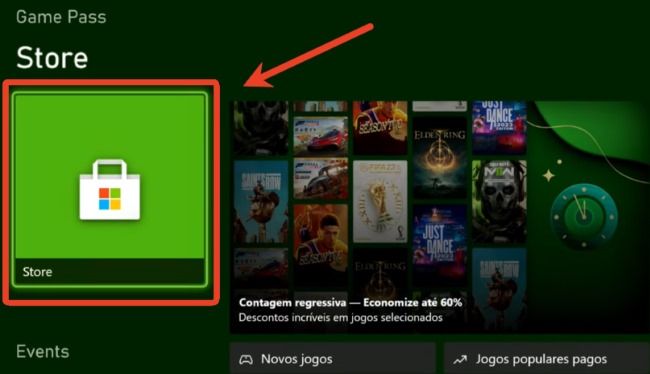
Step 2 Download Prime Video App on Xbox
Select Get or Install to download the app. Once the installation finishes, open Prime Video directly or find it later under My games & apps > Apps.
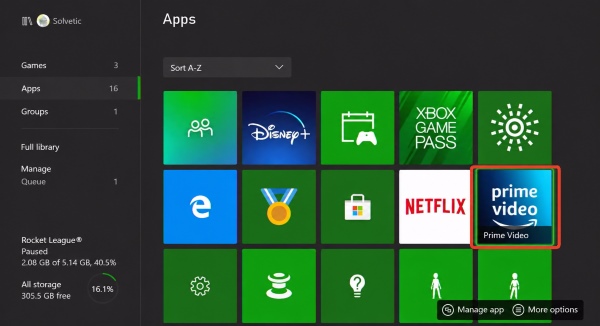
Step 3 Sign in to Your Amazon Account on Xbox
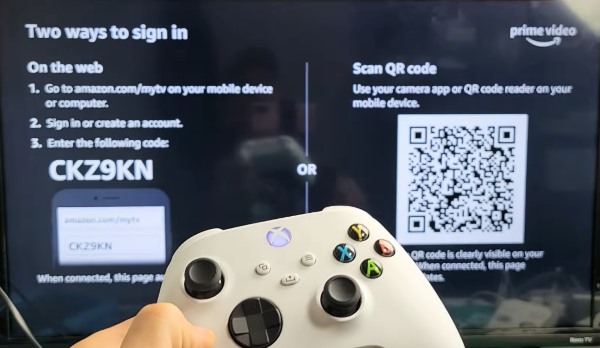
When you open Prime Video for the first time, follow the sign-in instructions displayed on your TV. After your account is linked, select your Prime Video profile, browse for a movie or show, and start watching.
- Register with a code: Choose the registration option to display a QR code or activation code on your TV. Open the web address shown on screen on your phone or computer, sign in to your Amazon account, and enter the code to link the Xbox.
- Sign in on the Xbox: If available, choose the manual login option and enter your Amazon email address and password using the on-screen keyboard.
 Tips:
Tips:
Want to watch Amazon Prime Video offline on Xbox? The Xbox app doesn't currently support Prime Video downloads, but Part 5 covers an alternative approach.
How to Sign Out of Amazon Prime on Xbox
If you plan to switch Amazon accounts or want to remove your Prime Video account from the console, you can sign out from within the app.
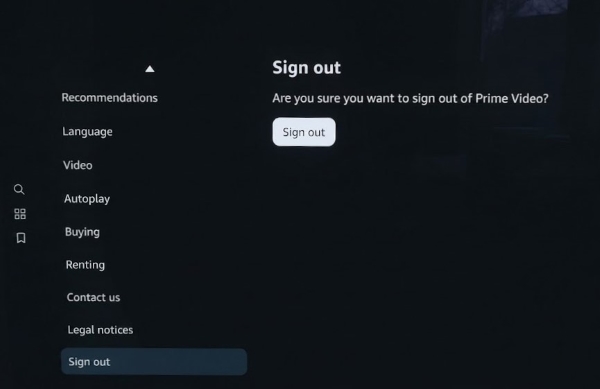
Step 1. Open the Prime Video app on your Xbox and bring up the left-hand navigation menu. Scroll down and select Settings.
Step 2. Open Account, choose Sign Out, and confirm the prompt to disconnect your Amazon account from the Xbox. After signing out, the console should return to the Prime Video login screen, allowing you to sign in with a different Amazon account.
If you are no longer using the Xbox, it is also a good idea to check your Amazon account's registered devices and sign out of Prime Video on the console.

Part 3. Fix Amazon Prime Video is Not Working on Xbox
Encountering an unexpected error code, black screen, or audio sync delay can disrupt your movie night. Here are the most effective fixes tested for the Xbox Prime Video app.
Perform a Full Console Power Cycle
Temporary system cache files can cause the Prime Video app to freeze during startup. Hold the physical power button on the front of your Xbox for 10 seconds until the system shuts down completely. Unplug the power cable from the wall for two minutes, reconnect it, and boot the console back up to clear the cache.
Adjust Video and Audio Output Formats
If you experience washed-out colors on an Xbox Series X/S or encounter missing dialogue audio, your console's output format may conflict with the stream.
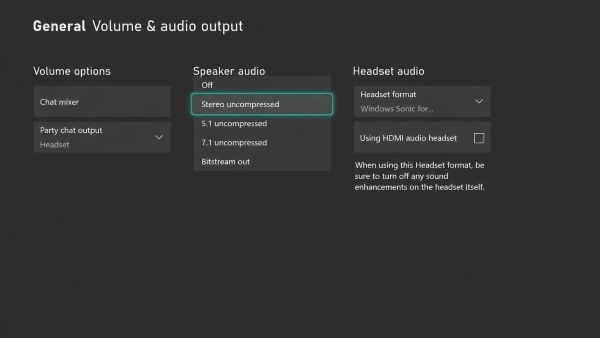
Fix Audio Drops: Go to Settings > General > Volume & audio output on your Xbox. Under Speaker audio, switch the output format to Stereo uncompressed, then reopen Prime Video and test the same title again. This is especially useful when dialogue disappears but music or background effects still play.
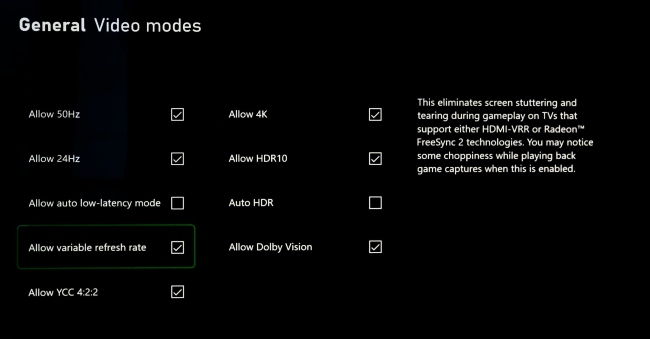
Fix Color Distortion: Open Settings > General > TV & display options > Video modes and review Allow HDR10 and Allow 4K. Make sure these options match what your TV and HDMI connection actually support.
If Prime Video looks faded, unusually dark, or shows incorrect colors, temporarily disable HDR10 and replay the same video. For 4K playback, keep Allow 4K enabled only when your TV, HDMI port, and cable support the required resolution reliably.
Reinstall the Streaming Application
Corrupted local installation files can trigger persistent playback errors. Highlight the Amazon Prime Video tile on your home screen or library, press the Menu button (three horizontal lines) on your controller, and select Uninstall. Restart your console, reopen the Microsoft Store, and download a fresh copy of the app.
Check for Xbox System and App Updates
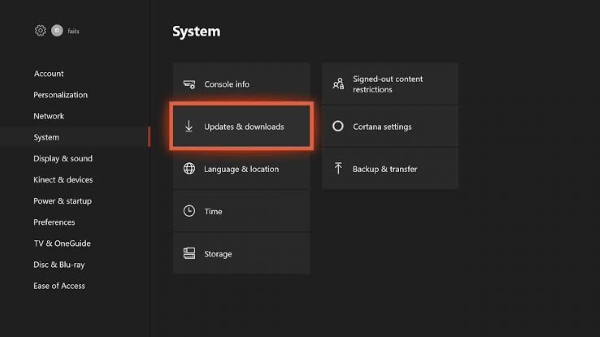
Running an outdated version of the Xbox OS or the Prime Video app can lead to sudden crashes and playback errors. Navigate to Settings > System > Updates & downloads to ensure your console is running the latest dashboard firmware. Next, open My games & apps > Manage > Updates to check if a pending patch is available for Amazon Prime Video.
Part 4. How to Watch Amazon Prime Offline on Xbox
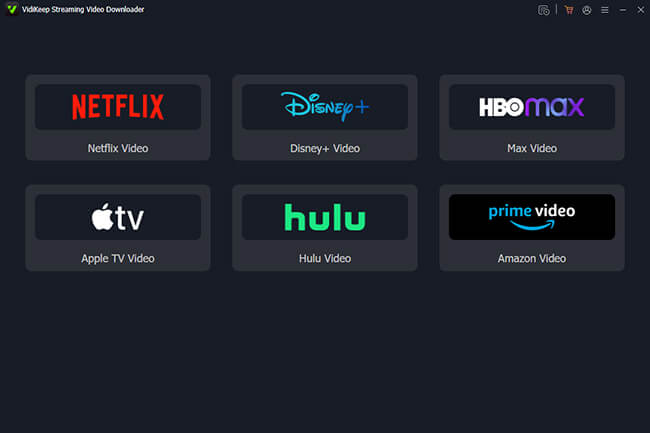
While the official Xbox app provides access to Amazon's entire online catalog, it does not support native offline downloads. If you are dealing with inconsistent home Wi-Fi, bandwidth limits, or temporary network outages, streaming high-bitrate video can lead to annoying stuttering. You can bypass these limitations by downloading your favorite shows to a local drive with VidiKeep Amazon Prime Video Downloader, then playing them directly through your Xbox USB port.
Step 1. Download and install VidiKeep on your Windows PC or Mac. Launch the program, open the built-in Amazon Prime Video browser, and sign in with the Amazon account that has access to the content you want to save.
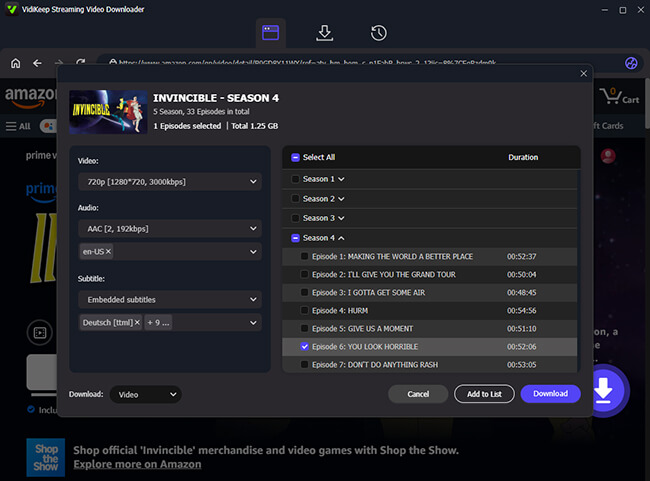
Step 2. Search for the movie or TV episode you want to download, then adjust the output settings based on your needs, such as 1080p resolution, format, audio tracks, and subtitle preferences. Then click Download to save the video to your computer.
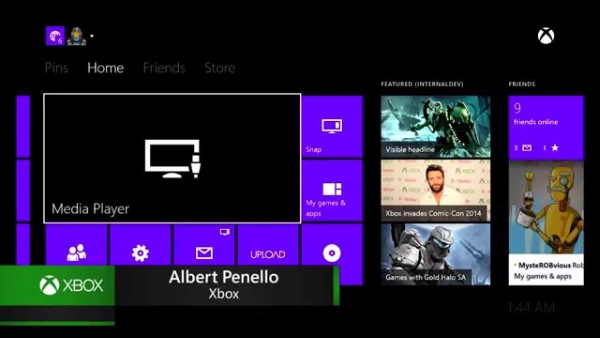
Step 3. Once the download is complete, copy the file to a compatible USB flash drive, connect the drive to your Xbox, and open the Media Player app from the dashboard. You can then play the local Prime Video files from the USB drive without relying on a live Prime Video stream or worrying about buffering.
Part 5. Conclusion
Using Amazon Prime Video on your Xbox One or Xbox Series X/S gives you a seamless way to enjoy entertainment. With full support for 4K streaming and HDR visuals, the console handles high-definition media effortlessly. If streaming hiccups or network limits ever stand in the way, keeping a few downloaded favorites stored on your computer ensures you always have uninterrupted entertainment ready to go.

Jordan Rhodes is a Chief Technical Editor and Media Specialist at VidiKeep, specializing in creating diverse tech content, including streaming tutorials, software reviews, and video encoding tips.
Leave a Comment