How to Download Netflix Movies and Shows on iPad and iPhone
Yes, you can download eligible Netflix movies and shows to an iPhone or iPad using the official Netflix app and watch them offline. Open Netflix, find a downloadable title, and tap the Download icon. For TV shows, you can download individual episodes or an entire season when that option is available.
Before downloading, make sure your Netflix app and device are compatible, your subscription supports the feature, and you have enough free storage. Downloads must be watched in the Netflix app, require you to remain signed in, and may expire or become unavailable because of licensing restrictions.
This guide explains how to download movies and TV episodes on your iPad and iPhone, manage video quality and storage, and troubleshoot common problems before a flight or other trip without reliable internet access.
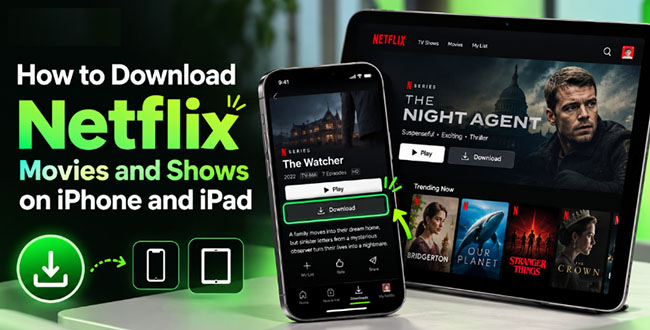
What You Need Before Downloading Netflix Movies/Shows to iPad or iPhone
Before you start, make sure your device and Netflix account support downloads. You'll also want enough free storage, especially if you're planning to save several movies or a full season of a TV show. Here are the main things to check:
- Compatible device and app: Make sure your iPhone or iPad can run a compatible version of the Netflix app. Check the current requirements in the App Store and Netflix's official help documentation.
- An eligible Netflix title: Look for the Download icon on a movie's details page or beside a TV episode.
- Enough free storage: Movies and episodes take up local storage, and higher-quality downloads generally use more space.
- An eligible account and plan: Download availability and download limits depend on your Netflix plan and its current restrictions. Ad-free plans support up to 100 active downloads per device, depending on the devices included in the plan. Ad-supported plans are limited to 15 downloads per device per calendar month.
- A reliable internet connection: You'll need internet access to download titles initially. Wi-Fi is usually the easiest option for larger files.
How to Download Movies from Netflix to iPad and iPhone
The easiest way to download movies or series to iPad and iPhone is through the official Netflix app. You don't need a separate video downloader for ordinary offline viewing.
Step 1. Open the Netflix app on your iPhone or iPad and sign in. To browse titles that support offline viewing, open Downloads and select See What You Can Download. Alternatively, use Search to look for a particular movie.
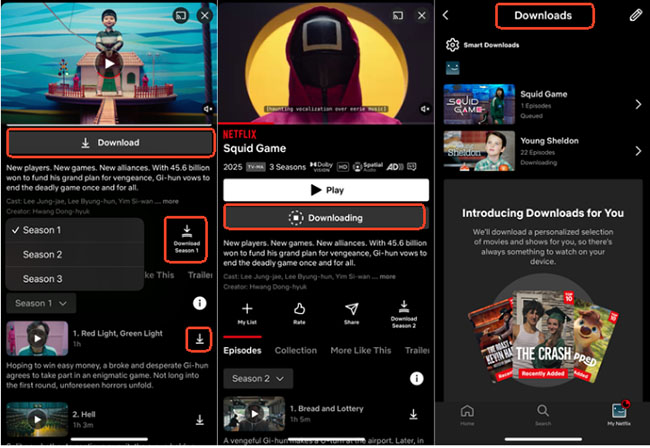
Step 2. Open the movie's details page and look for the Download icon. Tap it to start downloading the film to your iPad or iPhone from Netflix.
During my own testing of different streaming apps, I found that trying to download large media files over cellular data is asking for a frozen screen. Do yourself a favor: stick to a stable Wi-Fi connection.
How to Download Netflix Shows on iPhone and iPad
Downloading a TV show works much like downloading a movie, but you have an additional option: saving individual episodes or, when supported, an entire season from Netflix to your iOS device.
Download Individual Netflix Episodes on iPhone/iPad
- Open Netflix and find the TV show you want to watch.
- Open the show's episode list.
- Tap the Download icon beside the episode you want to save.
- Repeat for any other episodes you plan to watch offline.
This approach is useful if you only need a few episodes for a short flight or commute. It also helps conserve storage compared with downloading an entire season.
Download an Entire Season on iPhone/iPad
Some TV shows provide a Download Season option. If it's available, tap it to download all episodes in that season. Keep in mind that downloading a full season may take up considerable storage space. If your iPhone or iPad is nearly full, download only the episodes you expect to watch and remove them afterward.
Want More Flexibility? Try VidiKeep Netflix Video Downloader
Netflix's built-in download feature works well if you simply want to save a few movies or episodes and watch them later in the Netflix app. But what if you prefer watching them in your favorite media player, or choosing a more flexible file format? That's where VidiKeep Netflix Video Downloader may be worth considering.
VidiKeep is a desktop tool for Windows and macOS that offers a different approach to offline video management. It supports downloading Netflix movies and TV shows to MP4 or MKV, batch processing multiple episodes, and selecting available audio tracks and subtitles. After conversion, you can transfer Netflix downloads from your computer to your iOS device for offline watching.
How to Download Netflix Videos with VidiKeep
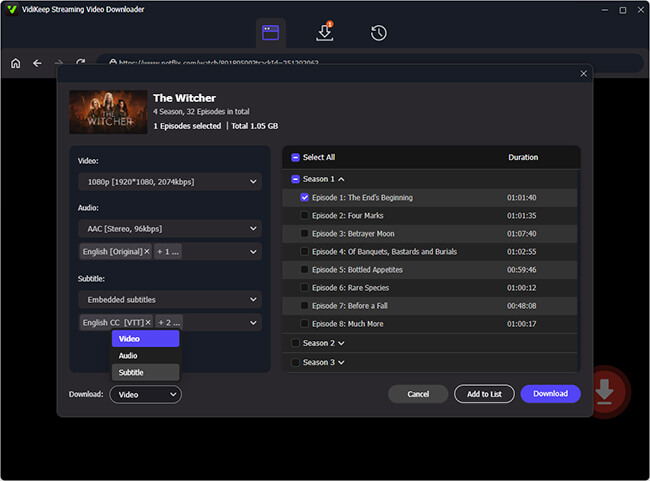
Step 1. Open VidiKeep, click Netflix icon to visit the built-in web player and authorize your account. Locate the Netflix movie or TV show you want, and select the available download options.
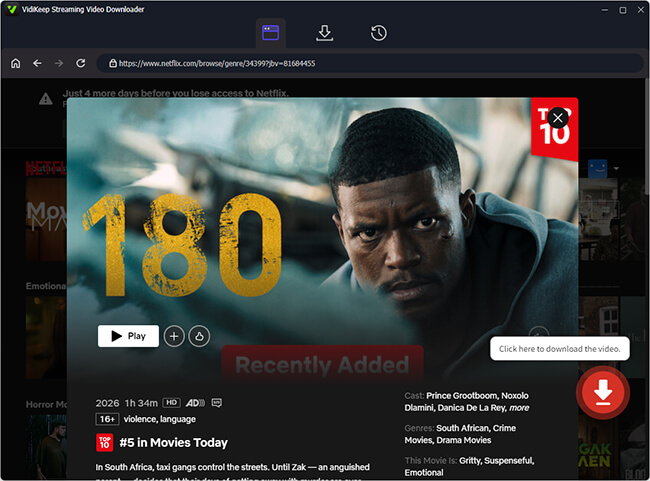
Step 2. Click the Download button to start the download and check that the resulting files play correctly on your computer.
How to Transfer Netflix Videos to iPhone or iPad
Once your video files are ready, transfer them to your device using a compatible method:
- Mac: Use Finder file sharing if supported by your chosen media player.
- Windows: Follow your media player's USB or wireless transfer instructions.
- Cloud storage: Upload the files to a service such as iCloud Drive, then download them to your device for offline playback.
How to Watch Netflix Offline on iPhone and iPad
Once your movies or episodes have downloaded, you can watch them without an active internet connection, provided your Netflix account and the downloads remain eligible for offline playback. Here's how to prepare:
- Open Netflix and go to Downloads.
- Select a downloaded movie or episode.
- Tap Play to begin watching offline.
How to Check That Your Downloads Work Before Traveling
Before a long flight or trip, you can test a downloaded title while you still have internet access. You can temporarily enable Airplane Mode and try playing it. This helps confirm that the download is available locally rather than relying on streaming.
There are two important things to remember. First, you need to remain signed in to Netflix to access downloads offline. Second, downloaded titles can expire, and content that is no longer available on Netflix may not be downloadable again.
How to Manage Netflix Downloads on iPhone and iPad
After downloading a few movies or shows, you may want to adjust their quality, free up storage, or let Netflix manage episodes automatically. These features can make offline viewing more convenient.
Change Netflix Download Quality
Netflix offers download-quality settings that affect the amount of storage used by downloaded content. To adjust the setting:
- Open Netflix and tap My Netflix.
- Tap your profile name to open the account menu.
- Select App Settings.
- Under Downloads, look for Download Video Quality or the corresponding video-quality setting.
- Choose the available quality you prefer.
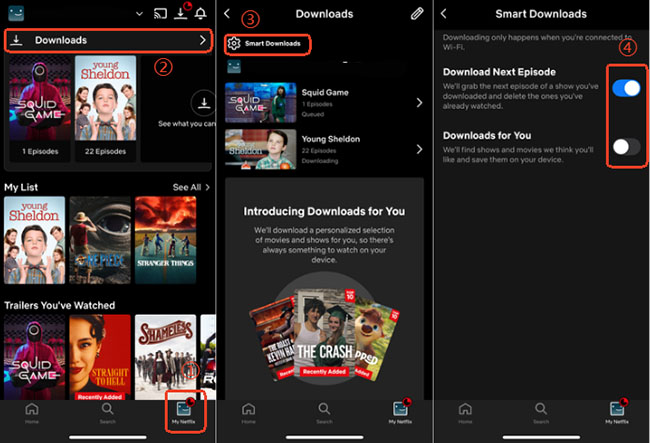
Use Smart Downloads to Save Episodes Automatically
Netflix offers Smart Downloads features that can help you prepare for offline viewing without manually downloading every episode.
Download Next Episode automatically removes a watched downloaded episode and downloads the next one in the series. Downloads for You automatically saves selected recommendations based on your viewing preferences.
To check your options, open Netflix and look under My Netflix and App Settings for Smart Downloads or the corresponding download controls.
 Note:
Note:
Smart Downloads isn't available on ad-supported Netflix plans. If the option doesn't appear, check your subscription and app version before troubleshooting further.
Delete Downloaded Movies to Free Up Space
Once you've finished watching a movie or episode, removing its download can free up local storage. To delete downloaded content:
- Open Netflix and go to Downloads.
- Find the movie or episode you want to remove.
- Use the available delete-download control.
- Confirm the removal if prompted.
The downloaded copy will be removed from your device, but deleting it doesn't remove the title from Netflix's streaming catalog.
How to Fix Netflix Downloads Not Working on iPhone or iPad
If you can't download a movie or show, start by identifying the problem. The missing Download icon, an interrupted download, and an expired title have different causes, so the right solution depends on the symptom.
| Problem | What to Try |
|---|---|
| No Download button appears | Check whether the title is available for download. Some titles are restricted by licensing arrangements. |
| Download fails or gets stuck | Check Wi-Fi or cellular connectivity, verify available storage, and inspect any error code shown in Downloads. |
| Netflix reports a download limit | Remove downloads you no longer need and check your plan's per-device or monthly limits. |
| A downloaded movie has expired | Follow Netflix's renewal instructions. Some titles may no longer be available to download again. |
| Downloaded titles disappear | Check whether the app was reset or reinstalled, whether you signed out, and whether the titles have expired. |
| Netflix won't install on an older device | Check the installed iOS or iPadOS version and whether the device can obtain a compatible Netflix app. |
FAQs About Downloading Netflix Movies/Episodes on iPhone/iPad
Can I Download Netflix on a Kid's iPad?
Yes, an eligible Netflix title can be downloaded on a child's iPad if the device, app, account, and title support downloads. If you use a Netflix Kids profile, some downloaded titles with higher maturity ratings may not be available for offline playback. Check the profile's viewing restrictions and the title's Download option before traveling.
Can I Download Netflix Movies on My iPhone for Free?
No. Netflix downloads are part of the Netflix service, not a separate library of free movies. You generally need an active membership that provides access to the title and supports downloads. Availability also depends on the title and applicable restrictions.
Can I Download Netflix Movies Without Wi-Fi?
Yes, if your iPhone or iPad and Netflix settings allow downloads over cellular data. An internet connection is still required to download a title initially. Wi-Fi is usually the better option for large files because it avoids using your mobile data allowance.
Why Can't I Download Some Netflix Movies on iPhone or iPad?
Not every Netflix title is available for download. Licensing restrictions, device compatibility, account limitations, or download limits may prevent a title from being saved. If only one title is missing the Download button, check its download availability before changing your device settings.
Can I Keep Netflix Downloads Permanently?
No. Netflix downloads are intended for offline playback within the Netflix app. They can expire, and some titles have limits on how many times they can be downloaded. Downloads are also deleted when you cancel your Netflix account. You cannot treat them as permanent, transferable video files.
Where Are Netflix Downloads Stored on an iPhone or iPad?
Netflix downloads are managed inside the Netflix app under Downloads. They are not ordinary video files that you can freely open in Photos or transfer to another media player.
Final Thoughts
Downloading Netflix movies and shows to your iPhone or iPad is a straightforward way to prepare for flights, commutes, and trips without reliable internet access. Start by checking that your device and account support downloads. Then open the Netflix app, select an eligible title, tap Download, and confirm that it appears in Downloads.
For a smoother offline viewing experience, use a reliable connection, choose a download quality that fits your storage, and test playback before leaving home. If something goes wrong, check the title's eligibility, available storage, and any error message before trying more disruptive fixes.
One final tip: don't leave your downloads until the last minute. A few minutes spent checking your saved movies and episodes before you leave can make the difference between a relaxing offline trip and a frustrating search for something to watch.

Jordan Rhodes is a Chief Technical Editor and Media Specialist at VidiKeep, specializing in creating diverse tech content, including streaming tutorials, software reviews, and video encoding tips.
Leave a Comment