How to Get Disney Plus on Vizio Smart TV [Troubleshooting]
Watching Disney Plus on a Vizio Smart TV is straightforward, but the exact method depends entirely on your TV's operating system. While newer Vizio SmartCast models feature native Disney+ support, older models require alternative streaming workarounds, such as using USB port for offline playback, Chromecast, AirPlay, or an external streaming device. This comprehensive guide covers quick installation steps, compatibility checks, alternative viewing methods for older TVs, and proven fixes for Disney Plus not working on Vizio TV glitches.
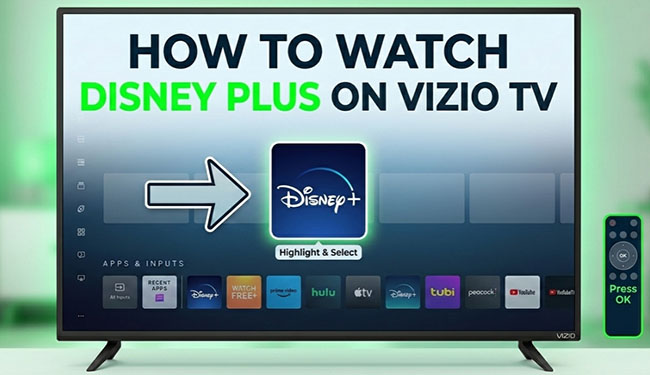
 Editorial Testing Disclosure & Methodology:
The diagnostics, device-specific fixes, and alternative media routing steps detailed below were verified in May 2026 by our technical research team. Testing was conducted utilizing a legacy 2015 Vizio E-Series TV (VIA platform), a 2023 Vizio M-Series Quantum TV (Vizio Home OS), an iPhone, and a Samsung Galaxy phone.
Part 1. Quick Diagnostics: Can You Get Disney Plus on Vizio TV?
Before searching through your television's menus, it is essential to determine if your Vizio TV natively supports the Disney Plus app. Models manufactured in 2016 or later run the SmartCast OS, which includes the built-in Disney+ app.
However, older Vizio TVs operating on the VIA (Vizio Internet Apps) or VIA+ platforms do not have native support for this streaming service, meaning the app cannot be found in their built-in catalogs. You can use the table below to identify your platform and the best way to get Disney+ on your Vizio smart TV.
Vizio OS & Disney+ Compatibility Matrix
| Vizio Launch Year / Platform | Disney+ Native Support | Audio/Video Limits | Best Alternative Methods |
|---|---|---|---|
| 2016 - Present (SmartCast / Vizio Home) | ✅ Yes (Pre-installed) | Up to 4K UHD, Dolby Vision, Atmos | N/A (Launch directly from home screen) |
| Older Models (VIA / VIA Plus) | ❌ No | Platform Max: 1080p stereo | Use USB Flash Drive, Apple AirPlay, Chromecast, or Streaming Stick |
| Legacy Non-Smart TVs | ❌ No | Platform Max: 1080p stereo | Use USB Flash Drive or Connect an external streaming device via HDMI |
 How to Check Your Vizio TV's System:
Press the Menu or Home button on your Vizio remote. If you see a modern, grid-based dashboard featuring various streaming apps, you are on the SmartCast/Vizio Home platform. If you see a bottom dock labeled "VIA" or "VIA Plus", your TV does not natively support the Disney+ app.
Part 2. How to Watch Disney Plus on Newer Vizio SmartCast TVs
If you own a post-2016 Vizio SmartCast TV, you do not need to download and install the Disney+ app manually from an app store. Vizio automatically pushes app updates via the cloud. Follow these instructions to launch the service:
Step 1. Verify Network Connection: Press the "Menu" button on your remote, navigate to "Network", and ensure your TV is connected to a stable Wi-Fi or Ethernet network.
Step 2. Open the Vizio Home Screen: Press the "Home" or "V" button located in the center of your Vizio remote control to open the SmartCast Home screen.
Step 3. Locate and Launch Disney+: Navigate to the "APPS & INPUTS" section using the directional pad on your remote, and scroll across until you spot the "Disney +" icon. Select it to launch the application. If it is missing, simply navigate to the "Apps" catalog tab or use the on-screen search function to pull it up.
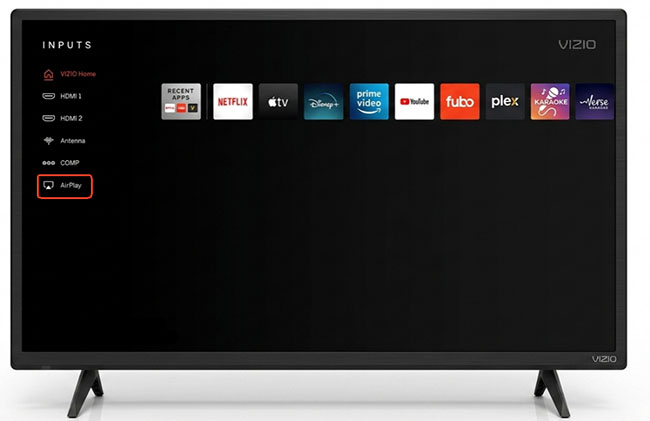
Step 4. Activate and Log In Disney+ on Vizio: Select the "Log In" button to enter your subscription credentials to log in and begin streaming Disney+ videos on your Vizio smart TV.
Tips:
On some devices, you many need to scan a QR code or enter an 8 digit activation code to log in Disney+ on TV.
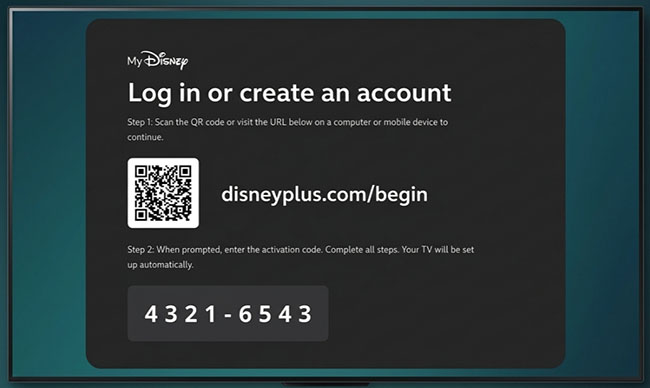
Part 3. How to Get Disney Plus on Older Vizio TVs
Owning an older Vizio TV without the SmartCast OS simply means you need to bypass the built-in Disney+ app library. Connecting external hardware directly into your TV's HDMI port or utilizing a local media drive lets you access a faster, fully updated streaming interface. Here are the most reliable and affordable external options:
Option 1. Connect to External Dedicated Streaming Devices
Dedicated streaming sticks and boxes deliver faster navigation, better audio/video optimization, and frequent security updates.
- Streaming Sticks: Inexpensive devices like the Roku Streaming Stick, Amazon Fire TV Stick, or Chromecast with Google TV plug directly into an available HDMI input.
- Gaming Consoles: If you have a PlayStation 4, PlayStation 5, Xbox One, or Xbox Series X/S connected to your Vizio TV, download the Disney Plus app directly from the console's native digital storefront.
Option 2. Local Disney Plus Playback via USB Drive
If your television lacks a stable internet connection or you want to watch Disney+ content entirely offline, you can play local media files directly through the Vizio TV's USB port using a dedicated desktop downloader, such as VidiKeep Disney Plus Video Downloader.
It can download Disney+ movies and shows directly to your computer and save them as MP4 or MKV local files. With it, you completely bypass the need for a stable internet connection or built-in Disney+ TV apps. This method allows you to enjoy permanent, high-quality offline viewing on your big screen without worrying about platform compatibility or network lag.
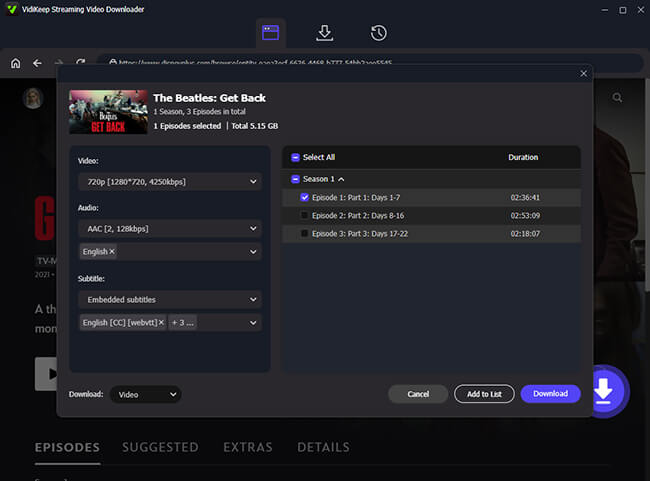
Step 1. Open VidiKeep and Log In to Disney+: Install and launch the VidiKeep program on your computer, tap the "Disney+" icon to see the built-in Disney+ Web Player. Authorize your account and access your Disney+ library.
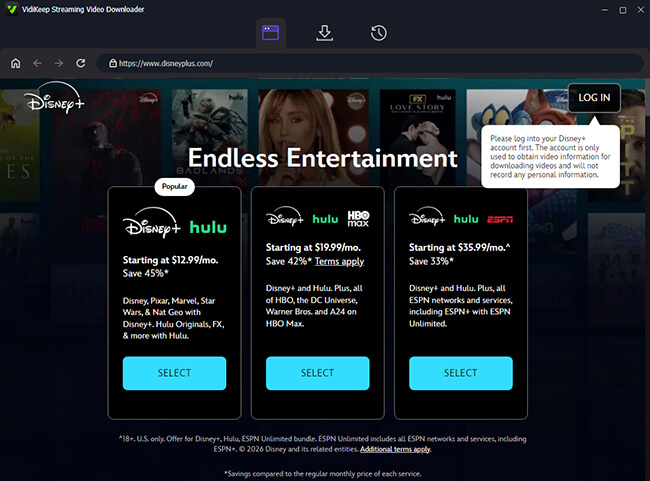
Step 2. Add and Download Disney Plus Videos: Browse your library and open the videos that you'd like to play on old Vizio TV, tap the "Download" icon to load them. Now, you can select favorite titles and click the "Download" button to download Disney+ locally as standard MP4 or MKV files.
 Tips: Avoid "File Format Not Supported" Errors
Older Vizio internal media players support H.264 (MPEG-4 AVC) video containers wrapped in MP4 or MKV formats. Do not download files using H.265 (HEVC) or AV1 profiles, as old Vizio scalers will output a black screen. Ensure the audio is encoded down to 2-channel AAC or AC3 Stereo (Multi-channel DTS streams will cause a complete audio loss on VIA processors).
Step 3. Format Your USB Drive: Ensure your USB flash drive is properly formatted to FAT32 (Vizio TVs cannot read NTFS or exFAT structures).
Step 4. Transfer Disney+ Downloads to USB: Copy and put the downloaded Disney Plus video files from your computer onto the formatted USB drive.
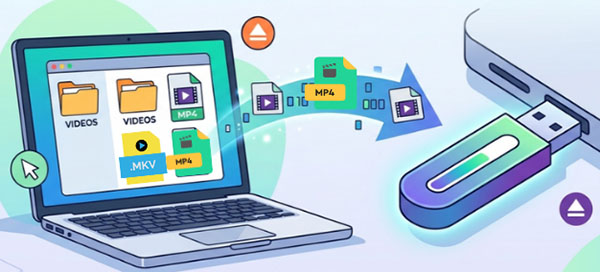
Step 5. Connect and Play Disney Plus on Vizio TV: Plug the flash drive into the USB port on the side or back of your Vizio TV. Open the built-in "Media" or "VIA" application on the TV to browse and play your offline Disney+ videos.
Note:
If your older Vizio TV doesn't support the native app but features legacy cast capabilities, you can project Disney+ from your smartphone or tablet also.
Part 4. How to Cast Disney Plus to Your Vizio TV from a Phone
Sometimes, navigating a TV interface with a remote control feels clunky and slow. If you prefer typing out your search queries on a touch screen, you can bypass the TV menu entirely. Many Vizio Smart TVs have built-in technologies that allow you to send video straight from your mobile device to the big screen. Here is how to:
Using Chromecast Built-in (Android and iOS)
Because Vizio TV displays have Google Chromecast built right in, casting from your phone is seamless.
Step 1. Connect your mobile device and your Vizio TV to the exact same Wi-Fi network.
Step 2. Open the Disney Plus app on your smartphone or tablet and select the movie or show you want to watch.
Step 3. Tap the "Cast" icon on your screen and select your Vizio TV from the list of available devices.
Using Apple AirPlay 2 (iOS and Mac)
If you are heavily invested in the Apple ecosystem, you can use AirPlay 2 to stream content. Most Vizio TV models support this feature seamlessly.
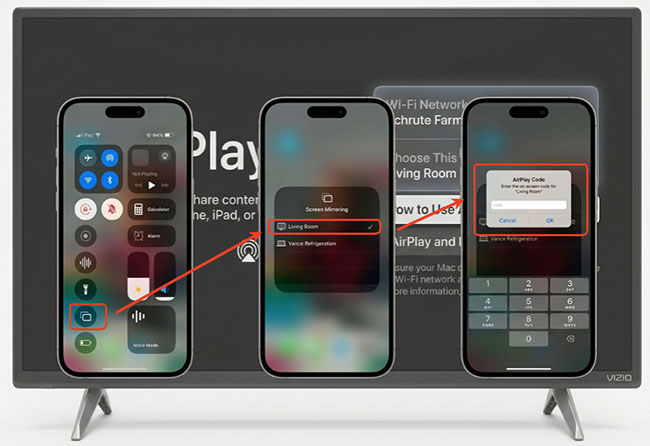
Step 1. Ensure your iPhone, iPad, or Mac is connected to the identical Wi-Fi network as your Vizio television. Press the "INPUT" button on your remote and scroll down to choose the "AirPlay" option.
Step 2. Open the Disney Plus app on your Apple device and tap the "AirPlay" icon during video playback. Choose your Vizio TV from the prompt, enter the AirPlay Code, and the Disney+ video will immediately appear on your screen.
Part 5. Troubleshooting: Disney Plus App Not Working on Vizio TV
If the native Disney+ app on your newer Vizio Home TV crashes, experiences infinite loading loops, or fails to push clean Dolby Vision handshakes, standard standby cycles will not clear the system memory. Use these exact technical overrides to resolve the issues: Vizio TV Disney Plus not working issues.
1. Fix Disney+ Error Code 83 (Secure DRM Handshake Failures)
Error Code 83 is highly prevalent on Vizio systems. It indicates that the Disney+ servers failed a security verification check with your TV's operating system, or detected a DHCP/IP routing error.
- The Fix: Synchronize your TV's internal clock. Navigate to Settings > System > Time & Local Settings. Ensure your Time Zone and Daylight Saving settings match your router's geographic location exactly. An asynchronous system clock causes secure SSL certificates to fail authentication.
- Network Isolation: Power down your internet router for 60 seconds to force your ISP to lease a fresh public IP address, clearing any server-side security flag blocking your Vizio device.
2. Perform a Cold Boot (Power Cycle)
A standard remote turn-off leaves the Vizio TV in standby mode, keeping corrupted app cache active.
- Unplug the Vizio TV from the wall outlet.
- Press and hold the physical power button on the back of the TV for 15 seconds to drain residual power.
- Plug the TV back in and relaunch Disney+.
3. Clear Audio/Video Mismatch and Buffering Limits
If your Disney+ stream constantly drops into low resolutions or stutters on a 4K Vizio TV, the current system bandwidth is throttling the connection.
- Bandwidth Thresholds: Disney+ requires a sustained 5.0 Mbps for Standard HD profiles and a non-negotiable 25.0 Mbps for 4K UHD / Dolby Vision output.
- Network Optimization: Access the Vizio dashboard, navigate to Settings > System > Reset & Admin > Test Connection. If your download rate falls short of your subscription tier, toggle your TV's Wi-Fi network off, clear the saved network configuration, and link the TV directly via a Cat6 RJ45 Ethernet cable to remove wireless channel interference.
4. Force a Firmware Update
Outdated TV software causes security handshake failures with Disney+ servers.
- Go to Settings > System > Check for Updates.
- Allow the TV to download and install any pending firmware updates, then let it reboot completely.
5. The Last Resort: Factory Reset
If the app remains completely unresponsive, reset the TV's operating system.
- Navigate to Settings > System > Reset & Admin > Reset to Factory Settings.
Note:
This clears all custom Wi-Fi network settings and logged-in account details across all apps.
Part 6. FAQs About Disney Plus on Vizio Smart TV
Why is the Disney Plus app missing from my Vizio TV?
Your TV likely runs on the legacy VIA/VIA Plus platform (pre-2016 models), which does not support modern streaming app architectures. You must use an external streaming device, USB port, Chromecast, or AirPlay to watch Disney+.
Does Disney+ support 4K Dolby Vision on Vizio Smart TVs?
Yes. If you subscribe to the Disney+ Premium plan, have a 4K-capable Vizio TV, and maintain network speeds above 25 Mbps, the app automatically enables 4K Ultra HD, HDR10, and Dolby Vision formats.
Can I manually download apps on a Vizio TV?
No. Unlike Android TV or Roku platforms, Vizio SmartCast uses a cloud-based app library. Apps are added and updated automatically by Vizio; users cannot manually install or download APKs from an app store.
What channel is Disney channel on Vizio TV?
Disney Channel is a premium cable network and does not have a specific channel number on Vizio WatchFree+. To watch it, you need to use a live TV streaming app like Hulu + Live TV, YouTube TV, or Sling TV. If you are looking for Disney+, you can access it directly via the Disney+ app on your SmartCast home screen.
How to update Disney Plus on Vizio Smart TV?
Vizio SmartCast TVs update their built-in apps automatically when connected to the internet. To ensure you have the latest app version, you can manually update your TV's firmware by pressing the Menu button on your remote, navigating to System, and selecting "Check for Updates".
Is Vizio remote with Disney Plus button?
Yes, many newer Vizio TV replacement and original remotes (such as the XRT140 model) come equipped with a dedicated Disney+ quick-launch button.
Part 7. In Conclusion
Getting Disney Plus on a Vizio Smart TV is relatively simple once you identify which Vizio operating system your television uses. Newer SmartCast and Vizio Home models support the Disney+ app directly, while older VIA and VIA Plus TVs require alternative solutions like Chromecast, AirPlay, USB offline playback, or external streaming devices.
If Disney+ is not working properly, most issues can be fixed through firmware updates, network optimization, or a full power cycle. With the right setup method, you can stream Disney+, Marvel, Pixar, Star Wars, and more smoothly on almost any Vizio TV.

Jordan Rhodes is a Chief Technical Editor and Media Specialist at VidiKeep, specializing in creating diverse tech content, including streaming tutorials, software reviews, and video encoding tips.
Leave a Comment