How to Fix Disney+ Error Code 93
When Disney+ Error Code 93 appears, many users are left wondering what caused the restriction and how to restore access. In most cases, the issue is related to account verification and device activity. This guide explains why Disney+ Code 93 happens, how to troubleshoot the Disney+ playback issues step by step, and what options you have if the error continues to interrupt your streaming experience.
Part 1. What Is Disney+ Code 93?
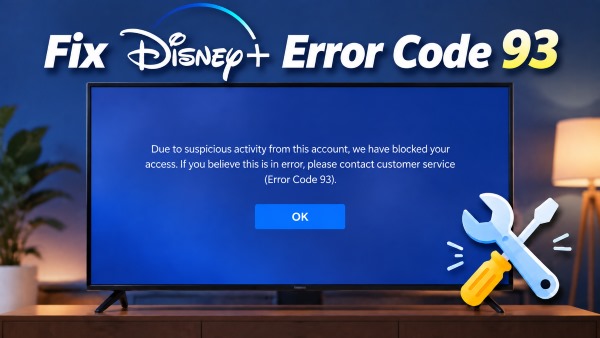
Disney+ Error Code 93 appears when the service detects unusual account activity or network patterns that require additional verification. The platform may temporarily restrict playback or prevent sign-in across your devices. While this error can be related to account security concerns, it may also occur due to VPN connections, unfamiliar login locations, or network environments that affect how Disney+ verifies your access.
Why Am I Getting Disney+ Code 93?
The automated anti-fraud systems powering Disney+ constantly evaluate incoming requests against strict risk profiles. A sudden change in connection patterns can easily trip these alarms.
- Geographical Anomalies: Logging into an account from two distant physical locations within a short window triggers automated safeguards.
- Virtual Private Networks (VPNs): Streaming while connected to commercial VPNs, data center proxies, or custom DNS routing services that Disney actively monitors and blocks.
- Credential Spikes: Repeated failed login attempts or rapid password modifications that resemble credential-stuffing attacks.
- Shared IP Misidentification: Operating behind a residential IP address that has gathered abuse flags due to the actions of other users on the same network node.
 Real Experience:
Discussions on Reddit point to a less obvious possibility: CGNAT and dynamically assigned IP addresses may contribute to network-related access problems. Some ISPs, including regional fiber providers such as Metronet, use CGNAT to allow multiple residential customers to share a public IPv4 address. This means activity from other users sharing the same public IP can potentially affect how a streaming service evaluates that connection.
Part 2. How to Fix Disney+ Error Code 93
Resolving Disney+ Error Code 93 is not about trying random fixes until the app starts working again. The first step is to identify where the problem is coming from — your account, device, or network connection. Start with simple checks that can rule out common causes, then move toward deeper network and account troubleshooting if the error continues.
Phase 1: Quick Fixes for Disney+ Error Code 93
Before changing router settings or contacting support, check the factors you can control directly. Temporary app glitches, outdated login sessions, VPN connections, or unfamiliar devices linked to your account can all affect how Disney+ verifies your access. The following steps are designed to quickly eliminate these common issues.
Step 1. Test Disney+ on a Different Network. Switch your device from home Wi-Fi to a mobile hotspot or another trusted network and try accessing Disney+ again. If the app works normally elsewhere, the issue may be related to your current network environment rather than your account or device.
Step 2. Disable VPNs and Proxy Services. Turn off any VPN apps, proxy connections, Smart DNS services, or privacy tools running on your device or router. These services can change your network location and may cause Disney+ security systems to flag the connection as suspicious.
Step 3. Check and Sign Out of Unrecognized Devices. Open your Disney+ account settings in a web browser and review the devices linked to your account. Go to your Profile, choose Account > Manage Devices, check the list of recently active devices, and tap Log Out next to any unfamiliar device. You can also sign out of all active sessions to refresh your account access and prevent outdated login sessions from triggering security restrictions.
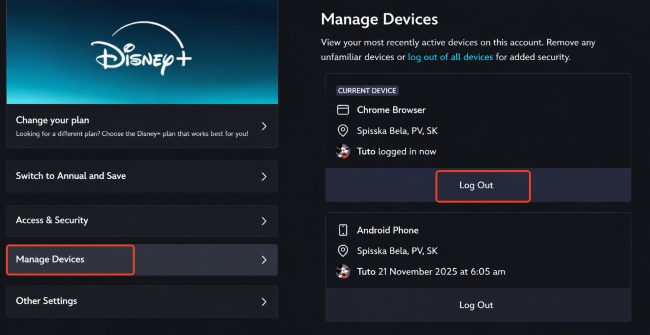
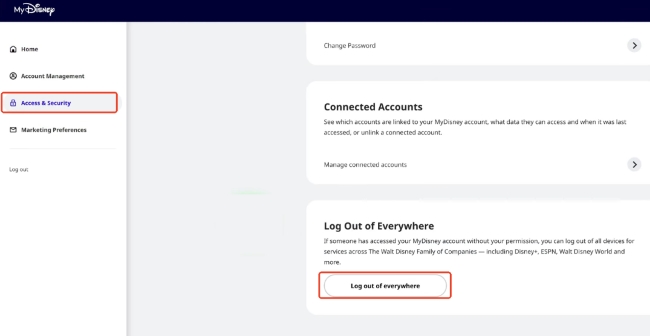
 Sign Out of All Disney+ Devices at Once:
If you want to remove all active sessions instead of logging out devices one by one, go to Access & Security in your Disney account settings and select Log out of everywhere. Disney+ will send a one-time passcode to your registered email address. Enter the code and select Confirm to complete the process and sign out of all connected devices.
Step 4. Restart the Disney+ App and Your Device. Completely close the Disney+ app and restart your streaming device, smart TV, computer, or mobile device. Clear temporary app data or cache if your device supports it, then reopen Disney+ and check whether Error Code 93 has been resolved.
Phase 2: Advanced Network and Account Fixes
When the basic troubleshooting steps do not resolve Error Code 93, the problem may involve factors beyond your device settings, such as your account security status and network configuration.
I was falsely flagged and suspended under Error Code 93. I looked into the possible reasons, but I haven't done any of them. I don't use a VPN when I use Disney+, and I don’t share my password with anyone. Yet I was still flagged for suspicious activity. Can anyone help me get my account back? — Reddit
Some users report receiving Error Code 93 even when they do not recognize any suspicious account activity. If the problem appears to be limited to your home network, continue with the following advanced troubleshooting steps.
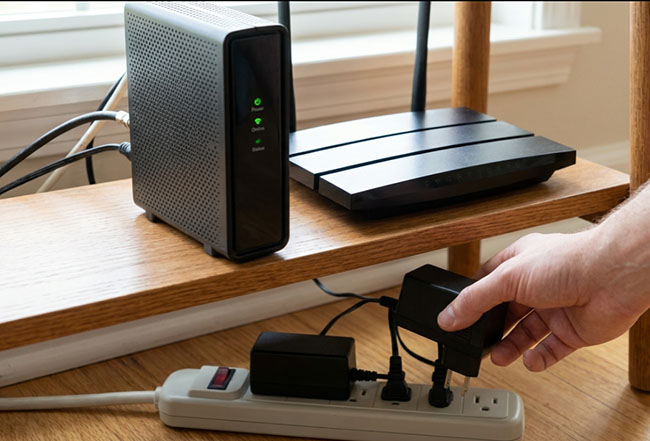
Step 5. Restart Your Modem and Router. Power cycle your modem and router to refresh your home network connection. Unplug both devices, wait several minutes, then reconnect them and restart Disney+. If your ISP uses dynamic IP assignment, reconnecting may result in a new public IP address.
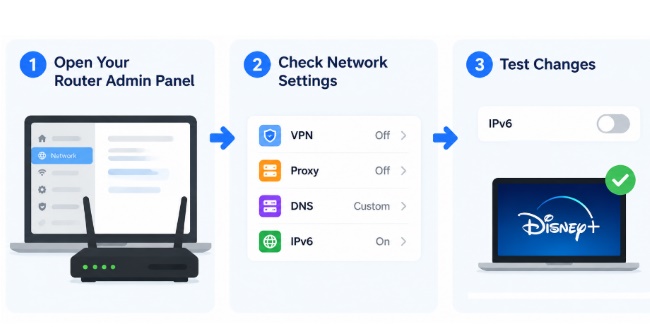
Step 6. Check Your Public IP and Router Network Settings. Access your router’s administration panel through a browser and review your network settings. Check for active VPNs, proxy services, custom DNS configurations, or unusual IPv6 settings that may affect how Disney+ identifies your connection. You can also temporarily disable IPv6 to test whether the connection behavior changes.
Step 7. Contact Disney+ Support About Error Code 93. If Error Code 93 continues after you have checked your devices and network settings, contact Disney+ support for further assistance. Provide details about your troubleshooting steps to help support identify whether the issue is related to your account, device, or network environment.
Step 8. Contact Your ISP About Your Network or IP. If Disney+ works on other networks but consistently fails through your home internet connection, your ISP may need to investigate the connection. Ask whether your account uses CGNAT, shared public IPs, or dynamic IP assignment, and whether they can refresh your IP allocation or suggest a more suitable connection option if the issue continues.
Part 3. A Reliable Workaround for Disney+ Streaming Issues
If Disney+ access remains unreliable after troubleshooting your account and network connection, you may want a more flexible way to enjoy your favorite content without depending entirely on a stable streaming connection. When issues such as Disney+ Error Code 93 continue to interrupt playback or access, saving content for offline viewing can provide a more convenient alternative.
VidiKeep Disney+ Video Downloader allows you to save supported Disney+ movies and shows locally for offline playback. Through its built-in web-based environment, the software helps you convert selected content into widely compatible MP4 or MKV video files that can be stored on your computer. With support for up to 1080p video quality and original EAC3 5.1 audio tracks, VidiKeep lets you enjoy your saved videos anytime without relying on a continuous internet connection during playback.

Save your Disney+ movies and shows as MP4 or MKV files for flexible offline viewing. Keep watching even when Disney+ Error Code 93 interrupts your streaming.
Part 4. Disney+ Code 93 vs. Other Error Codes
Not all Disney+ errors require the same fix. Error Code 42 usually points to connection problems, while Error Code 83 is often linked to device or compatibility issues. Error Code 93 is different because it typically appears when Disney+ restricts access after detecting unusual account or connection activity, making account and network checks the first steps to try. By identifying the type of error first, you can avoid wasting time on fixes that do not address the actual cause.
| Error Code | What It Means | Quick Fix |
|---|---|---|
| Code 93 | Suspicious activity detected | Test another network, check devices, contact support |
| Code 42 | Unable to connect or buffering | Check network, restart router, wait for service recovery |
| Code 83 | Playback initialization failed | Update device, browser, or try another device |
Part 5. Final Thoughts
Fixing Disney+ Error Code 93 is not always about reinstalling the app or changing your password. The key is finding whether the issue comes from your account, device, or network connection. If streaming interruptions continue, an offline viewing workflow with tools like VidiKeep can offer a more flexible way to enjoy your saved content without relying on a constant connection.

Jordan Rhodes is a Chief Technical Editor and Media Specialist at VidiKeep, specializing in creating diverse tech content, including streaming tutorials, software reviews, and video encoding tips.
Leave a Comment