How to Fix Disney Plus Error Code 42 on Xbox/Roku/Firestick
Disney Plus error code 42 can appear even when your Wi-Fi seems stable, leaving the app stuck before a movie or show begins. The problem may be caused by a temporary service outage, blocked network routing, or a device-specific issue. In this guide, you'll learn how to fix Disney Plus error code 42 on your streaming devices.
Part 1. What is Disney Plus Error Code 42?
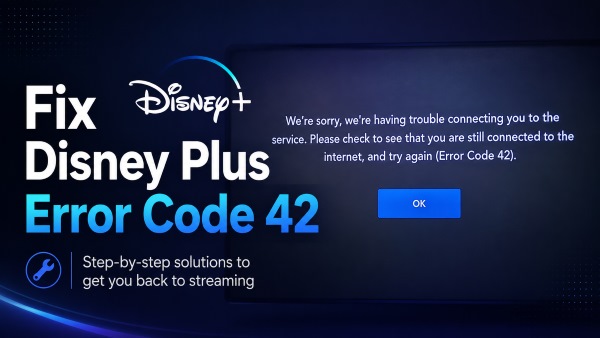
If you are staring at Disney Plus error code 42 on your screen, your device is simply failing to connect to Disney's servers. This message acts as a catch-all warning for a network timeout, a routing issue, or short-term backend congestion. It essentially means the app cannot complete the necessary handshake to retrieve your video data, causing the stream to time out.
You don't have to worry about your Disney Plus subscription status when there are errors. This has nothing to do with your billing or account standing. It is strictly a data transmission issue.
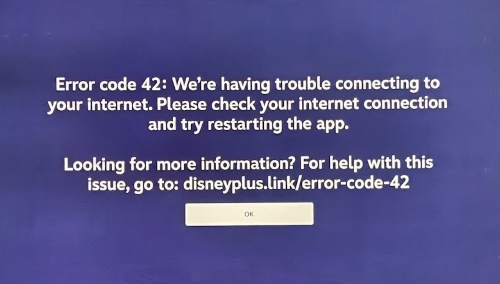
 Disney Plus Error Code 42 vs. Error Code 83:
Although both errors can prevent Disney Plus from loading, they usually point to different issues. Error Code 42 is more related to network connectivity, while Error Code 83 may involve an unsupported device or an incompatible access method. If you see the message "Something went wrong" instead, check our Disney Plus error code 83 guide for more targeted solutions.
Part 2. Why Am I Getting Error Code 42 with My Internet Is Fine?
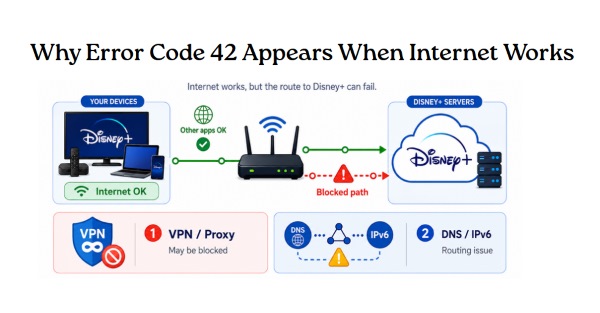
It can be frustrating to encounter Disney Plus error code 42 while the internet is fine, especially when Netflix and other streaming apps work without any issues. In many cases, the problem happens because the specific data path to Disney's Content Delivery Network (CDN) is blocked or misrouted, even if your overall internet speed is strong.
- The VPN Conflict: Using a VPN often triggers a Disney Plus error code 42 VPN block. Streaming services actively flag and block masked IP addresses to enforce regional licensing agreements.
- Hidden Routing Bottlenecks: Sometimes, the issue stems from your internet service provider having outdated DNS settings or a faulty IPv6 route that specifically disrupts the connection to Disney's servers.
Part 3. How Do I Fix Error Code 42 on Disney Plus?
Before changing network settings or reinstalling the app, first identify whether the problem is on Disney's side or your device. Disney Plus error code 42 may result from a temporary service outage, but it can also point to a local connection or app issue. So just start with the server check below, then try each quick fix to resume the streaming on your Disney Plus.
 Check Before Taking Action: Is Disney Plus Down?
It is frequently a server-side issue. If thousands of people are trying to watch a massive new premiere at the same time, the servers can become temporarily overloaded. You can quickly check sites like Downdetector to see if there is a massive spike in user reports. If the servers are down globally, you simply have to wait for Disney's engineering team to resolve the traffic jam.
If the servers are up and running, proceed with this quick fix checklist to clear out local network bugs.
Quick Fixes for Disney Plus Error Code 42
-

1.Restart Your Devices
Unplug your streaming device and router for 60 seconds. Reconnect the router first, wait until it is online, then restart Disney Plus and try again.
-
2.Disable VPN and Proxy
Turn off any VPN, proxy, or network-level ad blocker, then reopen Disney Plus. These tools can hide your IP or interfere with Disney's servers.
-
3.Clear the App Cache
Open your device settings, find Disney Plus, and clear its cache. Restart the app afterward to remove those corrupted temporary data causing Error Code 42.
-
4.Switch Your DNS Server
Switch your router to a public DNS service such as Google DNS or Cloudflare DNS. Then restart the router afterward and test Disney Plus again
-
5.Reinstall Disney Plus
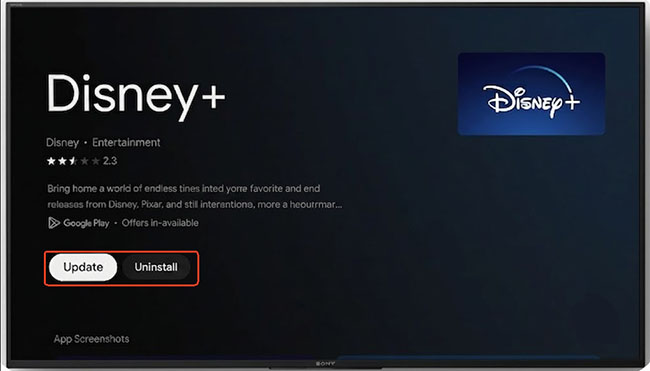
Check for a Disney Plus update first. If Error Code 42 continues, uninstall the app, restart your device, and install the latest version again.
Part 4. Troubleshooting Disney Plus Error Code 42 on Specific Devices
Different streaming devices store network and app data in different ways. If the general fixes above do not remove Disney Plus error code 42, you need to work through the device-specific steps below rather than repeatedly resetting every part of your home network.
4.1 Resolve Disney Plus Error Code 42 on Xbox
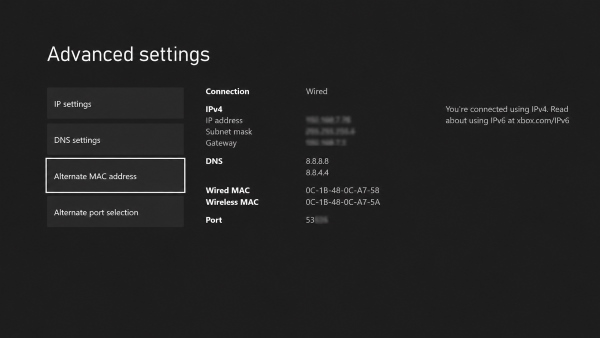
On Xbox, Error Code 42 may be connected to stored network data, particularly the console's Alternate MAC address. Clearing it forces the Xbox to rebuild its network connection without deleting your games, accounts, or saved data.
Step 1. Highlight Disney Plus on the Xbox Home screen, press the Menu button, and select Quit to close the app completely.
Step 2. Go to Profile & system > Settings > General > Network settings.
Step 3. Open Advanced settings, select Alternate MAC address, and choose Clear.
Step 4. Let the console restart, wait for it to reconnect to the internet, and then open Disney Plus again.
4.2 Troubleshoot Disney Plus Error Code 42 on Firestick
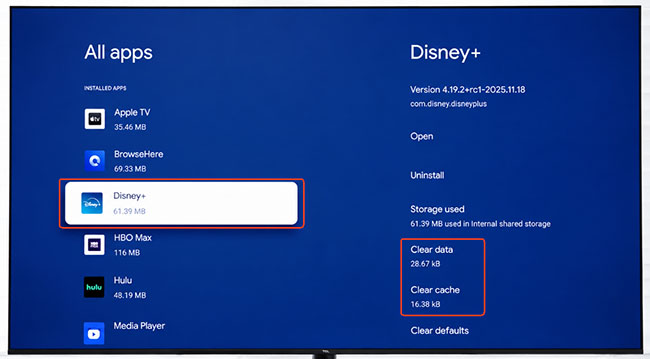
On a Firestick, Disney Plus may continue using corrupted cache files or an expired connection session even after you leave the app. Force-stopping the app and clearing its temporary data often provides a cleaner restart.
Step 1. From the Fire TV Home screen, open Settings > Applications > Manage Installed Applications.
Step 2. Select Disney Plus, choose Force Stop, and then select Clear Cache.
Step 3. Return to the Home screen, reopen Disney Plus, and check whether the error has disappeared.
When clearing the cache does not help, return to the same menu and choose Clear Data. This resets the app and signs you out, so you will need to enter your account details again. You can then restart the Firestick and reinstall Disney Plus if the problem continues.
4.3 Clear Disney Plus Error Code 42 on Roku
Roku does not usually provide a normal per-app cache-clearing button, so the most useful approach is to restart the system, update the channel, and reinstall Disney Plus in the correct order.
Step 1. Go to Settings > System > Power > System restart and wait for Roku to reboot.
Step 2. Once the Home screen appears, highlight Disney Plus, press the Star (*) button on the remote, and select Check for updates.
Step 3. Next, open Settings > System > Software update > Check now to make sure the Roku system is also up to date.
Step 4. If Error Code 42 still appears, check for Xbox system and Disney Plus app updates. You can also uninstall Disney Plus, restart the console, and reinstall the app to replace any damaged or outdated files.
 Editor's note:
Some Roku users report that Disney Plus works through a phone hotspot but fails on their main Wi-Fi, even though other apps continue working normally. This pattern points more toward a Roku-specific routing or compatibility issue than weak Wi-Fi coverage. Testing a hotspot or guest network may therefore be more useful than immediately buying a signal booster or replacing the Roku.
Part 5. The Ultimate Solution: Watch Disney Plus Without Internet
Disney Plus Error Code 42 keeps returning can become frustrating, especially when you simply want reliable playback during a trip, commute, or evening at home. In that situation, saving videos offline offers a more practical way to avoid interruptions caused by server outages or Wi-Fi restrictions.
VidiKeep Streaming Video Downloader provides an alternative for watching Disney Plus without internet. It lets you save supported movies and episodes as local video files, which can then be played without relying on a live connection to Disney's servers. This can be useful when travelling or using a device with inconsistent internet access.

- Batch download Disney Plus movies and TV seasons
- Save Disney Plus videos as MP4 or MKV in up to 720p
- Preserve EAC3 5.1/Dolby Atmos audio and multilingual subtitles
- Support flexible offline playback on different devices
 Security verified. 5, 481,347 people have downloaded it.
Part 6. Conclusion
Disney Plus error code 42 is often linked to server availability, network routing, app data, or the device itself rather than a complete loss of internet access. Start with the quick checks, then follow the steps for your specific devices. If streaming remains unreliable, preparing videos with Vidikeep for offline viewing can offer a more consistent alternative.

Jordan Rhodes is a Chief Technical Editor and Media Specialist at VidiKeep, specializing in creating diverse tech content, including streaming tutorials, software reviews, and video encoding tips.
Leave a Comment