Disneyplus.com Login/Begin: 6- or 8-Digit Code & TV Login
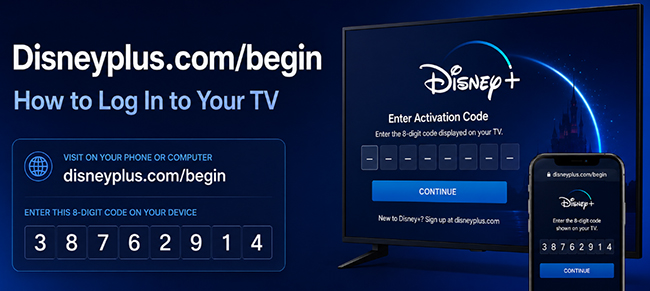
Seeing an 8-digit Disney+ login code on your TV? You need to visit Disneyplus.com/begin. Simply open this address on a phone or computer, enter the code from your TV, and sign in with your MyDisney account. Your TV will automatically refresh once activated. To skip typing, you can also scan the on-screen QR code.
However, login methods can vary depending on your streaming device. Instead of the standard 8-digit activation code, your TV might ask for a 6-digit email verification code or send a login approval request directly to your smartphone. In this article, we will walk you through all the current ways to activate Disney+ on any supported TV.
 Note:
Note:
Disneyplus.com Login/Begin is a common search phrase, not a separate Disney+ web address. For TV activation, the address you normally need is DisneyPlus.com/begin. Besides, to sign up for Disney Plus, you have to visit the DisneyPlus.com/login page.
Part 1. How to Use Disneyplus.com/begin to Enter 8-Digit Code on TV
The www.disneyplus.com/begin/ method is mainly useful when the Disney+ app displays an 8-digit activation code on your smart TV, game console, or compatible TV-connected device. Here is the quickest way through it.
Step 1. Launch the Disney+ app on your TV or connected streaming device and choose Log In.
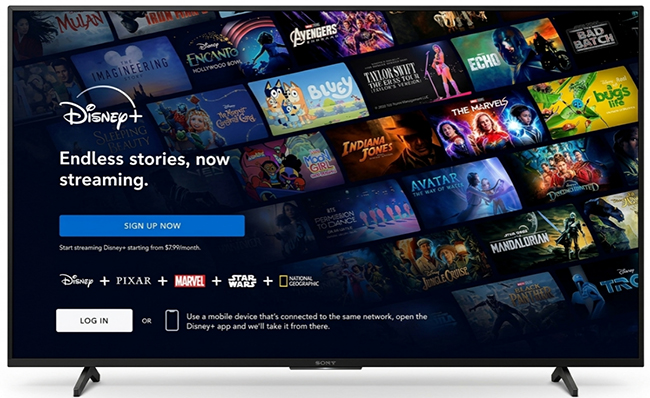
Step 2. After selecting Log In, supported devices may display an 8-digit Disney+ activation code along with a QR code or instructions to visit Disneyplus.com/begin.
Step 3. On your phone or computer, open a browser and enter to Disneyplus.com/begin. Type the 8-digit code shown on the TV into the activation page and continue. You can also scan the QR code on the television if one is displayed.
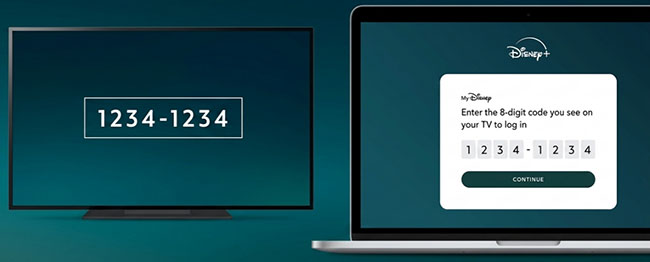
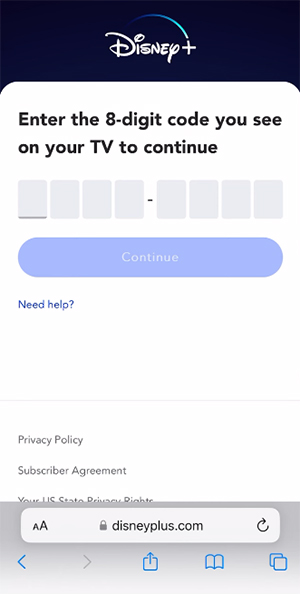
Step 4. Sign in with your MyDisney credentials and wait for your TV screen to refresh automatically. It will display a successful activation message. You can then select START STREAMING to browse your Disney+ library and start streaming favorite movies and shows on your TV.
Part 2. How to Log In Disney+ Without Using Disneyplus.com/begin
Not every current Disney+ TV app relies on the DisneyPlus.com/begin activation page. Disney+ now documents several login methods for TVs and TV-connected devices. If your TV screen does not display the traditional 8-digit code, simply follow the on-screen prompts using one of these two modern login methods:
2.1 Disney+ 6-Digit Email Login Code
Instead of directing you to a separate web browser, some smart TVs and consoles now allow you to type your Disney+ account email directly into the TV interface. Once you enter your email, Disney+ sends a 6-digit one-time passcode (OTP) to the email address associated with your account. You can type this code into the TV to authenticate.
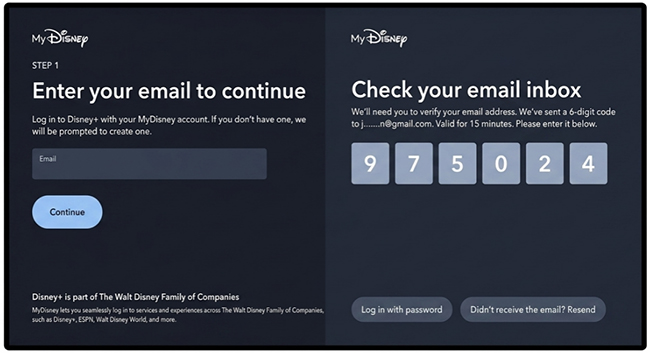 Time limit:
This specific email code expires after strictly 15 minutes. Always ensure you are using the most recent email if you requested it multiple times.
 Tips:
Tips:
If the 6-digit code never arrives, check your TV screen. Disney+ often provides a "Log in with password" option as a backup.
2.2 Disney+ Mobile Device Login
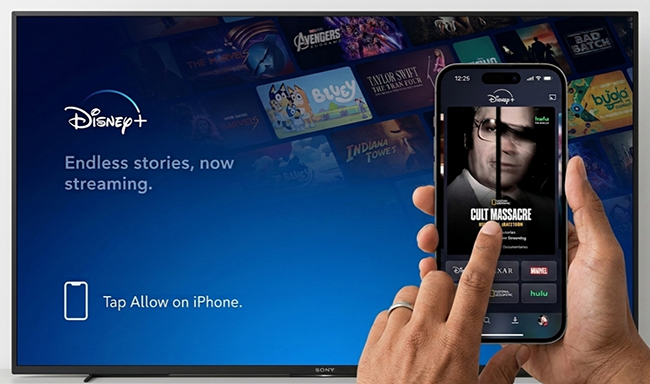
If you already have the Disney+ app installed and logged in on your smartphone, you can often bypass manual typing entirely. Ensure both your smartphone and your TV are connected to the same Wi-Fi network. When you open the login screen on your TV, a device approval request may automatically pop up on your phone's Disney+ app. Simply tap to approve the prompt, and your TV will instantly sign in.
Don't Confuse Your Disney+ Codes
Because Disney+ uses different numerical codes depending on the device and situation, older activation guides can be confusing. Here is a quick reference to clarify which code does what:
| Code Type | Where You See It | What It Is Used For |
|---|---|---|
| 8-Digit Code | TV Screen | Traditional TV activation (Requires visiting Disneyplus.com/begin). |
| 6-Digit Code | Email Inbox | Direct TV authentication (Expires in 15 minutes). |
| 6-Digit Recovery | Email Inbox | MyDisney password reset or account recovery. |
The Practical Rule:
Always follow the specific login method displayed by the Disney+ app on your current device, rather than expecting every TV to use the old /begin activation screen.
Part 3. Disneyplus.com/begin on Samsung TV, LG TV, Fire TV, Apple TV and Other Devices
Disney+ is available across a wide range of TVs, consoles, and streaming devices, but the current login interface can vary. Instead of repeating nearly identical steps for every device, the table below highlights the differences that are actually useful.
Note:
Streaming via built-in smart TV browsers (like those on Samsung and LG) is strictly unsupported; you must use the official app.
| Device | What to know about Disney+ login | Disney+ App Compatibility Notes |
|---|---|---|
| Samsung Smart TV | Install and use the Disney+ app. | Supports 2016+ Samsung models (Tizen) and 2016+ LG models (webOS 3.0+). |
| LG Smart TV | Use the Disney+ app from the LG Content Store. | Compatible models include 2016+ TVs with webOS 3.0 or later. |
| Amazon Fire TV / Fire TV Stick | The current app may offer an email code, mobile approval, or another supported login flow. | Requires Fire OS 6.0+. |
| Roku | Follow the login instructions shown by the current Disney+ app; the interface may differ by device/app version. | / |
| Apple TV | Open the Disney+ app and use the login method offered on screen. | Supports Apple TV HD (4th gen) and Apple TV 4K on supported tvOS versions. |
| Android TV / Google TV | Install Disney+ through Google Play on a supported Android TV device; | Disney currently lists Android OS 6.0 or later. |
| PlayStation / Xbox | Smart TV/game-console documentation includes the 8-digit Disneyplus.com/begin method. | / |
| Chromecast | Usually uses casting from another device, so /begin may not be part of the normal workflow. | / |
How to Remove a TV After Using Disneyplus.com/begin
If you activated the wrong TV, signed in at a hotel, or simply want to clean up old devices, you can remove access remotely.
- Sign in to DisneyPlus.com on a phone or computer.
- Select your Profile and open Account.
- Under Access & Security, choose Manage Devices.
- Find the relevant device and select Log Out.
Part 4. Disneyplus.com/begin Not Working? Fix It by Symptom
If Disneyplus.com/begin is not working, identifying the exact symptom or error code will guide you to the quickest fix.
| Error Code / Symptom | What it Points To | How to Fix It |
|---|---|---|
| Code is Invalid | Mistyped or expired TV code. | Back out of the TV login screen, reopen it to generate a fresh 8-digit code, and try again. |
| Page Won't Open | Browser or network issue. | Ensure you typed Disneyplus.com/begin correctly. Try an incognito/private browsing window. |
| Disney+ Error Code 14 | Incorrect MyDisney credentials. | Reset your password. Note that changing a MyDisney password elsewhere affects Disney+. |
| Disney+ Error Code 42 | Internet or network connection problem | Restart app/router and test connection |
| Disney+ Error Code 83 | Device compatibility, unsupported access method, or connection issue | Use a supported app/device and check internet |
| Disney+ Error Code 73 | Geo-block or VPN issue. | Disable any active VPNs and verify you are in a supported streaming region. |
Household Verification Prompts:
If the browser says activation was successful but the TV displays a “This TV doesn't seem to be part of the Disney+ Household” message, the activation code is not the issue. This is a subscription-sharing restriction. Follow the on-screen Household verification options to authorize the device.
Tips:
Stuck on the Household verification screen or traveling without a stable connection? You can bypass these streaming restrictions by downloading your content locally. With VidiKeep Disney Plus Video Downloader, you can save Disney+ movies as MP4/MKV files and play them directly on your TV via a USB drive, no login codes or Wi-Fi required.
Part 5. Disneyplus.com Login/Begin FAQs
Can I activate Disney+ without a phone?
Yes. Any computer or tablet with a standard web browser can be used to visit the /begin page and authenticate your account.
Do I need to pay again when activating a new TV?
No. Activating a new device simply links it to your existing subscription, though Household account-sharing rules will still apply based on the device's location.
Can I open Disneyplus.com/begin directly on my smart TV?
It is generally simpler to open the activation page on a phone, tablet, or computer, which is also how Disney describes the /begin process. Samsung and LG specifically do not support Disney+ streaming through their built-in TV browsers, so the Disney+ TV app plus a second device is the safer approach.
Why does Disney+ ask about my Household after I entered the code?
The 8-digit code links and authenticates the TV, while Household rules determine whether that device is authorized to use the subscription in its current location. If a Household message appears after login, follow the Household verification options rather than repeatedly activating the TV.
Part 6. Conclusion
While visiting Disneyplus.com/begin to enter an 8-digit code remains the standard way to activate Disney+ on a TV, it is no longer the only method. Depending on your device, you might be asked for a 6-digit email code or a quick mobile approval instead. If you run into issues, skip the generic fixes. Pinpoint the exact symptom, whether it's an invalid code, an incorrect MyDisney password, or a Household verification prompt, to find the right solution quickly.

Jordan Rhodes is a Chief Technical Editor and Media Specialist at VidiKeep, specializing in creating diverse tech content, including streaming tutorials, software reviews, and video encoding tips.
Leave a Comment