How to Unblock Disney Plus from Anywhere
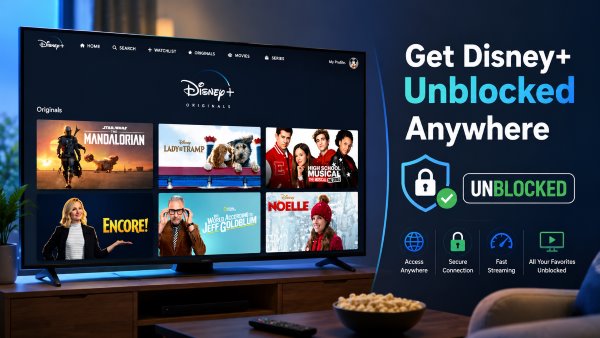
Wondering how to get Disney Plus unblocked when you're traveling or using a restricted network? Whether Disney+ is unavailable in your region or blocked at school or work, there are several ways to regain access. This guide explains why Disney+ gets blocked and walks you through the safest and most effective methods to watch Disney+ from anywhere.
Part 1. Why Is Disney+ Blocked?
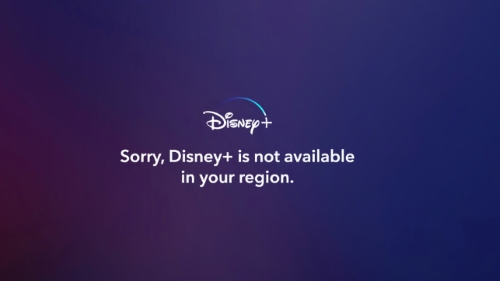
Disney+ Region Locks
Disney+ doesn't offer the same catalog in every country. This isn't because Disney wants to restrict users, it's mainly due to content licensing agreements. That's why you may notice certain shows disappear or even find that Disney+ isn't available at all when traveling abroad.
Many movies and TV shows are licensed to different streaming services in different regions. If Disney+ doesn't own the streaming rights in the country you're visiting, it has to remove that title from the local library. To determine which catalog you can access, Disney+ checks your IP address and serves the content available for your current location.
Network Restrictions at School or Work
If Disney+ is blocked at school, college, or the office, the issue usually is the network you're connected to.
Many schools and workplaces use firewalls or network filters to block streaming platforms. These restrictions help conserve bandwidth, reduce distractions, and keep the network running smoothly for essential work or educational activities. As a result, Disney+ may fail to load, display an access error, or be completely inaccessible while you're connected to that Wi-Fi network.
Part 2. Use a VPN to Get Disney Plus Unblocked
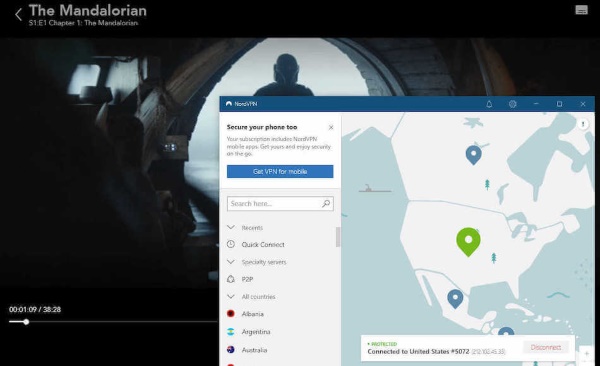
When you need to unblock Disney plus outside US borders, a VPN is the most popular tool available. A streaming VPN works by routing your internet traffic through a secure server in a different country, masking your actual IP address. This tricks the streaming platform into thinking you are browsing from an approved location, temporarily bypassing regional filters.
How to use a VPN with Disney Plus
Setting up a VPN is a simple process. Here is how you can easily regain access to your Disney Plus account while being blocked.
Step 1. Download and install a reputable, high-speed streaming VPN on your device, such as NordVPN or Surfshark.
Step 2. Launch the application and connect to a server located in a region where Disney+ is fully supported.
Step 3. Open a fresh private browsing window, log into your streaming account, and start watching your favorite shows.
 Editor's Note:
It is important to set realistic expectations when using this method. A VPN does not automatically unlock every single international library, and even the best providers cannot guarantee uninterrupted access. Because Disney+ continually updates its detection systems to flag and blacklist commercial data center IP addresses, your ultimate success depends heavily on the specific server you choose and Disney's current security measures.
Fix Your VPN Not Working With Disney+
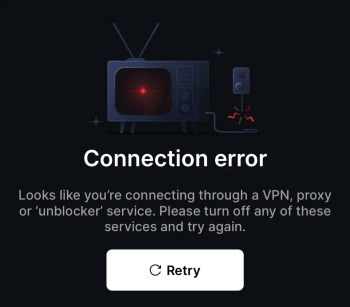
One of the most common hurdles travelers face is encountering Error Code 73. When this happens, a message will appear on your screen stating: "This content isn't available to watch in your current location. If you are attempting to use a VPN or similar method to access Disney+, disable it and restart the app."

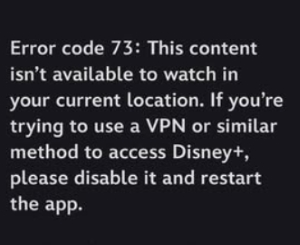
This error code triggers when the platform realizes you are either attempting to stream from an unsupported country or utilizing an IP anonymizer that has already been flagged by their security team. If Disney+ detects your VPN connection and locks you out, you can try to resolve the conflict with these troubleshooting steps:
Step 1. Keep your VPN connected, but completely clear your browser's cache on a PC, or fully reinstall the Disney+ application if you are streaming on a mobile device.
Step 2. Open your VPN application and switch your connection to a couple of different servers in the target region to acquire a completely fresh, unblocked IP address.
Step 3. Run a quick internet connection test to ensure your network is stable, then power down and restart your device before relaunching the streaming app.
Part 3. Use Smart DNS to Unblock Disney+ on Smart TVs and Consoles
While configuring a VPN works efficiently on your computers smartphones, it presents a distinct hardware limitation for the living room. Standard streaming hardware like an Apple TV, Roku stick, PlayStation, Xbox, or older smart TVs lack native support for VPN applications. If you want to get Disney plus unblocked directly on a tv screen without dealing with heavy network encryption, a Smart DNS is the most effective solution.
How to Use Smart DNS for Disney unbloked
A Smart DNS works by selectively intercepting and rerouting the specific web requests responsible for verifying your geographic location. Because it leaves the rest of your web traffic untouched, it tricks the streaming platform without changing your local IP address for other apps.
Step 1. Sign up for a premium Smart DNS service and whitelist your current home IP address within their user dashboard.
Step 2. Access the advanced network or Wi-Fi configuration menu on your smart TV or gaming console.
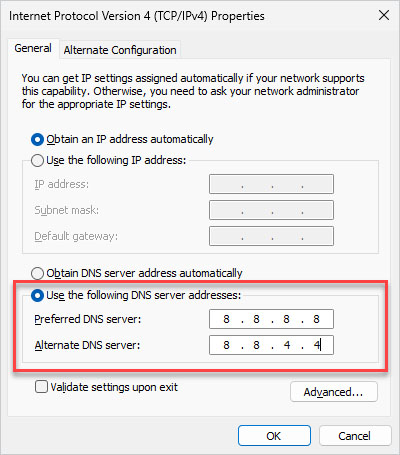
Step 3. Change the DNS settings from "Automatic" to "Manual" and enter the primary and secondary server numbers provided by your Smart DNS provider.
Step 4. Restart your device to flush the old network data before opening the Disney+ application.
VPN vs. Smart DNS
| Feature | VPN | Smart DNS |
|---|---|---|
| Encryption | Yes (fully secures your data) | No (provides no online security) |
| Streaming Speed | Slower (due to encryption overhead) | Faster (no speed loss at all) |
| IP Address | Hidden (replaced with a new IP) | Unchanged (keeps your original IP) |
| Setup | Very Easy (one-click app download) | Manual (requires changing network settings) |
| Best For | Privacy, public Wi-Fi, and tough geo-blocks | Buffer-free streaming on Smart TVs and consoles |
Part 4. Download Videos to Watch Disney Plus Unblocked Anywhere
If you want to avoid network troubleshooting altogether, the most reliable workaround is to save your content locally. Once a movie is stored on your computer's hard drive, you can watch it anywhere, entirely immune to strict school Wi-Fi firewalls or international region locks.
VidiKeep Streaming Video Downloader is a dedicated desktop application that allows you to save movies and TV shows from major platforms, including Disney+. It is a helpful solution for users who anticipate being completely offline or stuck behind heavy network restrictions. Vidikeep saves Disney+ videos in highly compatible MP4 or MKV formats while preserving high-definition visuals and multilingual subtitles.
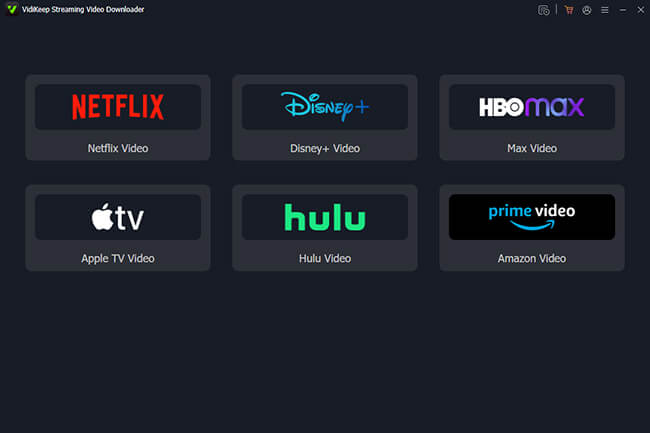
Step 1. Install the VidiKeep software on your Mac or Windows computer and launch the application. Instead of wrestling with external browsers, simply select the Disney+ icon from the main dashboard to open a built-in Disney plus web player. Log into your account to connect to your subscription library so you can start pulling content offline.
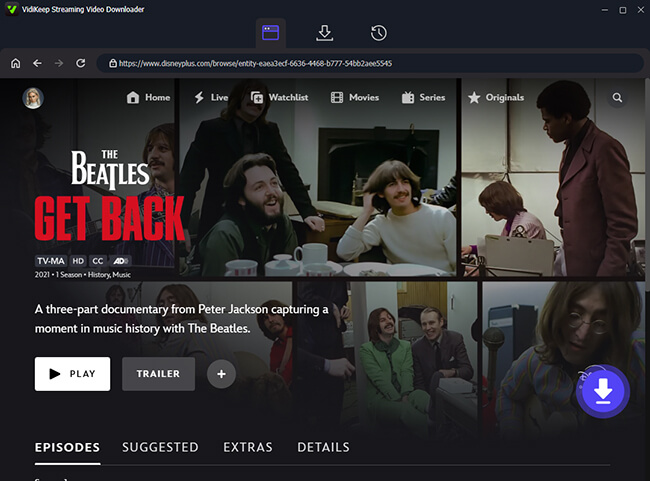
Step 2. Use the integrated search bar to track down the movie or TV series. Once you locate it, click the title to load the media for processing. Or you can paste the URL into the app to pull it up instantly. Then tap the "Download" icon in the right-lower corner to start the conversion.
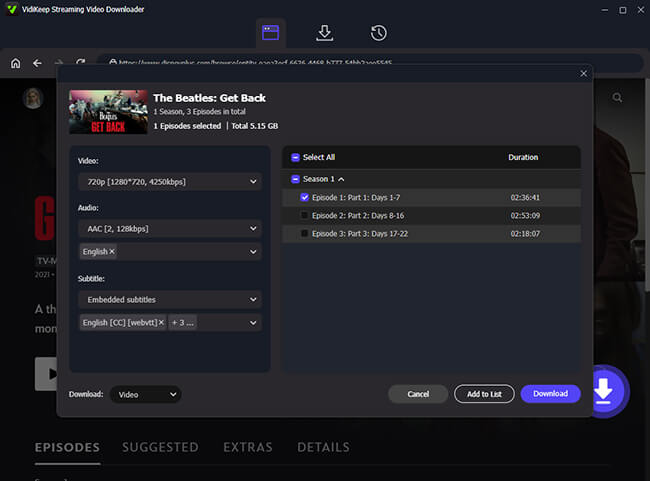
Step 3. If you are grabbing a TV series, you can cherry-pick individual episodes or hit "Select All" to pull down an entire season in one go. Before initiating the download, take a moment to customize your media settings, allowing you to tweak the visual quality, pick specific audio tracks, and choose the exact subtitles you need for a perfectly personalized viewing experience. Once your settings are dialed in, hit the "Download" button to begin saving the files to your device.
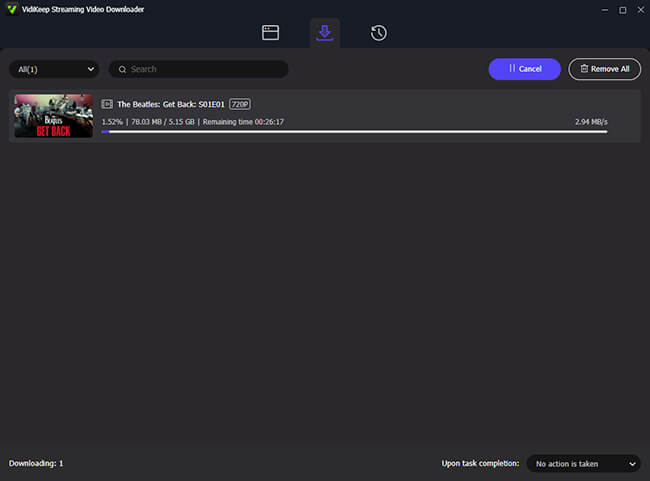
Step 4. Wait for the progress bar to complete, and your video will be stored on your local hard drive as a universally playable MP4 file. You can easily locate your saved media under the "History" tab.
Because the video file is now physically resting on your computer, you have kept movies and shows from Disney Plus unblocked permanently, meaning you can watch your favorite shows on a restricted school network or during an international flight offline.
Part 5. Choose the Best Way to Unblock Disney+
Choosing the ideal workaround depends heavily on your physical location, the specific device you use, and whether you value absolute connection speed over data privacy. Every tool has distinct strengths and trade-offs that make it suited for different situations.
| Method | Best For | Setup Difficulty | Playback Speed | Privacy Protection |
|---|---|---|---|---|
| VPN | Accessing Disney+ while traveling on smartphones and tablets |
Easy | Fast | ✅ High |
| Smart DNS | Streaming on Smart TV, consoles, and devices without VPN support |
Moderate (Manual DNS configuration) |
⚡ Excellent | ❌ None |
| VidiKeep Downloader | Watching Disney+ offline in schools or restricted environments |
Easy | ⚡ Instant | ✅ High |
If your primary goal is to securely bypass international region locks while protecting your personal data on public hotel Wi-Fi networks, a premium VPN remains the top choice. For users who want to watch movies on a big screen without dealing with buffering wheels or complex router setups, a Smart DNS is the optimal route. Finally, if you want a permanent solution, downloading your Disney Plus content via VidiKeep offers the most reliable user experience.
Part 6. FAQs on Unblock Disney Plus
Is It Legal to Use a VPN with Disney+?
Yes, using a VPN is legal in most countries. However, using a VPN to access Disney+ content that isn't available in your region may violate Disney+'s Terms of Service. Disney+ may detect VPN traffic and prevent streaming until you disconnect the VPN or switch to a supported location. In some cases, you may see an error message instead of being able to watch content. If you want a reliable streaming experience, it's best to watch Disney+ using Vidikeep Disney+ Downloader.
Will Disney+ Ban My Account for Using a VPN?
It is extremely rare for a streaming service to ban a paying customer's account for using a location spoofer. Instead, they simply block the IP address associated with the VPN, which results in a temporary error code. If you are wondering how to unblock my disney plus account after seeing this error, simply disconnect the VPN or switch to a new server.
How Can I Watch Disney+ on a School Chromebook?
To bypass these local filters, you must disconnect from the school's Wi-Fi. Turn on your smartphone's mobile hotspot and connect your Chromebook to your cellular data. This routes your traffic away from the school's network entirely, allowing you to access Disney plus unblocked at school.

Jordan Rhodes is a Chief Technical Editor and Media Specialist at VidiKeep, specializing in creating diverse tech content, including streaming tutorials, software reviews, and video encoding tips.
Leave a Comment