How to Stream Amazon Prime on Discord for Movie Nights
Trying to stream Amazon Prime on Discord but getting a black screen with audio only? This is a common issue caused by DRM protection or hardware acceleration conflicts. In this guide, you'll learn how to fix the black screen issue, and discover the best methods to screen share Amazon Prime Video on Discord for a smooth, uninterrupted watch party.
Part 1. Can You Stream Amazon Prime on Discord?
Yes, but only on a desktop browser with the right settings. Amazon Prime Video uses DRM to prevent unauthorized copying. When Discord detects protected content during screen sharing, the video is blocked, resulting in a black screen with audio only for viewers.
Mobile devices have even stricter restrictions. Due to OS-level DRM on the Prime Video app for iOS and Android, you can't host an Amazon Prime watch party directly from your phone. To stream Amazon Prime Video on Discord successfully, you'll need to use a desktop or laptop computer.
Part 2. How to Stream Amazon Prime on Discord Without Black Screen
Before sharing Amazon Prime Video on Discord, it's essential to adjust the settings for flawless playback on Discord. Disabling hardware acceleration in both your browser and Discord is one of the most effective ways to prevent the DRM-related black screen.
Tips to Bypass Prime Video Black Screen on Discord
Step 1 Turn Off Hardware Acceleration in Your Browser
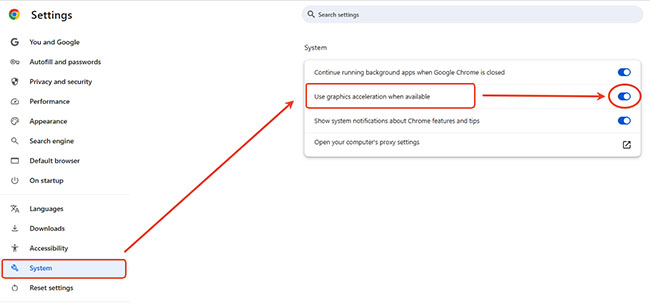
For Chrome/Microsoft Edge:
Open the browser settings and go to "Settings > System". Find the option "Use graphics acceleration when available" and switch it off. Once done, restart your browser to apply the changes.
For Firefox:
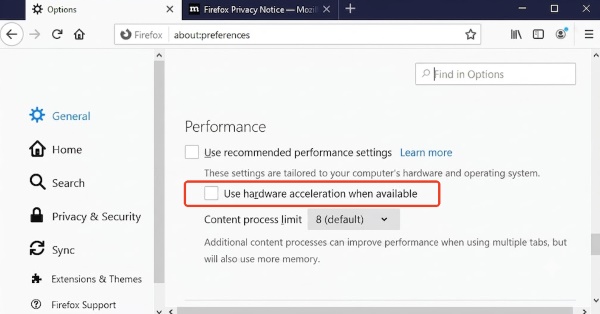
Open "Settings > General > Performance". First, uncheck "Use recommended performance settings" to unlock the advanced options. Then, disable "Use hardware acceleration when available" and restart Firefox.
Step 2 Disable Hardware Acceleration in Discord
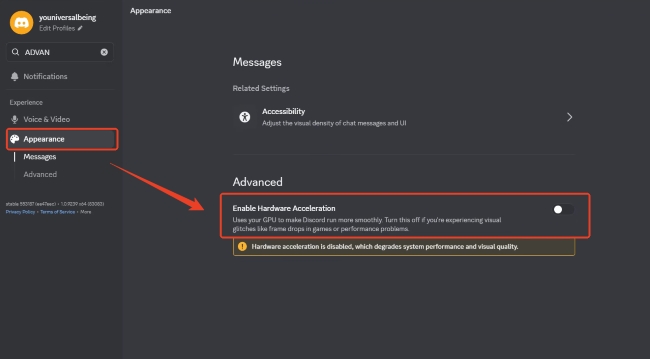
Discord also uses hardware acceleration to improve performance, but this feature can occasionally interfere with screen sharing. Turning it off may help Discord display Prime Video content correctly.
To change this setting, Click "Appearance > Advanced" on Discord, and turn off "Enable Hardware Acceleration". After restarting Discord, try sharing your screen again and check whether the black screen problem has been resolved.
How to Watch Amazon Prime on Discord without Black Screen
Step 1 Sign in to Amazon Prime Video in Your Browser
Open Amazon Prime Video in Chrome, Edge, or Firefox and log into your account. For the best results, using Firefox is highly recommended. It handles media in a way that is far more friendly to Discord's screen-sharing features.
Step 2 Add your Browser as a Registered Game in Discord
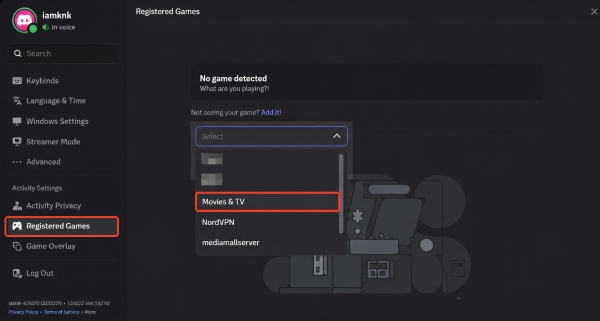
In the Discord desktop app, head to "Registered Games" under "Activity Settings". Click "Add it!", then choose "Movies & TV", which allows Discord to recognize Prime Video as a streamable app.
Step 3 Join a Voice Channel and Start Screen Sharing
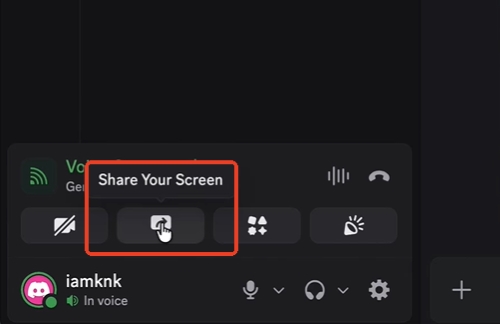
Enter the server and voice channel where you want to host your watch party. Click the "Screen Share" icon to begin selecting what you want to broadcast.
Step 4 Share the Browser Window for Prime Video
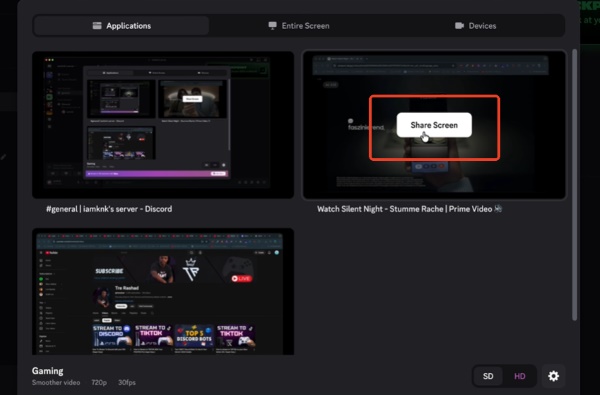
When Discord asks what to share, choose the browser window playing Amazon Prime Video rather than "Entire Screen". Sharing only the app window greatly reduces the chance of running into the DRM black screen. Once the stream is live, you can play your Amazon Prime content on Discord smoothly.
Part 3. How to Screen Share Amazon Prime on Discord Without Interruptions
Even with the right browser settings, streaming Amazon Prime Video on Discord can still be interrupted by unstable internet connections, buffering, or unexpected playback issues. If you want a smoother and more reliable watch party, consider using a dedicated downloader like VidiKeep Streaming Video Downloader.
VidiKeep lets you download Amazon Prime Video titles as MP4 or MKV files, allowing you to play them with any standard media player. Instead of relying on real-time browser streaming, you can simply screen share the local Prime Video files on Discord for a more stable viewing experience.
Step 1. Launch VidiKeep on your computer and click the Amazon Video icon located on the main dashboard. Log into your Amazon Prime account in the built-in browser.
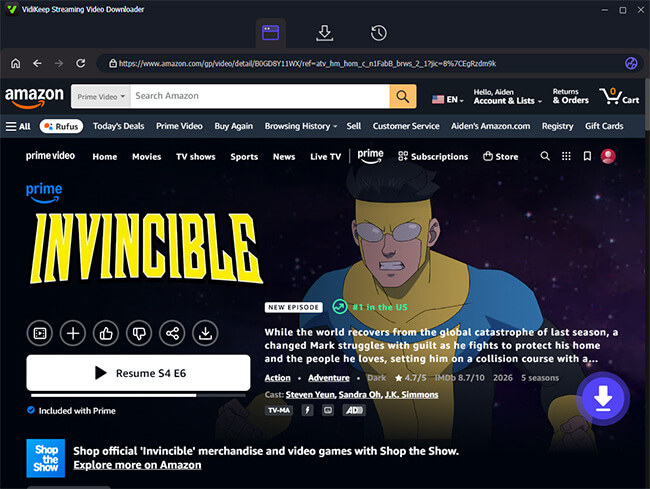
Step 2. Browse the streaming catalog to find the content on Prime Video you want to watch on Discord with your friends. Once you open the title's details page, simply click the "Download" icon tucked in the bottom right corner. The software will instantly analyze the video data to prepare your offline options.
Step 3. A preferences menu will appear, giving you full control over the final video output. Here, you can select your preferred video resolution, audio track, and subtitle language. If you are downloading a series, check the "Select All" box to grab an entire season at once, then click "Download" to start the process.
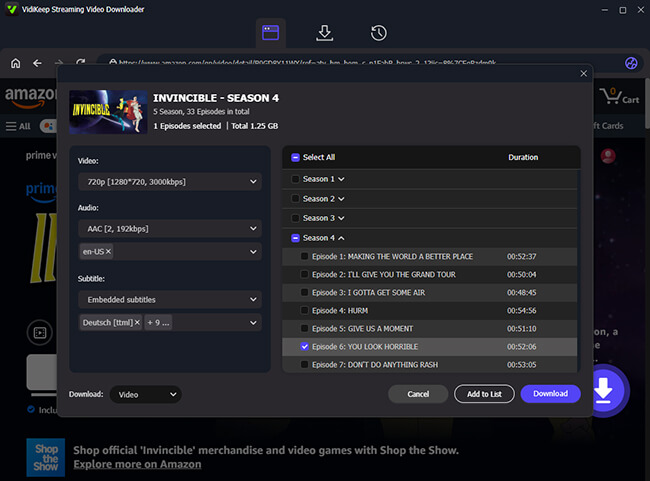
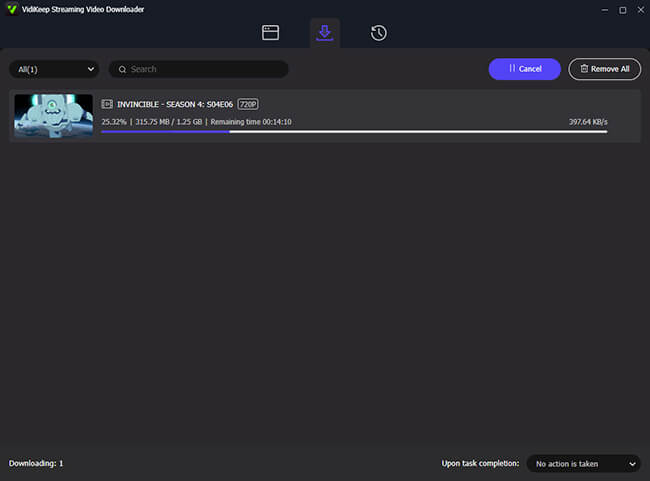
Step 4. Navigate to the "History" tab to locate your downloaded DRM-free videos. Then open the file with a media player like VLC and share screen your Amazon Prime on Discord without the black screen issue.
Part 4. FAQs About Streaming Amazon Prime on Discord
Do I need Discord Nitro to stream Amazon Prime?
You do not need a premium subscription to host a watch party with your friends. Standard Discord users can stream at a resolution of 720p per second. However, if you want to push your stream to 1080p or 4K resolution per second, a Discord Nitro account is required.
Why do I only get audio when I try to screen share Amazon Prime on Discord?
This is the most common symptom of hardware acceleration remaining active on your system. Double-check that it is completely disabled in both your browser and Discord settings. After disabling hardware acceleration, make sure to restart your browser. Additionally, ensure you are sharing the specific application window rather than your entire desktop monitor.
Why is my Amazon Prime stream lagging so much on Discord?
Disabling hardware acceleration shifts video encoding to your CPU. If your computer has an older processor, this can result in stuttering or dropped frames. A slow or unstable internet connection can also reduce streaming quality. For a smoother Discord playback experience, consider using VidiKeep to watch Prime Video without black screen.

Jordan Rhodes is a Chief Technical Editor and Media Specialist at VidiKeep, specializing in creating diverse tech content, including streaming tutorials, software reviews, and video encoding tips.
Leave a Comment