Amazon Prime Video Error Code 5004: Easy Fixes
Most of the time, the Prime Video Error Code 5004 points to a sign-in issue, like wrong account details or a quick verification hiccup. That is not always the whole story, though, because your internet connection, the app, or your streaming device can also trigger it. Before you start changing settings or reinstalling anything, let us walk through a few simple checks to see what is actually causing Amazon Error Code 5004.
Part 1. The 60 Second Check: Find Where the Problem Lives
Before you touch your TV settings or climb behind the couch to unplug your router, grab your phone or laptop. Open a private or incognito browser window, go to the Prime Video website, and type your email and password by hand.
If you get straight in and a video plays, your Amazon account is fine. The trouble is sitting on your home WiFi or your TV. If Error 5004 shows up right there in the private browser, the issue is tied to your account details. Match what you see below and jump straight to the fix you need:
| What You Tested | Likely Problem Layer | Where to Jump |
|---|---|---|
| Manual sign in via incognito browser | Wrong password, wrong account, or bad autofill | Part 2.1 Account Fixes |
| Phone on mobile data vs. home WiFi | Router, VPN, proxy, or silent WiFi drop | Part 2.2 Network Fixes |
| Phone on home WiFi vs. Smart TV | Stale device token, app cache, or HDMI cable | Part 2.3 Device Fixes |
| Reset password, then sign in again | Conflicting sessions or temporary security lock | Part 2.1 & Part 4 Support |
Part 2. How to Fix Prime Video Error 5004 Based on the Cause
By now, that quick check for Amazon Error 5004 should point you right to the real culprit. Not every Error 5004 has the same cause. Sometimes it's a problem with your Amazon login, while other times your network or streaming device is to blame.
2.1 Account and Password Fixes
If your manual sign in failed even inside a private browser window, your Amazon account details are the first thing to sort out. The good news is that this layer is usually the fastest to fix once you rule out a wrong login or stop autofill from quietly pasting old info.
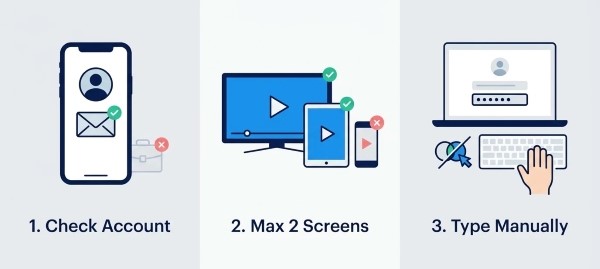
- Check which Amazon account you are using: Look at a phone or tablet that is already logged in and confirm the exact email or phone number. It is easy to mix up a work email with a personal shopping account.
- Check your screen limit: Amazon allows the same movie or episode to stream on only two devices at once. If someone in another room is watching the same show, ask them to pause it and try again.
- Type everything by hand: Clear out both boxes, check Caps Lock, and type your email and password slowly without autofill.
If your login still gets rejected, click Forgot your password? on the official sign in page and set a brand new one. Wait for the confirmation email, test the new password in your browser first, and immediately update your password manager so it stops sneaking the old one back in.

2.2 Network and VPN Fixes for Amazon Error 5004
If Prime Video played fine on your phone's mobile data but threw Error 5004 the second you switched back to home WiFi, something on your network is getting in the way. Even when YouTube or Netflix streams without a hiccup, Amazon can be surprisingly picky about how your router or background apps route your connection.
Check Your TV's Network Connection
Never trust a Smart TV just because the WiFi menu says "Connected." I have stared at full WiFi bars on a TV while every streaming app refused to load a single thumbnail. Many viewers on the Amazon Forum run into the exact same frustration:
"No matter what I try to stream through Prime, error code 5004 comes after 5 minutes. I'm paying for 3 other subscriptions as well through Prime and same on all."
In that same thread, another viewer dealing with the identical loop noted that her login was up to date and her TV claimed to be online, yet running her TV's built-in network diagnostic test fixed it immediately.
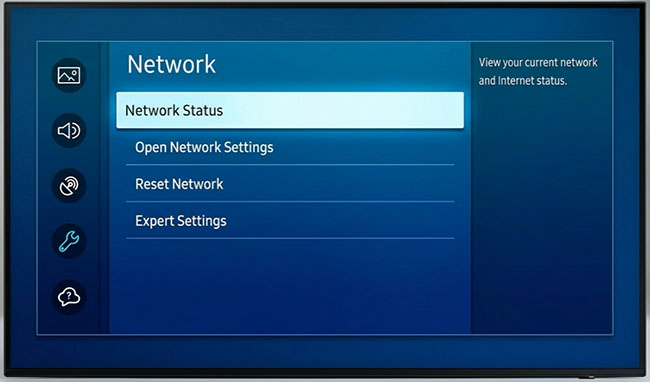
This isn't an officially recommended fix from Amazon, but it can help by forcing your TV to disconnect from the old network connection and establish a fresh one with your router. Open your TV's Settings, head to Network, and run Network Status or Network Diagnostic Test.
Turn Off VPNs, Hidden Proxies and Private Relay
Amazon is very strict about hiding your real location. Even if you are not running a normal VPN app, a few background settings can quietly hide your IP address and trigger Error 5004:
 Where VPNs and Hidden Proxies Might Be Running
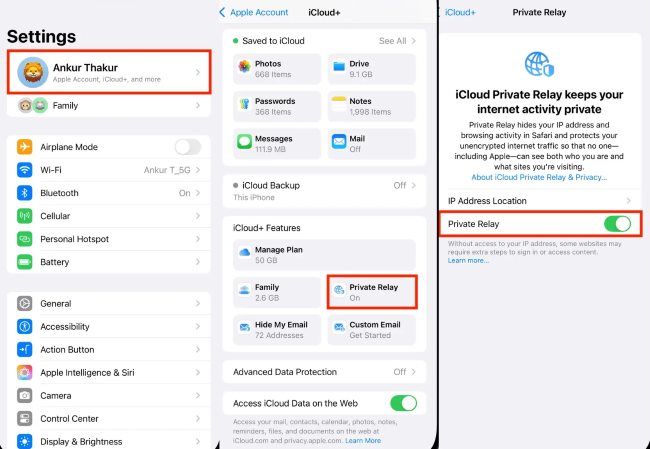
Once you've turned off any active VPNs, proxies, or privacy features, reopen Prime Video and try signing in again. If you can sign in without seeing Error 5004, one of these settings may have been interfering with the connection.
Reboot the Router and Try a Different DNS
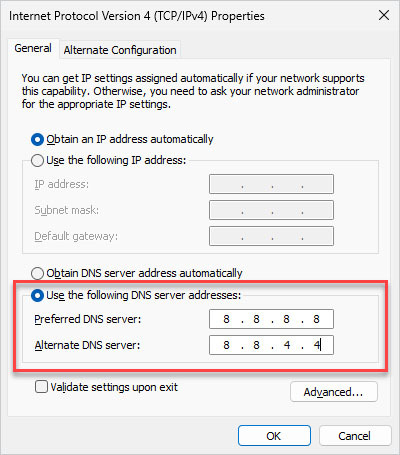
Unplug both your modem and your router from the wall, wait a full 60 seconds, and plug them back in. If your TV is sitting far from the router on 5 GHz WiFi, try moving it to the 2.4 GHz band for a steadier link. You can also switch your device's DNS settings to Google (8.8.8.8 and 8.8.4.4) or Cloudflare (1.1.1.1) if your internet provider's default routing is acting up.
2.3 Fix Prime Video Error 5004 on Your Device
If Prime Video works on your phone but keeps showing Error 5004 on your TV, try troubleshooting the TV or streaming device separately. The problem may be related to its saved sign-in information, app data, or software version. You don't need to reset your entire TV just yet. Start with the following fixes.
Deregister and Re-register the Affected Device
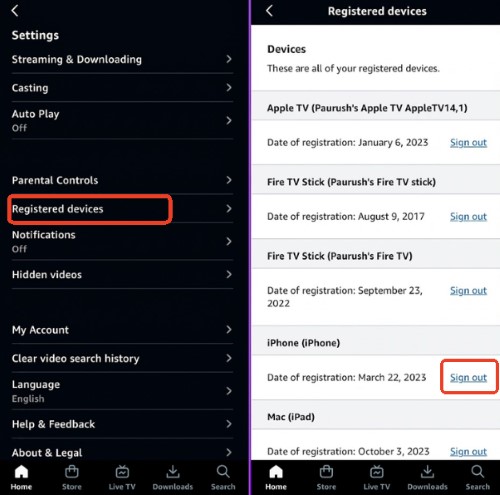
Most people jump straight to uninstalling the app, and sometimes that does the trick. The problem is that reinstalling only clears files on your TV, while the broken login stays saved on Amazon's side. Deregistering wipes both at once. If you can't sign out of Prime Video directly from your TV, this remote deregistration method is particularly useful.
Step 1. Open the Prime Video website and sign in to your Amazon account. Go to Account & Settings and open the Devices tab. Find the TV, Fire TV Stick, or streaming device that's showing Error 5004.
Step 2. Click Deregister next to that device and confirm your choice. Make sure you select the affected device rather than removing all your registered devices.
Step 3. Restart your TV or streaming device, reopen Prime Video, and sign in again using your account details or the on-screen QR code if available.
Update Prime Video and Clear Its Cache
If Error 5004 persists after restarting Prime Video, the app's cached data or an outdated version may be causing the problem. The steps to refresh the app vary by device, so follow the instructions below for your TV, streaming device, or computer.
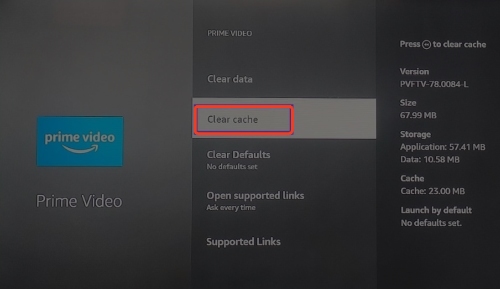
- Fire TV and Android TV: Check for system updates in your settings first. Then go to Settings, Applications, Manage Installed Applications, pick Prime Video, and select Clear Cache followed by Clear Data.
- Roku and Apple TV: Neither platform has a separate clear data button. Uninstall Prime Video, unplug the device from power for 60 seconds, plug it back in, and install the app again.
- PC and Web Browsers: Clear your browser cookies and cache for Amazon, pause any ad blockers, and make sure your browser is up to date.
If you use Alexa to control your TV or streaming stick, a connection issue between Alexa and the device may also affect how they communicate. Open the Alexa app on your phone, find the linked device, and unpair it. Then pair the device again and test whether Prime Video works without Error 5004.
Check Your HDMI Connection and HDCP Support
If you stream through a separate box or game console, an old HDMI cable or splitter can trigger Amazon's security block. Try plugging the device straight into your TV with a newer cable that supports HDCP 1.4 for HD or HDCP 2.2 for 4K.
Part 2. Why Error Code 5004 Happens Even When You Are Already Signed In
If you look up Error 5004 on Amazon's help page, it makes the fix sound almost too easy: double-check your email and password, or just reset them. But anyone who has actually stared at this error knows it is rarely that simple.
The Mid Browse Freeze and "Can't Load Profile" Loop
Some people may run into Error 5004 long after they have already logged in. One viewer on the Amazon Digital and Device Forum summed up the exact routine many TV owners deal with:
"Almost every time I use Prime now I start browsing movies and after I have viewed a couple of selections, the app locks up and I get the error code 5004. I have to exit to a different app and then go back." —Amazon Forum
Plenty of people leave it alone for days or even weeks, hoping it will sort itself out, yet it rarely clears up on its own. When the app locks up right in the middle of browsing, it has nothing to do with forgetting your password. Your TV keeps a saved login pass in the background so you do not have to type your email every night, and that pass simply expired or fell out of sync. Jumping to another app and coming back only buys you a few minutes. Until you force Amazon to hand your TV a fresh login pass, the loop just keeps coming back.
Part 4. Still Stuck? Reach Out to Amazon Support
If Error 5004 still will not go away, it is time to have Amazon Support check your account from their end. Stick to the live chat or callback option inside the official Amazon Help Center.Have these details ready before you start, so the agent does not waste your time asking you to reboot everything again:
- Your name and the email tied to your Amazon account.
- A quick photo or screenshot of Error 5004, plus roughly when it happened.
- The device you are watching on, like your Samsung TV model or which Fire TV Stick you have.
- A short list of what you already tried, including the incognito test, turning off your VPN, and deregistering the device.
Part 5. How to Prevent Amazon Prime Video Error 5004 in the Future
Getting Prime Video working again feels great, and the last thing you want is to go through this whole routine again. You cannot stop every random app update from acting up, of course. Still, most Error 5004 loops come from small everyday slips. Building a few simple habits below can help reduce the chances of running into the same issue again.
1. Keep Your Password Manager and Device List Clean
Whenever you change your Amazon password, update your password manager right away so it stops pasting old details. It also helps to open Manage Your Content and Devices every few months and remove old phones, tablets, or TVs you no longer use.
2. Turn Off VPNs and Watch Your Screen Limit
Make it a routine to switch off your VPN before opening Prime Video. At the same time, keep an eye on how many screens are playing the same title at once, since Amazon only allows one movie or episode to stream on two devices at the same time.
3. Keep an Offline Backup with VidiKeep
If you travel often or simply do not want sudden login prompts or shaky WiFi ruining a movie night, you can save eligible Prime Video titles locally as MP4 or MKV files using VidiKeep Streaming Video Downloader. It lets you pick the video quality, audio language, and subtitles you want, so you can watch those saved files smoothly in any media player without even opening the Prime Video app.

Back up your favorite Prime Video titles to MP4 or MKV at full quality, and enjoy smooth offline viewing without running into Error 5004 or sudden login loops.
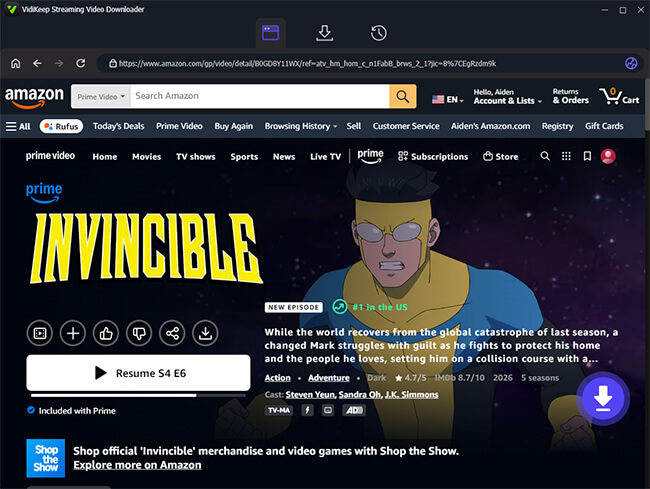
Just keep in mind that this will not fix Error 5004, because you still need a working login to download anything. Once you have those local files saved, though, you can keep watching even when the app acts up.
Part 6. FAQs About Amazon Error Code 5004
Is Amazon Error Code 5004 caused by a server outage?
Usually no. It almost always points to a local sign in, network, or device check issue. Still, checking Downdetector takes five seconds and saves you from troubleshooting if Amazon actually is having a wide outage.
Does an expired Prime membership trigger Error 5004?
Not usually. Error 5004 is primarily a Prime Video sign-in error, so it stops you at the door before Prime Video even checks whether your membership is still active. Once everything is working again, consider keeping a few favorite titles backed up offline with VidiKeep once you are back in.
How is Error 5004 different from Prime Video codes 5001, 5003, 5007, and 5014?
They all belong to Amazon's account and playback check family, which is why you sometimes see one code turn into another while troubleshooting.
- Error 5004: Typically points to a sign in check failure, outdated login details, or a stale device session.
- Error 5001 and 5003: Usually pop up during general playback glitches, brief app hiccups, or sudden WiFi drops.
- Error 5007: Often signals a corrupted app session or an account sync problem stuck on your streaming device.
- Error 5014: Tends to appear alongside temporary playback blocks or extra account verification checks from Amazon.
If any of these show up right next to 5004, running the same network test and deregistering your device will usually help clear them too.

Jordan Rhodes is a Chief Technical Editor and Media Specialist at VidiKeep, specializing in creating diverse tech content, including streaming tutorials, software reviews, and video encoding tips.
Leave a Comment