How to Fix Error Code UI3012 on Netflix
I keep getting the Netflix Error Code UI3012 while trying to stream content. Does anyone know what causes this issue and how to fix it? I’ve already tried restarting my device but it didn't work.
-- Asked by a user on the GetAssist ForumAre you encountering the message "Whoops, something went wrong… Unexpected Error" with error code UI3012 while watching a movie or TV show on Netflix? Netflix Error Code UI3012 indicates a network connectivity issue that prevents your computer from maintaining a clean connection with Netflix's servers.
In practice, though, the problem isn't always your router. Over the years of troubleshooting streaming playback issues, I have found that UI3012 is just as likely to come from a stale browser cookie, a hidden proxy like Apple’s iCloud Private Relay, or a niche browser's DRM settings as it is from a flaky Wi-Fi signal. Before you start crawling behind your desk to unplug cables, it helps to spend one minute isolating where the breakdown is actually happening.
What Causes Netflix Error Code UI3012?
Netflix primarily pops up Error Code UI3012 on desktop and laptop computers, most often inside a web browser, though it can occasionally appear in desktop apps or smart TV browsers. Officially, it signals that your device cannot reliably reach or exchange data with Netflix's streaming servers.
Because modern web streaming relies on both a stable network route and a strict Digital Rights Management (DRM) handshake, disruptions on either side can produce the exact same code:
- Unstable internet connection: Weak Wi-Fi signals, congested Wi-Fi bands, intermittent disconnections, or insufficient bandwidth can prevent Netflix from establishing a stable stream.
- ISP-related issues: Temporary service outages, ISP routing glitches, or provider-side throttling may block your device from reaching Netflix servers.
- Router or modem problems: Hardware glitches, overheating, or misconfigured network settings can interrupt data transmission.
- VPN or proxy connections: Active VPNs or proxy services reroute your internet traffic and frequently trigger Netflix connection blocks or errors.
- Custom DNS settings: Manually configured or unresponsive third-party DNS servers can cause domain resolution failures.
- Public network restrictions: Firewalls on shared networks, such as hotels, schools, libraries, or cafés, often restrict high-bandwidth streaming traffic.
- Browser-related problems: Outdated browser versions, non-standard builds, corrupted site data/cookies, or aggressive ad-blockers can interrupt playback before the video even starts.
60-Second Quick Diagnosis: Pinpoint Error UI3012 on Netflix
Understanding which situation applies to your device can save time and help you avoid unnecessary troubleshooting. Instead of guessing and trying every fix at random, run these three quick checks to jump straight to the section that fits your situation.
| Quick Test | What the Result Means | Where to Jump | |
|---|---|---|---|
| Open Netflix in an Incognito/Private window | If it plays normally, your network is fine: A browser extension or cached file is the likely culprit. | Browser-Level Fixes | |
| Try Netflix on your phone (on the same Wi-Fi) | If your phone streams fine but your computer fails in every browser, the issue is likely an OS setting, VPN, or local DNS cache. | Quick Fixes & Advanced System Fixes | |
| Check Fast.com and click "Show more info" | If speeds are very low, the test fails, or the "Client" location shows the wrong country, you have a network, ISP, or hidden proxy issue. | Network & Router Troubleshooting |
Quick Fixes for Netflix Error Code UI3012 (Under 2 Minutes)
If you want to get back to watching as fast as possible, start with these low-effort checks. They resolve a large percentage of Netflix error UI3012 cases without requiring any system changes.
Hard-Refresh and Test a Mainstream Browser
A simple page reload often pulls from the same broken local cache. Try a hard refresh first (Ctrl + F5 on Windows, or Cmd + Shift + R on Mac) to force your browser to fetch fresh data from Netflix. If that doesn't clear the error, test your account in a mainstream browser like Google Chrome, Microsoft Edge, Safari, or standard Firefox.
Recently, users running privacy-focused or forked browsers (such as Zen Browser) have run into UI3012 alongside E100 compatibility warnings due to how those browsers handle media-controller and DRM flags. Switching to a standard browser for a quick test immediately tells you whether the browser itself is blocking playback.
Check for Hidden VPNs, Proxies, and Private Relay
Many people assume this step doesn't apply to them because they don't pay for a standalone VPN. However, built-in privacy features can quietly route your traffic in ways that trigger Netflix's security checks.
- Antivirus web shields: Security suites often include a "secure browsing" or VPN toggle that runs in the background.
- Apple iCloud Private Relay: On macOS, this feature acts like a proxy and can occasionally confuse Netflix's regional servers.
- Browser-level VPNs: Built-in proxies in browsers like Opera or third-party Chrome extensions can interfere even when your OS settings look normal.
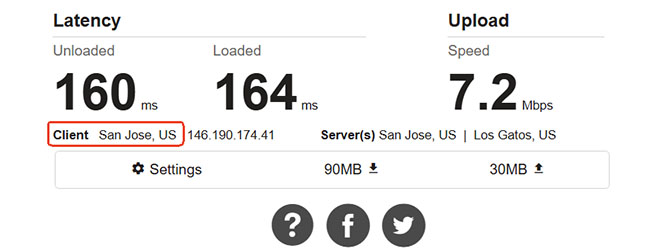
To verify whether your traffic is being rerouted, visit Fast.com, wait for the speed test to finish, and select Show more info.
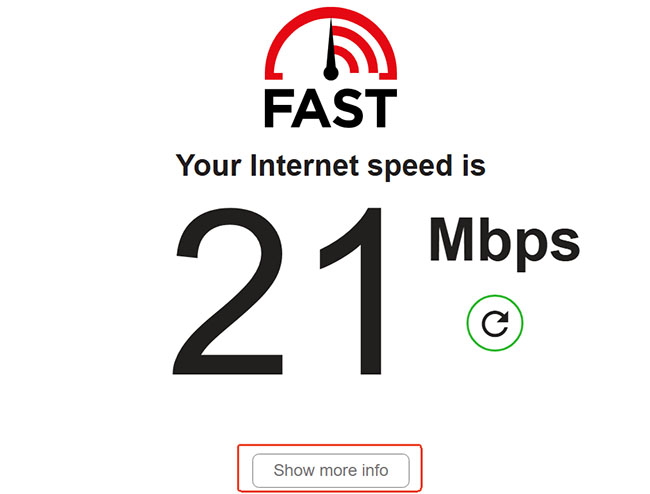
Look at the Client line: if the city or country doesn't match your general area, something on your device is masking your connection. Temporarily disabling it and reloading Netflix often clears UI3012 right away.
Browser-Level Fixes to Resolve Error Code UI3012 on Netflix
If Netflix worked during your Incognito test, your internet connection is likely healthy. The goal now is to clean up whatever is interfering inside your main browser profile.
Clear Netflix Cookies and Browser Cache
Corrupted or outdated browser data can sometimes cause website loading and playback problems. Although clearing cookies and cache is not Netflix's primary documented solution for UI3012, it is worth trying if the error appears to be limited to one browser. Here's how to clear browsing data in Chrome:
Step 1. Open your web browser, visit the Netflix.com, and click the three-dot menu in the upper-right corner to select Delete browsing data.
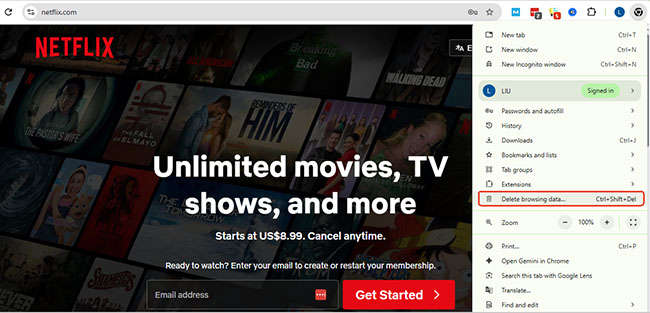
Step 2. It will pop up a new window, which you can choose an appropriate time range and then click the Delete Data button to delete data stored by Netflix.
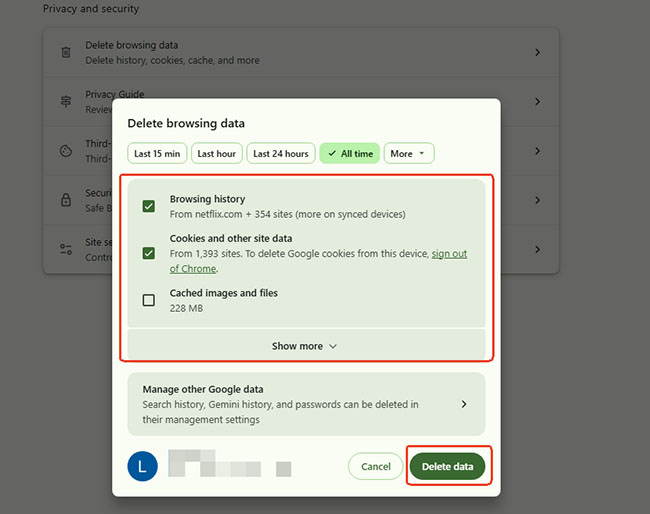
Step 3. Close the browser completely, reopen it, and sign back into your Netflix account.
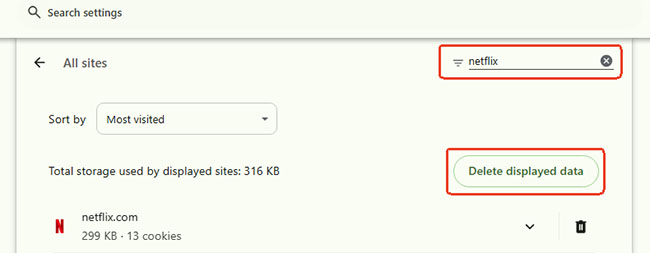
If you don't want to wipe your entire browsing history and log yourself out of every website. Clearing data specifically for Netflix is usually enough to reset a corrupted session token.
- In Chrome, open: chrome://settings/content/all
- Search for Netflix, locate its stored site data, and remove the relevant entries.
Disable Interfering Extensions and Update Your Browser
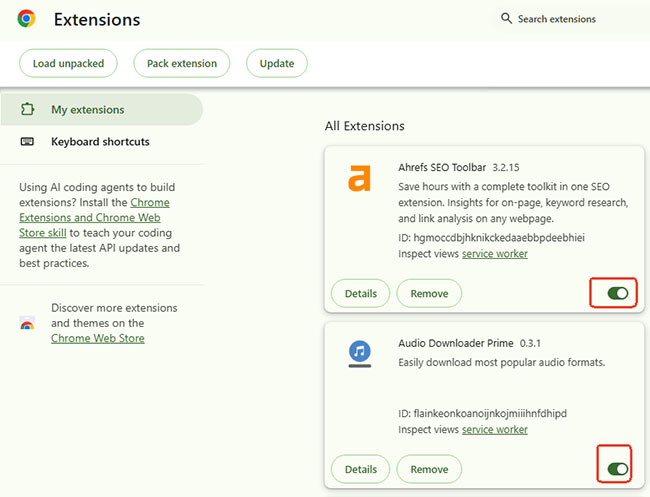
Ad-blockers, script blockers, and privacy extensions sometimes misidentify Netflix's playback verification scripts as trackers. Try toggling off your extensions temporarily, then reload the page. If the stream starts, re-enable them one by one to find the specific extension causing the conflict, and add Netflix to its allowlist.
For Google Chrome:
- Open Chrome and enter chrome://extensions/ in the address bar.
- Find your installed extensions and turn off the extensions you want to test.
- Refresh Netflix and try playing a video.
For Microsoft Edge:
- Open Edge and enter edge://extensions/ in the address bar.
- Review your installed extensions and temporarily turn off potentially interfering extensions.
- Reload Netflix and test playback.
It is also worth checking that your browser is up to date. Streaming platforms regularly update their Widevine or PlayReady DRM modules, and an outdated browser build can fail to negotiate playback cleanly.
Network and Router Troubleshooting for UI3012 Netflix Code
When Netflix Error Code UI3012 shows up across multiple browsers, or when your other devices are also struggling to load video, the bottleneck is usually somewhere in your home network.
Power-Cycle Your Modem, Router, and Computer
Routers accumulate stale routing tables and memory leaks over time. A proper power cycle clears those out more effectively than simply clicking "restart" in a router app.
Step 1. Shut down your computer completely rather than putting it to sleep.
Step 2. Unplug both your modem and your wireless router (if they are separate units) from the power outlet, and leave them unplugged for at least 30 seconds.
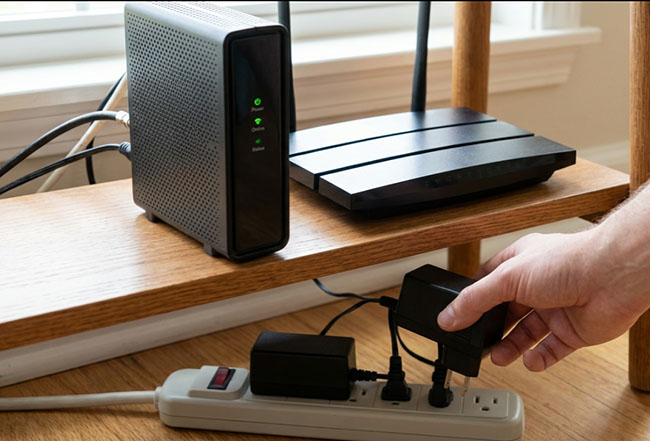
Step 3. Plug the modem back in first and wait until its status lights stabilize, then plug in the router and wait for your Wi-Fi network to come back online.
Step 4. Power your computer back on and try launching Netflix again.
Improve Wi-Fi Stability or Test a Wired Connection
Streaming video requires a steady flow of packets, not just high peak speeds. If your router is tucked on the floor behind a TV stand or sitting near a microwave or cordless phone base, wireless interference can cause micro-dropouts that leads to UI3012.
Elevating the router onto a desk or shelf and switching your computer from a crowded 2.4 GHz band to a 5 GHz band can noticeably stabilize the connection. If you have an Ethernet cable handy, plugging directly into the router for five minutes is the fastest way to confirm whether Wi-Fi interference is the root cause.
Account for Public or Restricted Networks
If you are trying to watch Netflix from a hotel, school, coffee shop, or workplace, the network administrator may intentionally block or throttle streaming traffic. Similarly, cellular hotspots and satellite connections can occasionally dip below the stability Netflix needs. In those environments, local troubleshooting won't bypass a network-level block, so switching to a private home connection is usually the only reliable workaround.
 Tip for Unstable Connections:
If you frequently stream on flaky hotel Wi-Fi, shared networks, or spotty connections where UI3012 keeps coming back, saving titles for offline playback beforehand can save you the headache of constant buffering. Tools like VidiKeep let you download Netflix videos locally to your computer in standard MP4/MKV formats, so playback won't depend on a continuous server handshake.
Advanced System Fixes for Netflix UI3012 Error on Windows and Mac
If your router reboot didn't help and other devices on your Wi-Fi are streaming without trouble, the issue may be stuck in your computer's local network configuration.
Flush Your Local DNS Cache
Your operating system keeps a local directory of website addresses to speed up browsing. If that cache holds an outdated route to Netflix's content delivery network, flushing it forces your computer to request a fresh path.
- On Windows: Open the Start menu, type cmd, right-click Command Prompt, and select Run as administrator. Type ipconfig /flushdns and press Enter. You can also run ipconfig /release followed by ipconfig /renew to refresh your local IP address.
- On macOS: Open Terminal from Applications or Spotlight, type sudo dscacheutil -flushcache; sudo killall -HUP mDNSResponder, and press Enter. Enter your Mac password when prompted.
Restore Default DNS and Proxy Settings
If you've manually configured DNS settings, they could potentially contribute to network connectivity problems. Netflix includes custom DNS settings among the connection configurations that users may need to restore when troubleshooting UI3012. If you previously changed your DNS settings, consider switching back to automatic DNS provided by your network.
On Windows 11:
- Open Settings and select Network & internet.
- Choose your active connection, such as Wi-Fi or Ethernet.
- Find DNS server assignment and select Edit.
- If you previously configured a custom DNS server, change the setting to Automatic (DHCP) when appropriate.
- Save the changes and reconnect to your network.
Leftover system proxy settings can also sometimes route your Netflix traffic to a suboptimal server. On Windows, check Settings - Network & Internet - Proxy to make sure manual proxy setup is turned off. If the problem remains stubborn, Windows also offers a Network Reset option under Advanced Network Settings that restores your network adapters to their default state.
On macOS:
- Open System Settings and select Network.
- Choose your active Wi-Fi or Ethernet connection.
- Open Details and select DNS.
- Review the manually configured DNS servers.
- Remove custom entries if you want to return to your network's default DNS configuration.
After restoring the appropriate settings, restart your browser and try Netflix again.
When to Contact Your ISP (And What to Share)
If you have worked through browser, system, and router checks and Error Code UI3012 still won't budge, the issue may lie outside your home, such as a regional routing hiccup or a failing ISP-provided gateway. Before calling your internet provider, gather three quick details so you can skip the basic script:
- Your Fast.com results: Note both your download speed and whether the test completes without stalling.
- Device scope: Let them know whether UI3012 happens only on your computer or across multiple devices on the network.
- Connection type: Tell them whether you tested over Wi-Fi, a wired Ethernet cable, or both.
Ask your ISP to check for local service disruptions or to send a fresh reset signal to your modem. Before hanging up, run one final check on Fast.com and load a Netflix title to make sure the connection holds.
FAQs About Netflix Error Code UI3012
What is Error UI3012 on Netflix?
Netflix Error Code UI3012 means a network-related error that commonly appears when watching Netflix through a web browser on a computer. It means that your device is having difficulty establishing or maintaining the connection required to access Netflix.
Is Netflix down when I see UI3012?
Usually, no. While a widespread Netflix outage can occasionally produce unexpected error messages, UI3012 is far more commonly tied to a local network or browser issue. You can quickly rule out an outage by checking Netflix's official Help Center status page or testing the Netflix app on your phone using cellular data instead of Wi-Fi.
Can a VPN fix Netflix Error Code UI3012?
In most cases, a VPN is more likely to cause UI3012 than fix it. Netflix actively detects and restricts many VPN and proxy connections, especially on ad-supported plans and live events. If you are seeing UI3012, turning your VPN off is generally the safer and more effective first step.
Why does UI3012 happen on my computer but not on my TV?
Smart TVs and streaming sticks run dedicated Netflix apps with their own built-in playback engines, whereas computers rely on web browsers, extensions, OS-level firewalls, and DRM plugins. If your TV streams fine on the same Wi-Fi network, that is a strong clue that the culprit is a browser cache issue, an extension, a background VPN, or a local DNS conflict on your computer rather than your internet service.

Jordan Rhodes is a Chief Technical Editor and Media Specialist at VidiKeep, specializing in creating diverse tech content, including streaming tutorials, software reviews, and video encoding tips.
Leave a Comment