CocoCut Extension Review & Top Alternatives
Most browser-based video downloaders promise one-click downloads, but many come with aggressive ads, slow speeds, or limited website support. To see whether CocoCut Video Downloader is worth using, we tested its real performance, download quality, and overall user experience. This guide also explains how to use the CocoCut extension and recommends the dependable CocoCut alternative for DRM-encrypted content that browser extensions can't handle.
Part 1. What Is CocoCut Video Downloader
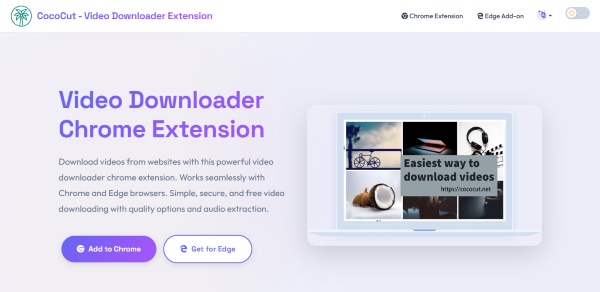
CocoCut Video Downloader is a popular browser extension that lets you download streaming videos and audio from supported websites. Once installed, it can detect playable media on a webpage and save it to your device in just a few clicks. The extension works with many popular platforms, including Vimeo, Facebook, Instagram, and thousands of other video-hosting sites.
| Feature | Details |
|---|---|
| Core Media Formats | MP4, MKV, MP3, AAC |
| Streaming Protocols | HLS, M3U8 |
| Video Quality | Source resolution (up to 1080p) |
| Supported Browsers | Chrome, Edge, and Firefo |
 Limitations:
CocoCut works well on many websites, but there are a few important limitations. You won't be able to download YouTube videos through the browser extension due to Chrome Web Store restrictions. Likewise, videos protected by DRM on streaming services like Netflix, Disney+, and Hulu are beyond its capabilities.
Part 2. How to Use CocoCut to Download Videos with Ease
Now that you know about CocoCut Video Downloader, let's see how it works in practice. After adding CocoCut to your browser, you can begin downloading supported videos from web pages. The extension automatically detects available media, and you can follow the steps below to complete the process.
Step 1. Install the official CocoCut Video Downloader Chrome extension or the corresponding Edge version from the official web store.
Step 2. Navigate to the website hosting your desired media, and let the video play for a few seconds so the CocoCut downloader extension can successfully detect the media stream.
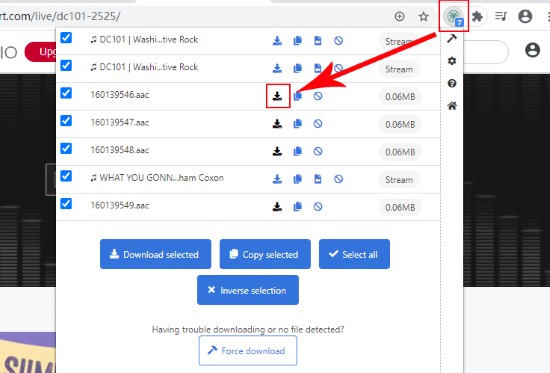
Step 3. Click the colorful CocoCut video download icon in your browser's toolbar, select your preferred resolution from the drop-down list, and start the download.
Part 3. Is CocoCut Safe to Use?
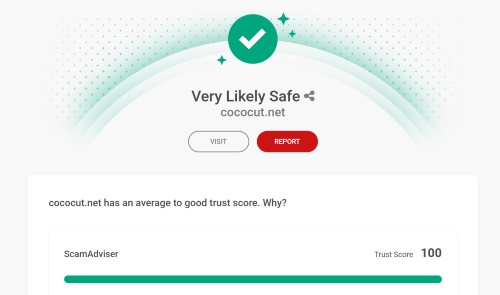
Looking beyond our own experience, the overall reputation is also fairly positive. The official CocoCut website is rated as "Very Likely Safe" by ScamAdviser. And community feedback tells a similar story. Most users on Reddit report that the extension works as advertised, with the most common complaints focusing on download speed limits, premium restrictions, and occasional compatibility issues after website updates, not malware or account security problems.
 Editor's Note:
Based on our testing, CocoCut Video Downloader appears to be safe for everyday use, provided you install the official extension from the Chrome Web Store. We didn't encounter any malware, unexpected software installations, or suspicious background processes during testing.
Part 4. CocoCut Review: Real Performance Test
 Test Preparation:
To verify its capabilities, I ran the standard CoCocut video downloader through several everyday streaming scenarios to test its speed and file handling. And I focused on how consistently it completed downloads, and preserved the original playback quality during real-world use.
Download Speed of CocoCut extension
The free CocoCut extension for Chrome performs admirably on standard clips. During my test, a standard 20-minute, 720p web stream downloaded and merged in under four minutes. However, for massive files or multi-hour live streams, the free version can occasionally feel throttled compared to the premium CocoCut Pro tier.
Quality of Downloaded Videos Using CocoCut
The video downloader CocoCut does not compress the file further, and it preserves the quality of the source file. When I targeted a crisp 1080p stream, the resulting MP4 on my hard drive was identical in clarity. While our tests show it handles standard clips, its inability to bypass strict DRM on commercial platforms means you will occasionally need a more robust backup plan.
Part 5. Best CocoCut Alternatives for Video Downloading
While CocoCut Video Downloader handles many everyday download tasks well, it isn't compatible with every website. If CocoCut can't detect a video or doesn't support the website you're using, there are other tools worth considering. Here are CocoCut alternatives that offer broader compatibility for more reliable video downloading.
Vidikeep Streaming Video Downloader(Desktop Software)
Browser-based downloaders like CocoCut work well with standard web videos, but they aren't designed to handle content from subscription streaming services. If you regularly watch movies and TV shows on streaming platforms like Netflix, Prime Video, or Disney+, VidiKeep Streaming Video Downloader is a more suitable CocoCut alternative. It lets you save streaming videos as MP4 or MKV files while preserving the original video quality, multiple audio tracks, and subtitles for flexible offline playback.
- Supports DRM-Protected Streaming Services: Download videos from Amazon Prime Video, Netflix,Disney+, Hulu, Max, Apple TV+, and more.
- Save Videos in MP4 or MKV: Enjoy wider compatibility across Windows, Mac, TVs, tablets, and mobile devices.
- Preserve Original Quality: Keep HD video, multi-language audio tracks, and subtitles without unnecessary quality loss.
- Batch Download Support: Download multiple movies or TV episodes in one task, making it much more efficient than browser extensions.

Download your favorite movies and shows to MP4 or MKV with zero quality loss for offline viewing anywhere.
Step 1 Change the Output Settings
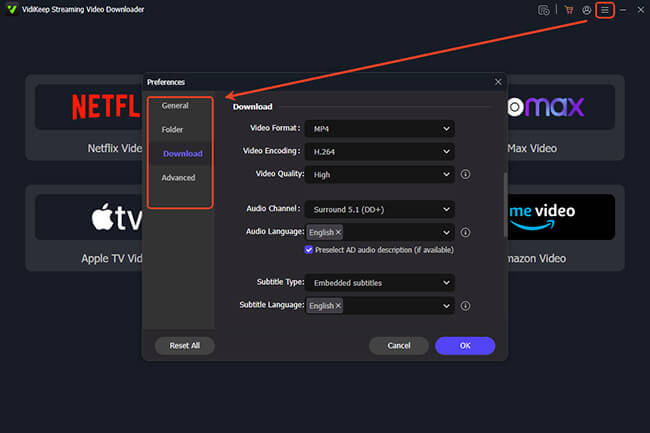
Download and launch VidiKeep Streaming Video Downloader. Click "Menu > Preferences > Download" to customize your download settings before getting started. Here, you can choose MP4 or MKV as the output format, adjust the video quality, and embed subtitles into your movies.
Step 2 Sign In to Your Streaming Account
Return to the main interface and choose the streaming service you want to download from, such as Netflix or Amazon Prime Video. VidiKeep's built-in web player lets you securely sign in with your own account, so you can browse movies and TV shows like usual.

Step 3 Add the Video to the Download Queue
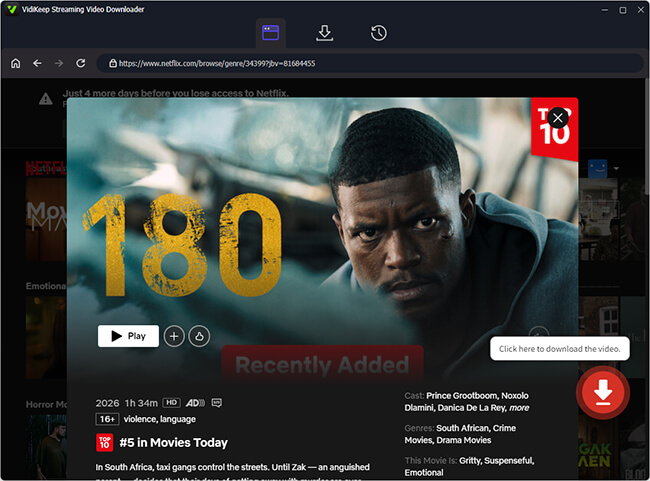
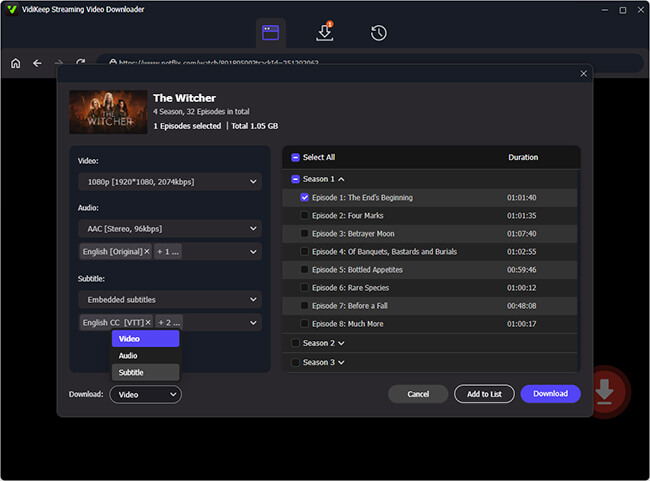
Search for the movie or TV show by entering its title or pasting its URL into the search bar. Once VidiKeep detects the content, click the "Download" icon to load the available episodes and video information. You can select individual episodes or an entire season, then click "Add to List" to prepare everything for batch downloading.
Step 4 Download DRM-Protected Videos for Offline Viewing
Click the "Download" button to begin saving the selected videos. Unlike CocoCut, VidiKeep is specifically built to process videos from supported subscription platforms and save them as MP4 or MKV files. After the download finishes, you can watch your videos offline on your computer and keep them permanently without relying on a browser extension or an internet connection.
Video DownloadHelper (Firefox/Chrome)
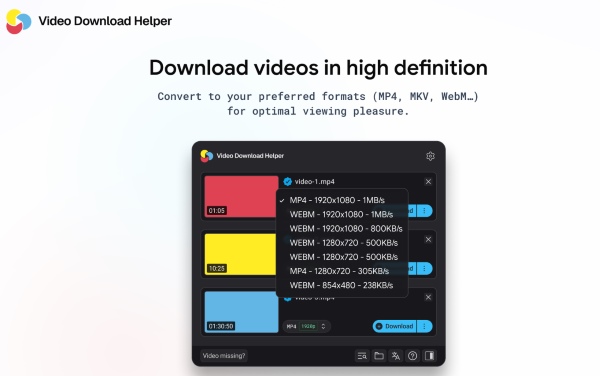
If you need a reliable browser-based backup when CocoCut struggles, this classic tool is the logical place to start. Video DownloadHelper is a highly popular browser extension for Firefox and Chrome designed to capture streaming web media. It operates by instantly detecting embedded videos and live streams in real-time as you navigate web pages. This functionality makes it a powerful CocoCut alternative for extracting online media, offering multi-resolution downloads and a companion app for advanced format conversions.
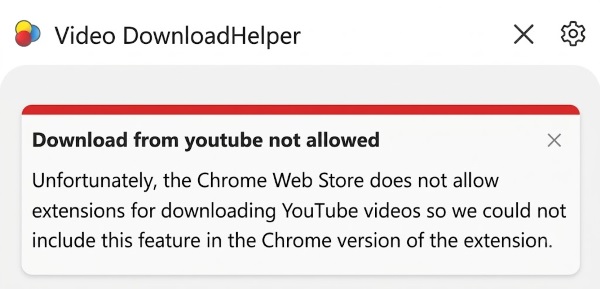
However, similar to CocoCut, Video DownloadHelper cannot download YouTube videos on Chrome. To bypass this, you must switch to its Firefox version or opt for a dedicated desktop downloader that bypasses browser limitations.
Part 6. FAQs About CocoCut Video Downloader
Is CocoCut Video Downloader free?
Not exactly. You can use it for basic downloads at no cost, but for unlimited access and enhanced speeds, higher quality streaming capture, you need to upgrade to the paid Cococut Video Downloader Pro version.
How to fix CocoCut if it fails to download?
If CocoCut isn't working properly, the issue is usually caused by website changes, browser conflicts, or outdated extension data. Before assuming the downloader is broken, try these troubleshooting steps:
- Reload and clear your browser cache: Video detection may occasionally fail on the first attempt, while outdated cache files can interfere with the extension's performance.
- Disable conflicting extensions: Temporarily turn off ad blockers, privacy tools, or other download extensions that may prevent CocoCut from detecting videos.
- Update CocoCut: Make sure you're using the latest version of the extension to maintain compatibility with recently updated websites.
- Try another supported browser: If the issue persists, install CocoCut on another Chromium-based browser, such as Microsoft Edge, to determine whether the problem is browser-specific.
Does this video downloader work on mobile?
No. There is currently no official CocoCut Video Downloader app for Android or iOS. CocoCut is available only as a desktop browser extension for Chrome, Edge, and other Chromium-based browsers.

Jordan Rhodes is a Chief Technical Editor and Media Specialist at VidiKeep, specializing in creating diverse tech content, including streaming tutorials, software reviews, and video encoding tips.
Leave a Comment