Is yt-dlp Safe? Full Review & Alternative
For many users, yt-dlp is the first tool that comes to mind when downloading online videos or audio. It has earned that reputation through broad website support, frequent updates, and powerful customization options. However, getting started isn't always straightforward. In this review, we'll cover what yt-dlp does best, how to install and use it, the most common issues you may encounter, and whether there's a better alternative for everyday use.
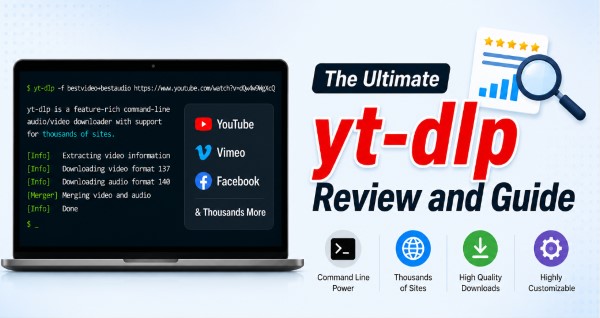
Part 1. What is yt-dlp
It is a free, open-source command-line utility designed to download audio and video from thousands of websites across the web. Originally created as a direct fork of the popular youtube-dl project, it quickly surpassed its predecessor by offering faster development cycles and superior site support.
The software operates through text commands inside a terminal. While this lacks visual button, it grants users control over output resolutions, audio bitrates, and file containers. Furthermore, it integrates smoothly with tools like FFmpeg to stitch separate high-definition video and audio tracks together seamlessly.
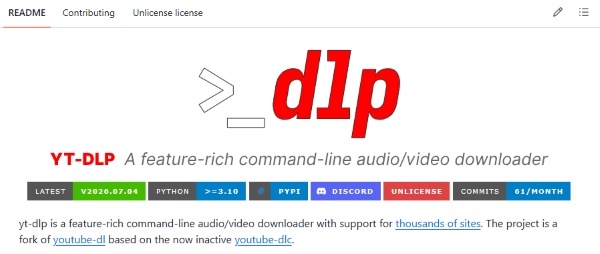
Part 2. Is yt-dlp Safe to Use?
The program is exceptionally safe because its complete source code is entirely transparent and publicly available. Hosted openly on GitHub, the software undergoes continuous security inspection by thousands of independent developers worldwide. This open model guarantees that there are no hidden ad trackers, miners, or malicious code bundled inside the official releases.
 Our Experience:
We have deployed yt-dlp across multiple Windows, macOS, and Linux test benches without encountering any security flags or bloatware. However, you must always obtain executable files directly from the official yt-dlp GitHub releases page to ensure you receive untampered software.
Part 3. How to Use yt-dlp
While typing out commands can feel unfamiliar at first, the initial setup process is quite logical. Once you configure the core files, running video downloads becomes a fast, two-second habit.
Hands-on Note:
During our usage, yt-dlp can pulled 4K and 8K video streams at maximum connection bandwidth. Unlike web-based converters that re-encode files and destroy quality, yt-dlp saves the raw source streams directly to your storage drive.
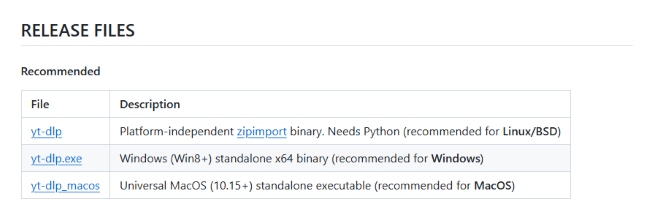
How to Install yt-dlp on Windows/Mac/Linux
The safest method to get yt-dlp on your computer is to navigate to the official yt-dlp GitHub releases page and locate the download table. We also highly recommend downloading FFmpeg alongside the main executable to ensure your system can properly process and merge high-resolution video and audio tracks.
- On Windows, download the latest executable file directly from the GitHub releases page, or run winget install yt-dlp in PowerShell.
- On macOS, open the Terminal app and execute brew install yt-dlp to let Homebrew handle the binaries and system paths automatically.
- On Linux, open your terminal and run your distribution's native package command, such as sudo apt install yt-dlp for Debian or Ubuntu systems.
How to Use yt dlp on Windows
Running command-line utilities on Windows is straightforward once you know how to launch your command prompt inside the program folder. Many beginners encounter path errors because Windows cannot locate the executable if it sits in an unlinked directory. Launching the prompt inside your active folder solves this problem instantly.
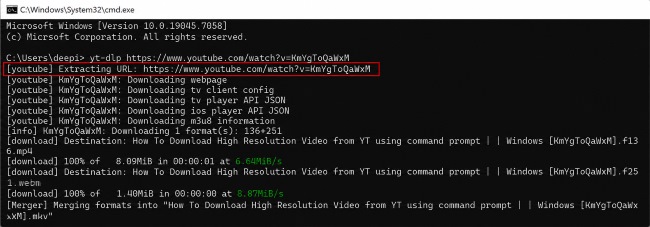
Step 1. Open the folder containing your downloaded yt-dlp.exe file in Windows File Explorer.
Step 2. Click on the address bar at the top, type cmd, and press Enter to launch the Command Prompt in that exact directory.
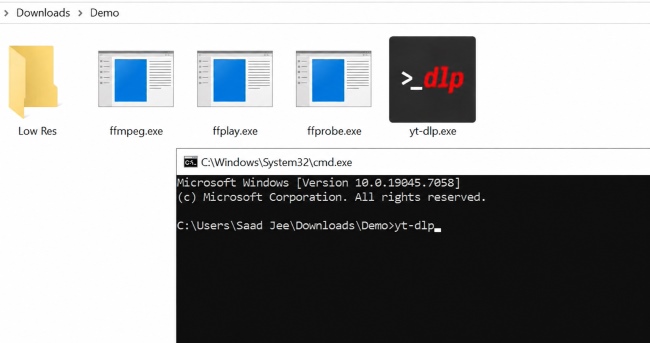
Step 3. Type yt-dlp followed by a space, paste your target video link, and press Enter to start downloading. And your output video file will automatically save into that exact same directory on your hard drive.
How to Use yt-dlp on Mac
Operating terminal software on macOS relies on the built-in Terminal application located inside your Utilities folder. Because macOS enforces strict app permissions, using Homebrew is the most reliable method for installation.
Step 1. Press Cmd + Space to open Spotlight search, type "Terminal", and press Return to open the application.
Step 2. Install the software binaries globally by typing brew install yt-dlp and pressing Return.
Step 3. Type yt-dlp followed by a space and your target video URL to trigger the download instantly.
Part 4. yt-dlp Not Working? Common Errors and Fixes
Media hosting platforms continuously alter their web architecture and API endpoints to frustrate automated download utilities. When a command abruptly fails or throws an unexpected error, applying a few targeted adjustments will usually get your media queue moving again.
 User of yt-dlp:
Community feedback on VideoHelp is generally positive, with users praising yt-dlp's frequent updates, broad website support, and flexibility. The most common criticism is its command-line interface, which can be challenging for beginners. Several experienced users also recommend installing FFmpeg and keeping yt-dlp updated to minimize compatibility issues.
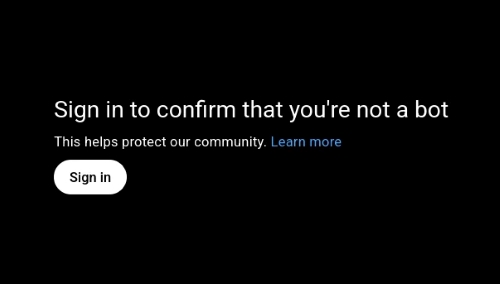
yt-dlp Sign In to Confirm You're Not a Bot
Major video streaming platforms increasingly deploy complex background JavaScript checks alongside strict session tracking. When these security systems flag terminal traffic as automated scraping, the host server blocks anonymous connection attempts and demands user verification.
Step 1. Install a local JavaScript runtime environment, such as Deno or Node.js, on your system. Modern extractor scripts require a local engine to process the complex JavaScript verification challenges sent by host servers.
Step 2. Launch your regular web browser and log into your account on the video platform to establish an authenticated browsing session.
Step 3. Append --cookies-from-browser chrome to your command string, adding extractor-args "youtube:playerclient=websafari" if server blocks persist.
Hands-on Note:
In our testing environment, pairing active browser cookies with a Deno installation bypassed bot-detection walls on age-restricted and member-only streams without triggering account flags.
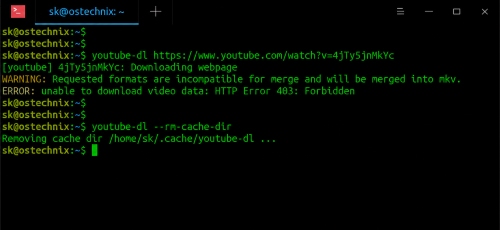
yt-dlp HTTP Error 403 Forbidden
An HTTP 403 response indicates that the destination server recognized your request but explicitly denied access. This denial usually happens when platform developers tweak their streaming chunk protocols or when your connection triggers automated IP throttling.
Step 1. Upgrade your local installation immediately by running yt-dlp -U to fetch the latest community extractor patches.
Step 2. Pace your download requests by adding rate-limiting flags such as --min-sleep-interval 5 to simulate human browsing speeds.
Step 3. Disconnect any active VPNs or commercial proxy networks, as streaming services routinely blacklist IP blocks associated with data centers.
 Quick Fix:
Most 403 Forbidden errors stem from backend platform updates. Running a quick update command resolves the majority of these connection denials instantly.
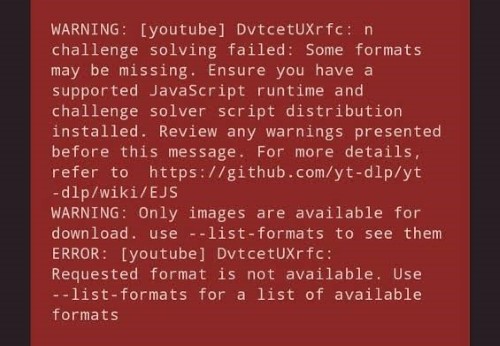
Requested Format Is Not Available
While this error suggests that a specific video resolution or audio track is missing, it is frequently a secondary symptom of a failed background authentication check. If the software cannot execute site scripts properly, it fails to read the full stream manifest and reports that no formats exist.
Step 1. Ensure a supported JavaScript runtime like Deno is properly configured on your machine so stream manifests can be decrypted accurately.
Step 2. Run yt-dlp -F [URL] to view the live list of available stream IDs currently served for that link.
Step 3. Apply a resilient selection argument like f "bestvideo+bestaudio/best" and allow FFmpeg to handle stream merging automatically after downloading.
How to Update yt-dlp:
Maintaining an up-to-date installation is your best defense against broken links and unexpected script errors. Windows users who installed the standalone executable can run yt-dlp -U in the command prompt. If you installed the software on macOS using Homebrew, enter brew upgrade yt-dlp to pull the latest build in seconds.
Part 5. Best yt-dlp Alternative for Beginners
While terminal tools offer unparalleled control for public web content, they are not ideal for every scenario or user. The terminal utilities cannot bypass DRM protection, making them incapable of saving content from subscription-based OTT platforms like Netflix, Disney+, or Amazon Prime Video.
For users seeking a graphical experience or native support for paid streaming platforms, VidiKeep Streaming Video Downloader serves as a specialized software, providing a clean visual interface built around an integrated web browser player. It safely converts DRM-protected streams into offline MP4 or MKV files with 1080p resolutions, providing a convinent solution where command-line tools reach their functional limits.

Download lossless movies and shows from Netflix, Amazon Prime Video, Disney+, Hulu, Max, and Apple TV for offline viewing anywhere.
YouTube Video: How to Use VidiKeep iMazonKit Music Converter
Part 6. Final Verdict: Is yt-dlp Still Worth Using?
yt-dlp continues to be one of the most capable command-line tools for downloading videos and audio from the web. Its broad website support, frequent updates, and extensive customization make it a strong choice for users who are comfortable working in a terminal. If you prefer a simpler workflow or need to save content from subscription-based streaming services, a GUI-based solution like VidiKeep offers a more beginner-friendly alternative.

Jordan Rhodes is a Chief Technical Editor and Media Specialist at VidiKeep, specializing in creating diverse tech content, including streaming tutorials, software reviews, and video encoding tips.
Leave a Comment