Best Ways to Download Apple TV to MP4
Apple TV offers a premium library of cinematic content, but its restrictive file formats often limit where you can watch. Converting Apple TV to MP4 files is the key to unlocking your media library. Whether you need to download Apple TV movie for offline viewing or simply want to archive your collection, we'll explore the most effective methods to master the Apple TV to MP4 process while maintaining high-fidelity visuals.
Part 1. How to Download Apple TV Movies as MP4 Forever
For converting Apple TV movies to MP4, standard video converters often fail due to DRM encryption. If you try to process an encrypted downloaded file, it will simply result in an error or a black screen. The most reliable and straightforward solution is to use a professional video downloader like VidiKeep Streaming Video Downloader. It empowers you to save content from Apple TV to MP4 effortlessly, ensuring a smooth and high-quality video conversion.
- Lossless MP4 Output: Bypasses restrictive encryption, allowing you to download Apple TV movies as MP4 in 1080p resolution while preserving multi-language audio tracks and subtitles.
- Batch Downloading & Metadata: Save time by batch-downloading entire seasons automatically with original metadata to ensure your library remains organized.
- Permanent Offline Playback: Once you convert Apple TV to MP4, you can enjoy the content forever, free from expiration dates, ad interruptions, or internet connection.
- Ultimate Device Compatibility: By transforming restricted files into a universal format, you can easily play MP4 files to any device for instant playback.
Convert and Download Apple TV Movies as MP4 Files
Step 1 Set Your Output Preferences as MP4
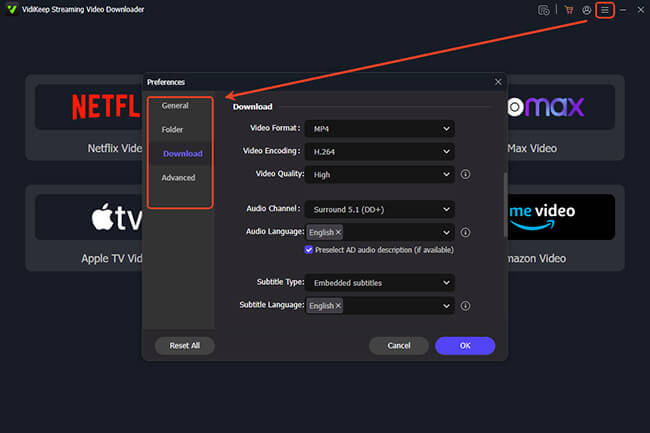
Before you begin the download process, it is a good idea to establish your ideal quality settings. Open the "Menu" at the top of the interface and select the "Preference > Download" tab. Here, you can select MP4 as your file type, choose your preferred video codec for the best balance of quality and storage, and pre-select your default audio and subtitle languages.
Step 2 Access the Apple TV Portal
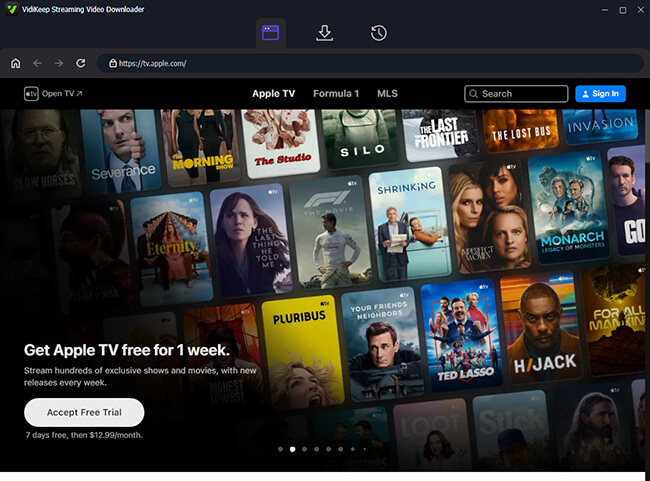
Navigate back to the main dashboard, where you will see a variety of supported platforms. Locate and click on the Apple TV Video icon. This opens a secure, built-in browser window where you can sign in with your Apple account. This ensures the software can safely access the high-quality Apple TV shows with your active subscription.
Step 3 Locate Your Favorite Apple TV Content
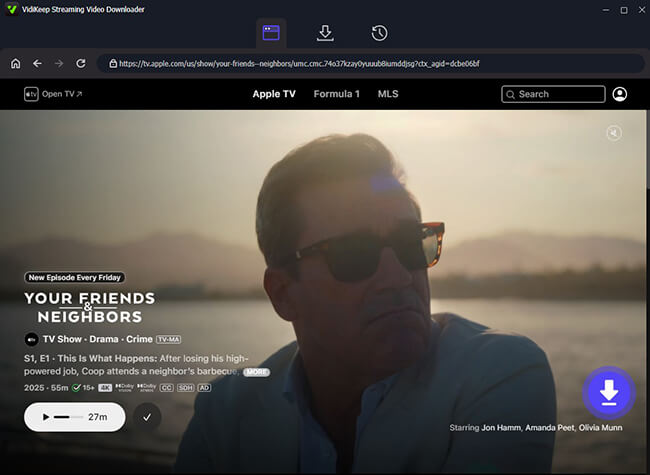
Browse the Apple TV catalog or use the search bar to find the specific movie or series you wish to save. Once you land on the title's information page, a floating "Download" icon will appear in the bottom-right corner. Clicking this button prompts the software to analyze the video data and prepare it for conversion.
Step 4 Finalize and Download Apple TV to MP4
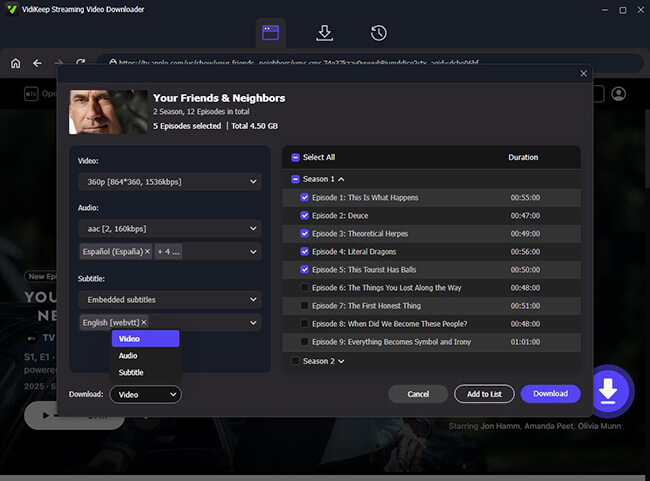
A final settings window will appear, allowing you to double-check your resolution and audio tracks. To start the process, click the final "Download" button. If you are grabbing an entire season, use the "Add to List" feature to queue multiple episodes for batch processing. Once finished, your permanent, DRM-free files will be waiting for you in the "History" section.
 Note on Usage:
While building your offline media collection, please keep in mind that these tools are intended strictly for personal use. We encourage you to always respect copyright guidelines and the terms of service of your streaming providers. By following these best practices, you can watch your Apple TV on any device responsibly and ethically.
Part 2. How to Convert Apple TV Video to MP4 by Screen Recording
If you are struggling with how to convert Apple TV movie to MP4 due to format restrictions, screen recording is a foolproof workaround. This method allows you to capture exactly what is playing on your screen and save it directly as a universal file. It's an ideal Apple TV to MP4 converter alternative for those who want a copy of Apple TV content without navigating overly complex software.
Record Apple TV Movie to MP4 with DemoCreator
Step 1 Launch the Software and Prepare for Recording
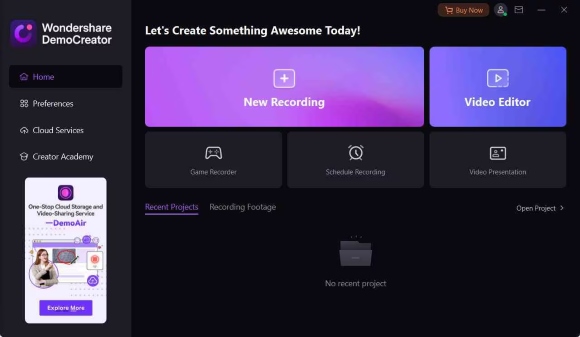
Begin by downloading and installing the software on your computer. Once the installation is complete, launch the program and click the "New Recording" button on the main dashboard. This will open the recording console where you can customize your capture area and input settings.
Step 2 Define the Capture Area and Audio
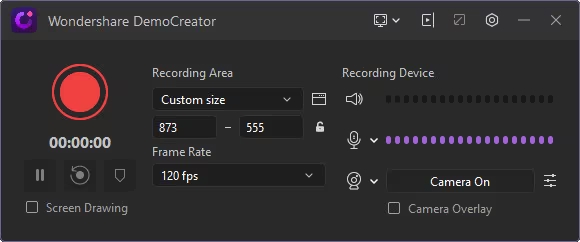
Open the Apple TV video you wish to record. For a better Apple TV to MP4 conversion, carefully adjust the recording frame to fit the playback window perfectly. In the settings panel, make sure "System Audio" is enabled to capture the movie's sound clearly, and remember to disable the microphone to prevent any background room noise from being recorded.
Step 3 Export Your Apple TV Video as MP4
When everything is set, click the red "REC" button to start. For the best visual results, play your Apple TV content in full-screen mode. Once the movie or clip ends, press Shift + Command + 2 to stop the session. Finally, click "Export" in the top right corner, select MP4 from the format options, and click Export again to save your permanent video file.
Part 3. Bonus Tips: Convert DRM-Free Apple TV Videos to MP4
If you simply have personal recordings or unencrypted files in your library. For these DRM-free videos, you do not need Apple TV downloader or recording software; instead, a standard video MP4 converter can handle the task in seconds. These tools are ideal for managing home movies or unprotected files that you want to make compatible with non-Apple devices.
Apple TV to MP4 Converter Online: FreeConvert and CloudConvert
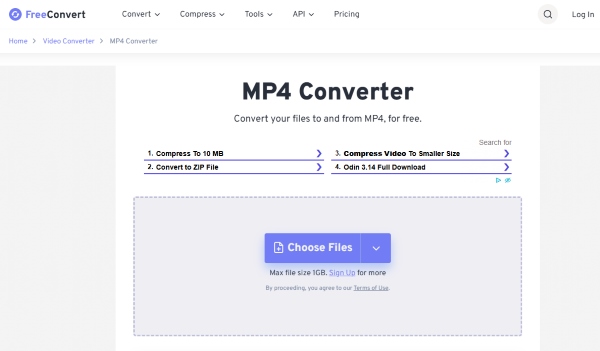
For those who prefer a "no-install" approach, using an Apple TV Videos to MP4 converter online like FreeConvert or CloudConvert is incredibly convenient. These web-based platforms allow you to transfer Apple TV download to MP4 directly through your browser.
How to use Online Video M4V Converters:
- Visit the converter website and click "Choose Files" to upload your Apple TV video.
- Ensure that the "Convert to" field is set to MP4. Then click the "Convert" button. Once the cloud servers finish the task, click "Download" to save your new MP4 file.
Note:
These online services have specific limitations. FreeConvert typically limits free users to files under 1GB, while CloudConvert operates on a daily conversion-minute allowance. If you are dealing with large, high-definition feature films, you may hit these file size restrictions quickly.
HandBrake: The Versatile Local Transcoder
HandBrake is a highly regarded, open-source video transcoder that operates across multiple platforms to facilitate seamless video conversion. It is a fantastic free option to convert Apple TV file to MP4 when dealing with unencrypted content. It is particularly effective if you need to convert Apple TV to MP4, provided the file is not locked by FairPlay DRM. However, it is important to remember that HandBrake is not a decryption tool; it cannot remove DRM protection from purchased iTunes movies or TV shows.
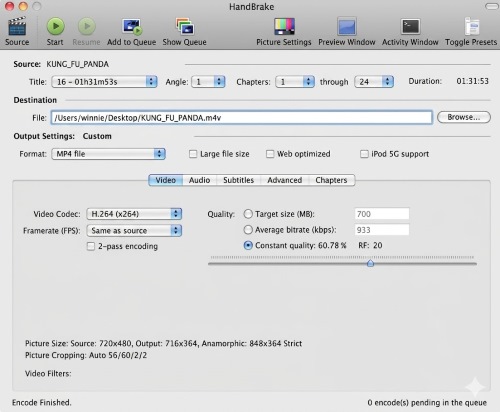
How to use HandBrake for DRM-Free files:
- Open HandBrake and load your unprotected Apple TV file into the main window.
- Under the "Output Setting" tab, ensure the format dropdown menu is set to "MP4".
- Choose your destination folder at the bottom of the screen, then click the "Start Encode" button to begin the conversion.
Part 4. Conclusion
Mastering how to download Apple TV movies as MP4 process is the key to a truly universal media library. If your goal is to download MP4 files from Apple TV directly, VidiKeep is the most efficient solution available. For those needing a manual workaround, screen recording serves as a reliable Apple TV to MP4 converter alternative. Also, HandBrake and online tools offer quick results for DRM-free personal files.

Jordan Rhodes is a Chief Technical Editor and Media Specialist at VidiKeep, specializing in creating diverse tech content, including streaming tutorials, software reviews, and video encoding tips.
Leave a Comment