How to Get Apple TV on Hisense Smart TVs
 Quick Pick: Get Apple TV on Hisense TV
Getting your favorite Apple Originals onto a Hisense screen is usually a breeze, but there is one major hurdle: the manufacturer uses several completely different operating systems (Google TV, Roku, Fire TV, and VIDAA) across its lineup. Your best approach is to choose the method for your models. Here are four reliable options to watch Apple TV on your Hisense TV:
- Native App: Search for "Apple TV" in the Google Play, Roku, or VIDAA store on your TV's home screen.
- AirPlay Casting: Stream Apple content directly from your iPhone to compatible Hisense TVs over Wi-Fi.
- Apple TV 4K Box: Plug a dedicated Apple streaming device into an HDMI port for a lag-free experience.
- USB Workaround: Save episodes to a flash drive via desktop software and play them on unsupported TVs.
Method 1: How to Install the Apple TV App on Hisense TV (Native App)
I've set up the Apple TV app on several Hisense models, and the biggest hurdle is simply figuring out which operating system your screen uses. Hisense doesn't stick to one software platform—they use Android TV, Roku OS, and their own VIDAA system.
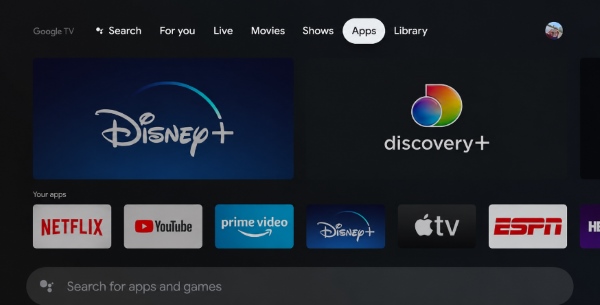
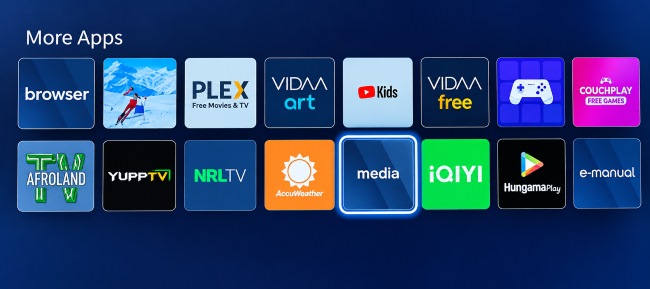
- For Android TV (or Google TV) Models: On screens featuring the Google interface, grab your remote and press the Home button. Navigate over to the Apps tab and open the Google Play Store. Search for "Apple TV" and hit Install.
- For Roku TV Models: For those looking at the classic Roku grid, press Home and scroll down the left-hand menu to Streaming Channels. This opens the Roku Channel Store. Search for "Apple TV" and select Add Channel.
- For VIDAA OS Models: Displays without any Google or Roku branding are almost certainly running Hisense's proprietary VIDAA software. To get started here, press Home, navigate to My Apps, and open the App Store. Run a quick search for "Apple TV" and select Install.
After the download finishes, launch the application to sign in. I highly recommend using your phone to scan the on-screen QR code when that option pops up, which can help syncs your account instantly.
 Watching Apple TV on Hisense TV Using Browser:
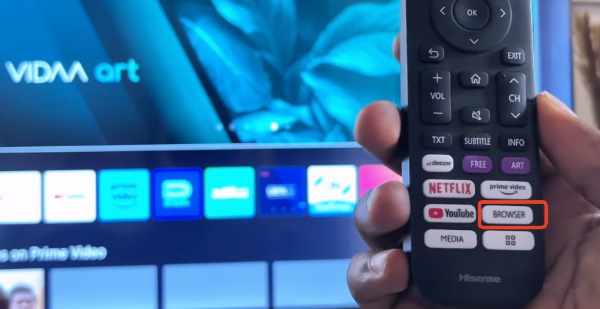
Some users prefer skipping the installation process altogether, and most Hisense smart displays come equipped with a native web browser right on the main dashboard. Open the browser application, type tv.apple.com, and log in using your Apple Account to stream Apple TV through the web interface. It serves as a perfectly viable quick fix when you just want to watch a specific movie without dealing with app stores.

Can't Find the Apple TV App in the Store on a Hisense TV? You can check your TV's system settings for pending software updates. When the system is fully current but the app remains hidden, you can use the offline USB workaround or the wireless casting options we cover next.
Method 2: Watch Apple TV on Hisense via USB (The Universal Solution)
What if your Hisense TV is too old to support the Apple TV app? Or perhaps you want to avoid buffering caused by an unreliable internet connection. In either case, playing compatible video files from a USB drive can be a practical alternative.
One desktop option worth considering is VidiKeep Streaming Video Downloader. It supports downloading Apple TV movies and shows on Windows and Mac, with video quality of up to 1080p. It also offers audio and subtitle selection features. Then copy the downloaded MP4/MKV Apple TV video file to a USB flash drive and connect it to your Hisense TV. This lets you watch locally stored content without relying on the Apple TV app or maintaining an active internet connection during playback.
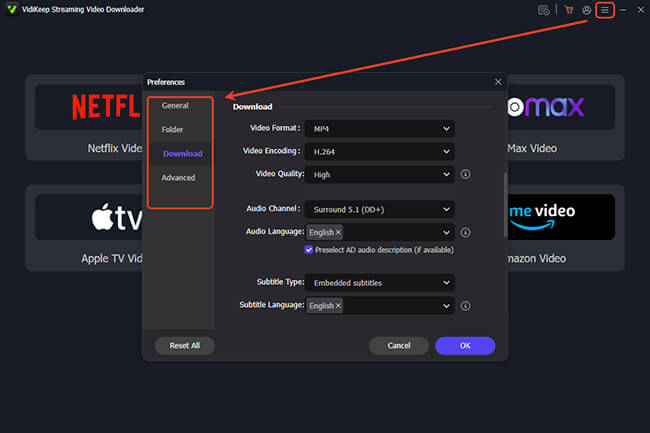
Step 1. Open Vidikeep on your computer and pull up the Menu. Navigate to Preferences> Download and set your output format to get Apple TV video in MP4. Hisense's built-in media player tends to read this standard file type seamlessly.
Step 2. Click the Apple TV icon on the main dashboard to open a secure built-in browser. Log in with your Apple Account so the software can recognize your active subscription and load the streaming catalog. Browse the series you want to watch on Hisense TV. When you reach the title's main page, click the floating Download icon to let the software analyze the video feed.
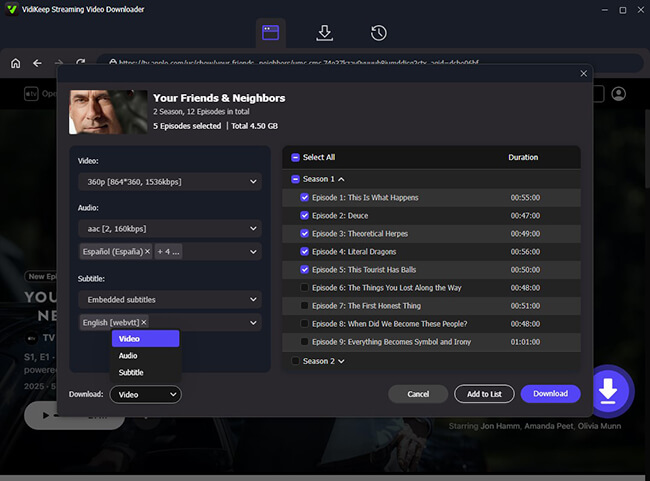
Step 3. Double-check your resolution and subtitle preferences, then start the download. You can queue up entire seasons at once for batch processing. When the process wraps up, simply drag the new MP4 files onto a USB flash drive, plug it into the back of your Hisense TV, and launch the media player to watch Apple TV offline.
Method 3: Use Apple AirPlay on Hisense TV for Screen Mirroring
If you prefer navigating on your phone and casting the video to the big screen, you are in luck. Most Hisense TVs manufactured from 2020 onward natively support Apple AirPlay 2.
Step 1. Verify that your iPhone, iPad, or Mac and your Hisense TV are connected to the same Wi-Fi network.
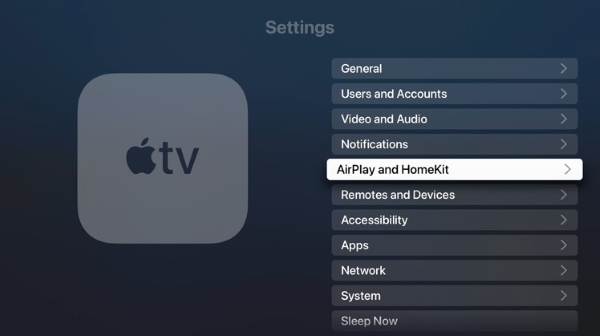
Step 2. On your Hisense TV, go to Settings > Connection (or Network) > Apple AirPlay and HomeKit and ensure the feature is turned on.
Step 3. On your Apple device, swipe down to open the Control Center and tap the Screen Mirroring icon (the two overlapping rectangles).
Step 4. Select your Hisense TV from the list. A passcode will typically appear on your TV screen; type it into your mobile device to establish a secure connection.
Method 4: Connect Apple TV to Hisense TV (Physical 4K Box)
For home theater enthusiasts who want a premium, lag-free user interface and top-tier video processing, connecting a dedicated Apple TV 4K hardware box is often the best route.
When hooking up the physical box, always try to plug the HDMI cable into the HDMI 2.1 port on the back of your Hisense TV. Utilizing a high-bandwidth port ensures your display can handle advanced formats like 4K HDR and Dolby Vision.
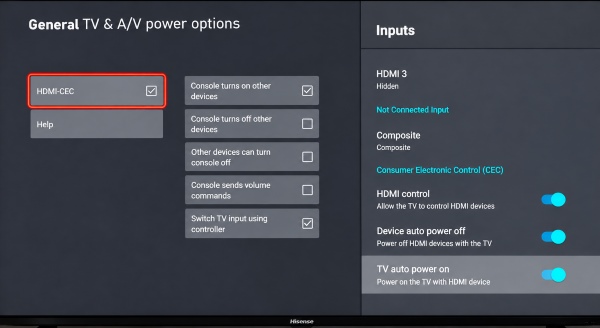
Furthermore, I highly suggest diving into your Hisense TV's connection settings to enable HDMI-CEC. Once activated, this clever feature allows the sleek aluminum Apple remote to control your Hisense TV's volume and power state, saving you from juggling multiple remotes on the couch.
Troubleshooting: Apple TV App Not Working on Hisense TV?
Even with a perfect setup, you might run into occasional software hiccups. Based on extensive hands-on experience, most streaming bugs on Hisense TVs come down to two easily fixable networking issues.
Fix 1: The App Refuses to Log In (Sync Your System Time)
If the Apple TV app gets stuck in a login loop or repeatedly fails to authenticate your account, check your Hisense TV's date, time, and time zone. Incorrect time settings can interfere with connections to online services, so enabling automatic time synchronization is a useful troubleshooting step.
Step 1. Grab your Hisense remote and press the gear icon to pull up the main settings menu.
Step 2. Navigate over to System (or Device Preferences if you are using a Google TV model) and select the Date & Time option.
Step 3. Toggle the network time setting to Automatic so the television can perfectly sync its internal clock with the real-world servers.
Fix 2: AirPlay Keeps Dropping (Match Wi-Fi Bands)
When testing AirPlay on my own network, I noticed that dual-band routers can sometimes cause visibility issues. If your Hisense TV is connected to your router's 2.4GHz Wi-Fi band, but your iPhone is on the faster 5GHz band, AirPlay will frequently stutter or fail to connect entirely. To ensure a stable casting experience, double-check your network settings and make sure both devices are assigned to the exact same 5GHz network. Additionally, be sure to temporarily disable any active VPNs on your mobile device, as they can block local network discovery.
Fix 3: Apple TV Library Not Showing on Hisense TV (Check Your App Version)
If your purchased movies or TV shows are missing from the Apple TV app on your Hisense TV, first check whether your TV model and region support Library access. Open the app and look for Library in the sidebar. If available, make sure you are signed in with the Apple Account used to purchase the content.
If the Library option is missing, the issue may be related to device compatibility or regional availability rather than the app version itself. Try updating the app and your TV's VIDAA system. If your TV still does not support Library access, consider using an external streaming device or connecting a compatible computer via HDMI to watch your purchased content.
Conclusion
Getting Apple TV up and running on a Hisense display doesn't have to be complicated. By identifying your specific operating system first, you can easily download the native app or set up wireless casting via AirPlay. And even if you run into compatibility roadblocks with older television models, reliable fallbacks like dedicated Apple TV hardware or DRmare's offline USB solution ensure that you never have to miss out on your favorite shows.

Jordan Rhodes is a Chief Technical Editor and Media Specialist at VidiKeep, specializing in creating diverse tech content, including streaming tutorials, software reviews, and video encoding tips.
Leave a Comment