Can Apple TV Play MKV Files? 3 Easy Solutions
"I have a few movies as .mkv files on my MacBook. What would be the easiest way to watch them on the Apple TV? I don't want to get a subscription app or one that costs a lot. Are there any other ways to do this?" —Reddit
Want to watch MKV files on your Apple TV but don't know where to start? In this guide, we'll walk you through three practical solutions to play MKV files on Apple TV, from file conversion to media player apps streaming based on your needs.
- Best Compatibility: Convert MKV files to an Apple TV-supported format for smooth playback. —Part 2
- Quickest Option: Use AirPlay from a Mac to stream MKV files without converting them. —Part 3
- Best for Large Library: Install media players like Infuse or Plex for a more flexible viewing experience. —Part 4
Part 1. Can you play MKV files on Apple TV?
No, you cannot play MKV files natively on an Apple TV. If you try to open a MKV file using the default Apple TV app or sync it directly through your standard Apple ecosystem, you will immediately run into an "unsupported format" error. Apple deliberately designs its software ecosystem to prioritize tightly optimized formats like MP4, M4V, and MOV.
Part 2. Convert MKV to an Apple TV-Compatible Format
If you prefer to keep your media seamlessly organized inside the official Apple TV app, conversion is your best and most permanent route. By changing the MKV container into a native MP4 or M4V file, you ensure flawless playback across all your Apple devices without relying on third-party players.
VidiKeep Streaming Video Downloader stands out as an all-in-one video downloader that allows you to grab content from Apple TV and other major streaming platforms like Netflix, Amazon Prime Video, Disney+, and Hulu. Instead of worrying about format compatibility on your Apple TV devices, VidiKeep lets you download these streams natively as high-quality MP4 files right from the start.

Download your favorite Originals, movies, and shows to MP4 with zero quality loss for offline viewing on Apple TV.
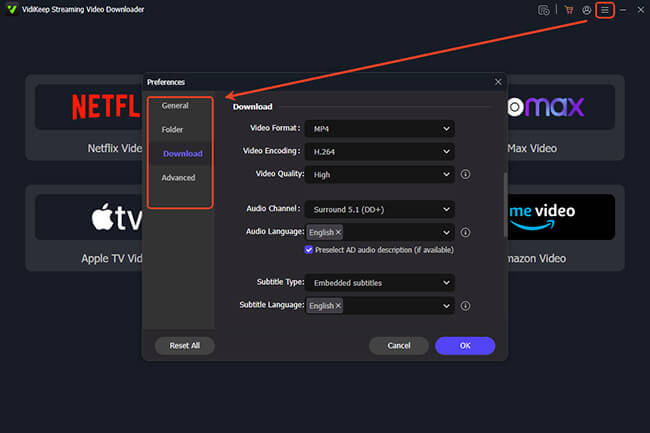
How to Convert Apple TV/Netflix/Prime Videos to MP4
Part 3. Stream MKV to Apple TV via AirPlay from Mac
If you don't want to convert your MKV files, AirPlay offers a quick and convenient way to stream videos from your Mac to Apple TV. This method is ideal for occasional viewing because it doesn't require changing the file format or transferring the video to another device.
However, there's one limitation: QuickTime Player doesn't support MKV files, so you can't AirPlay them directly. Instead, you'll need to open the video with a third-party media player that supports both MKV playback and AirPlay, such as VLC Media Player or Elmedia Player.
Steps to AirPlay MKV from Mac to Apple TV
Step 1. Make sure your Mac and Apple TV are connected to the same Wi-Fi network.
Step 2. Install and launch a compatible media player, such as VLC Media Player, and pen the MKV file in the media player.
Step 3. Click the "AirPlay" icon or choose "Screen Mirroring" from the macOS Control Center, then select your Apple TV from the available devices.
Step 4. The MKV files should begin playing on your Apple TV, and you can control playback directly from your Mac.
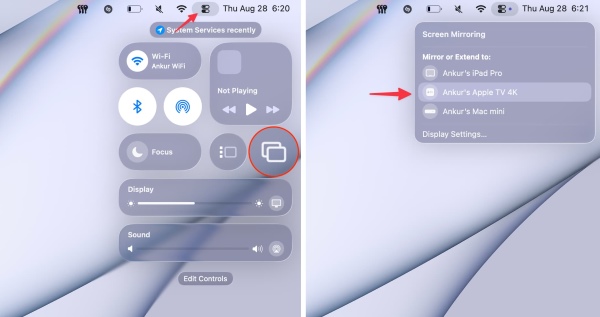
 Tips for Smooth MKV Streaming via AirPlay:
AirPlay works best with 1080p or smaller MKV files. Very large 4K HDR videos with high bitrates may experience buffering or audio sync issues. For frequent playback or a large local video library, AirPlay may not provide a stable viewing experience. If subtitles don't display correctly, try switching to another media player, as subtitle compatibility varies between players.
Part 4. Play MKV on Apple TV with Dedicated Media Players
If you do not want to convert files and prefer not to stream from a computer, bypassing Apple's default video player entirely is another fantastic alternative. You can download dedicated media players directly from the tvOS App Store. These applications come equipped with their own internal codecs, allowing them to decode and display MKV files directly on the Apple TV:
-

Infuse
Widely regarded as the best Apple TV media player, Infuse plays most MKV files without conversion, including many 4K HDR videos, while automatically adding artwork and metadata for a polished viewing experience.
-
VLC
VLC is a free, open-source media player that supports MKV playback on Apple TV. Its Remote Playback feature lets you wirelessly transfer files from your computer over the same local network.
-
Plex
Plex is ideal for large movie libraries, organizing media stored on your PC, Mac, or NAS, and streaming MKV files to Apple TV with subtitles, metadata, and watch progress synced.
How to Set up Infuse to Play Your MKV Library on Apple TV
If you are dealing with high-bitrate 4K MKV files, Infuse is hands-down the best solution. It simply connects to your standard shared folders over Wi-Fi and plays the files flawlessly.
Step 1. Open the App Store on your Apple TV, search for "Infuse," and install the application. Ensure the Mac or Windows PC containing your MKV files is turned on, connected to the same local network, and has "File Sharing" (SMB) enabled in its system settings.
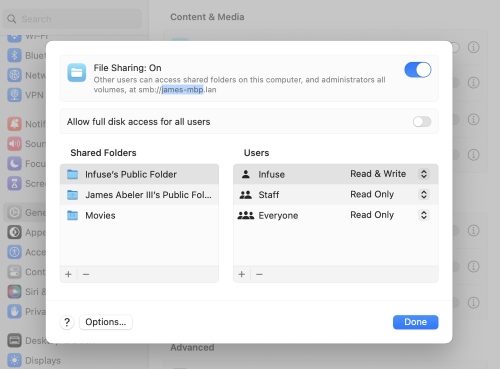
Step 2. Launch the Infuse app on your television, navigate to the "Settings" menu, select "Shares", and click "Add Share". Look under the "Available Shares" section and select your computer. You will be prompted to enter your standard computer login credentials to grant the app access.
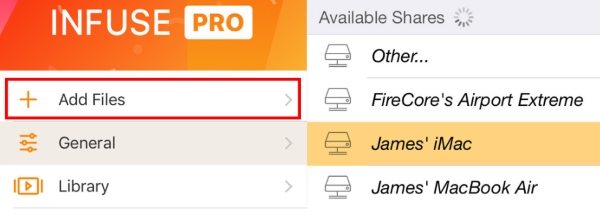
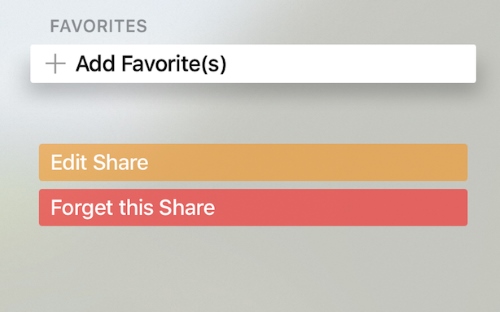
Step 4. Once connected, browse through your computer's folders within the app. Select the specific folder where your MKV files are saved and add it to your "Favorites". Infuse will scan that folder and automatically organize your files. You can now click on any MKV movie and enjoy smooth playback right on your TV.
Part 5. Which Is the Best Way to Play MKV on Apple TV?
| Method | Ease of Use | Speed | Offline Playback | Best For |
|---|---|---|---|---|
| Convert with VidiKeep | Easy | Medium | ✅ | Permanent playback on Apple TV |
| AirPlay from Mac | Easy | Instant | ❌ | One-time streaming |
| Infuse | Easy | Instant | ✅ | Premium local media playback |
| VLC | Easy | Instant | ✅ | Casual users |
| Plex | Moderate | Initial setup required | Depends | Home media server and multi-device streaming |
If you just want a quick movie night, a third-party media player like VLC or Infuse works wonders. But if you are building a pristine, long-term digital library, taking the time to convert your files into MP4 format using VidiKeep is easily the best investment you can make.

Jordan Rhodes is a Chief Technical Editor and Media Specialist at VidiKeep, specializing in creating diverse tech content, including streaming tutorials, software reviews, and video encoding tips.
Leave a Comment