How to Watch Apple TV on Chromecast (Mobile & PC)
Since Apple TV and Chromecast belong to different streaming ecosystems, the way you watch Apple TV on Chromecast depends on your device and setup. While Chromecast with Google TV supports the Apple TV app directly, older Chromecast models may require alternative casting methods. In this guide, we’ll explain how to watch Apple TV on Chromecast and how to cast Apple TV content from desktop and mobile devices, helping you find the right solution for your preference.
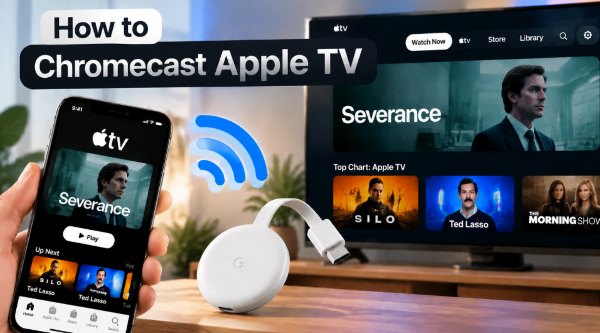
Part 1. Can You Chromecast Apple TV?
Whether you can Chromecast Apple TV depends on the Chromecast model you use. Chromecast with Google TV supports the Apple TV app, allowing you to install the app directly and watch Apple TV content without using another device for casting. However, older Chromecast models do not have an app store and need a phone, tablet, or computer to send supported content to your TV.
| Method | Best For | Requirement |
|---|---|---|
| Apple TV App on Google TV | Direct playback with built-in app support | Chromecast with Google TV (HD or 4K) |
| Apple TV App on Smart TV | Watching without an external streaming device | Compatible Smart TV with Android TV or Google TV |
| Chrome Browser Casting | Casting from a computer | Windows/Mac computer with Google Chrome |
| Mobile Casting Apps | Screen mirroring or supported local media | iPhone/Android device, Chromecast, and same Wi-Fi network |
Part 2. How to Watch Apple TV on Chromecast
If you own the newer generation of Google streaming hardware, you do not actually need to cast anything from your phone. Google and Apple support each other's software, meaning you can install the application directly onto the device.
Method 1. Install Apple TV App on Chromecast with Google TV
Using the official app is the most reliable way to watch Apple TV originals. It eliminates battery drain on your phone and supports high-end audio and video formats like Dolby Vision.
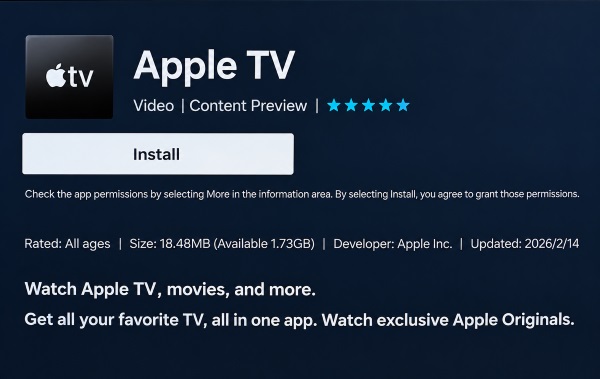
Step 1. Turn on your television to the Chromecast with Google TV home screen, navigate to the "Apps" tab, or hold the Google Assistant button on your remote and say "Find Apple TV".
Step 2. Select the official Apple TV app from the search results, click "Install", and wait a brief moment for the application to finish downloading and installing on your streaming dongle.
Step 3. Launch the app and sign in using your Apple Account credentials. Once authenticated, your full Apple TV library, watch history, and purchased content will be ready to stream immediately.
Method 2. Watch Apple TV Through Chromecast-Compatible Smart TVs
Many modern televisions from Sony, Hisense, and TCL come with Chromecast functionality built directly into the screen. These TVs run on the Android TV or Google TV operating systems. Because they share the same software architecture as the standalone dongles, you can access the Google Play Store directly on the television. Search for the Apple TV app in the TV's native app store, install it, and log in with your Apple Account. This bypasses the need for any external casting hardware entirely.
Part 3. How to Cast Apple TV to Chromecast (Desktop & Mobile)
Older generations of the Chromecast (Gen 1, 2, 3, and Ultra) do not have an app store or a visual operating system. They rely strictly on receiving signals from another device. Because the Apple TV mobile app for iOS lacks a native Google Cast button, you must use alternative methods to push the video to your screen.
Method 1. Cast Apple TV-Compatible Videos from Chrome Browser
If you have a computer handy, the Google Chrome browser serves as an excellent bridge between your Apple account and your television.
Option 1: The Apple TV Web Player
Step 1. Launch the Google Chrome browser on your Windows PC or Mac computer. Access the official Apple TV web player directly from your desktop browser.
Step 2. Log into your Apple Account credentials. Browse through the library and select the specific movie or television show you want to watch on your big screen to begin the media playback.
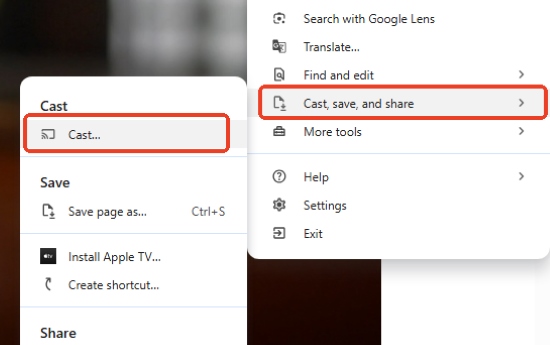
Step 3. Look at the top right corner of your Chrome browser window and click the three-dot menu icon. From the dropdown list, find and select the "Cast..." option to open the casting menu.
Step 4. A small window will appear listing available devices on your network. Click on your Chromecast's name to instantly mirror your current browser tab straight to your television display.
Option 2: Open Local Files on Chrome Browser and Cast
Streaming directly through a web browser can sometimes lead to buffering, audio lag, or playback limits imposed by platform restrictions. A seamless way around these hiccups is to save your content locally before watching. By using a tool like VidiKeep Streaming Video Downloader, you can save movies and shows from streaming services directly to your Windows PC or Mac as universal, DRM-free files with full metadata intact.

Save your favorite Apple TV videos as Chromecast-friendly MP4 files and cast local media to your TV for flexible offline playback anytime.
 Limitations:
Keep in mind that Chrome and Chromecast do not natively support MKV video playback, which often leads to missing audio or playback errors. Choosing MP4 as your output format ensures your Apple TV files play and cast smoothly.
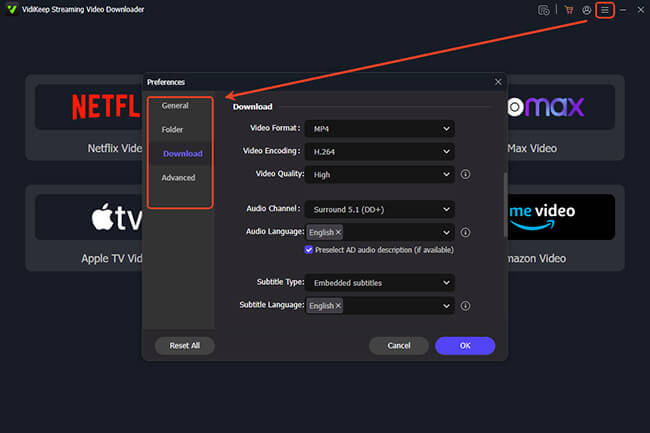
Step 1. Install Vidikeep Streaming Video Downloader on your PC or Mac. Select MP4 as your output format and download Apple TV movies and shows on your computer to ensure a smooth cast with high-quality video.
Step 2. Launch Google Chrome on your computer. Press "Ctrl + O" (or "Cmd + O" on Mac), or drag the downloaded MP4 file into an open tab to begin playing your local Apple TV media directly inside the Chrome browser.
Step 3. Once the video plays in the tab, click the three-dot menu in Chrome's top-right corner, select "Cast," and pick your Chromecast device to beam the local video file straight to your television.
Method 2. Cast from Mobile Using Chromecast Apps
For Android users, the official Apple TV app provides Google Cast support. iPhone users can use Chromecast-compatible apps for supported videos and local media, but direct casting from the Apple TV app is limited because Apple uses AirPlay instead of Google Cast. For iPhone users who want to mirror their mobile screen to a Chromecast-connected TV, PigeonCast provides a cross-platform screen mirroring solution.
Step 1. Download PigeonCast from the App Store or Google Play Store on your iPhone, iPad, or Android phone. Open the app and make sure your phone and Chromecast device are connected to the same Wi-Fi network.
Step 2. Launch PigeonCast and allow it to search for available casting devices. Select your Chromecast or Google Cast-enabled TV from the list to establish the connection.
Step 3. Tap the mirroring option and share your mobile screen with your TV. You can display compatible videos, photos, apps, and other supported content from your phone on the larger screen.
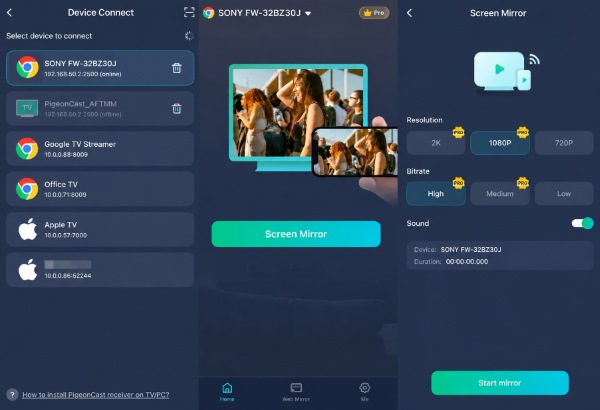

Due to DRM restrictions, third-party mirroring apps may not work reliably with protected Apple TV app content, sometimes resulting in a black screen or playback errors. For users who want to cast downloaded local media files to Chromecast, Vidikeep can help convert videos into Chromecast-friendly formats for a more reliable viewing experience.
Part 4. Troubleshooting: Apple TV on Chromecast Not Working
Technology occasionally fails, and cross-platform integrations are particularly prone to connection hiccups. If you are experiencing issues with the app crashing, video buffering, or sound cutting out, try these troubleshooting steps.
- Check your network bands. Routers often broadcast both 2.4GHz and 5GHz networks. Ensure your casting device and your television receiver are on the exact same band, not just the same router.
- Reboot the hardware. Unplug the Chromecast dongle from the power outlet (not just the HDMI port) for thirty seconds, then plug it back in to clear the cache.
- Update the firmware. If the Apple TV app keeps crashing on your Google TV, navigate to your system settings and check for a pending operating system update.
- Address audio sync issues. If you have no sound or delayed sound, go into the Google TV audio settings and toggle the "Surround Sound" option from auto to manual, disabling formats your television might not support.
Part 5. Chromecast vs Apple TV: Features Comparison
If you are tired of dealing with workarounds and are considering purchasing a dedicated streaming box, the Apple TV 4K and the Chromecast with Google TV represent the two distinct ends of the market.
The Apple TV 4K is a premium piece of hardware with a high price tag, boasting an incredibly fast processor, zero advertisements on the home screen, and deep integration with iPhones and AirPods. Conversely, the Chromecast is a budget-friendly powerhouse that hides behind your TV, offering excellent 4K HDR support and an interface heavily focused on Google's content recommendations.
| Feature | Apple TV 4K (3rd Gen) | Chromecast with Google TV (4K) |
|---|---|---|
| Starting Price | $129 | $49.99 |
| Max Resolution & HDR | 4K, HDR10+, Dolby Vision | 4K, HDR10+, Dolby Vision |
| Operating System | tvOS (App-centric UI) | Google TV (Content-centric UI) |
| Smart Assistant | Siri | Google Assistant |
| Casting Protocol | AirPlay | Google Cast |
| Storage Capacity | 64GB or 128GB | 8GB (Highly limited for apps) |
| Ecosystem Integration | Excellent for iPhone/Mac users | Excellent for Android/PC users |
Part 6. Final Thought
While navigating the Apple TV app on Chromecast might require a few specific steps, the ecosystem integration is much stronger today than it was a few years ago. If you own a modern Google TV device, the native application provides a stellar viewing experience. If you are relying on older hardware, keeping your Google Chrome browser updated or keeping a handy screen mirroring app on your phone will ensure you never miss an episode of your favorite show.

Jordan Rhodes is a Chief Technical Editor and Media Specialist at VidiKeep, specializing in creating diverse tech content, including streaming tutorials, software reviews, and video encoding tips.
Leave a Comment